# Attendance Policy
The Attendance Policies section in RadixHR allows administrators to define how employee attendance is recorded, calculated, and managed. These policies control working hours rules, attendance calculation methods, request handling, and overtime behavior.Attendance policies can be created and assigned to employee groups to ensure consistent attendance tracking across the organization.
# Primary Info
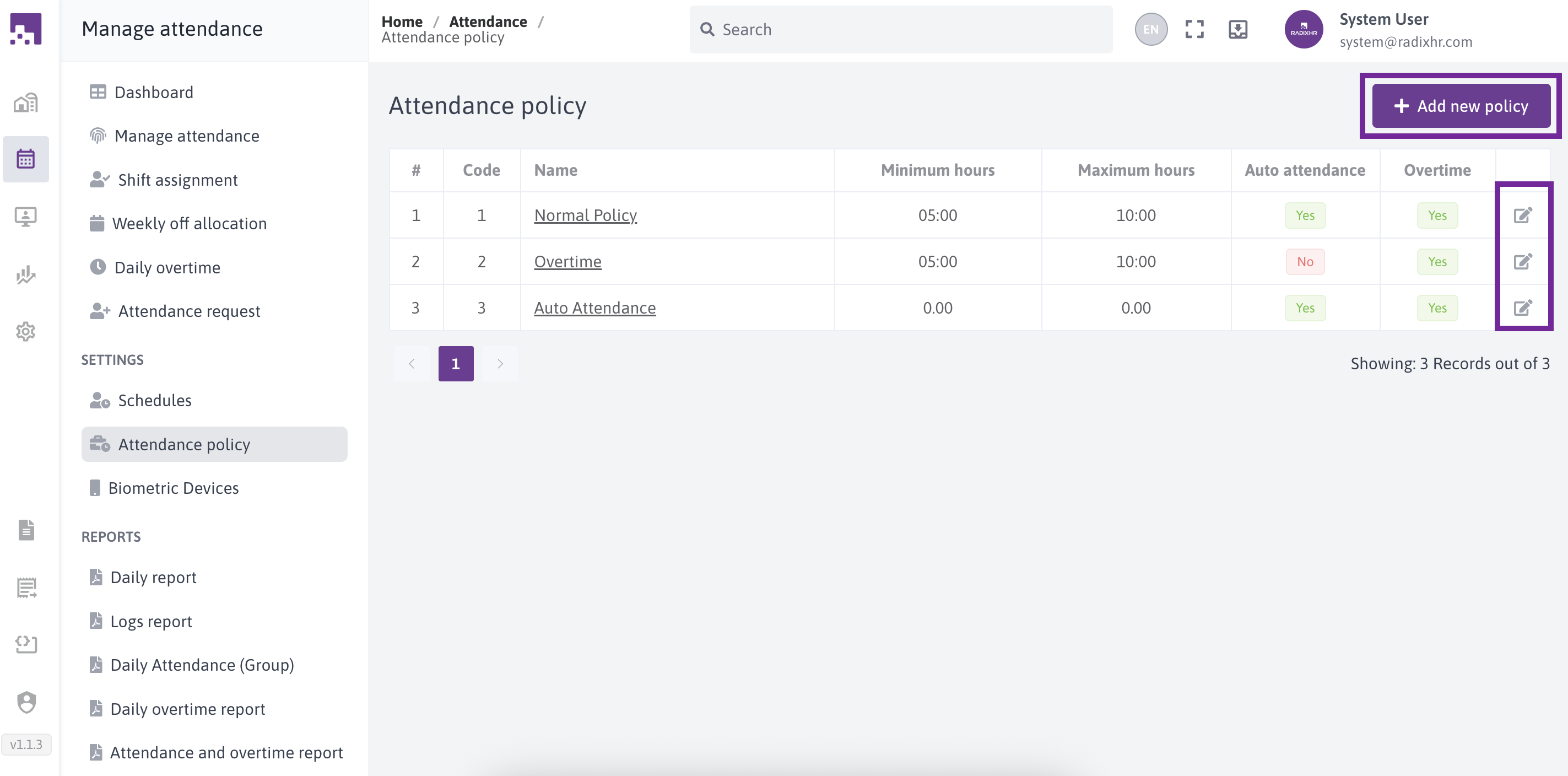
In this screen we can see 2 options to add new policy add edit policy
# Add new policy
To add new policy, click add new policy button on the top of the page
# Add / Edit Attendance Policy
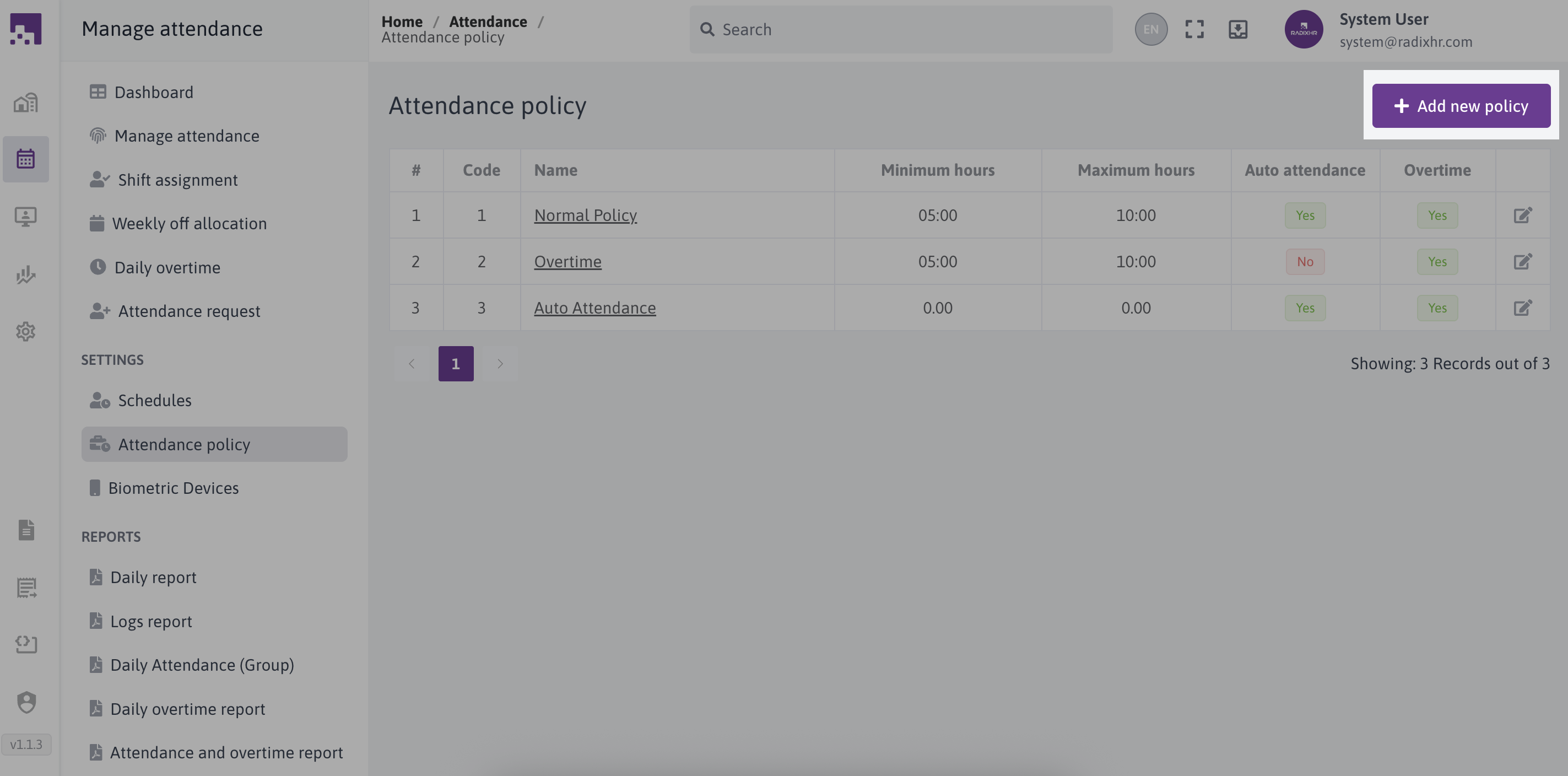
This page is used to create a new attendance policy or update an existing one.
# Policy Name
Description: Enter a unique and meaningful name for the attendance policy.
In this section, you need to provide the name mandatory
Example: General Shift Policy, Factory Shift A
# Policy Code
Description: A short identifier for internal reference.
Example: GSP01, FS-A
# Minimum Working Hours
Description: Defines the minimum number of hours an employee must work in a day to be considered present.
Format: HH:MM
Example: 08:00 (Minimum Working Hours)
# Maximum Working Hours
Description: Sets the maximum working hours allowed per day.
Format: HH:MM
Example: 10:00 (Maximum Working Hours)
# Enable Auto Attendance
- Description: Enable this feature if you want the system to automatically mark attendance for a group of employees every day.
# Enable Time Before Shift
- Description: Specify the time before an employee's scheduled shift when their attendance should be considered early in.
# Round Attendance Total Hours
Description: Choose whether to round the recorded attendance time to the next or previous fraction of the time.
After enabling Round Attendance Total Hours, the Configure total hours round policy will be activated
# Configure total hours round policy
Description: After selecting Backward or Forward, an additional dropdown is enabled to select the round option
Options: backward | forward
# Use First In / Out for Total Hours Calculation
- Description: Description:Calculates total working hours using the first punch-in and last punch-out of the day, ignoring intermediate punches.
# Attendance Requests
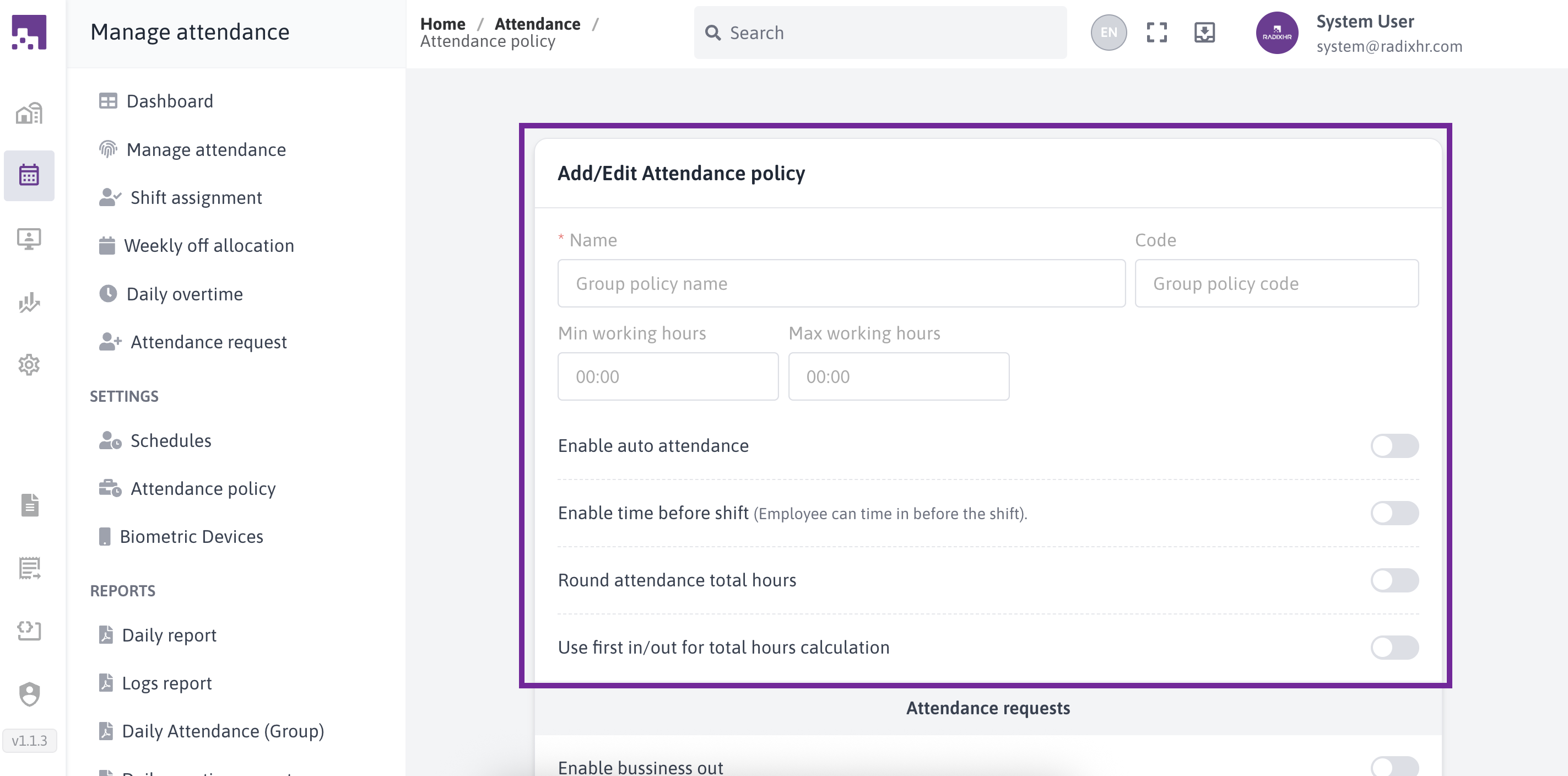
These settings control employee attendance-related requests.
# Enable Business Out
- Description: Allows employees to submit business out requests during working hours.
# Enable Personal Out
- Description: Allows employees to submit personal out requests.
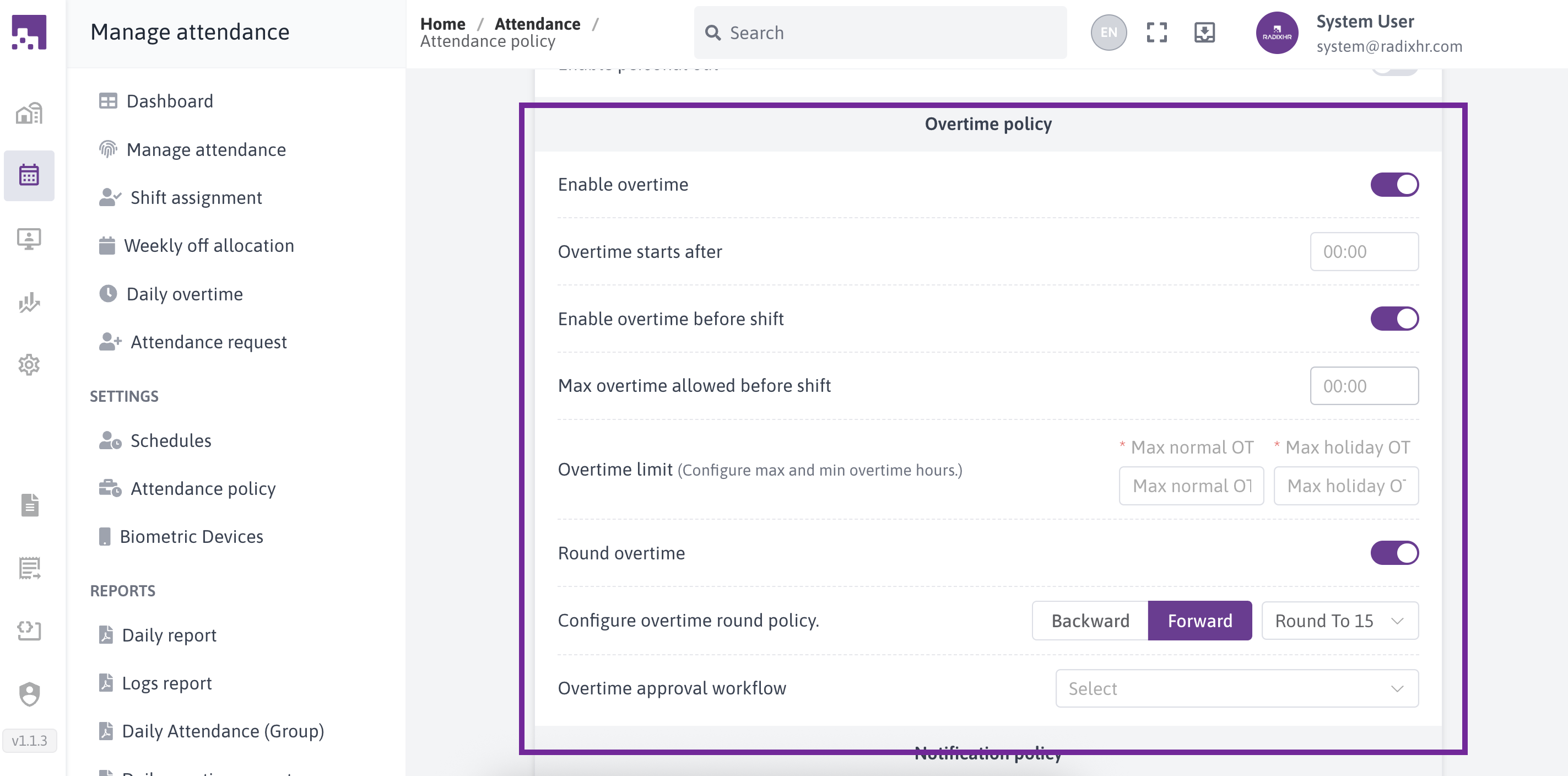
# Overtime Policy
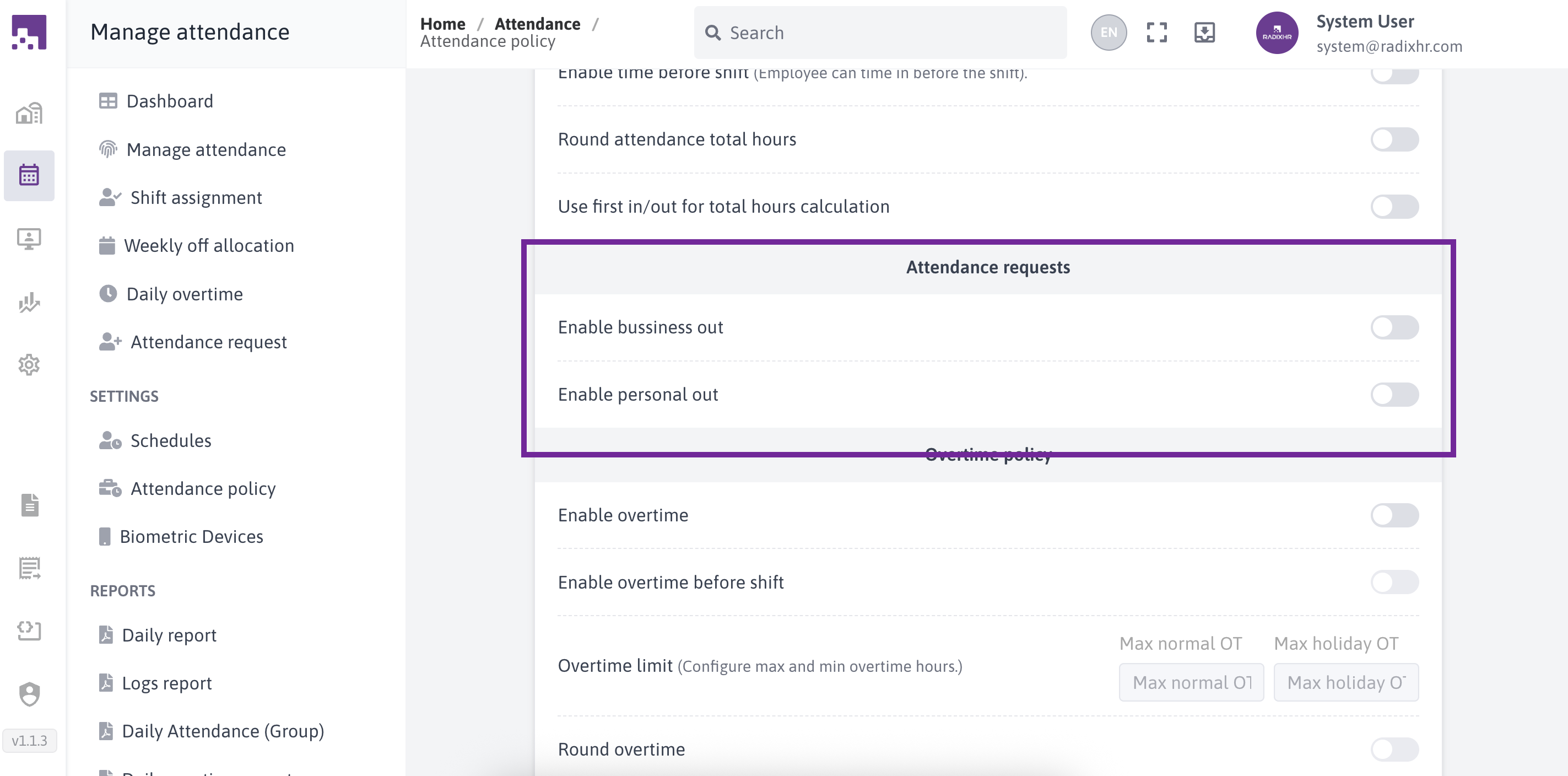
The overtime policy determines how overtime hours are managed for employees. Configure the following settings:
# Enable Overtime
Description: Enable Overtime is the main switch that controls whether overtime hours are calculated for employees under this attendance policy.
When the Enable Overtime toggle is turned on, the Overtime Starts After section becomes active.
The components below are enabled only when Enable Overtime is turned on.
# Overtime Starts After
Description: Defines the minimum working hours after which overtime begins.
Format: HH:MM
# Overtime Before Shift
Description: Indicate whether overtime before an employee's scheduled shift is allowed.
after enabling Overtime Before Shift, the Max overtime allowed before shift will be enabled
# Max Overtime Before Shift
- Description: Set the maximum amount of time that can be calculated as overtime before an employee's scheduled shift.
# Overtime Limit:
Description: Configure the maximum number of overtime hours allowed on normal days and holidays.
Fields (This field is mandatory):
Max Normal OT: Maximum overtime allowed on regular working days
Max Holiday OT: Maximum overtime allowed on holidays
# Round Overtime:
Description: Choose whether to round the calculated overtime hours to the next or previous fraction of time.
After enabling Round overtime, the Configure overtime round policy will be activated.
# Configure overtime round policy.
Description: Specify the duration after which overtime should be calculated.
Options: Backward | Forward
After selecting Backward or Forward, an additional dropdown is enabled to select the round option
# Overtime approval workflow
- Description: Select a workflow if you need to approve overtime using an approval workflow. This enables users to receive notifications and approve employee overtime requests.
# Notification Policy
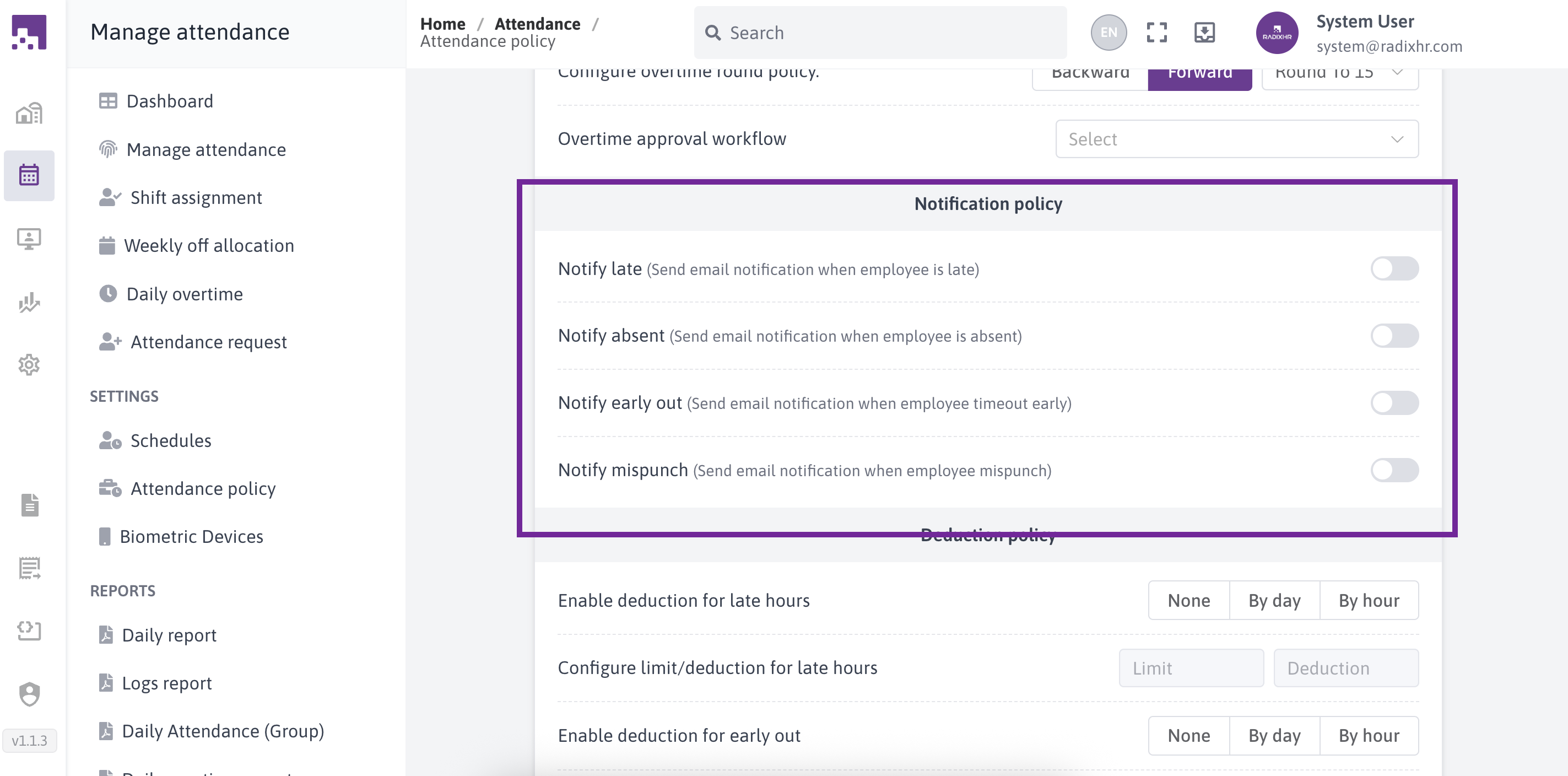
The notification policy determines when notifications should be sent to employees. Configure the following settings:
# Notify Late
- Description: Sends an email notification when an employee reports late for work.
# Notify Absent
- Description: Sends an email notification when an employee is marked absent.
# Notify Early Out
- Description: Sends an email notification when an employee checks out earlier than scheduled.
# Notify Mispunch
- Description: Sends an email notification when an employee performs an incorrect or incomplete punch.
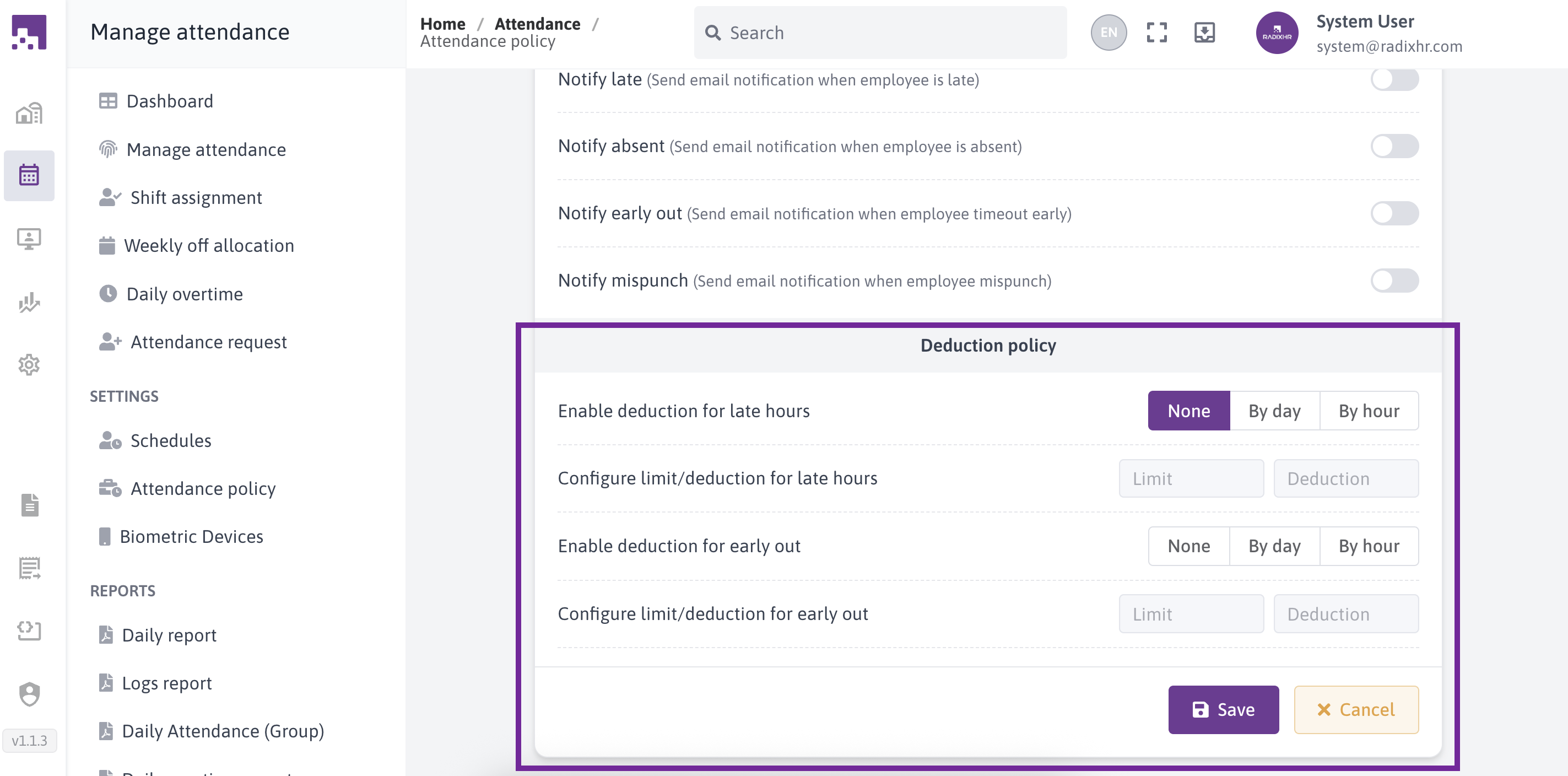
# Deduction Policy
The deduction policy allows you to define deductions for late arrivals and early departures. Configure the following settings
# Enable Deduction for Late Hours
Description: Enable Deduction for Late Hours defines whether and how deductions are applied when an employee reports late for work
Options: None | By Day | By Hour
None: No deduction applied
By Day: Deducts attendance by full day based on late occurrence
By Hour: Deducts attendance based on total late hours
Only after choosing either By Day or By Hour, You can enable Configure limit/deduction for late hours
# Configure limit/deduction for late hours
Description: This setting defines how much lateness is allowed and what deduction is applied when an employee exceeds that allowed limit.
Limit: Maximum allowed late duration before deduction applies
Deduction: Defines deduction amount once the limit is exceeded
This field is mandatory to fill before saving
# Enable Deduction for Early Out
Description: Applies deduction rules when an employee leaves early.
Options: None | By Day | By Hour
Only after choosing either By Day or By Hour, You can enable Configure Limit / Deduction for Early Out
# Configure Limit / Deduction for Early Out
Description: This setting defines how much early leaving is allowed and what deduction is applied when an employee leaves work before the scheduled end time beyond the allowed limit.
Limit: Allowed early-out duration
Deduction: Deduction applied after exceeding the limit
This field is mandatory to fill before saving
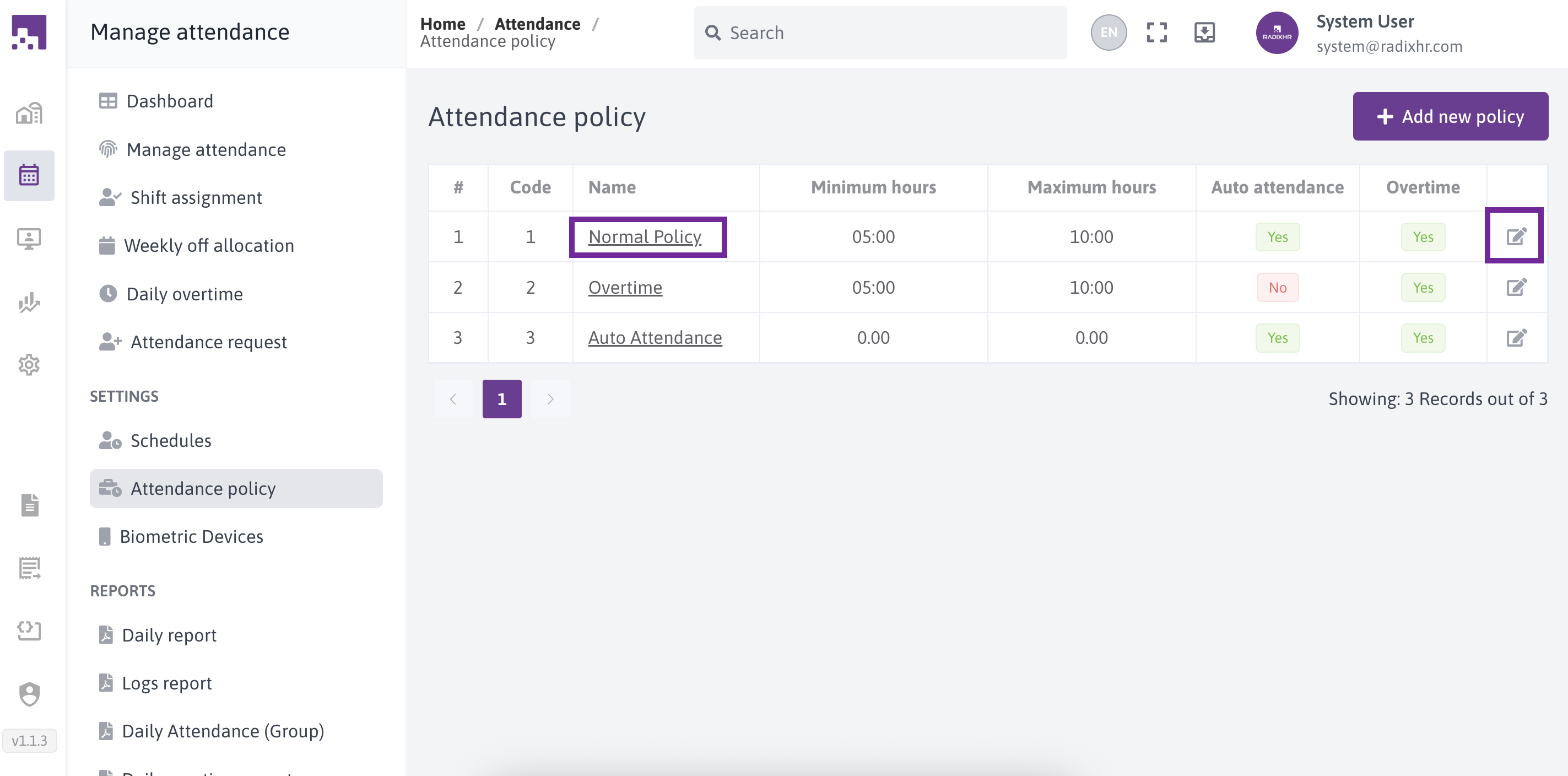
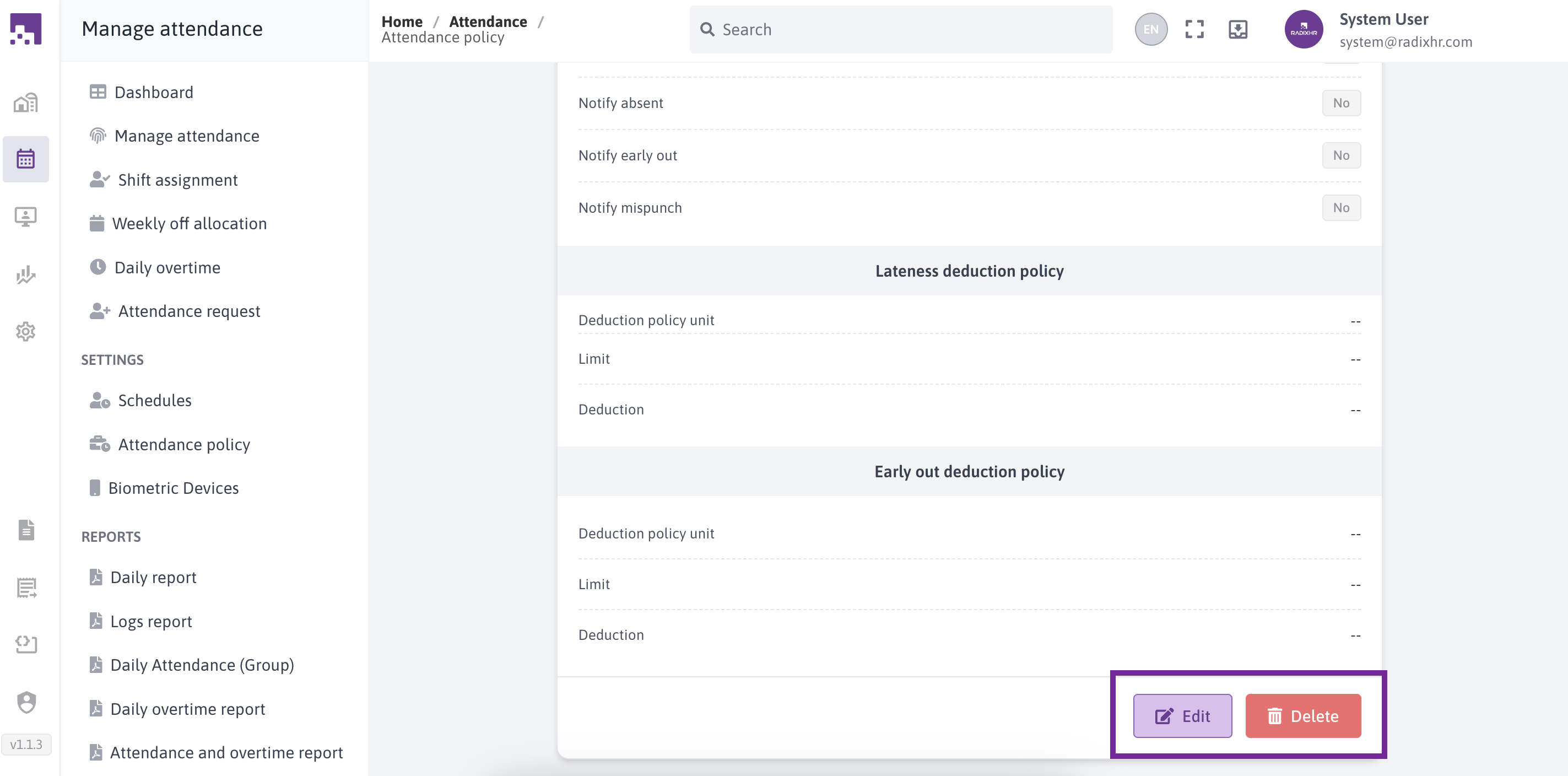
# Edit policy
To view or edit existing policy, Just click on their respective row or edit icon.
After clicking edit icon a page will open with existing data of the selected policy,at the bottom of the page you can find edit and delete.
To edit existing policy, Just click edit button
To delete existing policy, Just click delete button
Note: Once you have configured the attendance policy according to your requirements, save the settings.This policy can be applied to employee in employee setting for the attendance management.