# Attendance request
# Attendance request
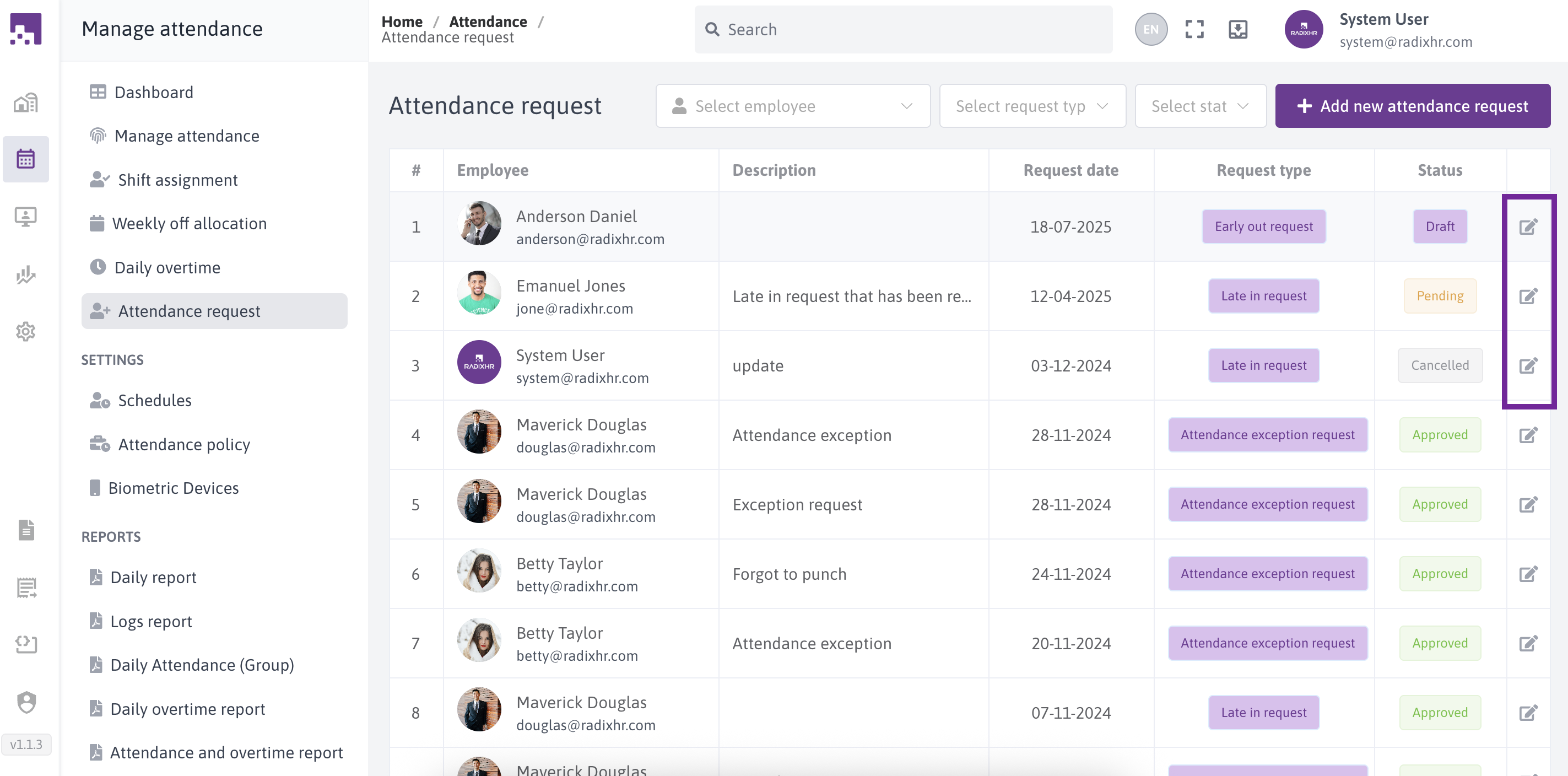
In this screen we can see add attendance request, edit, view and filter attendance request
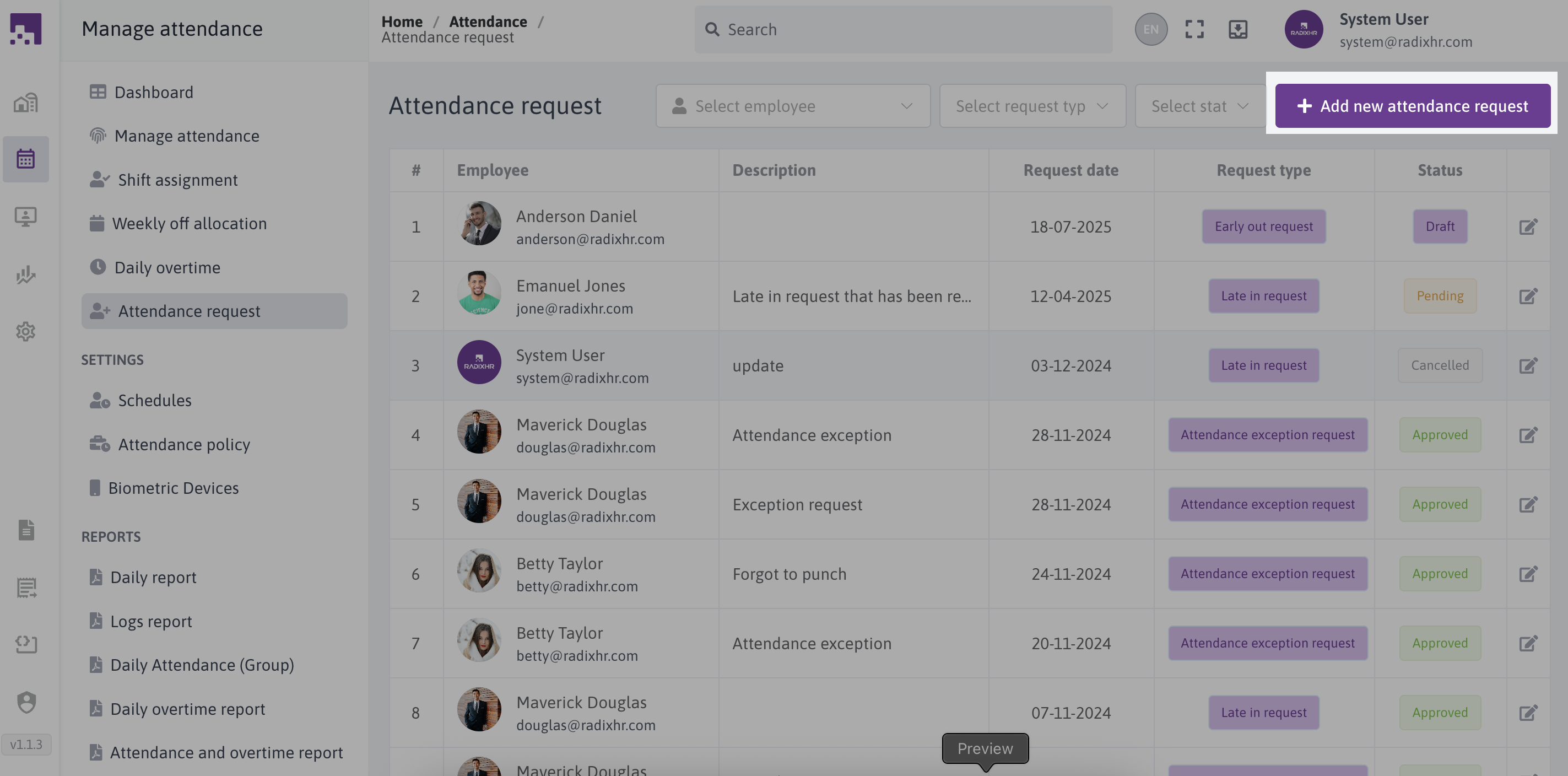
To initiate an attendance request, simply click on the "Add Attendance Request" option.
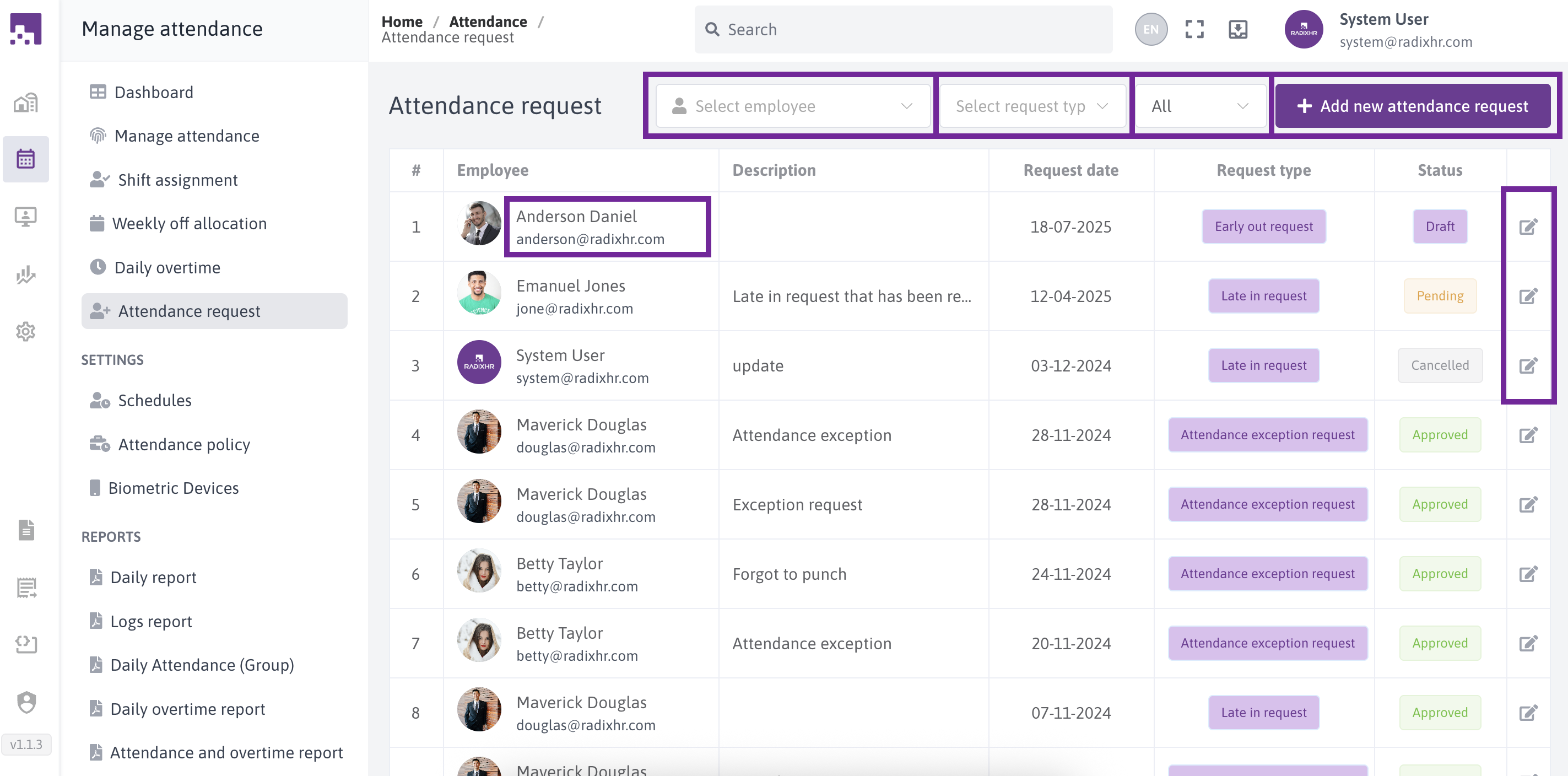
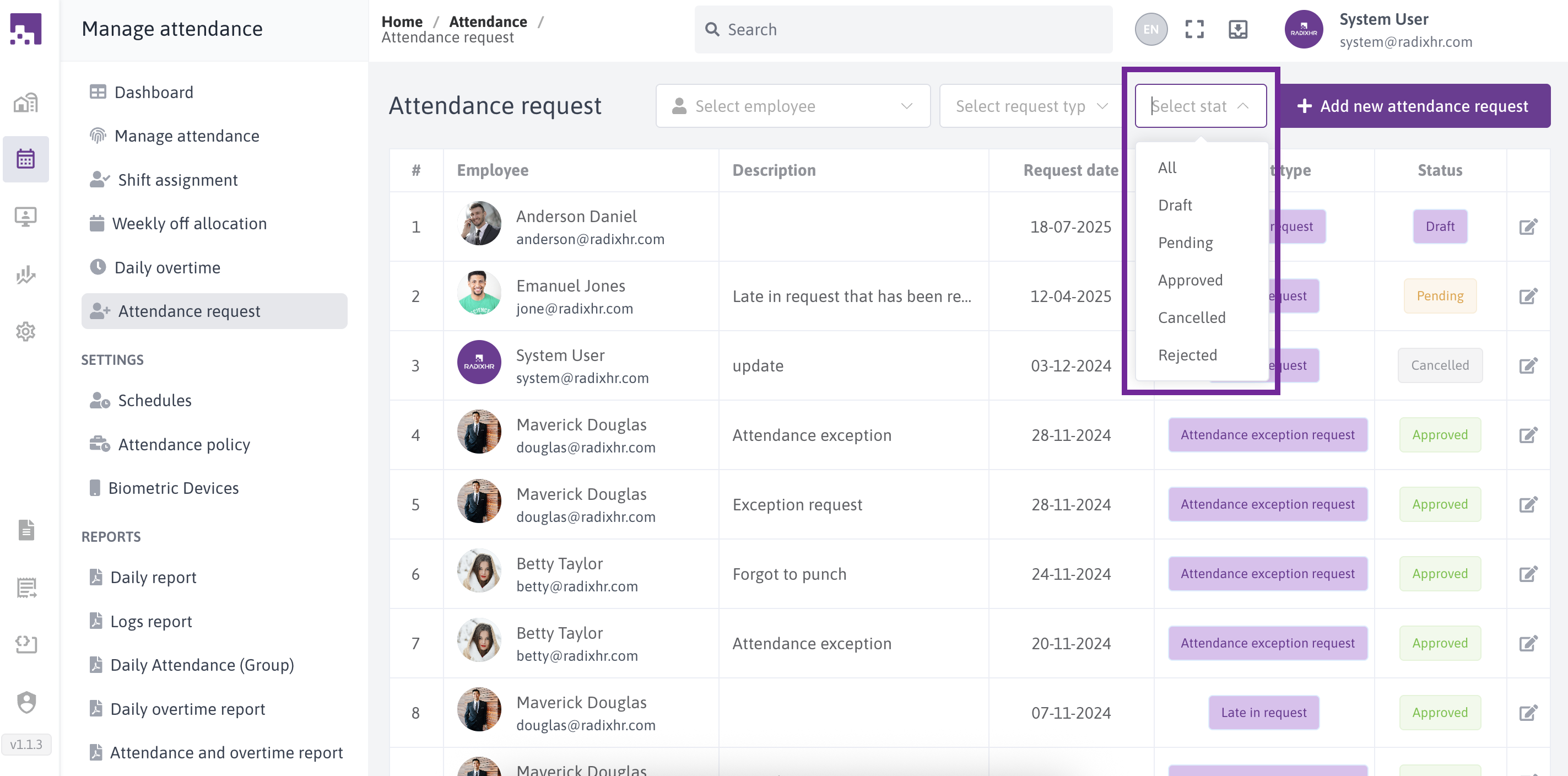
# Filter Attendance Requests
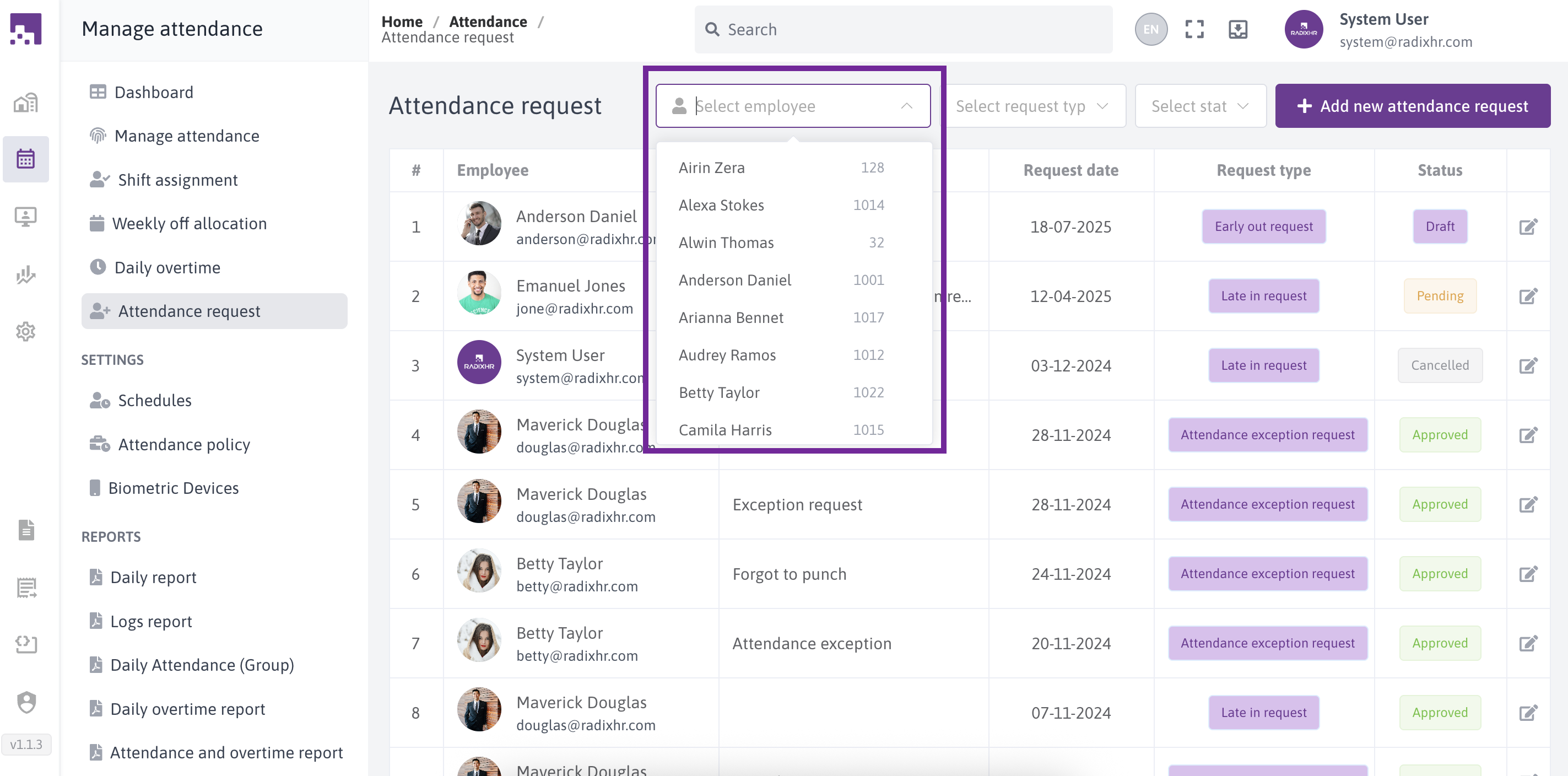
Filter by Employee: Select specific employee to see their requests
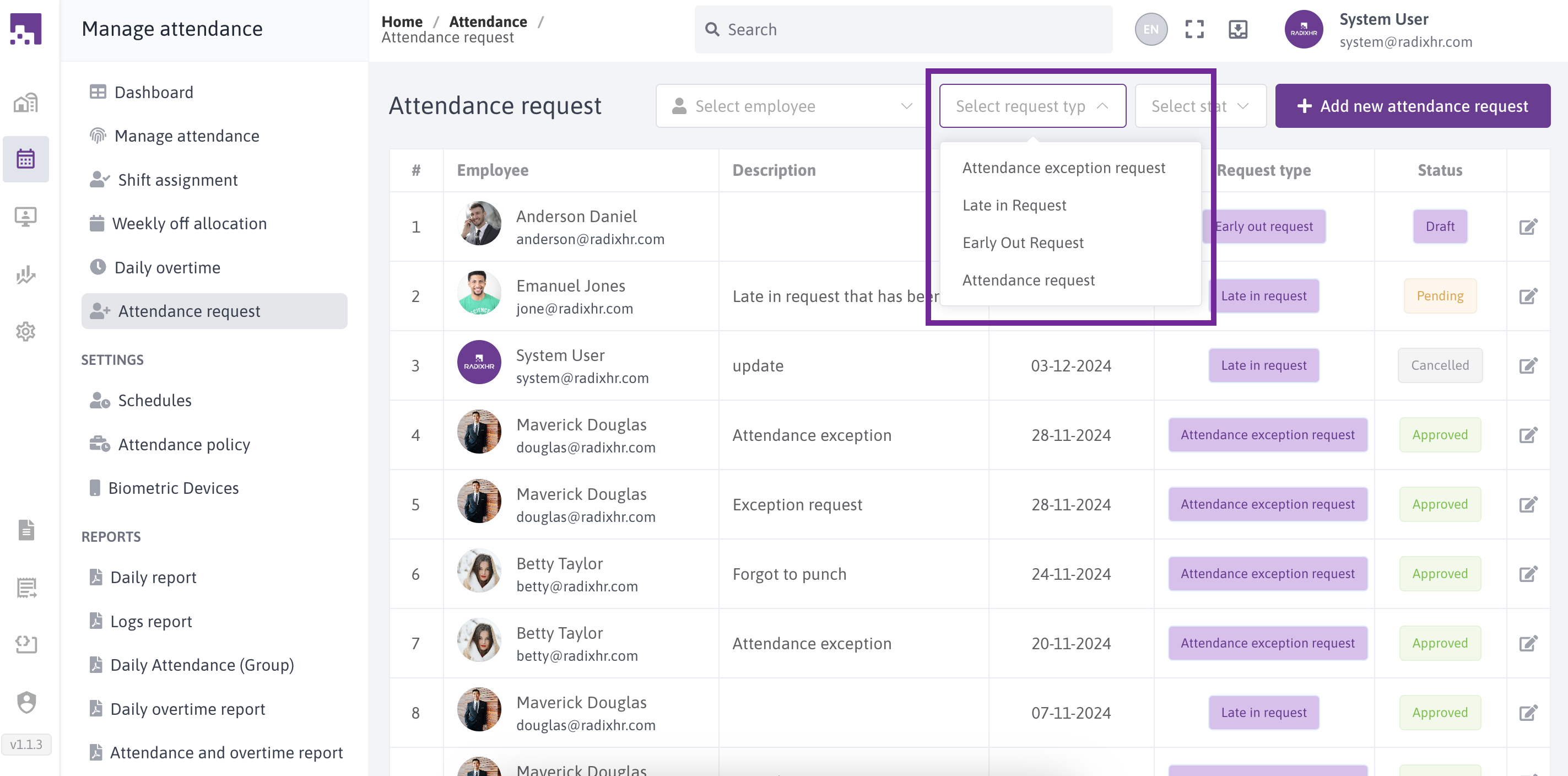
Filter by Request Type: Filter by request type (late in request, attendance request, etc.)
Filter by Status: Filter by status (Draft, Pending, Approved, Cancelled, Rejected)
# Add new Attendance request
To add new attendance request click Add new Attendance request on the top of the page
This will prompt you to fill in the mandatory fields, including the
- Attendance request date
- Attendance request type
- Attendance date
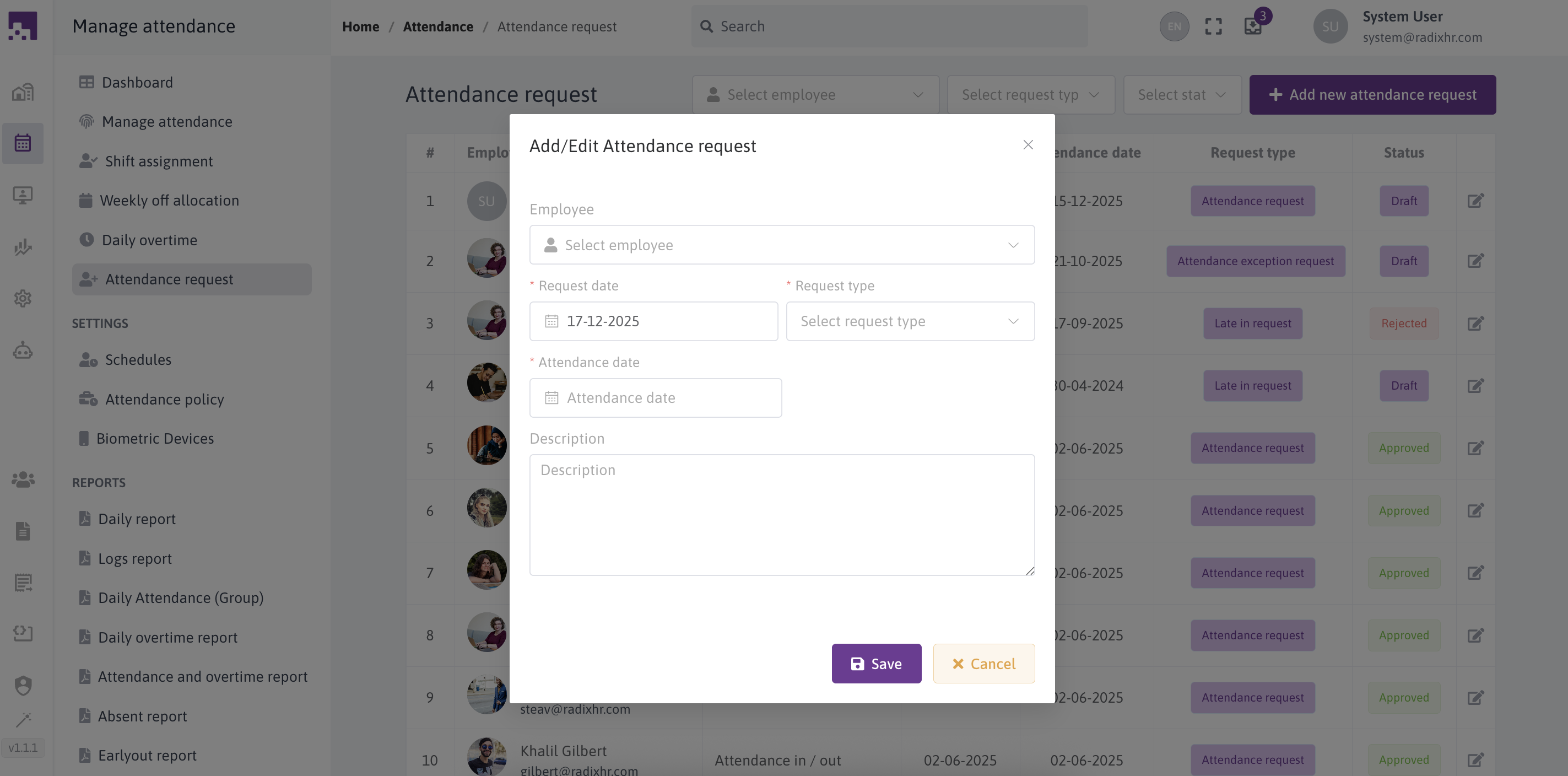
Make sure to provide accurate and concise information for efficient processing.
When selecting the attendance exception request type, additional fields will appear. These fields are essential for capturing specific details related to the exception request. Mandatory fields within this category include
- Attendance status (IN / OUT)
- Transaction date
- Attendance time
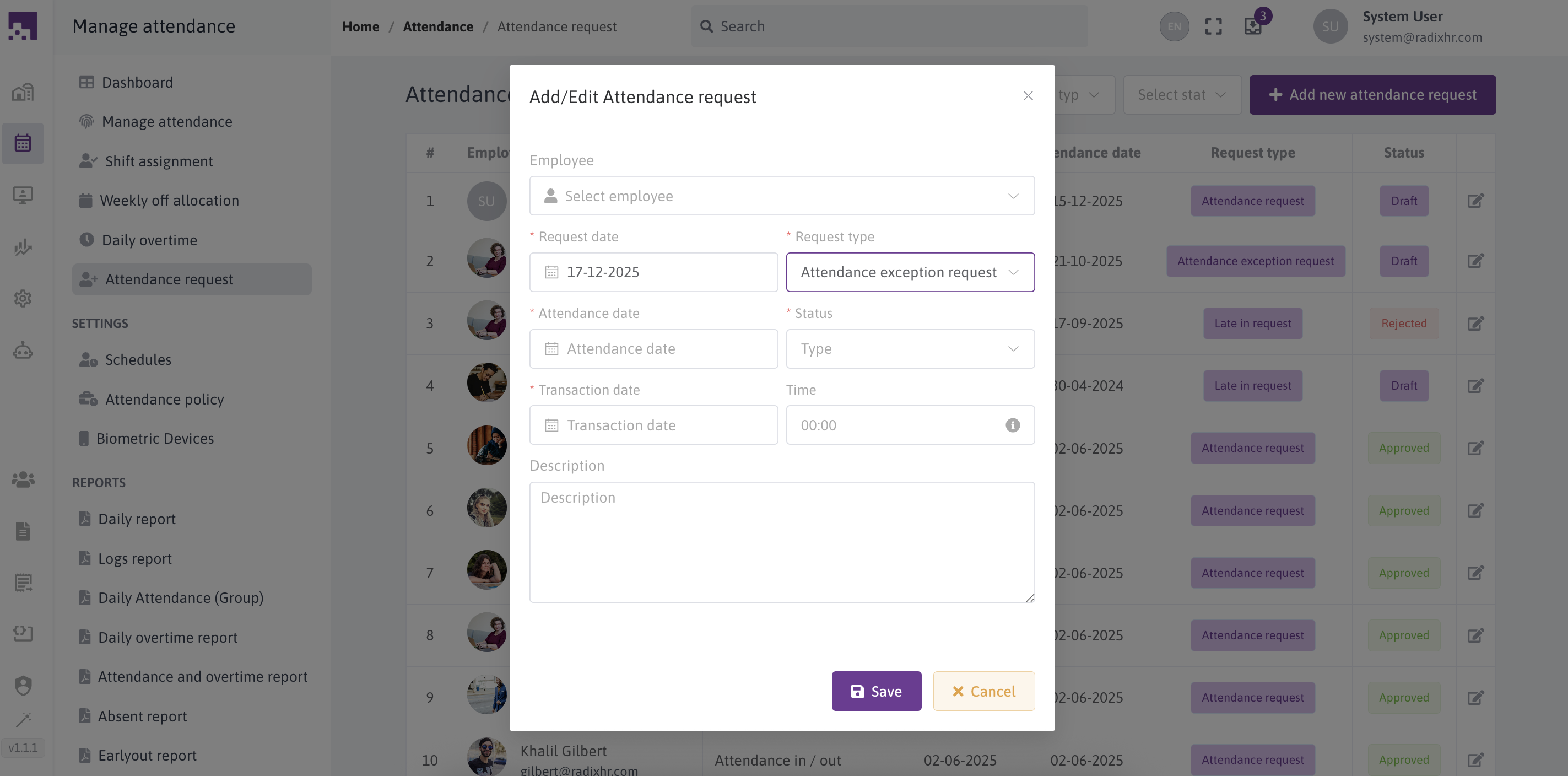
Please fill in these fields accurately to ensure accurate
# Edit Attendance request
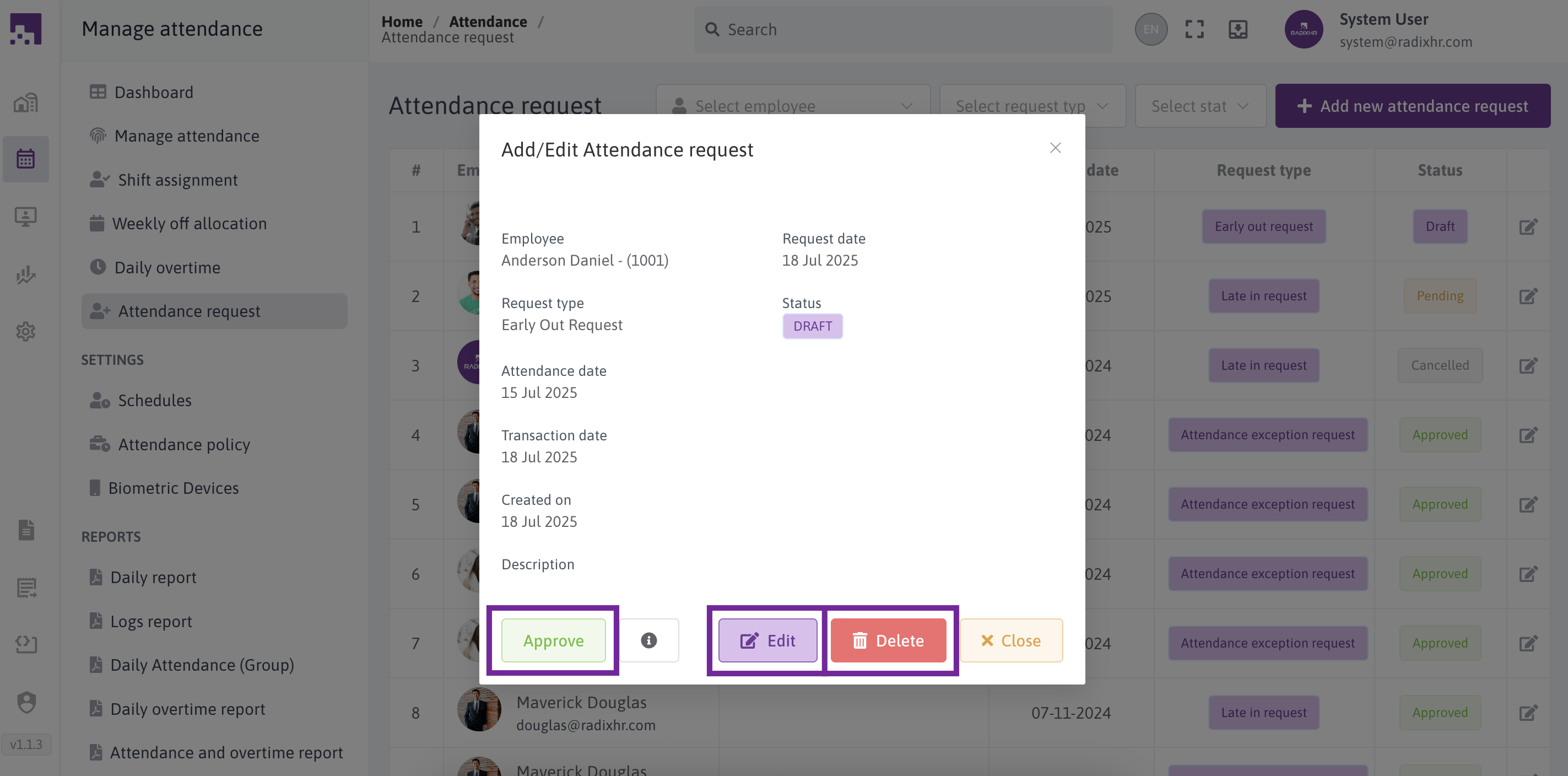
To edit the attendance request, just click on their respective row edit icon.
If there is no work flow for corresponding request type then there will be approve button If there any updates or changes on the attendance request we can edit the fields through the edit button. If you need to delete the attendance request, click delete button