# Daily Overtime
# Introduction
The Daily Overtime feature in RadixHR automatically tracks and calculates overtime hours based on predefined working rules. Any extra hours worked beyond the standard daily working time are recorded accurately, ensuring fair and transparent overtime management.
# Primary Info
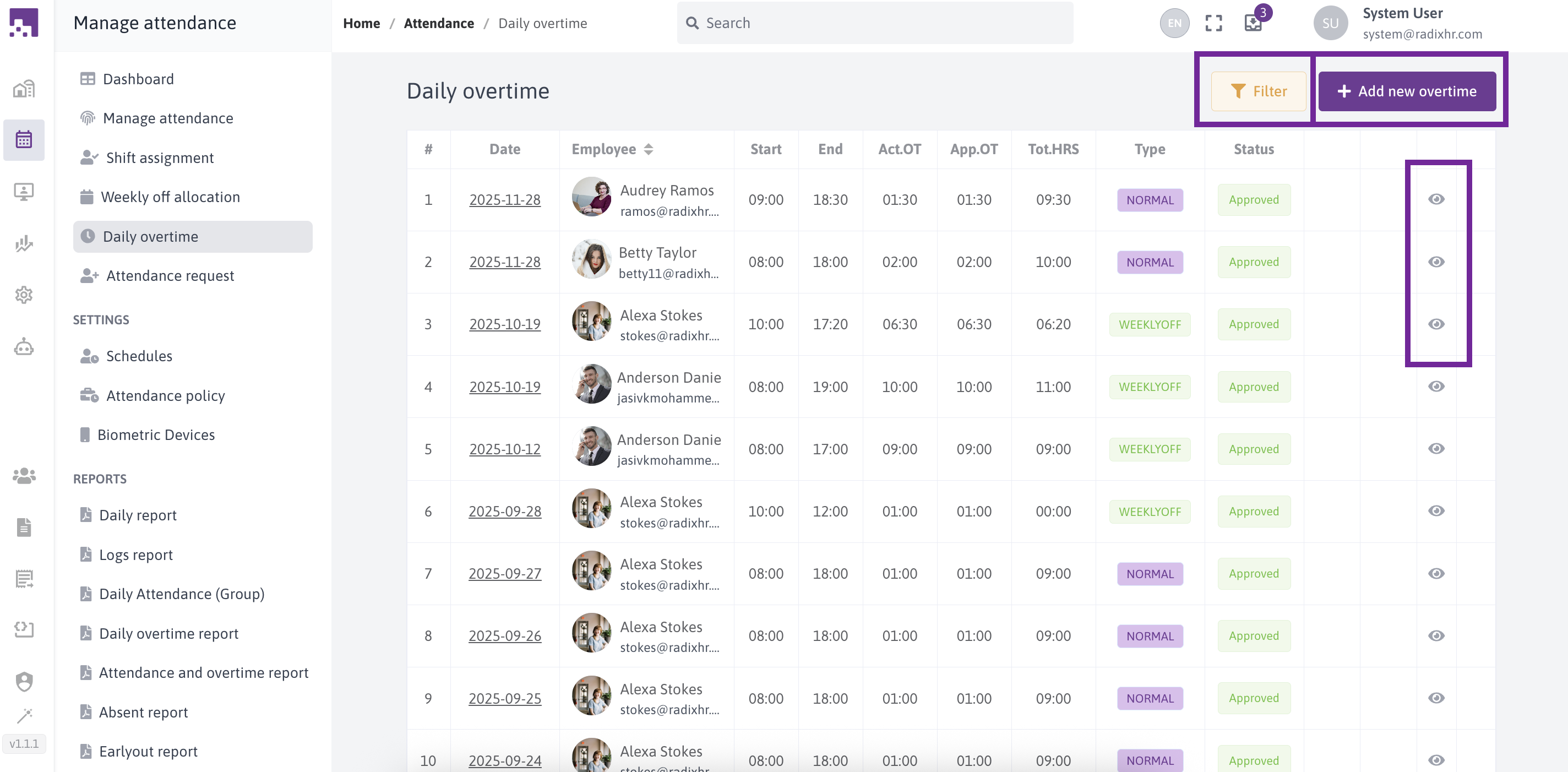
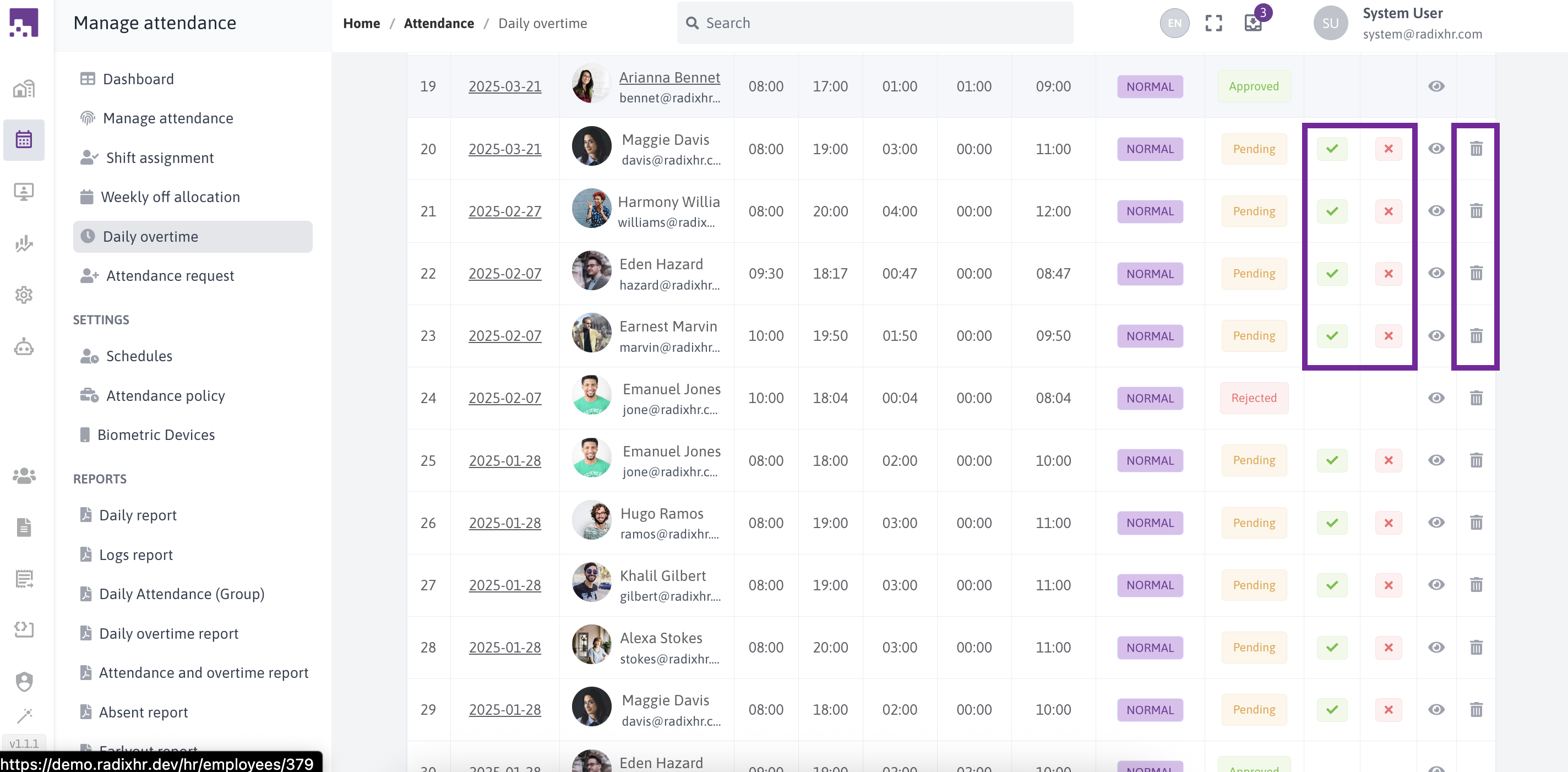
In this screen we can see 5 options to add new overtime, filter overtime, view overtime, approve/reject overtime and delete overtime
# Add New Overtime
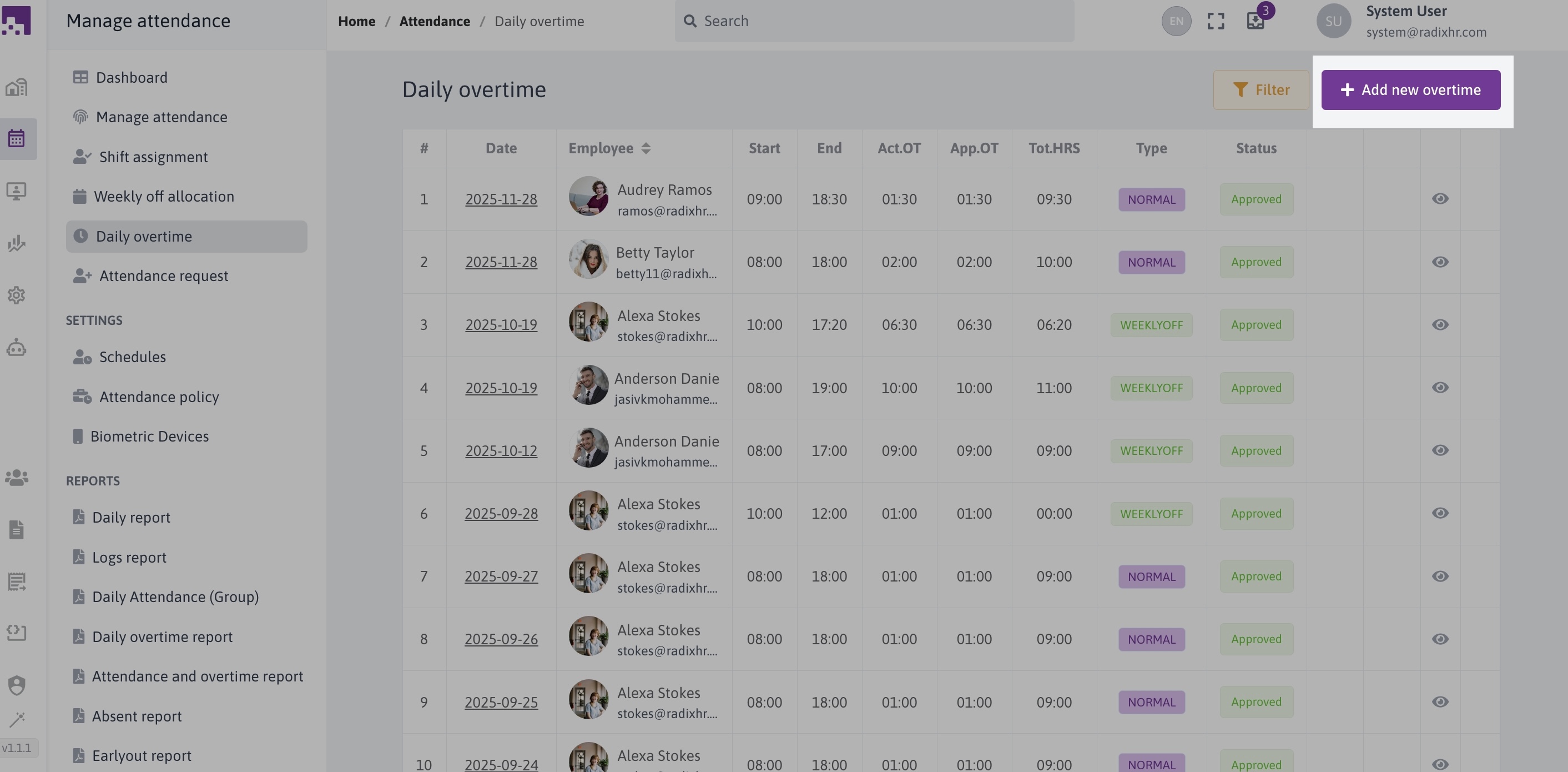
To add new over time click on the Add new overtime icon
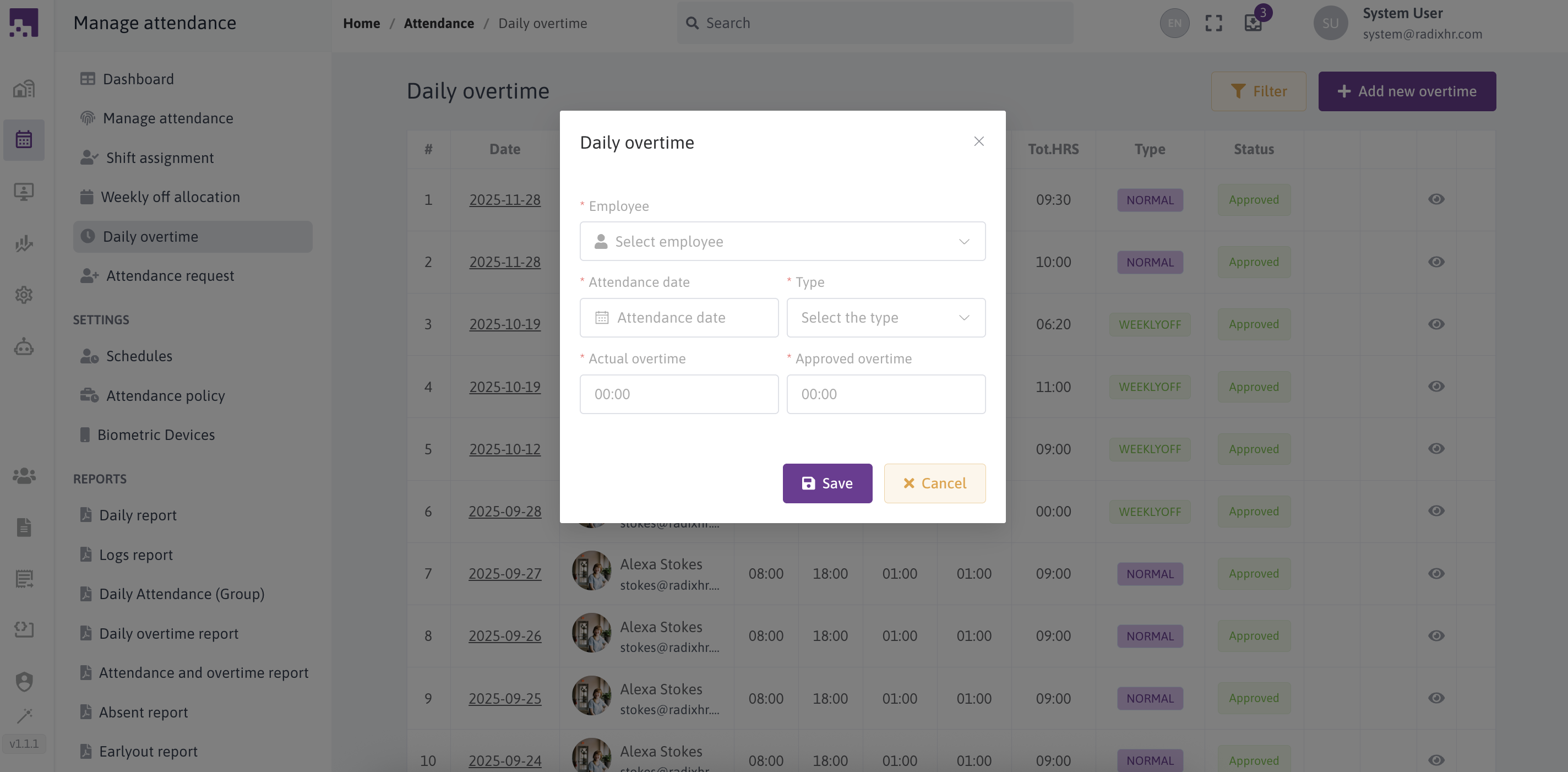
To add new over time we need to fill all the fields. it includes;
- Employee name
- Attendance date
- Type
- Actual overtime
- Approved overtime
# Filter Overtime
For filter the daily overtime simply click on the filter option
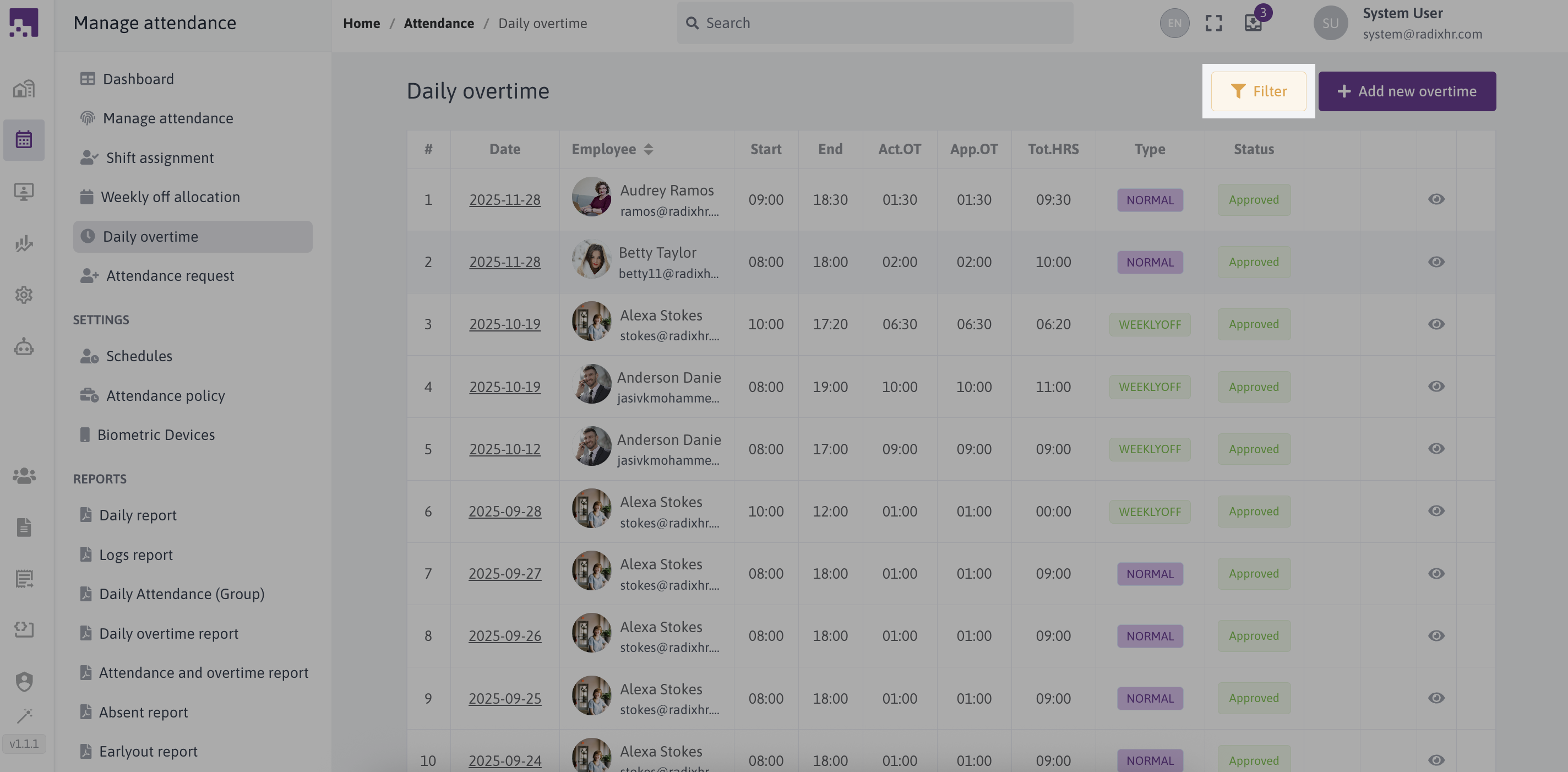
While clicking on the filter option a drawer will open. it includes;

# View Overtime
To view an existing overtime data click view icon
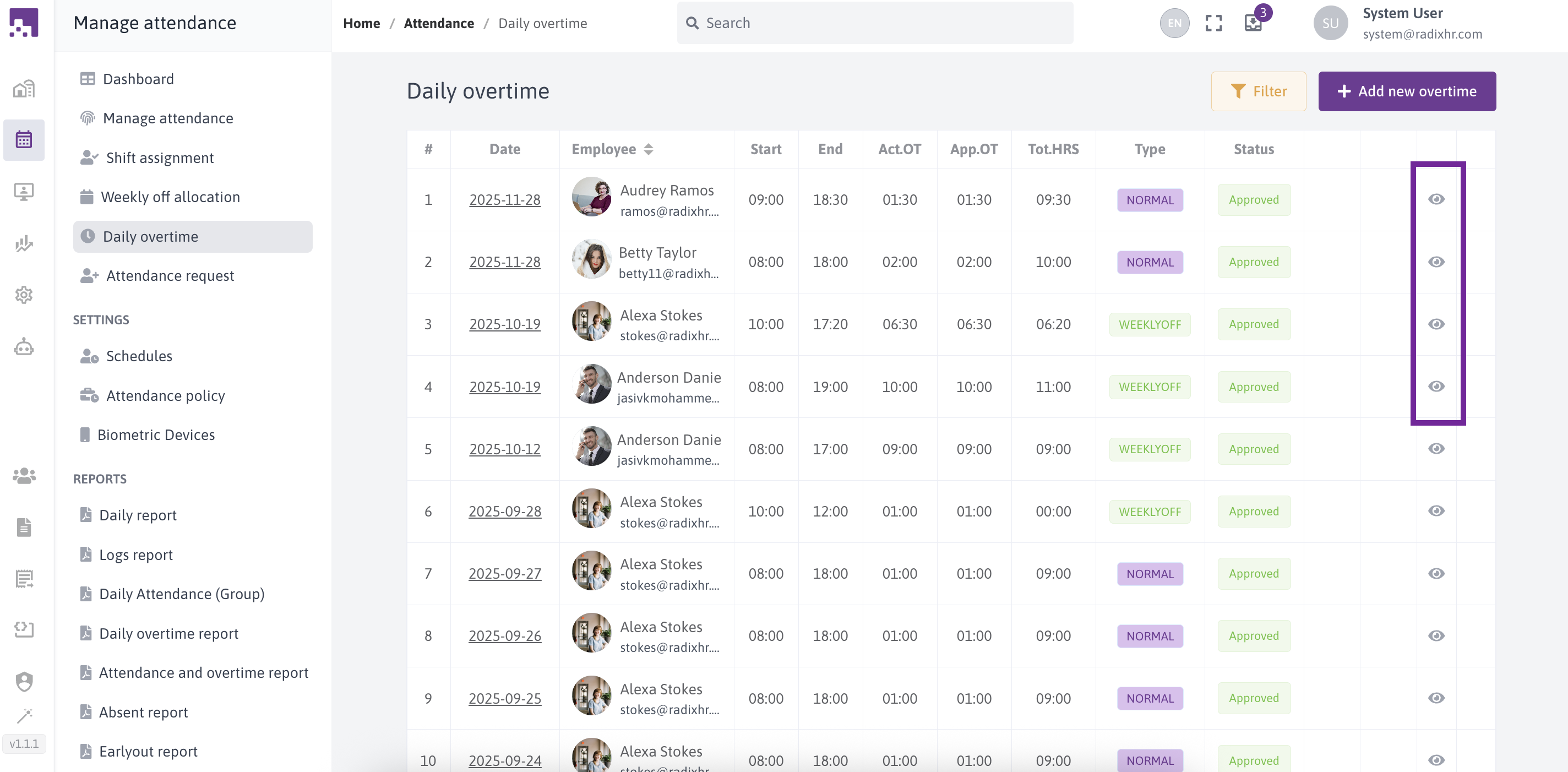
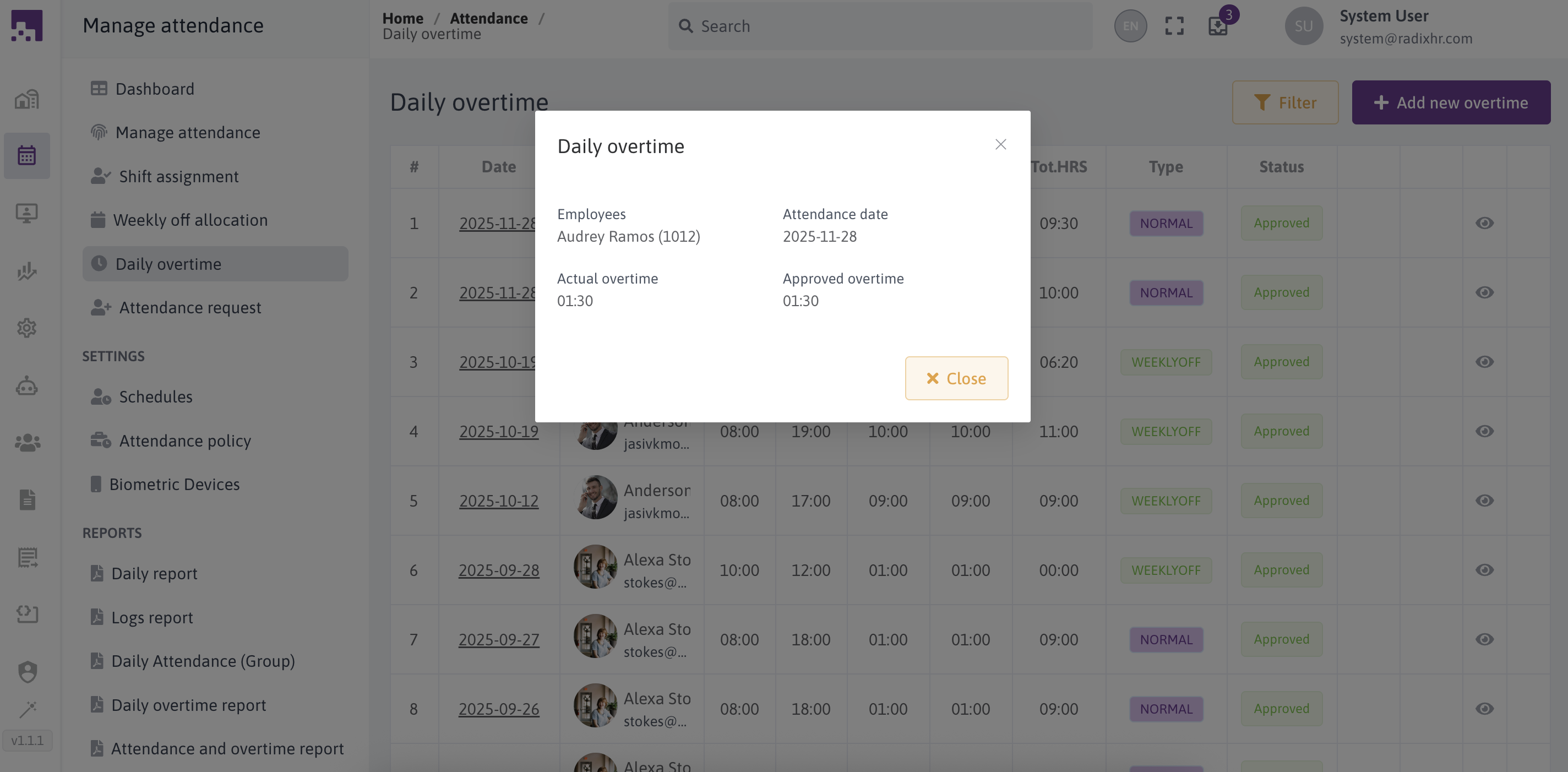
After clicking the view icon, a dialogue box will appear with the necessary data's
# Approve/Reject Overtime
To Approve or Reject Overtime you can click the approve icon or reject icon
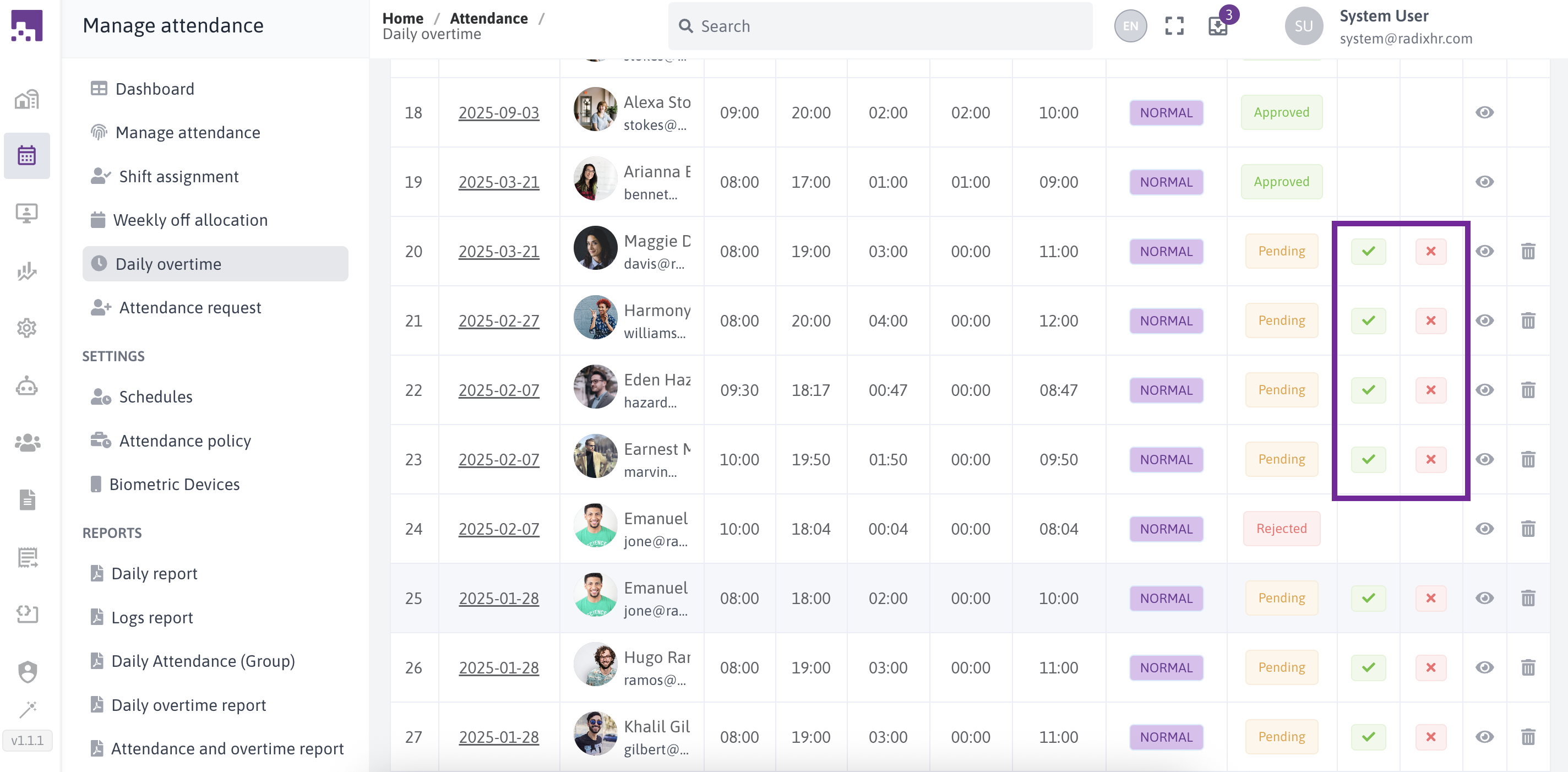
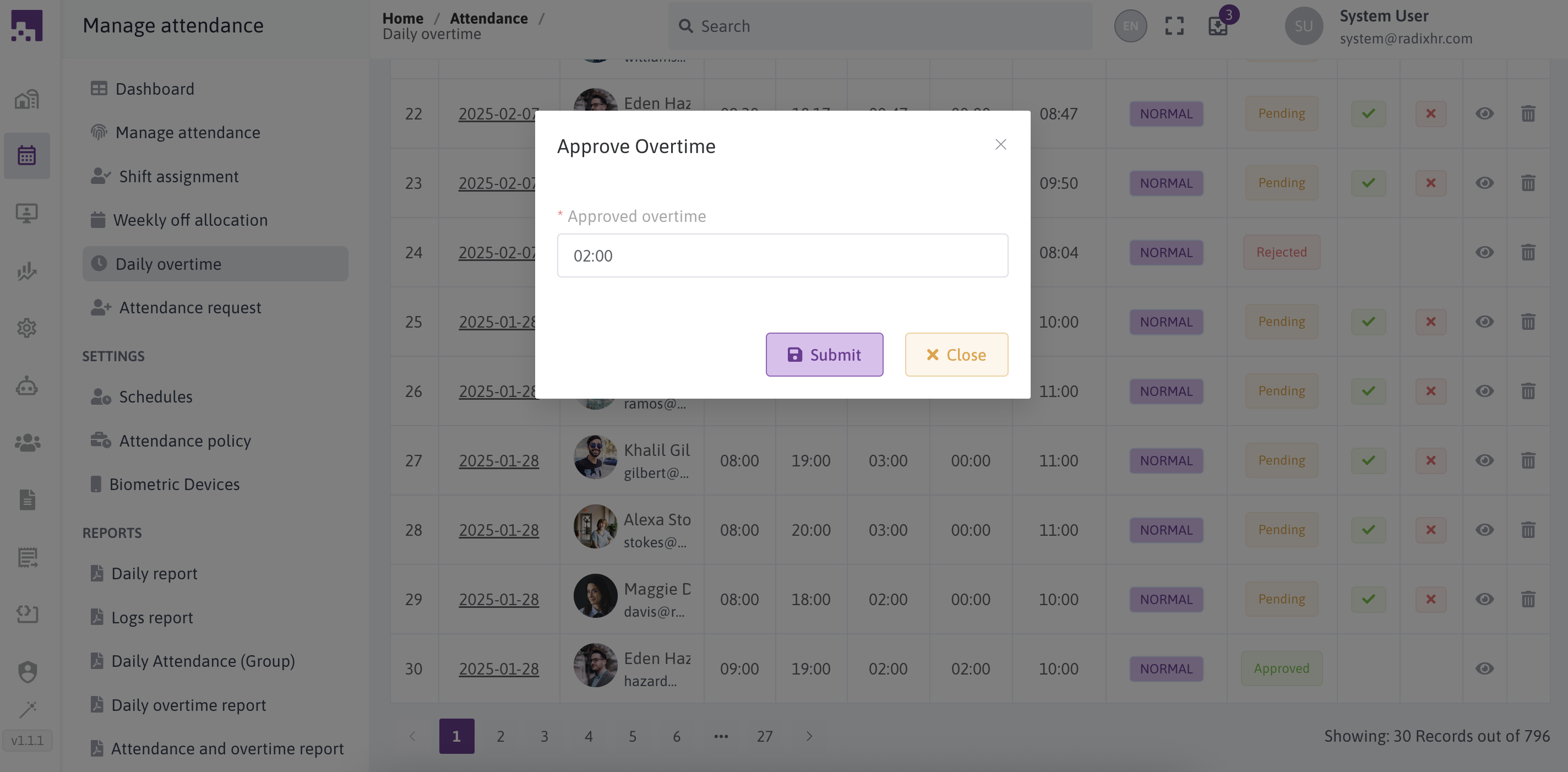
If you click approve, a dialogue box will open and its mandatory to give Approved overtime before submit
# Delete Overtime
If there any issue with the overtime you created you can delete the overtime by clicking delete icon.
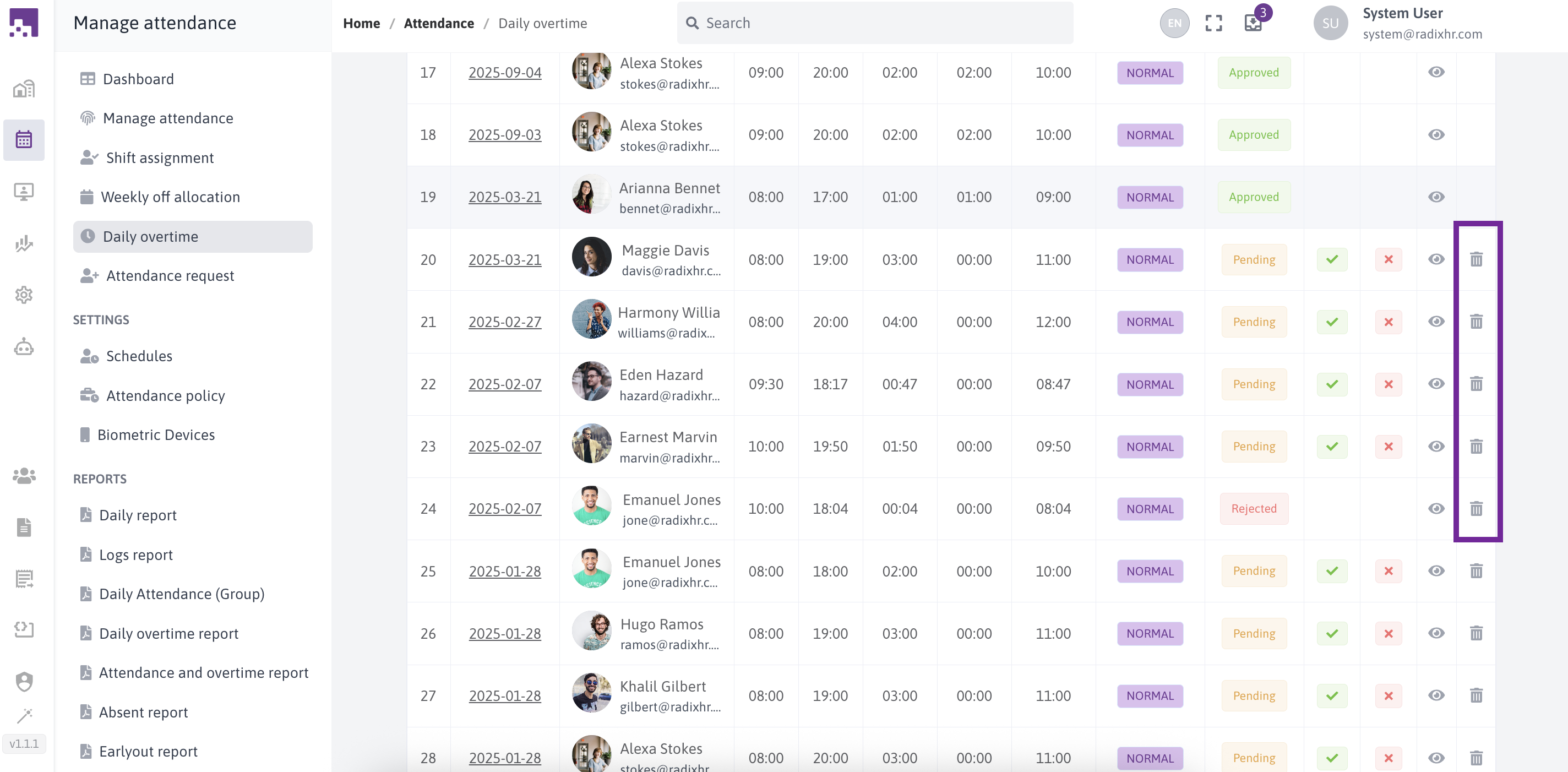
Overtime has three status:
- PENDING: You can edit, delete, approve, or reject
- APPROVED: You can only view the data
- REJECTED: You can only view the data