Payment Categories
Payment Categories define the different types of payroll requests your people can raise — things like salary advances, loans, expense reimbursements, fines, and recoveries. Each category carries its own rules: whether money is paid out or taken back, spending limits, which payment methods are allowed, how it’s recovered, and whether it needs approval or an attachment.
What you can do here:
- Create a category for each kind of payroll request (advance, loan, reimbursement, fine, recovery, etc.)
- Choose whether a category pays money out (Disbursement) or recovers it (Deduction)
- Set limits — maximum percentage of basic salary and maximum installments
- Pick the allowed payment methods and recovery rules
- Control behaviour — approval, attachments, expense items, payroll application, and visibility
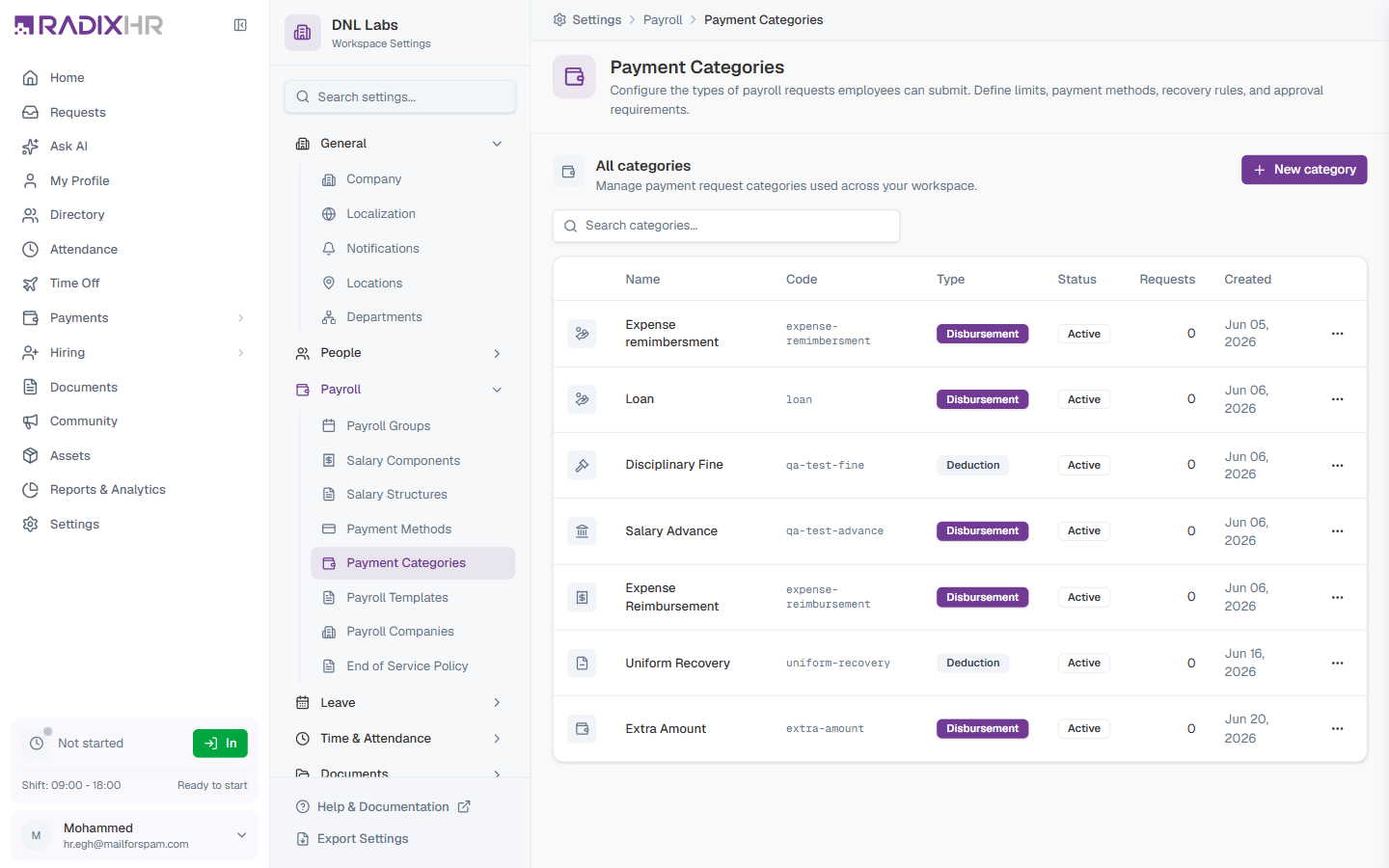
Payment Categories are the master list behind the Claims & Deductions page (under Payments). When someone raises an advance, loan, reimbursement, fine, or recovery, they choose one of these categories — and its rules (limits, recovery, approval) are applied automatically.
The Categories Table
The table lists every category defined in your workspace. Use the Search categories… box to filter by name or code.
| Column | Description |
|---|---|
| Icon | The icon chosen for the category, shown next to its name |
| Name | The category’s display name (e.g., “Salary Advance”, “Uniform Recovery”) |
| Code | A URL-friendly identifier used in reports and integrations (e.g., salary-advance) |
| Type | Disbursement — money paid to the employee — or Deduction — money recovered from the employee’s payroll |
| Status | Active (available to use) or Inactive |
| Requests | How many requests have been raised using this category |
| Created | The date the category was created |
Each row has a ⋯ menu with Edit and Delete.
How to Create a Payment Category
- Click New category in the top-right
- Fill in the category details (see the fields below)
- Click Create Category
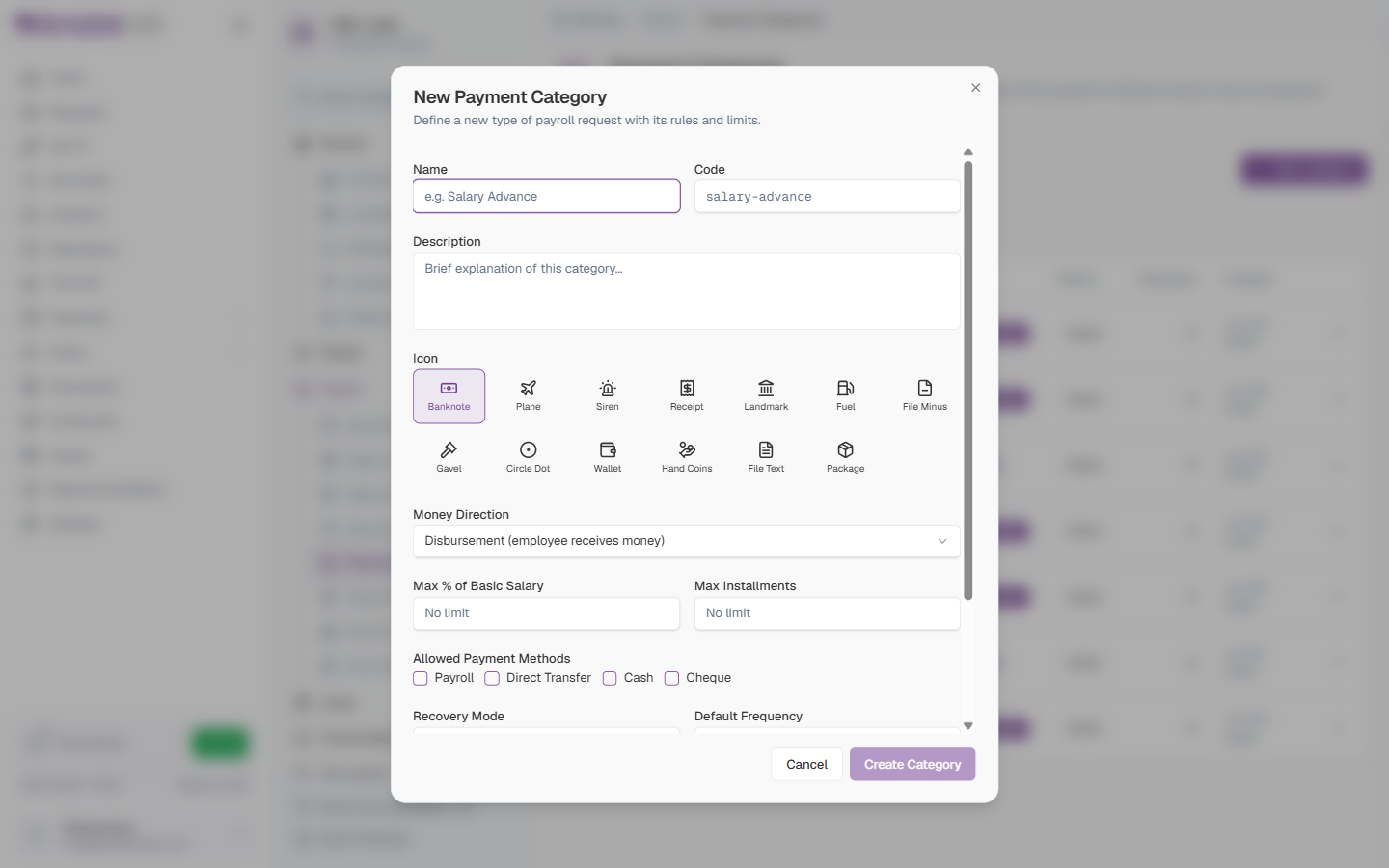
Category Fields
| Field | Description | Required |
|---|---|---|
| Name | The display name for the category (e.g., “Salary Advance”). | Yes |
| Code | A short, URL-friendly identifier used in reports and integrations (e.g., salary-advance). | Yes |
| Description | A brief explanation of what the category is for. | No |
| Icon | Pick an icon to represent the category. Options: Banknote, Plane, Siren, Receipt, Landmark, Fuel, File Minus, Gavel, Circle Dot, Wallet, Hand Coins, File Text, Package. | No |
| Money Direction | Disbursement (employee receives money) — e.g. an advance or reimbursement — or Deduction (from employee payroll) — e.g. a fine or recovery. | Yes |
| Max % of Basic Salary | The most an employee can request at once, as a percentage of their basic salary. Leave blank for no limit. | No |
| Max Installments | The maximum number of installments the amount can be recovered over. Leave blank for no limit. | No |
| Allowed Payment Methods | How the money can be paid out or collected — any of Payroll, Direct Transfer, Cash, Cheque. | No |
| Recovery Mode | How the amount is recovered: No recovery (reimbursement), One-time only, Installments only, or One-time or Installments. | No |
| Default Frequency | The default recovery frequency: Monthly, Quarterly, or Annual. | No |
Behaviour
Toggles that control how the category works:
| Option | What it does | Default |
|---|---|---|
| Requires approval | Requests in this category must be approved before they’re processed. | On |
| Requires attachment | The requester must attach a supporting document (e.g. a receipt). | Off |
| Has expense items | The request is itemised as a list of expense lines rather than a single amount — useful for expense reimbursements. | Off |
| Apply in payroll | The approved amount is applied through payroll — paid out or deducted on the payslip. | On |
| Active (visible to employees) | The category is available for employees to select. Turn it off to retire a category without deleting it. | On |
Money Direction shapes everything else: Disbursement categories (advances, loans, reimbursements) pay the employee, while Deduction categories (fines, recoveries) take money back through payroll. For anything repaid over time, set the Recovery Mode and Max Installments so repayments spread out sensibly.
Editing or Deleting a Category
- Click the ⋯ menu at the end of the category’s row
- Choose Edit to change its rules and limits, or Delete to remove it
- For Edit, update the fields and save
To stop a category being used without losing its history, edit it and turn off Active (visible to employees) rather than deleting it.
How This Actually Works
- “Allowed Payment Methods” here is not the same list as Payment Methods. This field is a fixed set of four options — Payroll, Direct Transfer, Cash, Cheque — baked into the app, not sourced from the admin-configurable Payment Methods table. Creating a new custom payment method there (e.g. a second bank channel, or a regional wallet) does not add a new option here; the two “payment methods” concepts are unrelated despite the shared name.
- “Payroll” as an Allowed Payment Method means the amount rides on the employee’s normal salary disbursement — it uses whatever Payment Method and Bank Details are already configured on the employee’s profile. The other three options (Direct Transfer, Cash, Cheque) are separate, one-off disbursement choices made at request time and don’t touch the employee’s regular payroll setup at all.
Common Scenarios
“I want to make sure no one can request a salary advance bigger than one month’s pay — where do I set that limit?” Not here — Max % of Basic Salary on this page’s Salary Advance category caps a request against the employee’s basic salary only, which is usually just one component of their total monthly pay, not the same figure. To cap an advance at one month’s total pay, use Payroll Policy → Advance Limits → Max Multiplier instead (set it to 1) — that setting is defined as a multiple of monthly gross pay, which is what “one month’s pay” actually means.