Setting Up Your Workspace
Before you add employees and run day-to-day HR, take a few minutes to set up your company’s RadixHR workspace. This guide walks you through the essential settings — your company profile, regional preferences, and organizational structure.
Workspace settings are for administrators. If you don’t see the Settings option, contact your workspace administrator.
What is a Workspace?
A workspace is your company’s own RadixHR environment. It holds all your employees, settings, and data, kept completely separate and secure from every other company on the platform.
Opening Settings
Click Settings at the bottom of the main sidebar. This takes you straight into the Settings area, landing on your own Profile page — there’s no separate “hub” screen with category cards to click through first.
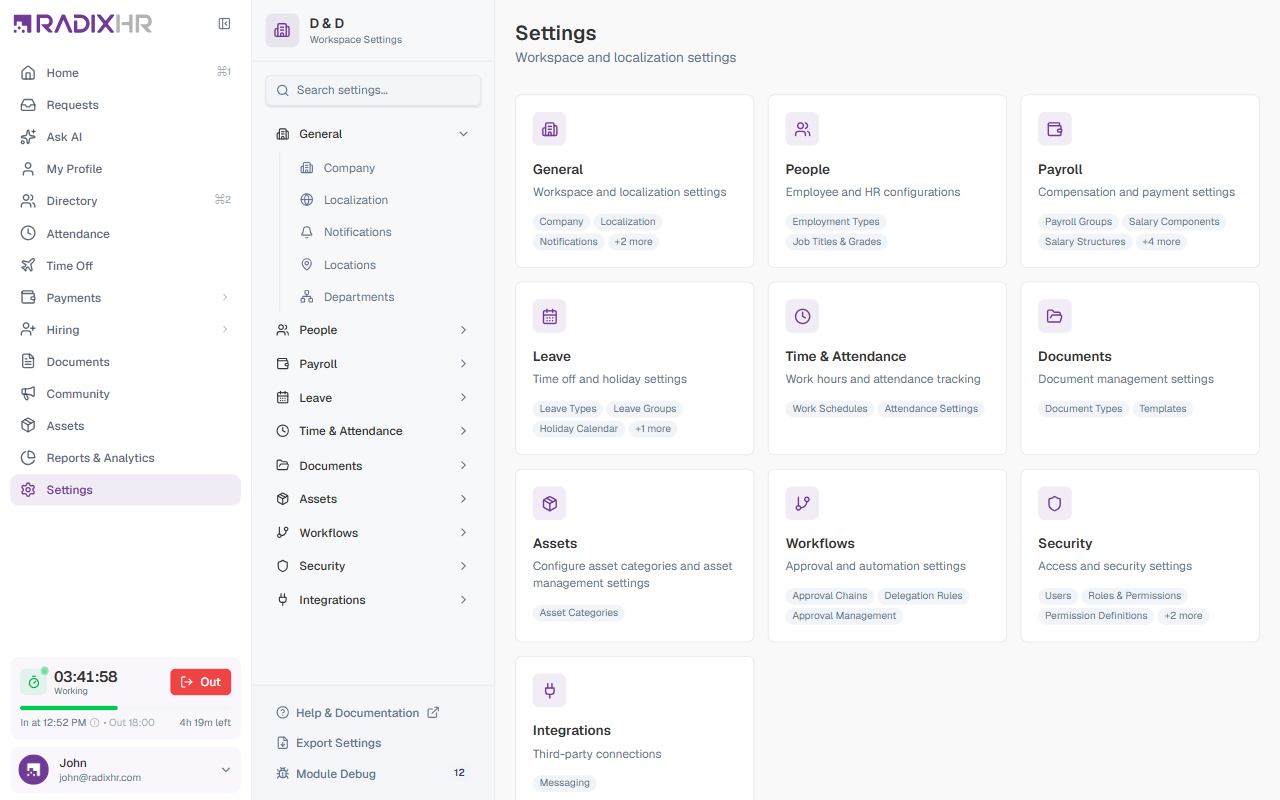
A sub-navigation panel on the left lists every settings page, grouped into sections. As of September 2026, the sections are:
| Section | What it covers |
|---|---|
| Personal | Your own profile and display preferences — not workspace-wide |
| General | Company profile (including localization) and notifications |
| HR & People | Locations, departments, job titles & grades |
| Payroll | Payroll groups, salary components, salary structures, and more |
| Leave | Leave types, leave groups, holiday calendar |
| Time & Attendance | Work schedules, attendance settings, biometric devices |
| Documents | Document types and templates |
| Assets | Asset categories |
| Workflows | Approval chains, delegation rules, approval management |
| Security | Users, roles & permissions, authentication policy |
| Integrations | Third-party connections |
| Application | Module visibility and app diagnostics — for admins |
Use the Search settings… box at the top of the sub-navigation to jump straight to a setting by name. Click Back to app above it to return to the main RadixHR sidebar.
Personal and Application only affect you or require deeper technical knowledge — the setup steps below focus on the workspace-wide sections every new admin should configure first.
Step 1 — Company Profile
Go to Settings → General → Company to set up your company’s identity and branding.
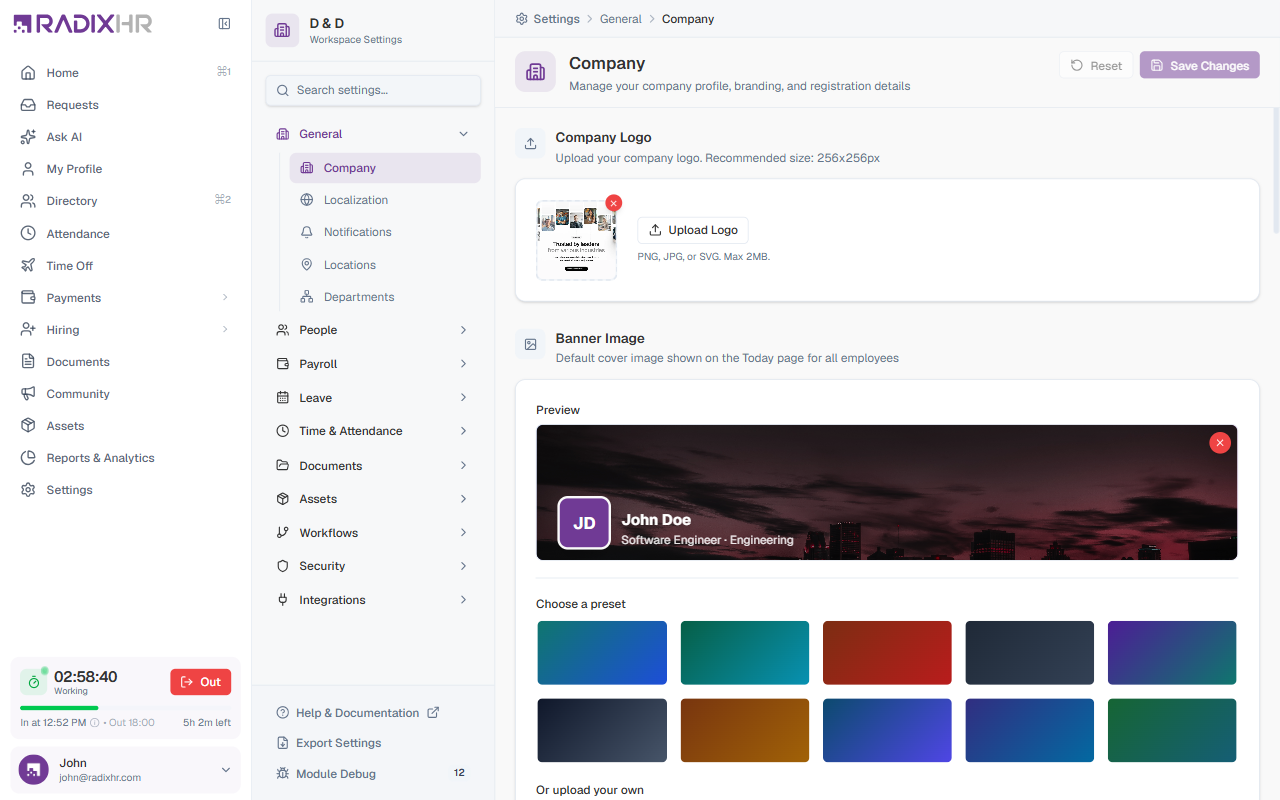
The Company page is organized into sections:
| Section | What you set |
|---|---|
| Basic Information | Company logo (PNG/JPG/SVG, max 2 MB), company name, company URL, industry, company size, and a short description |
| Localization | Default language and region, timezone, date/time formats, and currency and number formatting for the whole workspace |
| Contact Information | Contact email, contact phone, website, and support email |
| Company Details | Official registration details — registered name, entity type, trade license number and expiry, and registered address |
Make your changes and click Save Changes.
Add your Trade License Expiry date — RadixHR can track it and remind you before it lapses. Set the Timezone in the Localization section correctly before you start recording attendance — changing it later can confuse historical records.
Want a personal cover banner for your own Home page? That’s now under Settings → Personal → Appearance, not here — it’s a per-person preference, separate from the workspace-wide Company settings on this page.
Step 2 — Departments
Go to Settings → HR & People → Departments to build your organizational structure. Departments are used throughout RadixHR — for assigning employees, grouping the directory, and reporting.
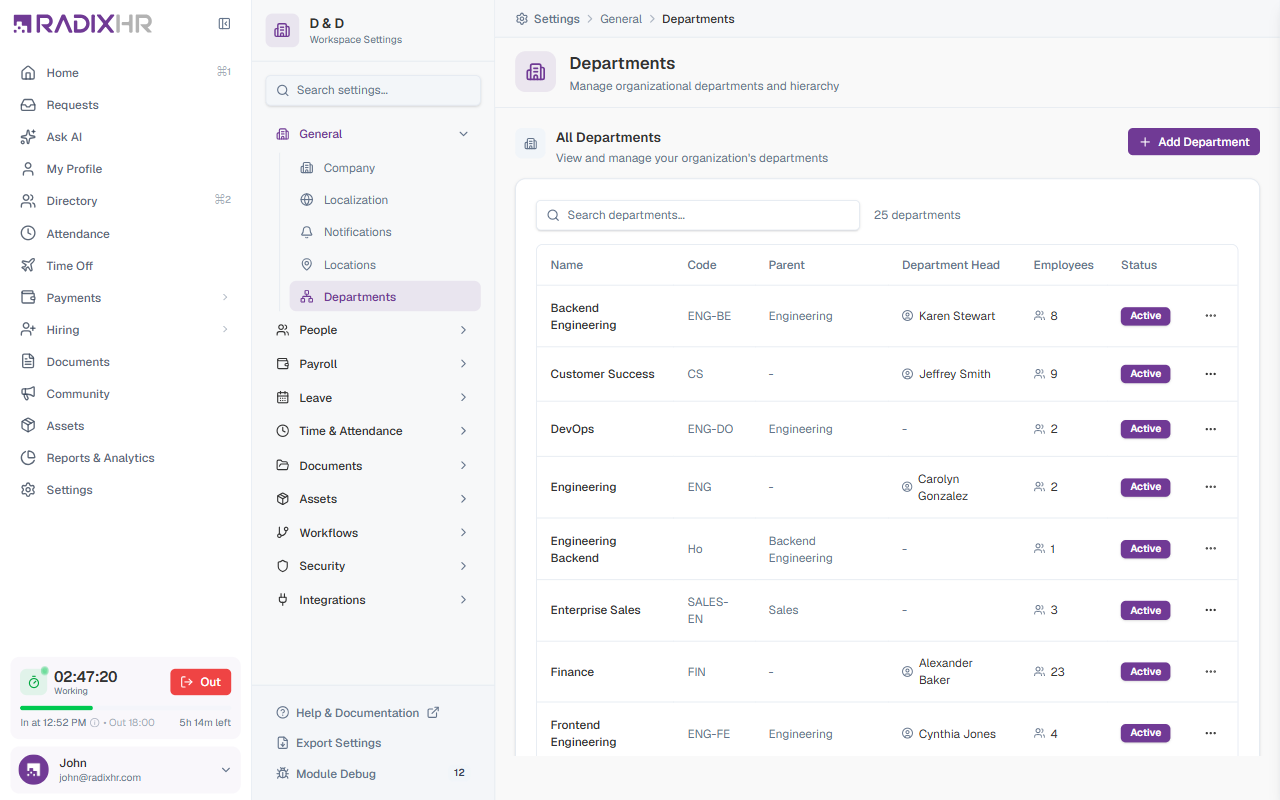
The Departments page lists every department with its Code, Parent department, Department Head, employee count, and status.
To add a department:
- Click Add Department
- Enter the department name and code
- Optionally choose a parent department (to build a hierarchy) and a department head
- Save
Create your departments before adding employees, so you can assign each new hire to a department as you create them.
Step 3 — Job Titles & Grades
Under Settings → HR & People → Job Titles & Grades, set up the roles and grade levels you can assign to employees — title, code, grade, and salary range.
Employment Types (Full Time, Part Time, Contract, Intern) used to be a page here too, but as of September 2026 it’s temporarily unavailable — its nav item was removed and the page shows a “Soon” placeholder. See Employment Types for details.
What’s Next?
With your workspace set up, continue configuring the modules your company uses: