Payroll Groups
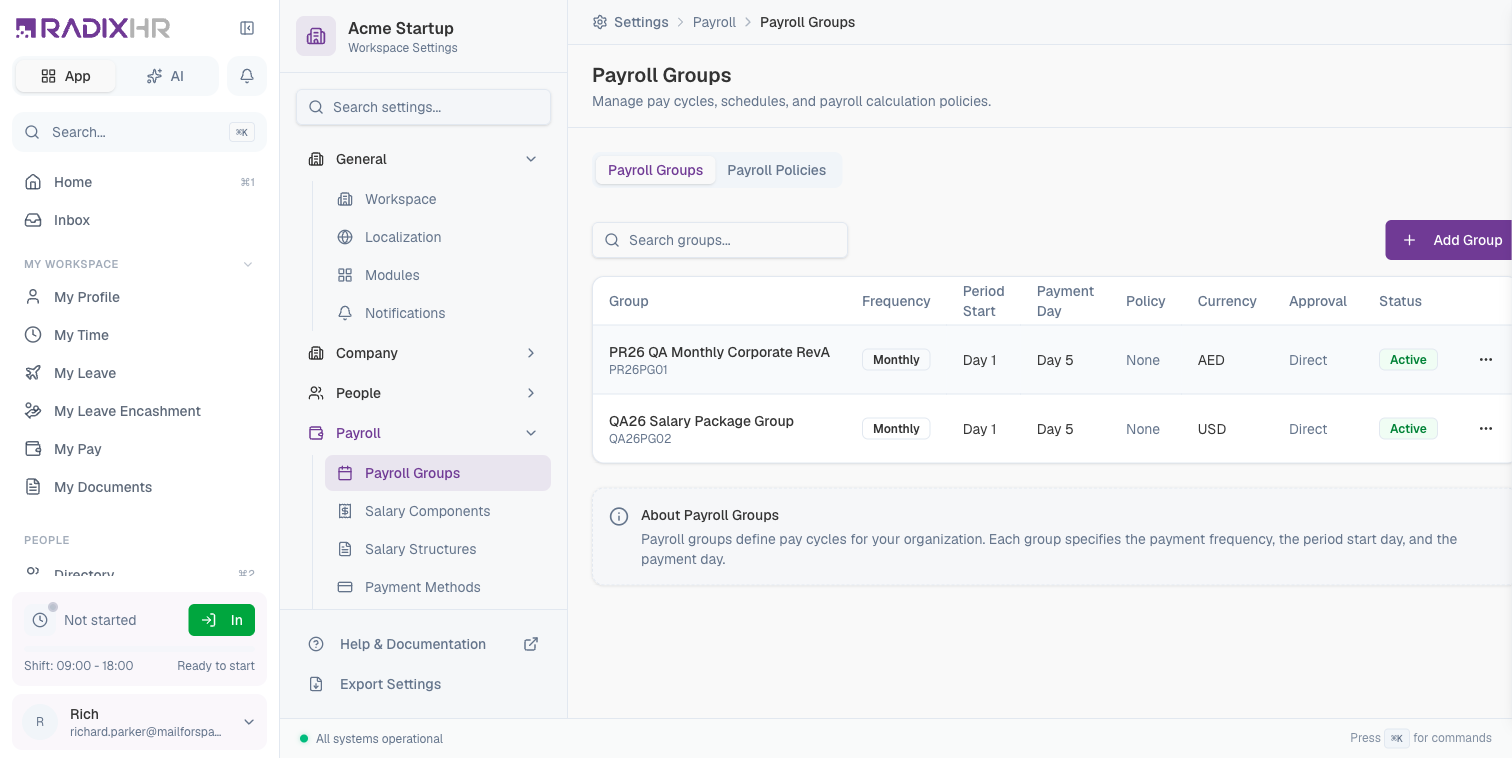
Payroll Groups define pay cycles for your organization, and this page’s Payroll Policies tab controls how salaries are calculated — including whether attendance and absences affect pay, overtime, rounding, advances and more. Each group specifies the payment frequency, period start day, and payment day, allowing you to manage different payroll schedules for various employee groups.
What you can do here:
- Create payroll groups with different payment frequencies
- Define payroll calculation policies
- Set up approval workflows for payroll runs
- Configure currency and payment schedules
When should you create multiple payroll groups? Create separate payroll groups when you have employees on different pay cycles. For example, if your office staff is paid monthly while your hourly workers are paid weekly, you need two payroll groups. Similarly, if you have employees in different countries paid in different currencies (e.g., AED for UAE staff and USD for US staff), create a separate payroll group for each currency.
Why Use Payroll Groups?
Payroll groups are essential for organizations that need to:
- Handle Multiple Pay Schedules: Pay different employee groups on different schedules (monthly, bi-weekly, weekly)
- Separate by Region: Manage payroll in different currencies for international teams
- Apply Different Policies: Use different calculation rules for different employee categories
- Control Approval Workflows: Require different approval processes for various payroll runs
Every employee must be assigned to a payroll group. The payroll group determines when and how they get paid.
Payroll Groups Tab
The Payroll Groups tab lists all configured pay cycles with their settings. Use the Search groups… box to filter by name, or click Add Group to create one.
Group Properties
| Column | Description |
|---|---|
| Group | Name and code of the payroll group. The default group (assigned to new employees) is marked with a Default badge here. |
| Frequency | How often payroll is processed (Monthly, Bi-weekly, Weekly) |
| Period & Payment | The day of the month the pay period starts and the day employees are paid |
| Policy | Linked payroll policy for calculations |
| Currency | Currency used for this payroll group |
| Approval | Approval workflow type (Direct or workflow-based) |
| Status | Active or Inactive |
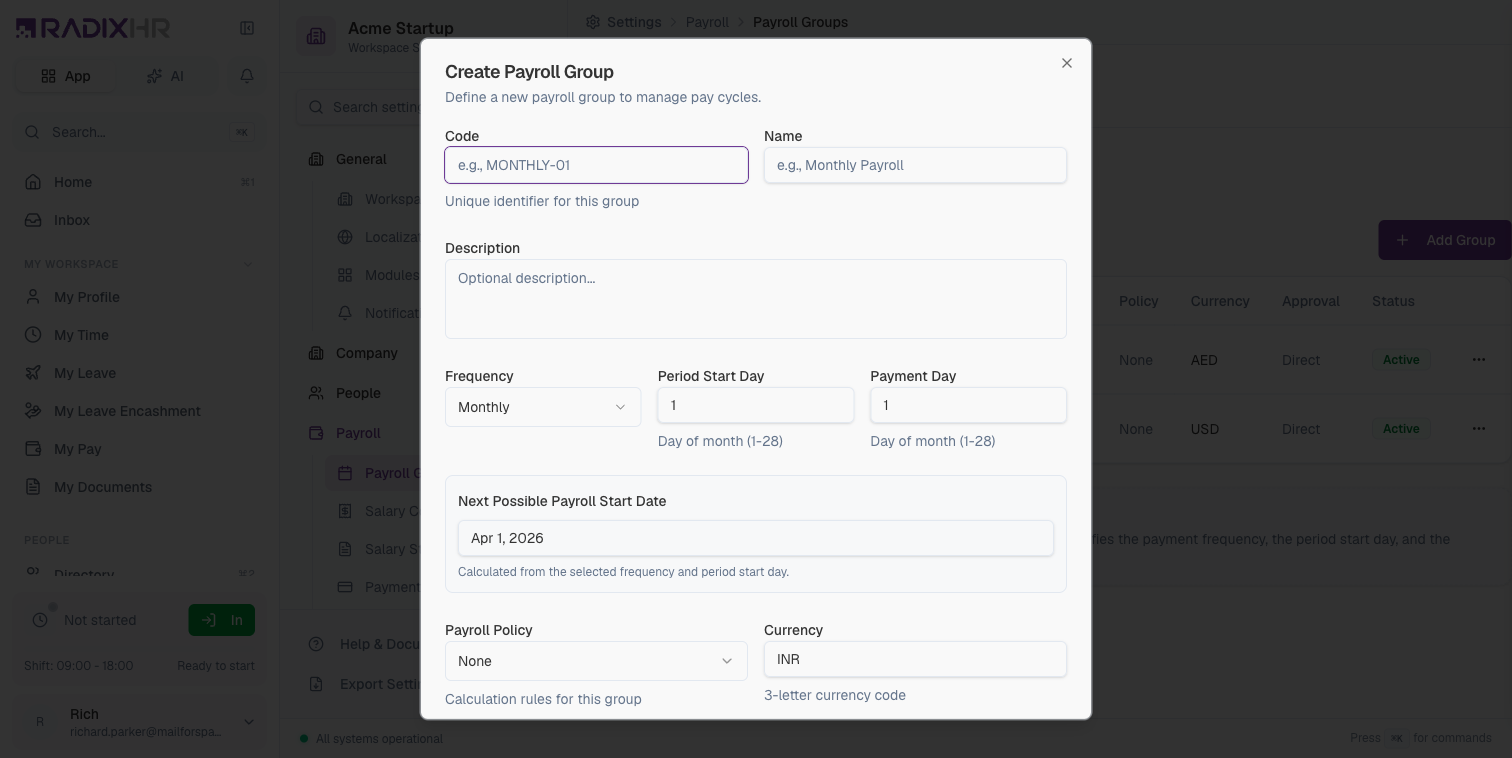
Creating a Payroll Group
- Click Add Group
- Fill in the group details
- Configure payment schedule
- Select a payroll policy (optional)
- Set approval workflow
- Click Create Group
Group Fields
| Field | Description | Required |
|---|---|---|
| Code | Unique identifier for the group (e.g., MONTHLY-01) | Yes |
| Name | Display name for the group (e.g., Monthly Payroll) | Yes |
| Description | Optional explanation of the group’s purpose | No |
| Frequency | Payment frequency (Monthly, Weekly, Bi-weekly, or Semi-monthly) | Yes |
| Period Start Day | Day of month (1-28) when pay period starts | Yes |
| Payment Day | Day of month (1-28) when payment is made | Yes |
| Payroll Policy | Calculation rules to apply (None or select policy) | No |
| Currency | 3-letter currency code (e.g., USD, EUR, INR) | Yes |
| Approval Workflow | Workflow for payroll run approval | No |
| SIF Template | The SIF (Salary Information File) template used to generate the WPS bank file for this group’s pay runs. WPS = the UAE’s Wage Protection System for paying salaries through banks. Defaults to None. | No |
| Default Group | Use as default for new employees | No |
| Active | Whether group accepts new payroll runs | Yes |
Payment Frequency Options
| Frequency | Description | Use Case |
|---|---|---|
| Monthly | Once per month on a fixed day | Most common for salaried employees |
| Semi-monthly | Twice per month (e.g. the 15th and the last day) | Salaried staff paid on fixed mid-month and month-end dates |
| Bi-weekly | Every two weeks | Common in North America |
| Weekly | Every week | Hourly workers, temporary staff |
The “Next Possible Payroll Start Date” is automatically calculated based on your frequency and period start day settings.
Approval Workflows
| Option | Description |
|---|---|
| No workflow (direct approve) | Payroll runs are approved immediately without review |
| Custom workflow | Payroll runs go through a defined approval chain before being finalized |
For compliance and audit purposes, it’s recommended to use an approval workflow for payroll runs, especially in larger organizations.
Payroll Policies Tab
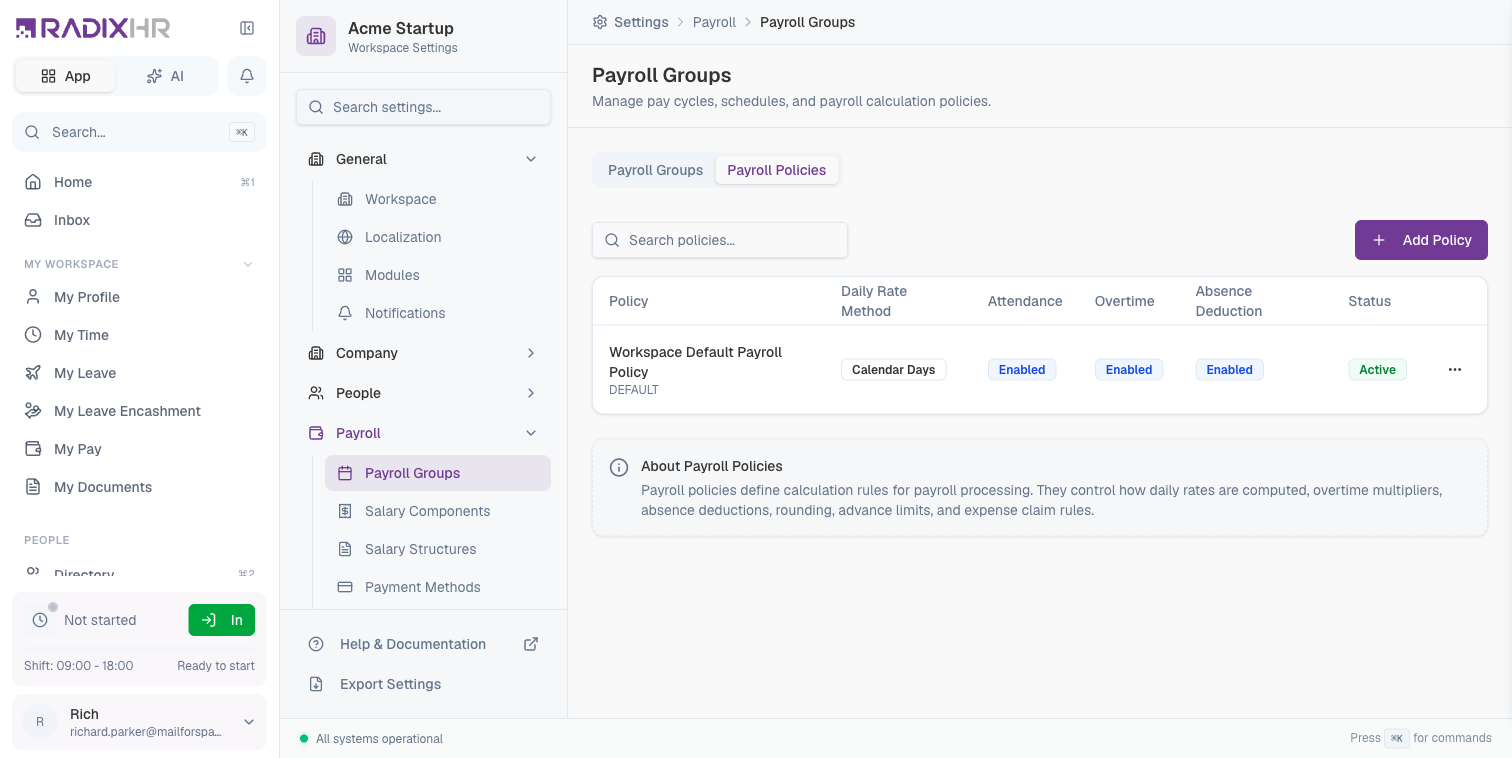
Payroll Policies define the calculation rules used when processing payroll. They control everything from daily rate calculations to overtime multipliers and deduction rules.
Why Use Payroll Policies?
Payroll policies allow you to:
- Standardize Calculations: Ensure consistent payroll calculations across the organization
- Handle Complex Rules: Define overtime rates, absence deductions, and rounding rules
- Manage Features: Enable or disable advances, expense claims, and leave encashment
- Control Limits: Set maximum advance amounts, expense claim limits, and deduction caps
Policy Properties
| Column | Description |
|---|---|
| Policy | Name and code of the payroll policy |
| Daily Rate Method | How daily salary rate is calculated |
| Attendance | Whether attendance tracking is enabled |
| Overtime | Whether overtime calculations are enabled |
| Absence Deduction | Whether absences result in salary deductions |
| Status | Active or Inactive |
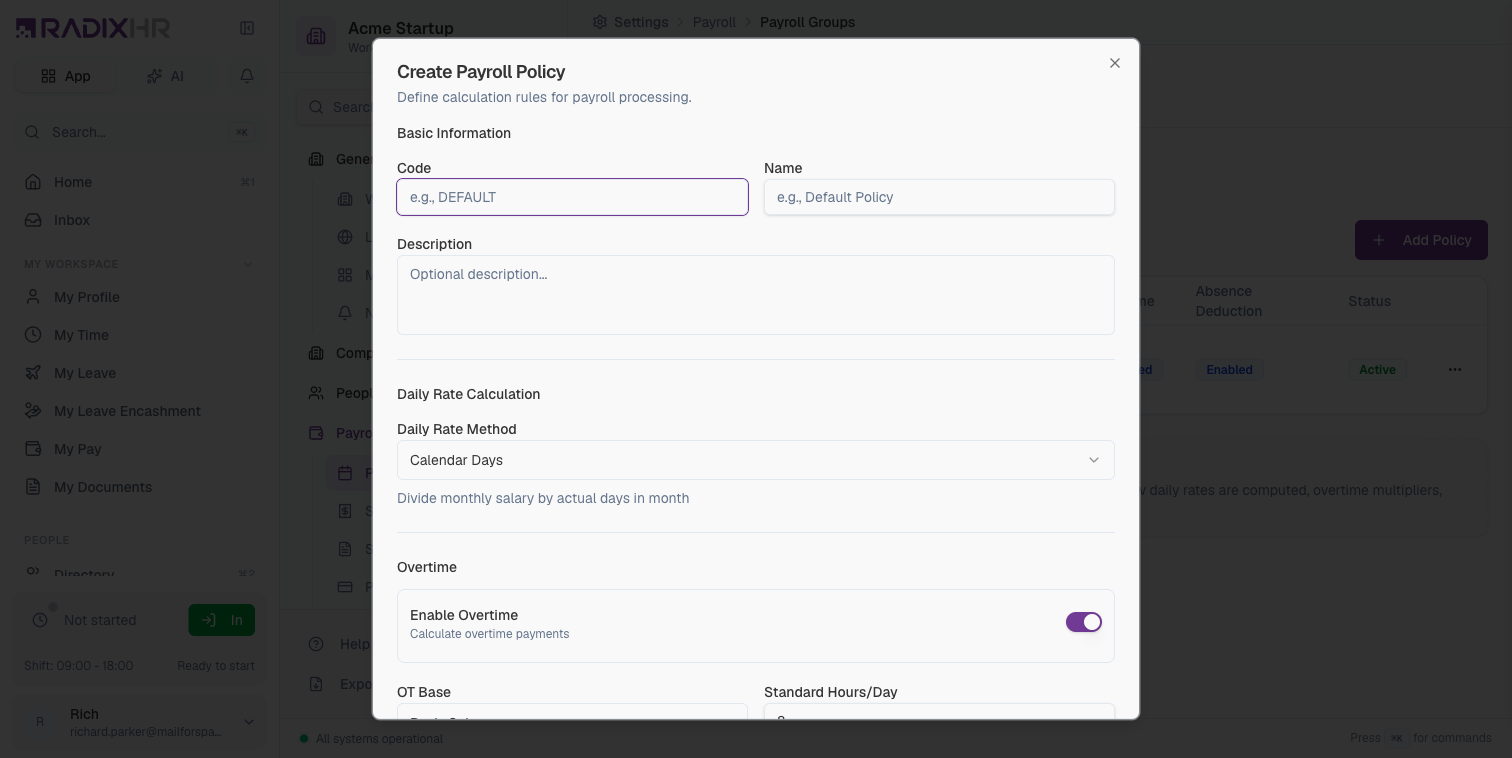
Creating a Payroll Policy
- Go to the Payroll Policies tab
- Click Add Policy
- Configure calculation rules
- Set feature toggles and limits
- Click Create Policy
Basic Information
| Field | Description |
|---|---|
| Code | Unique identifier (e.g., DEFAULT) |
| Name | Display name (e.g., Default Policy) |
| Description | Optional explanation of the policy |
Daily Rate Calculation
| Method | Description |
|---|---|
| Calendar Days | Divide monthly salary by actual days in month (28-31) |
| Fixed Days | Divide by a fixed number (e.g., 30 days) |
| Working Days | Divide by number of working days in month |
The daily rate method affects how per-day deductions and additions are calculated. Choose the method that matches your local labor laws and company policies.
Overtime Settings
| Setting | Description |
|---|---|
| Enable Overtime | Toggle overtime calculations on/off |
| OT Base | What salary component to use for OT calculations (Basic Salary, Gross) |
| Standard Hours/Day | Normal working hours per day (default: 8) |
| Normal OT Multiplier | Rate multiplier for regular overtime (e.g., 1.5x) |
| Holiday OT Multiplier | Rate multiplier for holiday overtime (e.g., 2x) |
| Weekly Off OT Multiplier | Rate multiplier for weekend overtime (e.g., 2x) |
Attendance & Absence
| Setting | Description |
|---|---|
| Enable Attendance Tracking | Require attendance records for payroll |
| Enable Absence Deduction | Deduct salary for absent days |
| Absence Deduction Base | Which salary component to use for deductions |
| LOP Deduction Base | Base for Loss of Pay calculations |
| Deduct Weekly Off | Include weekly offs in deduction calculations |
Rounding Options
| Setting | Description |
|---|---|
| Method | Round, Floor, or Ceiling |
| Decimal Precision | Number of decimal places (0 for whole numbers) |
| Min Net Pay % | Warning threshold for minimum net pay percentage |
Feature Toggles
| Feature | Description |
|---|---|
| Advances | Enable salary advance management |
| Expense Claims | Process expense reimbursements through payroll |
| Leave Encashment | Include leave encashment in payroll calculations |
| Arrears | Calculate and pay salary arrears |
Advance Limits
| Setting | Description |
|---|---|
| Max Multiplier | Maximum advance as multiple of monthly gross (e.g., 2x) |
| Max Outstanding | Maximum concurrent advance requests |
| Min Tenure | Minimum employment months before eligible for advance |
| Max Installments | Maximum number of repayment installments |
| Max Deduction % | Maximum percentage of salary for advance deduction |
Expense Limits
| Setting | Description |
|---|---|
| Max Claim Amount | Maximum single expense claim |
| Monthly Limit | Per-employee monthly expense limit |
| Receipt Required Above | Amount threshold requiring receipt attachment |
Approval Workflow
| Setting | Description |
|---|---|
| Approval Workflow | The approval chain for payroll adjustments (advances, claims, arrears) made under this policy. Defaults to No workflow (auto-approve) — pick one of your published Approval Chains to require sign-off. This is separate from the group-level workflow that approves whole payroll runs. |
Payslip & Status
| Setting | Description |
|---|---|
| Auto-generate | Automatically create payslips when a run is approved |
| Send Payslip To | Which address receives the payslip email: Business Email, Personal Email, or Both |
| Active | Policy is available for use |
How This Actually Works
This page has two settings named “Approval Workflow” that control completely different things — mixing them up is the most common source of wrong answers here:
- The Group-level Approval Workflow (Group Properties table, “Approval” column / Group Fields, line 93-102) gates whether the entire payroll run for that group needs sign-off before it’s paid. The Policy-level Approval Workflow (line 220-224, under a Policy’s own settings) gates something narrower and different: individual payroll adjustments — advances, expense claims, arrears — raised under that policy. A payroll run being unapproved and an advance request being unapproved are two separate workflows; configuring one does nothing to the other.
- Publishing a chain on Approval Chains does not, by itself, make any payroll run require approval. Whether a given group’s runs need sign-off is controlled only by that specific group’s own Approval Workflow field — you still have to open the group and set it, even after the chain exists and is published.
- Advance Limits here (this page, under a Policy → Max Multiplier) cap an advance as a multiple of monthly gross pay for everyone under that policy. This is a different mechanism from Max % of Basic Salary on the Payment Categories page, which caps a specific request category against basic salary only — a smaller number than gross pay. They aren’t interchangeable ways of expressing the same limit.
- A Payroll Policy is optional on a group (“None or select policy”) and one policy can be linked to more than one group — Policy and Group are separate, independently-configured entities, not a 1:1 pair you create together.
Best Practices
- Start with one group: Create a single payroll group initially and add more as needed
- Use descriptive codes: Make codes meaningful (e.g., MONTHLY-USD, WEEKLY-EUR)
- Document policies: Add descriptions explaining why certain calculation methods were chosen
- Test before going live: Run test payrolls to verify calculations before actual pay runs
- Regular audits: Review payroll policies periodically to ensure compliance with changing regulations
Changes to payroll policies affect future payroll runs only. Completed payroll runs retain the calculation rules that were in effect at the time of processing.
Common Scenarios
“We don’t want attendance to affect payroll at all — how do I turn that off?” In the Payroll Policy’s Attendance & Absence section, turn off Enable Attendance Tracking and Enable Absence Deduction. This is separate from the Attendance Settings page — that page controls how attendance is captured, this page’s Policy controls whether it’s used in pay calculations at all.
“We pay a fixed monthly salary no matter how many days someone actually worked — how do I stop the system deducting for absences?” Same fix as above — turn off Enable Absence Deduction in the relevant Payroll Policy. You don’t need to disable attendance tracking itself if you still want records for other purposes (like reports); just turn off the deduction.
“We want our finance team to approve payroll before it’s paid — how do I add that step?” That’s a Payroll Groups setting (not Policy) — set Approval Workflow to a custom workflow instead of “No workflow (direct approve)” when creating or editing the group.
“I want to make sure no one can request a salary advance bigger than one month’s pay — where do I set that limit?” In the Payroll Groups Payroll Policy’s Advance Limits section, set Max Multiplier to 1 — it caps an advance at that multiple of the employee’s monthly gross pay, so 1 means no more than one month’s pay.