End of Service
The End of Service page is where HR creates, calculates, and processes the final settlement paid when an employee leaves the company. A settlement covers gratuity (legally required severance pay), any unpaid salary, the cash value of unused leave, and amounts owed back to the company.
What you can do here:
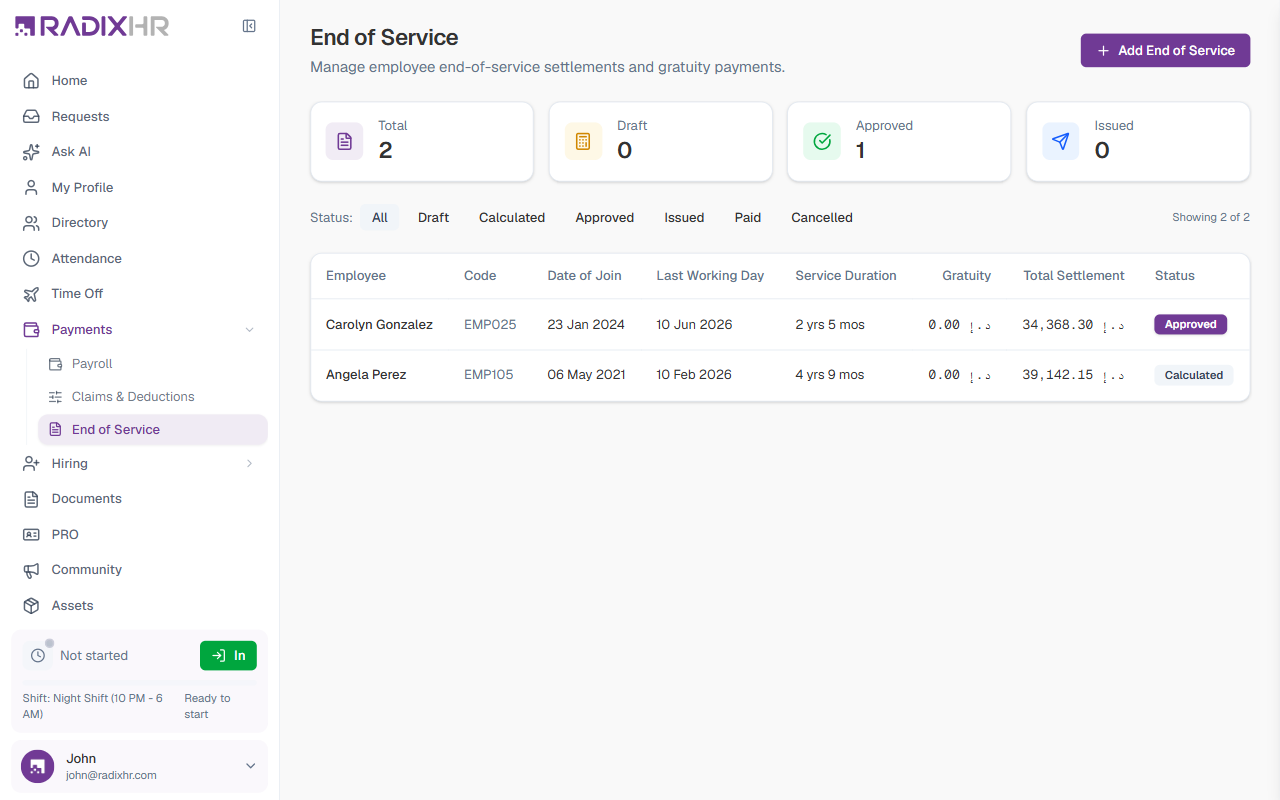
- See every end-of-service settlement, with status and totals
- Filter settlements by status
- Add a new settlement for a leaving employee
- Preview the calculated breakdown before saving
- Open a settlement to review its full detail and export it as a PDF
Gratuity is end-of-service severance pay required by labour law in many countries (for example, UAE Federal Decree-Law No. 33). It is calculated from the employee’s basic salary and years of service — commonly 21 days’ pay per year for the first 5 years, then 30 days’ pay per year afterwards. The exact formula comes from the EOS Policy that applies to the employee.
Offboarding Checklist — Everything Else to Do
Processing the settlement is one part of offboarding a leaving employee. The full checklist:
- Set their last working day and separation type — done as part of adding the settlement below (Employee Details step).
- Process the final settlement — gratuity, unpaid salary, and leave encashment. Covered by the rest of this page.
- Prepare offboarding tasks — create or assign an Offboarding template with the tasks the departing employee needs to complete. See Onboarding Templates (the same page manages both types).
- Handle documents — check how long the employee’s documents are kept after they leave. See Retention Policies, specifically Terminated Employee Documents. Generate any relieving letter or experience letter from Document Templates.
- Collect company assets — unassign or mark returned any laptop, phone, or other equipment issued to them. See Assets.
- Remove their login — once they’ve left, lock or revoke their portal access. See Users.
- Government paperwork — for visa cancellation or other PRO-related tasks, see PRO.
These steps don’t have to happen in this exact order — most HR teams start the settlement and the document/asset steps in parallel once a departure is confirmed.
Summary Cards
Four cards across the top show settlement counts by status:
| Card | What it shows |
|---|---|
| Total | Total number of settlements, across all statuses |
| Draft | Settlements created but not yet calculated |
| Approved | Settlements that have been approved and are ready to issue |
| Issued | Settlements that have been issued to the employee |
The Settlements List
Below the summary cards is a table listing every settlement. Click any row to open its full detail page.
Status Filter
A row of Status buttons narrows the list — All, Draft, Calculated, Approved, Issued, Paid, or Cancelled. A Showing X of Y counter on the right shows how many settlements match the active filter.
Columns
| Column | Description |
|---|---|
| Employee | The name of the leaving employee |
| Code | Their employee code (e.g., EGH0002) |
| Date of Join | The date they originally joined the company |
| Last Working Day | Their final day of service |
| Service Duration | Total time worked, in years and months |
| Gratuity | The calculated gratuity amount |
| Total Settlement | The grand total — gratuity plus other additions, minus deductions |
| Status | A coloured badge showing the settlement’s current stage |
Settlement Lifecycle
A settlement moves through these statuses:
Draft → Calculated → Approved → Issued → Paid
(Cancelled — from any stage before payment)| Status | Meaning |
|---|---|
| Draft | Created with employee details, but the figures are not finalized. |
| Calculated | Gratuity, salary, leave salary, and deductions have been computed. |
| Approved | Reviewed and approved by HR/Finance — locked from edits. |
| Issued | Released to the employee. Payment is pending. |
| Paid | The payment has been processed. |
| Cancelled | The settlement was cancelled before payment — for example, if the employee withdraws their resignation. |
How to Add an End of Service Settlement
Adding a settlement opens a dedicated two-step page: Employee Details, then Settlement Preview.
- Click Add End of Service in the top-right corner
- Fill in the Employee Details step
- Click Continue to Preview
- Review the calculated Settlement Preview
- Click Save Settlement
Step 1 — Employee Details
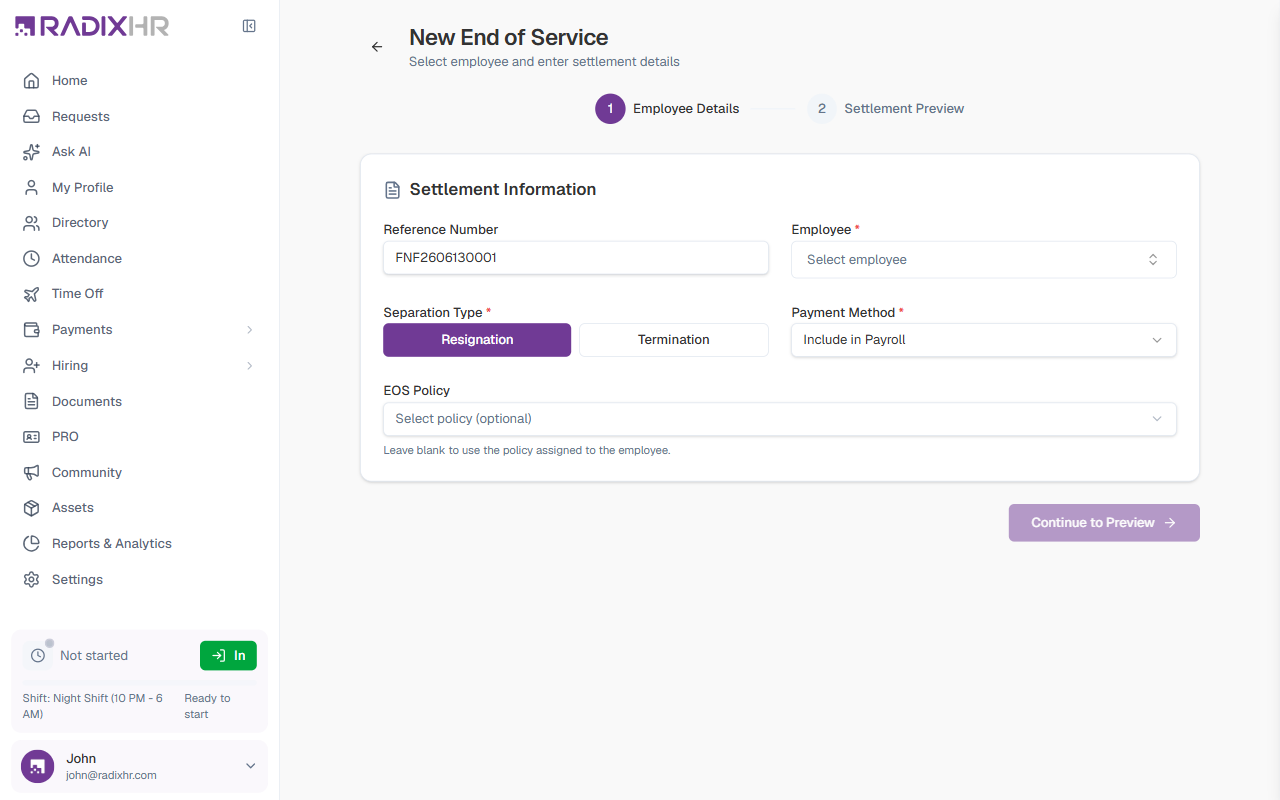
| Field | Description | Required |
|---|---|---|
| Reference Number | A unique identifier for the settlement. It is auto-generated (e.g., FNF2606130001) but you can override it. Used for tracking and reporting. | Yes |
| Employee | The leaving employee. Search and select from the employee list. | Yes |
| Separation Type | Resignation (the employee voluntarily leaves) or Termination (the company ends employment). Selected with the two buttons. The choice can affect gratuity under some policies. | Yes |
| Payment Method | How the settlement will be paid out — Include in Payroll, Bank Transfer, Cash, or Cheque. | Yes |
| EOS Policy | The end-of-service policy that defines the gratuity formula. Optional — leave blank to use the policy already assigned to the employee. | No |
Once you select an employee, a summary card appears showing their date of join, last working day, service duration, designation, and department — pulled automatically from their employee record.
An EOS Policy is the set of rules that defines how gratuity is calculated for a group of employees — the days-per-year formula, the salary basis, and any caps. Policies are configured by HR in Settings > Payroll > EOS Policy.
Step 2 — Settlement Preview
After Continue to Preview, the system calculates the settlement and shows it for review before you save.
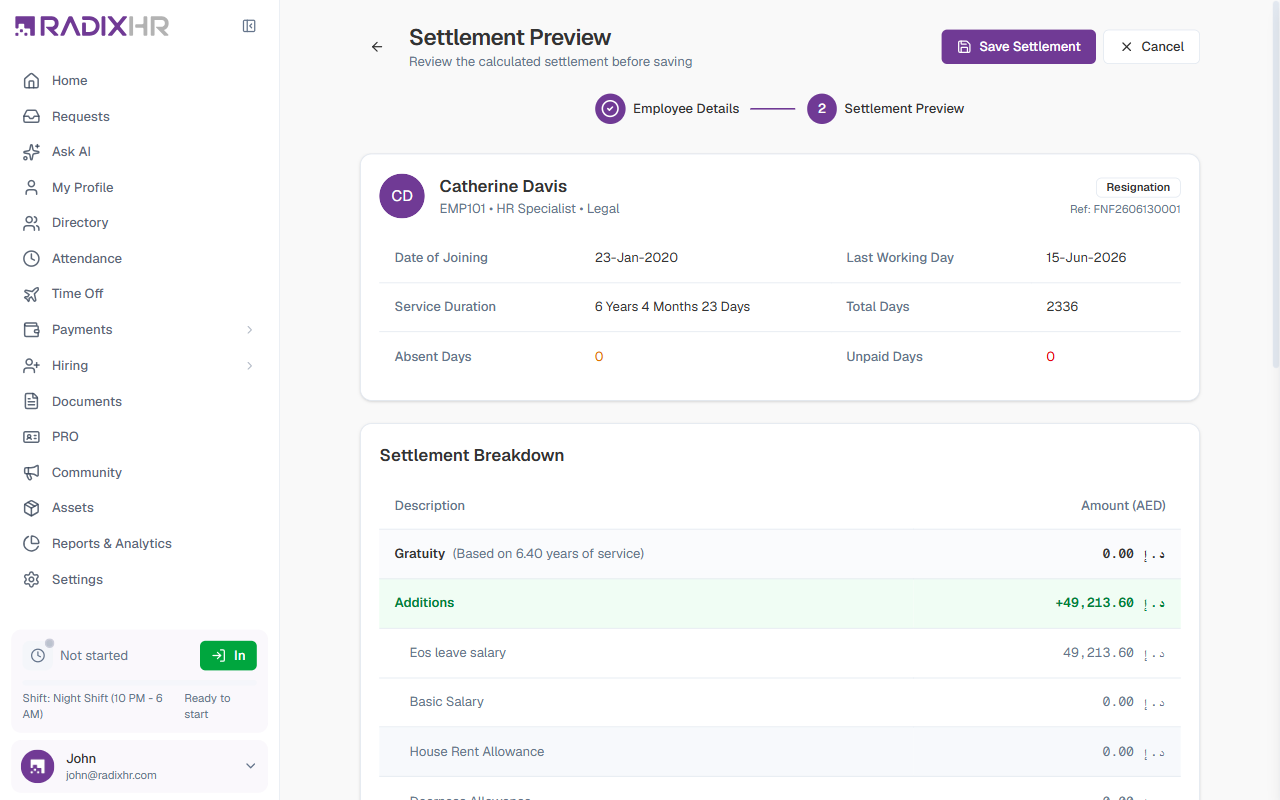
The preview shows:
- An employee summary — date of joining, last working day, service duration, total days, absent days, and unpaid days
- The Settlement Breakdown — gratuity, additions, deductions, and the total (see the next section)
- A Remarks field for any notes about the settlement
Click Save Settlement to store it as a Draft, or Back to Details to change the inputs.
Salary components in the calculation are based on the employee’s last processed payroll. If no payroll is found, the calculation defaults to the start of the last working month.
Viewing a Settlement’s Details
Click any row in the list to open the settlement’s detail page.
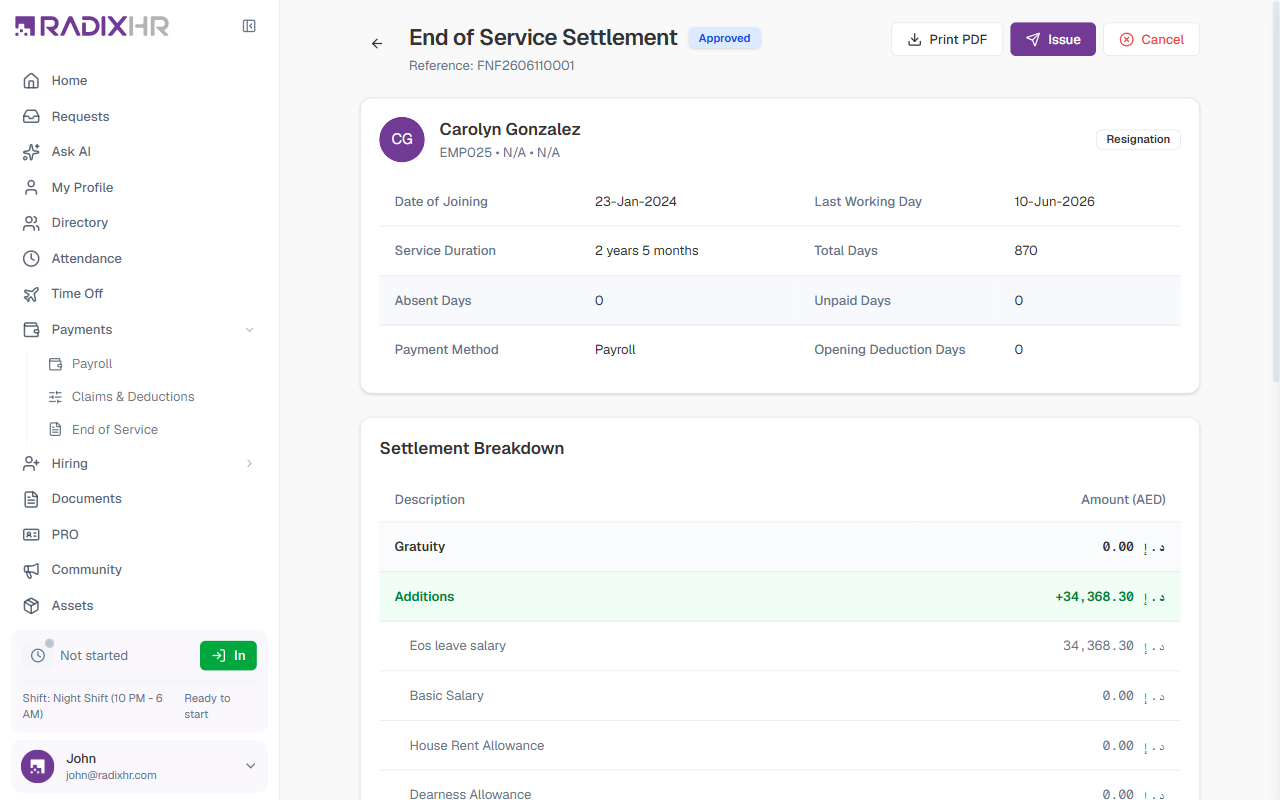
Header
| Element | Description |
|---|---|
| Title & status | ”End of Service Settlement” with a status badge (e.g., Issued) |
| Reference | The settlement reference number |
| Print PDF | Exports the full settlement breakdown as a PDF — useful for sharing with the employee or filing in HR records |
| Payment label | A note showing how the settlement will be paid (e.g., “Will be paid via payroll”) |
Employee & Service Block
A summary card with the employee’s name, code, and separation type, plus a service table:
| Field | Description |
|---|---|
| Date of Joining | The day the employee started |
| Last Working Day | Their final day of service |
| Service Duration | Total time served, in years and months |
| Total Days | The total days the settlement is calculated against |
| Absent Days | Days deducted for unpaid absences |
| Unpaid Days | Days the employee was on unpaid leave |
| Payment Method | The payout channel |
| Opening Deduction Days | Any days carried forward as deductions from a prior period |
Settlement Breakdown
A line-by-line table of every component that makes up the total:
| Line | Description |
|---|---|
| Gratuity | The total gratuity, with a sub-row showing the year tier and formula (e.g., Year 0-5 (21 days/year × 3.97 years)) |
| Additions | Amounts added to the settlement — EOS leave salary, basic salary, housing allowance, transport allowance, and other allowances |
| Deductions | Amounts taken off — EOS deduction settlement, EOS advance settlement, unpaid leave, and an absent-days calculation. Shown in red. |
| Total Settlement | The final amount payable to the employee |
Leave salary is the cash value of the employee’s unused annual leave at separation. It is shown as EOS leave salary in the breakdown.
Tips and Best Practices
Always review the preview before saving. The Settlement Preview shows the full breakdown — gratuity by year tier, leave salary, and every deduction. Catching a mistake here is far easier than after the settlement is issued.
Each settlement gets an auto-generated reference number (e.g., FNF2606130001) that appears in the audit trail and on payment files. You can override it on the Employee Details step if your organisation uses its own numbering scheme.
Confirm the EOS Policy is correct. Different employee groups may have different gratuity formulas. If the EOS Policy field is left blank, the system uses the policy attached to the employee — make sure that is the right one.