Leave Types
Leave types define the different categories of time off available to employees in your organization. Each leave type comes with its own rules for how days are allocated, whether unused days carry over, what approval workflow applies, and how leave salary is calculated when payroll runs.
What you can do here:
- Create and manage leave types (Annual, Sick, Maternity, etc.)
- Configure how leave balance is granted (Fixed, Accrued, or Unlimited)
- Set up carry-over and encashment rules
- Define request rules and eligibility requirements
- Link leave types to approval workflows
- Configure leave salary calculation for payroll
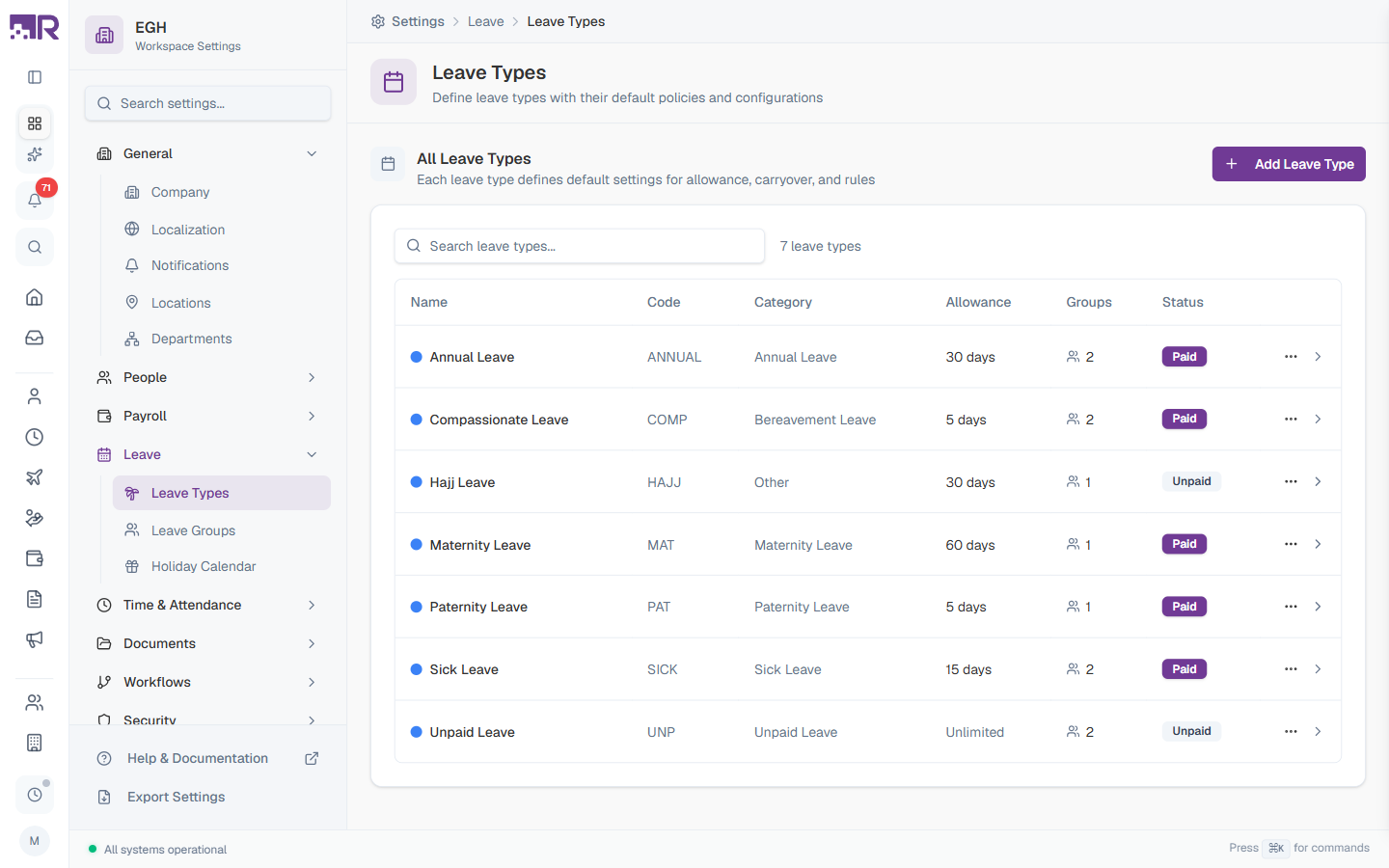
Understanding the Leave Types Table
The table lists every leave type configured in your workspace, with the count shown next to the search box (e.g., “7 leave types”).
| Column | Description |
|---|---|
| Name | The leave type name with a coloured dot for visual identification |
| Code | Short unique identifier used in reports and integrations (e.g., ANNUAL, SICK, MAT) |
| Category | Classification of the leave type (Annual, Sick, Maternity, etc.) |
| Allowance | How days are granted: a fixed number, monthly accrual, or Unlimited |
| Groups | Number of leave groups this type is assigned to |
| Status | Paid or Unpaid badge indicating whether salary is affected |
Leave types define the default settings. When you assign a leave type to a Leave Group, you can override these defaults for specific employee groups.
How to Create a Leave Type
- Go to Settings > Leave > Leave Types
- Click Add Leave Type in the top-right
- Configure each section of the form
- Click Create Leave Type
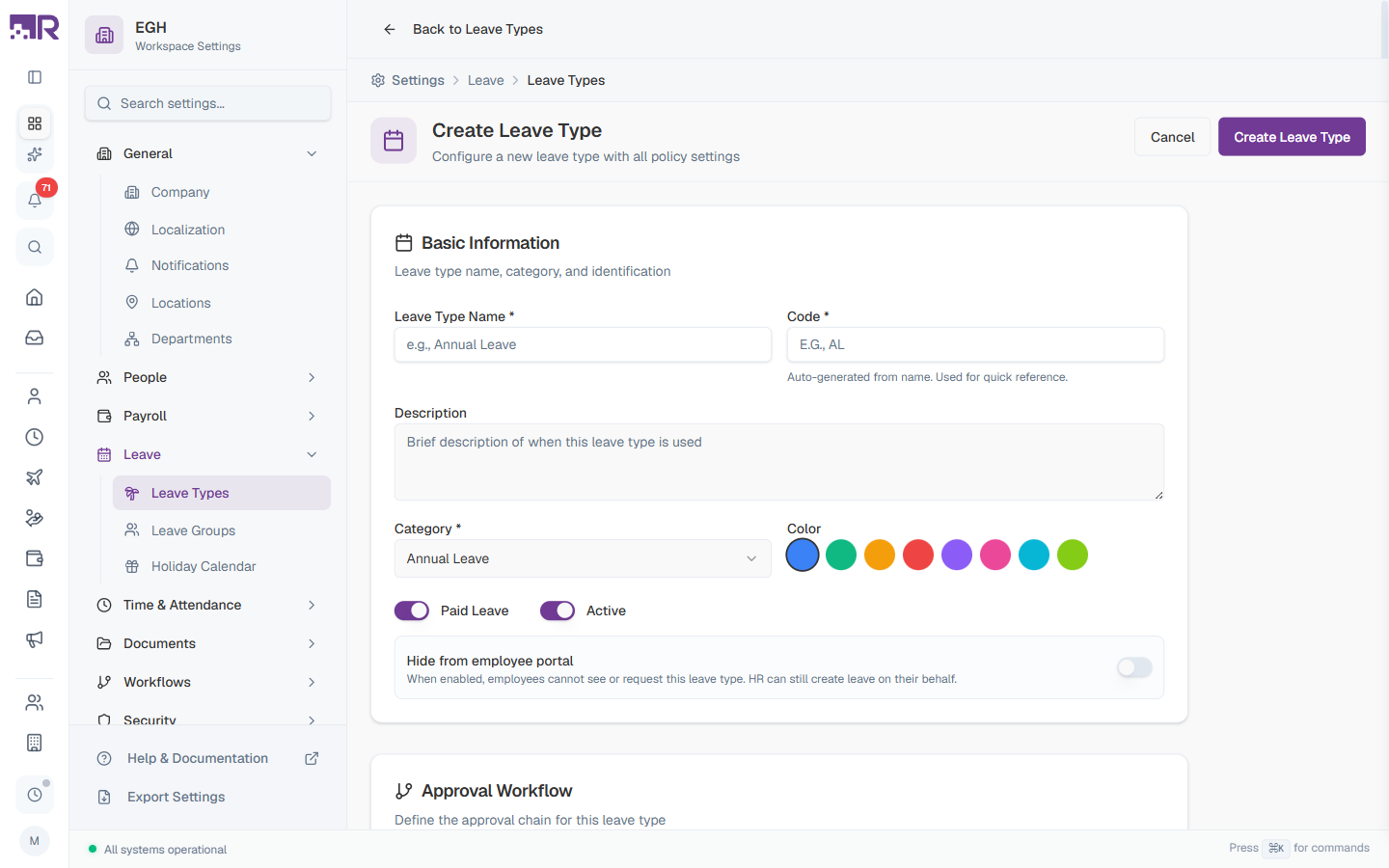
The form opens as a full page with seven sections: Basic Information, Approval Workflow, Allowance & Accrual, Carry Over, Encashment, Request Rules, and Payroll Settings.
Basic Information
This section establishes the leave type’s identity and core characteristics.
| Field | Description | Required |
|---|---|---|
| Leave Type Name | The display name employees see when requesting leave (e.g., “Annual Leave”, “Sick Leave”). | Yes |
| Code | A short unique identifier. Auto-generated from the name but can be customized. Used in reports, exports, and integrations. Examples: ANNUAL, SICK, MAT. | Yes |
| Description | A brief explanation of when this leave type should be used. Helps employees understand the purpose and any special conditions. | No |
| Category | Classifies the leave type for reporting and compliance. Default: Annual Leave. See categories below. | Yes |
| Color | A visual identifier shown in calendars, dashboards, and reports. Choose from 8 preset colors. | Yes |
| Paid Leave | ON: Employees receive their regular salary during this leave (subject to Payroll Settings). OFF: Leave is unpaid; salary is deducted for days taken. Default: ON. | Yes |
| Active | ON: The leave type is available. OFF: The leave type is hidden but existing records are preserved. Default: ON. | Yes |
| Hide from employee portal | ON: Employees cannot see or request this leave type, but HR can still create leave on their behalf. Useful for HR-only leave categories. OFF: Visible to employees. Default: OFF. | No |
Leave Categories
Categories help organize leave types and may affect compliance reporting.
| Category | Examples |
|---|---|
| Annual Leave | Annual Leave, Vacation, PTO |
| Sick Leave | Sick Leave, Medical Leave |
| Maternity Leave | Maternity Leave, Pregnancy Leave |
| Paternity Leave | Paternity Leave, Parental Leave |
| Bereavement Leave | Bereavement Leave, Compassionate Leave |
| Unpaid Leave | Unpaid Leave, Leave Without Pay |
| Other | Compensatory Off, Hajj Leave, Sabbatical, Study Leave |
Approval Workflow
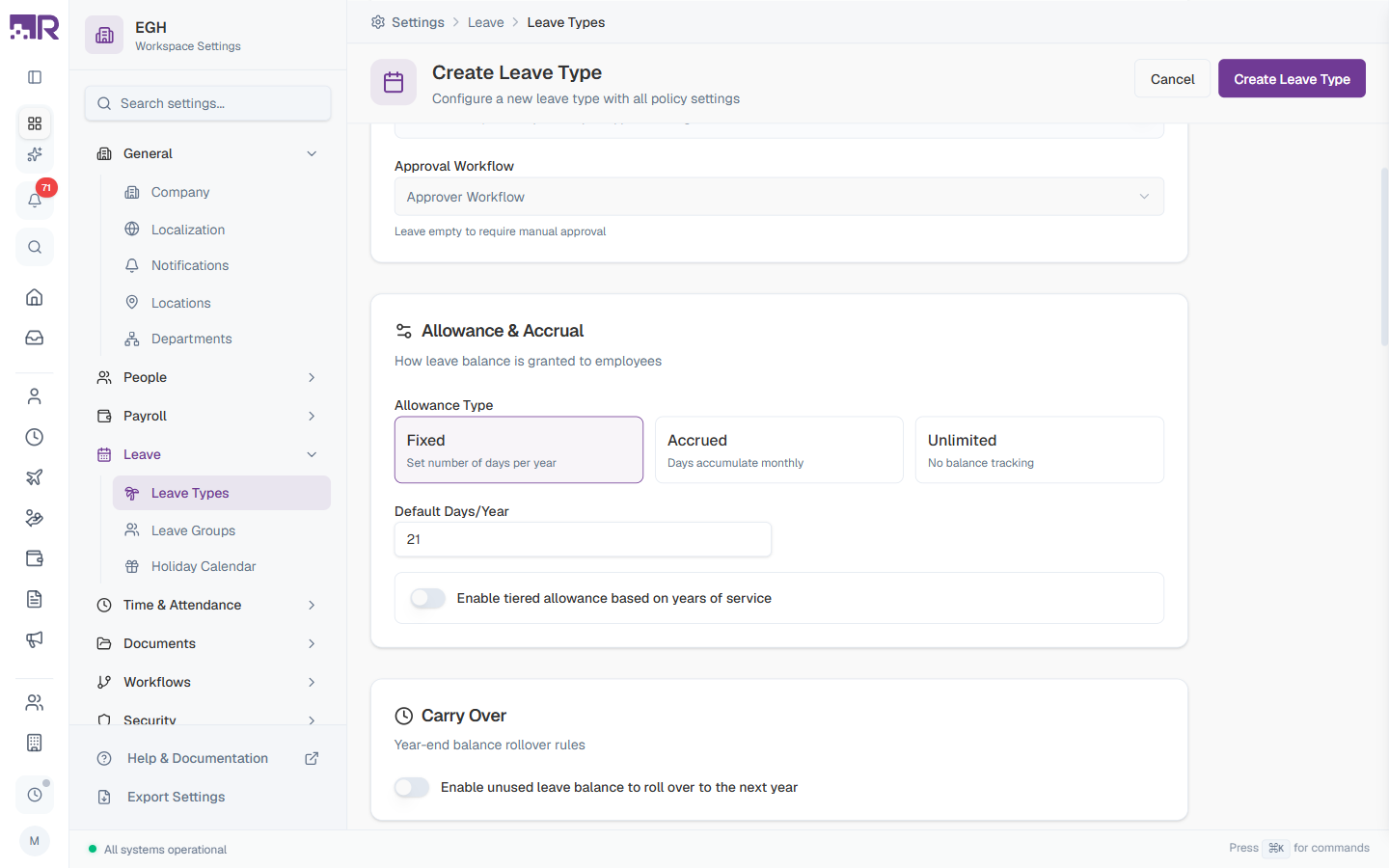
Control whether leave requests need approval and which workflow handles them.
| Field | Description |
|---|---|
| Enable Approval | ON: Leave requests go through the selected workflow. OFF: Requests are auto-approved on submission. |
| Approval Workflow | Pick which approval workflow handles requests for this leave type. Options come from Settings > Workflows > Approval Chains. Leave empty to require manual approval by HR. |
For sensitive leave types like sick leave (which may have medical privacy concerns), consider using a direct-to-HR workflow rather than line-manager approval.
Allowance & Accrual
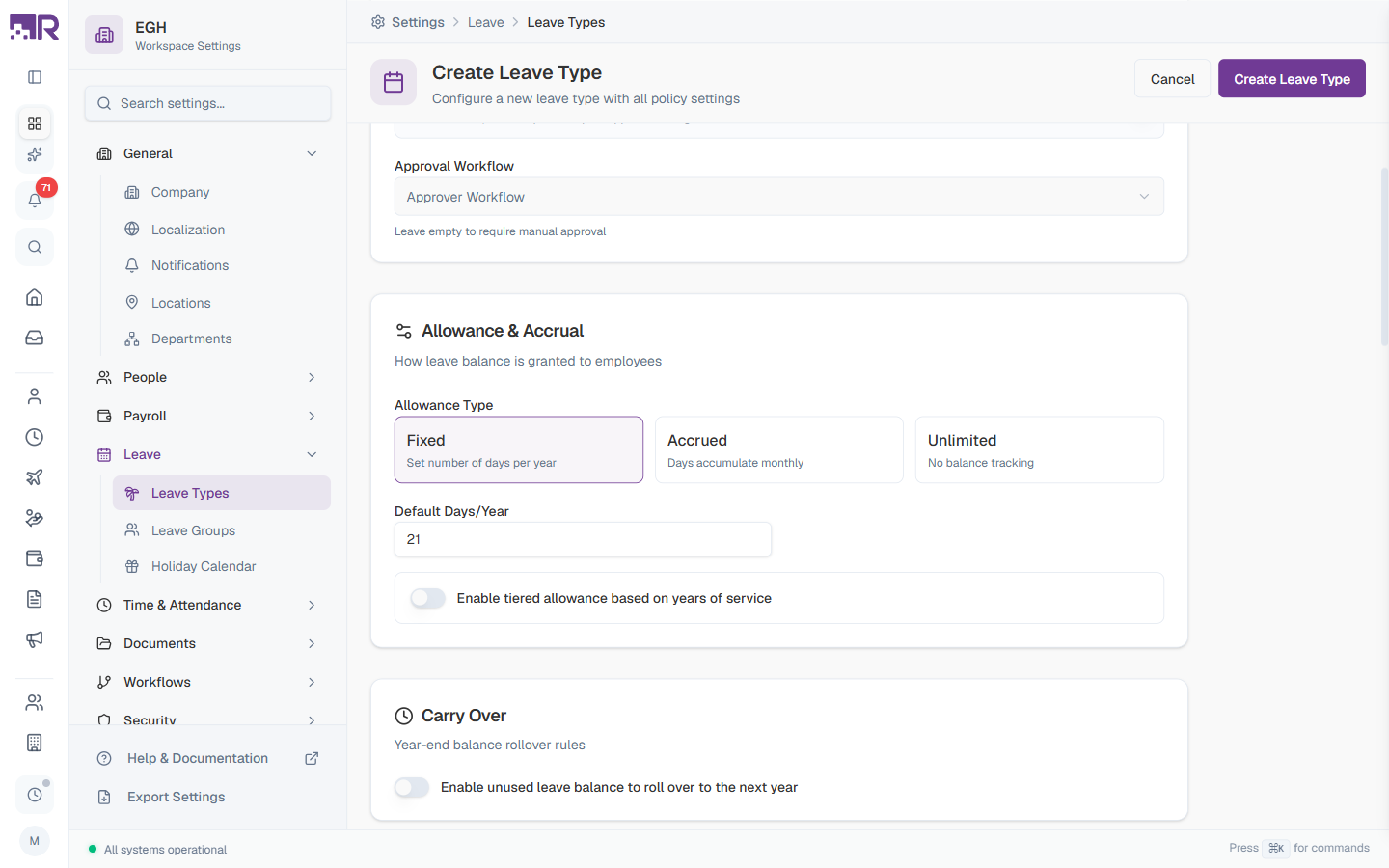
Determines how leave balance is granted to employees.
Allowance Type
Pick one of three allocation methods:
| Type | Description | Best For |
|---|---|---|
| Fixed | A set number of days granted at the start of each leave year. | Standard annual leave for salaried employees |
| Accrued | Days accumulate gradually each month. For example, 1.75 days/month = 21 days/year. (Accrual = leave balance that builds up over time.) | Hourly employees or to limit early-year leave usage |
| Unlimited | No balance tracking. Employees can request any number of days. | Trust-based policies or unpaid leave types |
Fixed Allowance
| Field | Description |
|---|---|
| Default Days/Year | Number of leave days granted per year. Default: 21. This is the workspace default — Leave Groups can override it for specific employee groups. |
Accrued Allowance
| Field | Description |
|---|---|
| Accrual Rate (days/month) | Days credited each month. For example, 1.75 days/month → 21 days/year. Decimals allowed. |
| Max Accumulation (days) | Cap on accumulated balance. Once reached, additional accruals stop. Leave empty for no cap. |
Tiered Allowance (Service-Based)
Toggle Enable tiered allowance based on years of service to grant different allowances based on tenure. Each tier has a “from year” threshold and a corresponding days value.
Example tiered configuration:
- 0+ years: 20 days
- 3+ years: 22 days
- 5+ years: 25 days
- 10+ years: 30 days
The system applies the matching tier based on each employee’s join date.
Carry Over
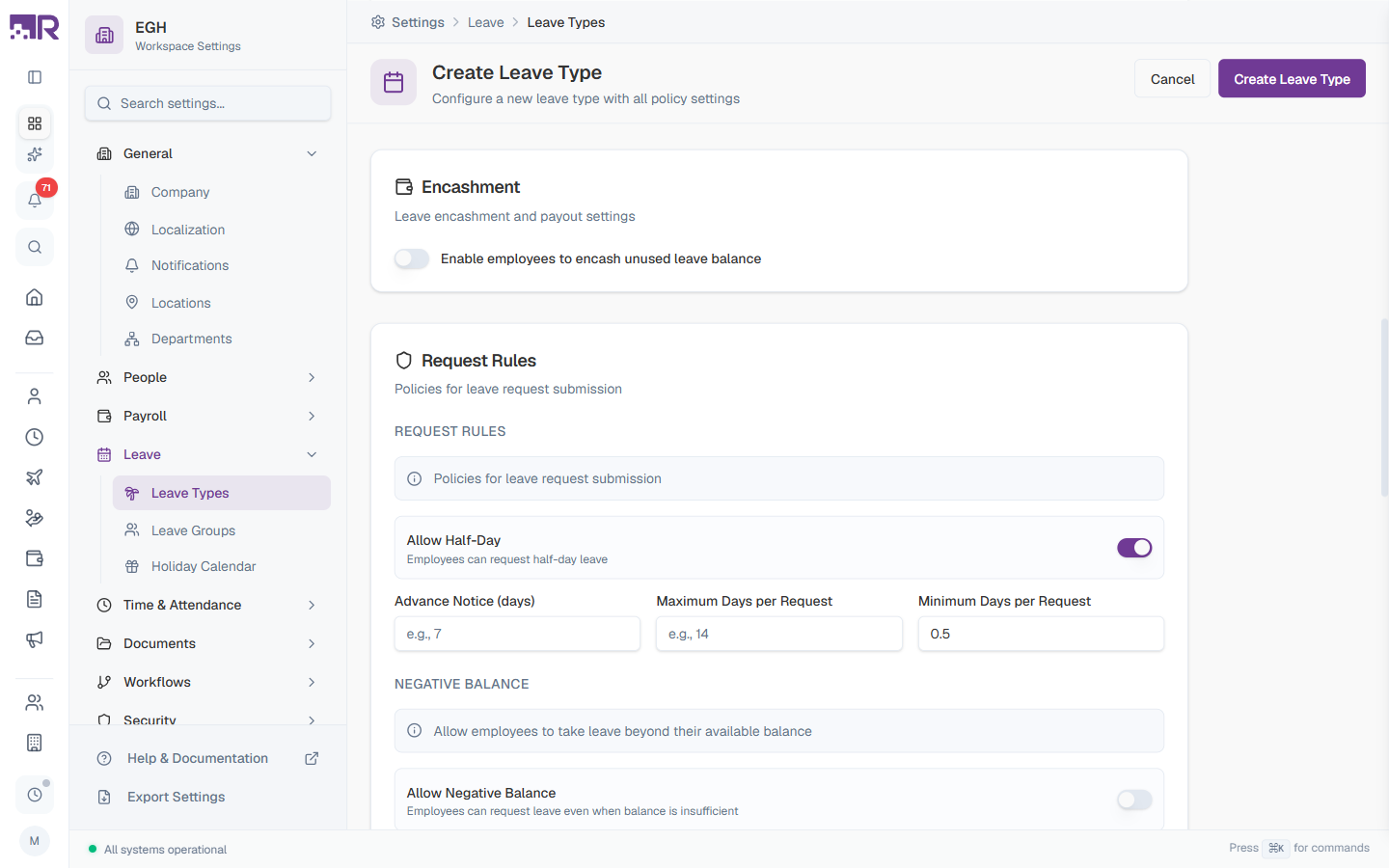
Control what happens to unused leave at the end of the leave year.
| Field | Description |
|---|---|
| Enable unused leave balance to roll over to the next year | ON: Unused days roll over into the new year. OFF: Unused days are forfeited at year end (“use it or lose it”). |
| Max Carry Over Days | Cap on how many days can be carried forward. Leave empty for no limit. |
| Carry-Over Expiry (months) | How long carried-over days remain valid in the new year. For example, set to 3 to expire carried days after March 31. Leave empty for no expiry. |
Be mindful of local labour law on leave carry-over. Some jurisdictions require employers to allow reasonable carry-over periods.
Encashment
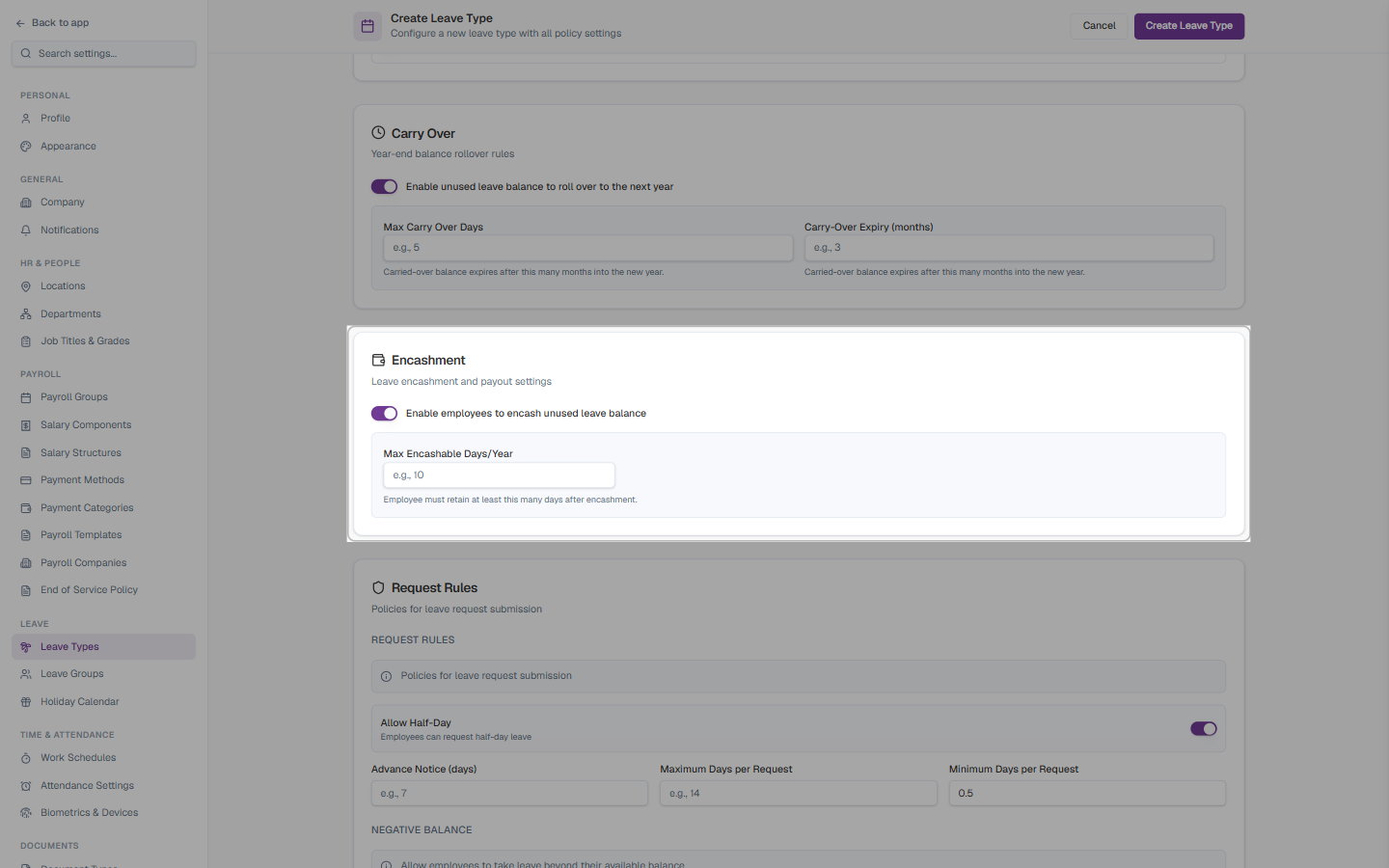
Allow employees to convert unused leave days into cash.
| Field | Description |
|---|---|
| Enable employees to encash unused leave balance | ON: Employees can submit encashment requests. OFF: Encashment is unavailable for this leave type. |
| Max Encashable Days/Year | Maximum days encashable per year. Cannot exceed the employee’s available balance. |
Encashment requests are processed through payroll. The payout calculation uses the leave salary configuration in the Payroll Settings section below.
Request Rules
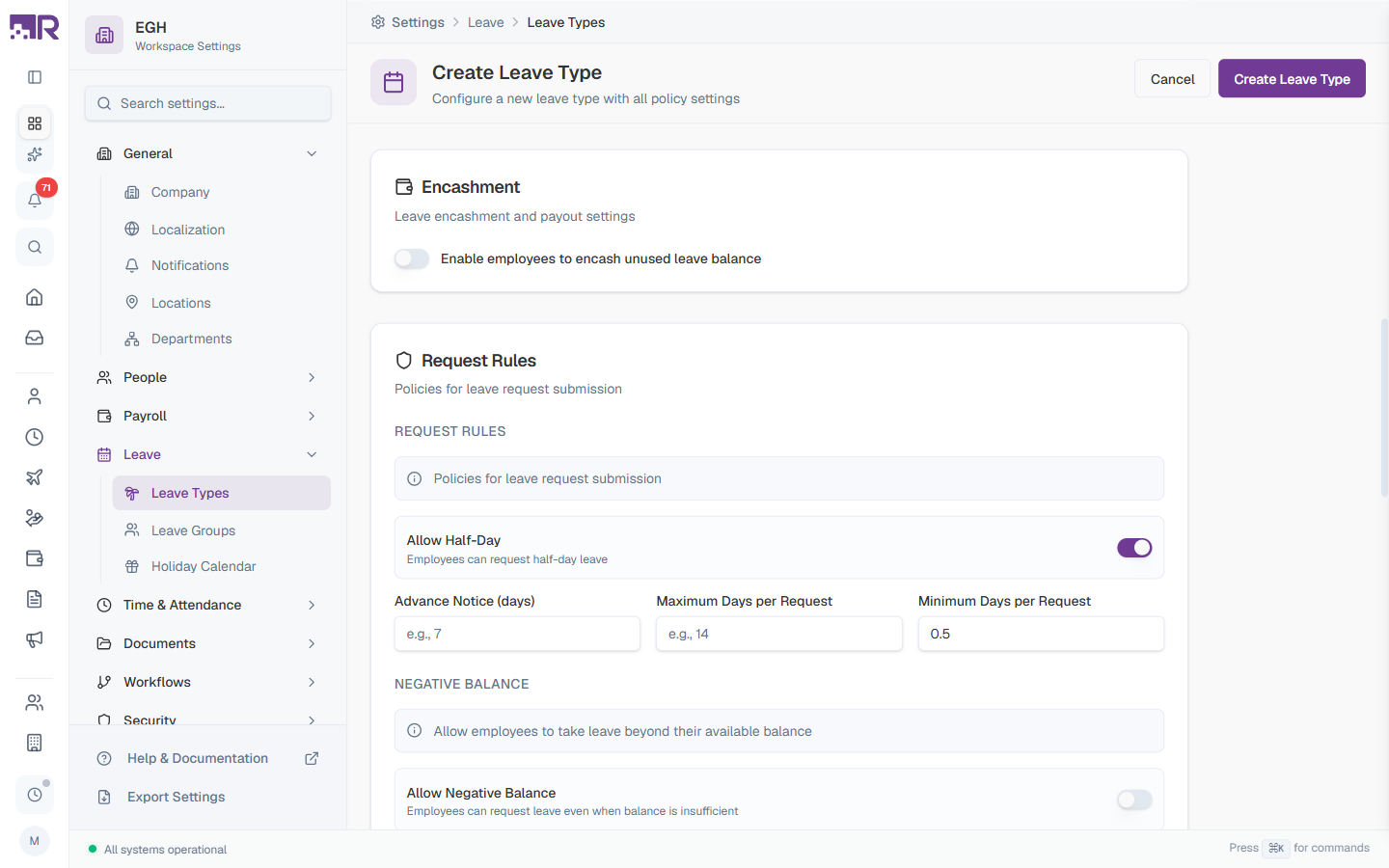
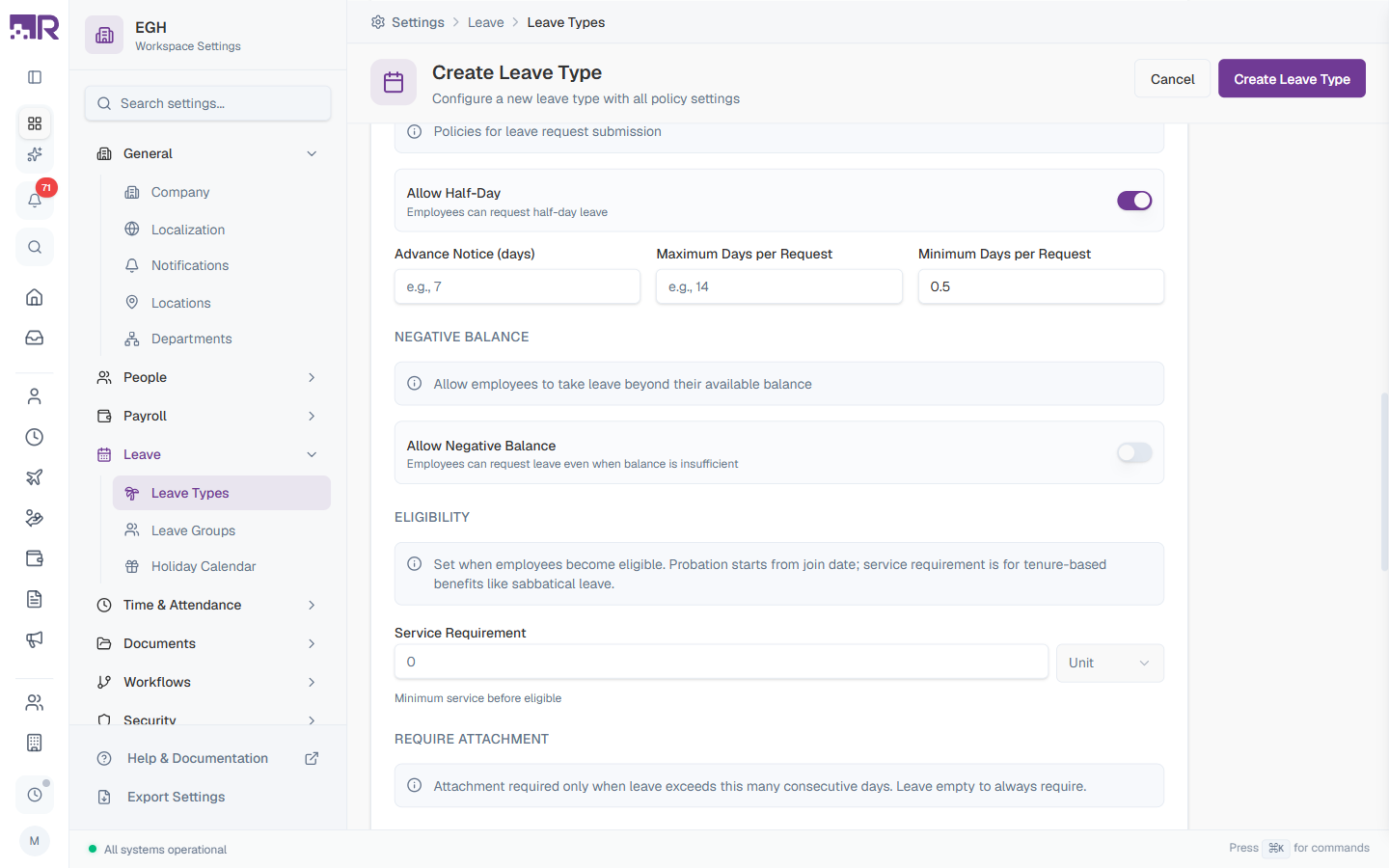
Detailed policies that govern how employees can submit leave requests.
Basic Request Rules
| Field | Description |
|---|---|
| Allow Half-Day | ON: Employees can request 0.5-day leaves. OFF: Only full-day requests are allowed. Default: ON. |
| Advance Notice (days) | Minimum days before the leave start date that a request must be submitted. For example, 7 means requests must be made at least a week in advance. Set to 0 for no advance-notice requirement. |
| Maximum Days per Request | Limit on consecutive days per request. For example, 14 prevents requests longer than 2 weeks. Leave empty for no limit. |
| Minimum Days per Request | Minimum duration for a request. Default: 0.5 if half-day is allowed, otherwise 1. |
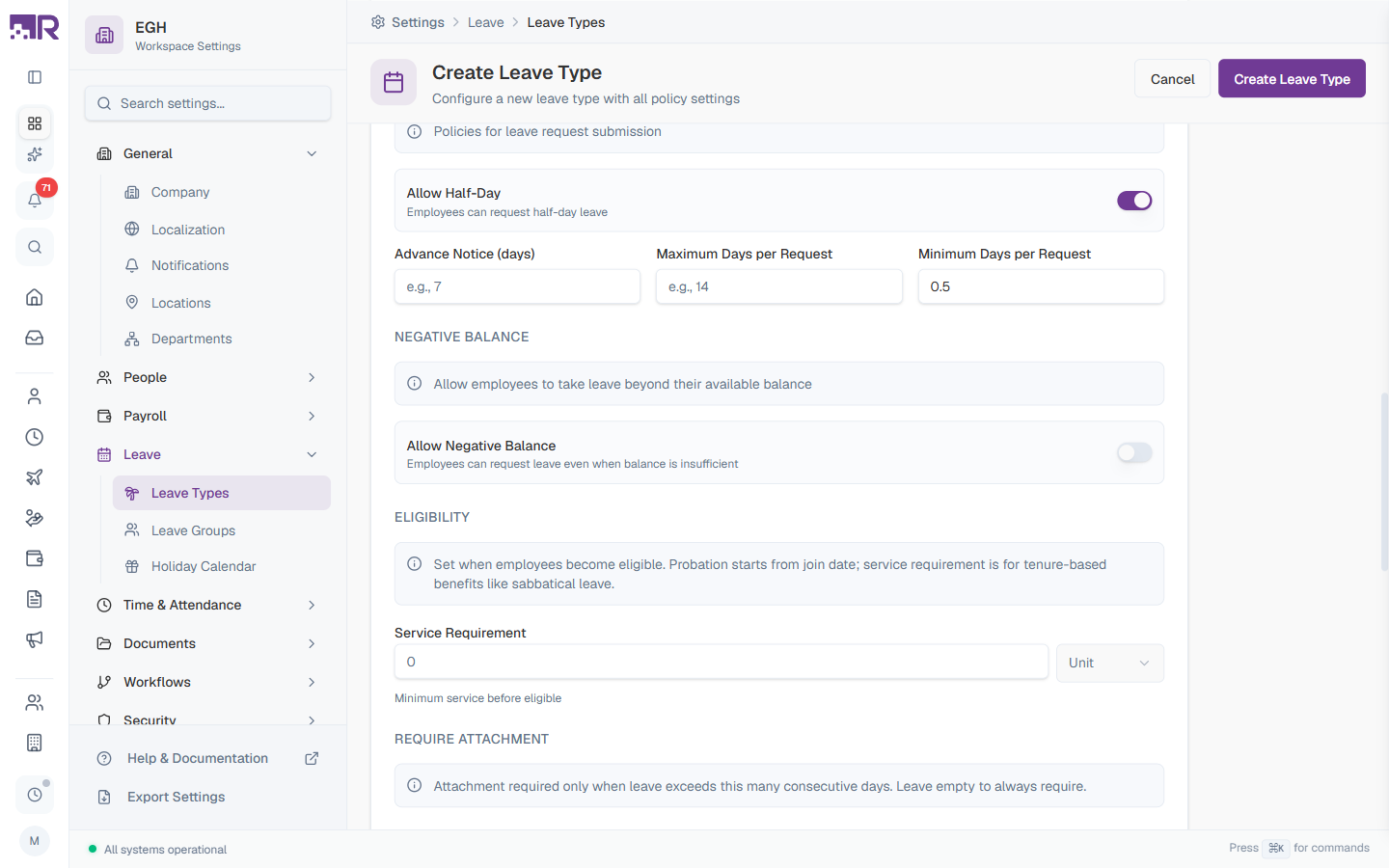
Negative Balance
| Field | Description |
|---|---|
| Allow Negative Balance | ON: Employees can request leave even when balance is insufficient — they “owe” days that get deducted from future accruals or salary. OFF: Requests are rejected when they exceed available balance. Default: OFF. |
| Max Negative Balance | Cap on how many days an employee can go below zero when negative balance is enabled. |
Use negative balance carefully. If an employee leaves with a negative balance, you’ll need to recover the overpaid leave from their final settlement.
Eligibility
Set when employees become eligible for this leave type. Probation starts from the join date; service requirement is for tenure-based benefits like sabbatical leave.
| Field | Description |
|---|---|
| Service Requirement | Minimum tenure before an employee can use this leave type. Pair with Unit to specify time scale. |
| Unit | Time scale for the service requirement: Days, Months, or Years. |
Require Attachment
| Field | Description |
|---|---|
| Require after consecutive days | Number of consecutive leave days after which a supporting document (e.g., medical certificate) is required. For example, 2 means a doctor’s note is needed for sick leave longer than 2 days. Leave empty to never require attachments, or set to 0 to always require. |
Advanced
| Field | Description |
|---|---|
| Restrict accruals on leave | ON: This leave type’s own accrual pauses for any month the employee is on approved leave (of any type, including this one or a different one) for the entire month. OFF: This type’s accrual continues normally regardless of leave taken. |
| Include Holidays Between | ON: Public holidays that fall within a leave period count as leave days. OFF: Public holidays are excluded — only working days count. |
| Include Weekends Between | ON: Weekends within a leave period count as leave days. OFF: Weekends are excluded — only scheduled work days count. |
| Maximum Occurrences (per year) | Cap on how many separate leave requests can be made for this type per year. For example, 12 limits sick leave to 12 separate instances. Leave empty for no limit. |
For most leave types, set Include Holidays Between and Include Weekends Between to OFF so only working days count against balance.
For extended leaves like maternity or sabbatical, you may want them ON since those are typically calendar-day based.
Payroll Settings
Configure how leave salary is calculated and paid for this leave type. These settings drive payroll processing for any paid leave taken under this type.
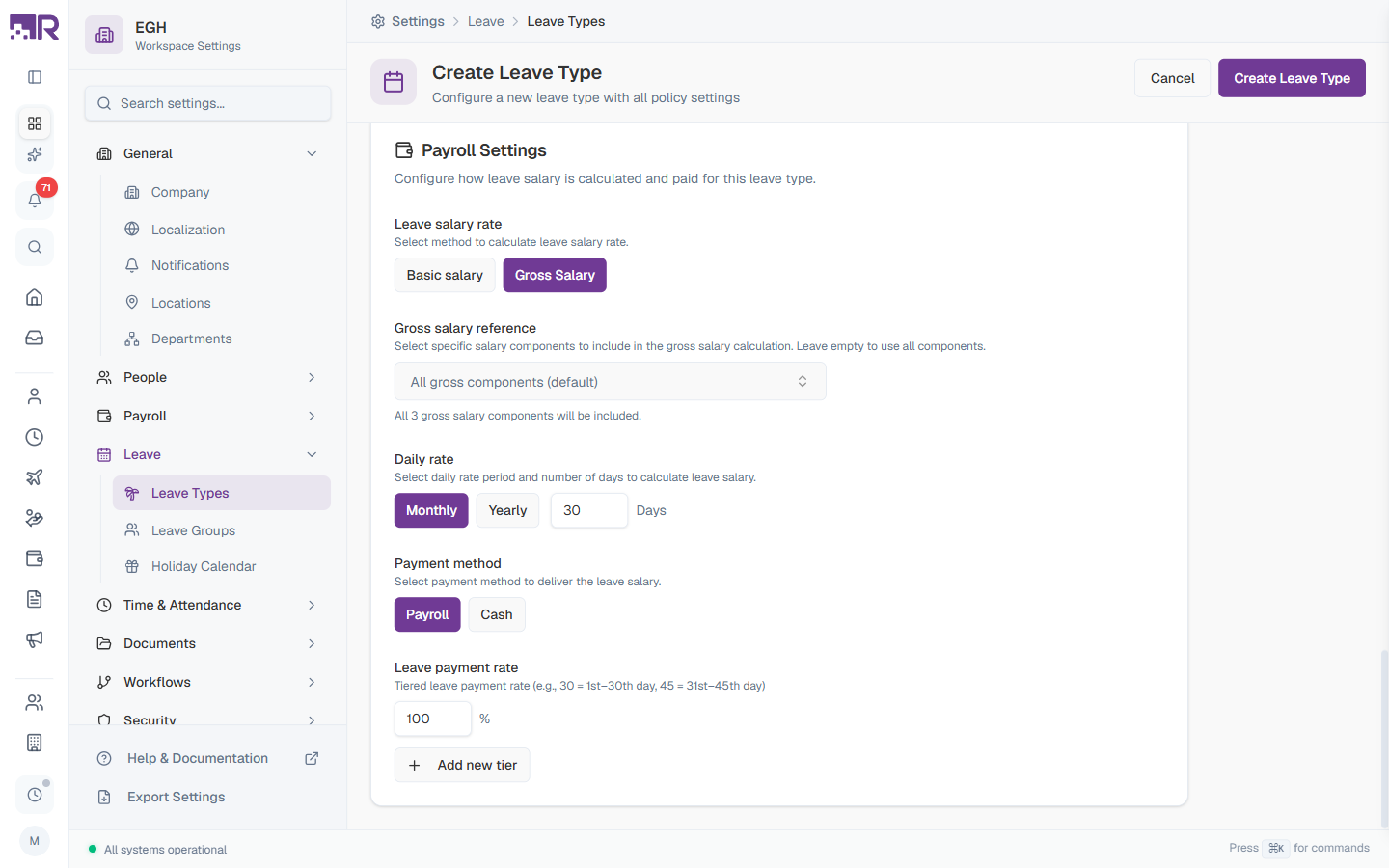
Leave salary rate
Pick the calculation base:
| Option | Description |
|---|---|
| Basic salary | Use the employee’s basic salary component only when calculating leave pay. |
| Gross Salary | Use the employee’s full gross salary (sum of selected components). Default. |
Gross salary reference
When Gross Salary is selected, choose which salary components feed into the calculation.
| Field | Description |
|---|---|
| Gross salary reference | Select specific salary components to include. All gross components (default) uses every gross component configured in Settings > Payroll > Salary Components. Pick a subset to exclude certain components. |
Daily rate
Determines how the daily leave rate is derived from the chosen salary base.
| Field | Description |
|---|---|
| Period | Monthly — divide by the number of days specified to get a daily rate. Yearly — same logic but with a yearly base. Default: Monthly. |
| Days | Number of days used as the divisor. Default: 30 (so a monthly salary divided by 30 gives the daily leave rate). Common alternatives: 26 (working days), 22 (weekdays only). |
Payment method
How the leave pay reaches the employee.
| Option | Description |
|---|---|
| Payroll | Leave pay is rolled into the regular monthly payslip. Default. |
| Cash | Leave pay is processed as a separate cash payment outside of regular payroll. |
Leave payment rate
Tiered percentage rates that scale leave pay based on how many consecutive days have been taken. Useful for jurisdictions where, for example, the first 30 days of sick leave are paid at 100% and the next 15 at 75%.
| Field | Description |
|---|---|
| Tier rate | Percentage of the daily rate paid for this tier. Default: 100%. |
| Days | The day-count threshold for this tier (e.g., 30 = day 1–30, 45 = day 31–45). |
| Add new tier | Click to add another tier with a different rate. |
Example tiered leave payment for sick leave:
- First 15 days at 100%
- Next 30 days at 75%
- Anything beyond at 50%
Configure three tiers with the matching Days thresholds and percentages.
How This Actually Works
- Almost every setting on a Leave Type is shared by everyone linked to it — there is no per-employee or per-group override within the same type. Allowance, Negative Balance, Carry Over, Encashment limits, Request Rules — all of it applies identically to every employee across every Leave Group that links to this type. The only exception is Tiered Allowance (Service-Based), which varies automatically by each employee’s own tenure without needing a separate type. For anything else, making one subset of people behave differently always means putting them on a genuinely different Leave Type (or a Leave Group that links to one) — never editing a shared setting expecting it to apply selectively.
- Payroll Settings’ “Leave salary rate” — Basic salary vs. Gross Salary — are two different, non-equal numbers, not interchangeable phrasings of “their pay.” Basic salary is normally a smaller figure than Gross Salary (which is the sum of components, configurable via Gross salary reference). Which one is selected changes the actual leave payout amount, so naming the wrong one when explaining “how much do they get paid on leave” gives a materially different figure, not just different wording.
- “Restrict accruals on leave” is self-referential, not cross-type — it lives on the leave type whose own accrual should pause, and it’s triggered by being on any approved leave (this type or a different one) for a full month. Set it on Annual Leave, and Annual Leave’s own accrual pauses whenever the employee is on a full month of approved leave of any kind (including, say, Maternity) — it does not pause accrual on other leave types while this one is being used.
Common Leave Type Examples
Typical configurations for the most common leave types:
Annual Leave
| Setting | Typical Value |
|---|---|
| Category | Annual Leave |
| Paid Leave | ON |
| Allowance Type | Fixed |
| Default Days | 20–25 days |
| Allow Half-Day | ON |
| Advance Notice | 7 days |
| Carry Over | ON (max 5 days, expires in 3 months) |
| Encashment | Optional (max 5 days) |
Sick Leave
| Setting | Typical Value |
|---|---|
| Category | Sick Leave |
| Paid Leave | ON |
| Allowance Type | Fixed |
| Default Days | 10–15 days |
| Allow Half-Day | ON |
| Advance Notice | 0 days (immediate) |
| Require Attachment | After 2 consecutive days |
| Carry Over | OFF |
Maternity Leave
| Setting | Typical Value |
|---|---|
| Category | Maternity Leave |
| Paid Leave | ON |
| Allowance Type | Fixed |
| Default Days | 60–180 days (varies by country) |
| Allow Half-Day | OFF |
| Advance Notice | 30 days |
| Include Holidays Between | ON |
| Include Weekends Between | ON |
| Service Requirement | 6 months |
Compensatory Off
| Setting | Typical Value |
|---|---|
| Category | Other |
| Paid Leave | ON |
| Allowance Type | Accrued (manually granted) |
| Allow Half-Day | ON |
| Advance Notice | 1 day |
| Carry Over | ON (expires in 1–3 months) |
| Maximum Days per Request | 3 days |
Best Practices
- Start with the essentials — Annual, Sick, Unpaid — and add specialized types only as needed.
- Use clear, consistent names so employees understand when to use each leave type. Avoid abbreviations in display names; reserve them for the Code field.
- Set advance-notice requirements that match reality — 7–14 days for planned vacations, 0 days for sick or emergency leave.
- Document your policies in the Description field so future admins understand any special conditions.
- Review compliance with local labour law for minimum entitlements, maternity duration, sick leave, and carry-over requirements.
- Test before rolling out — assign a new leave type to a small leave group before organisation-wide deployment.
Troubleshooting
Employee can’t see a leave type
- Check the leave type is Active and not Hidden from employee portal
- Verify it’s assigned to the employee’s Leave Group
- Check Eligibility — the employee may not have completed the service requirement
Leave balance not accruing
- Verify Allowance Type is set to Accrued with the correct rate
- Check Restrict accruals on leave isn’t preventing accrual
- Ensure the employee’s leave year has started
Carry over not working
- Confirm Enable unused leave balance to roll over to the next year is ON
- Check carried days haven’t expired based on the expiry months setting
- Verify the Max Carry Over Days limit wasn’t exceeded
Request rejected despite having balance
- Check the Advance Notice requirement
- Verify Maximum Days per Request isn’t exceeded
- Confirm the Service Requirement is met
- Look for overlapping approved leave on the same dates
Common Scenarios
“Our default annual leave allowance is too low for senior staff — how do I give them more?”
There’s no way to override the number of days for a subset of employees inside the same leave type — the
allowance is a single number that belongs to the leave type itself, and every leave group linking to that
type gets the same number. Create a second leave type instead (e.g. code AL-SENIOR, name “Senior
Annual Leave,” Fixed Allowance set to the higher number you want), then link that new type into a
Leave Group for senior staff, while your standard group keeps linking to the
original type. Do not just edit
the existing type’s number — that changes it for everyone using it, not just senior staff.
“We want to give employees who’ve been here over 5 years an extra week of annual leave — is that possible?” Yes, and unlike the senior-staff scenario above, this one doesn’t need a second leave type or a leave group at all — it’s driven purely by tenure, which Tiered Allowance (Service-Based) already handles on the existing type. Enable it on your Annual Leave type and add a tier at 5+ years with the higher day count; the system applies it automatically per employee based on their own join date. A Leave Group only controls which leave types a set of employees can access — it cannot override a leave type’s allowance amount, so it isn’t the right tool for a tenure-based increase.
“We want unpaid leave to reduce salary but sick leave should NOT reduce salary — how do I set that up?” This is per leave type, under Payroll Settings → Leave payment rate: set it to 0% on your Unpaid leave type, and 100% on Sick. Each leave type has its own payroll settings, so this doesn’t require touching payroll configuration at all.
“We only want employees to start earning annual leave after they finish their 3-month probation — how do I configure that?” Under Request Rules → Eligibility, set the service requirement (e.g. 3 months) on the leave type. Employees who haven’t met it yet can’t request that leave type, per the “Employee can’t see a leave type” troubleshooting entry above.
“I want to stop a specific employee from ever having a negative balance, even though the rest of the company allows it — is that possible?” Allow Negative Balance (under Request Rules) is a per-leave-type setting — it’s on or off for everyone linked to that leave type, there’s no separate per-employee toggle. The same pattern as the allowance scenario above applies here too: to make one employee behave differently, they’d need to be on a leave type/group that has Negative Balance off, separate from the type everyone else uses — it isn’t a setting you can flip for just one person on a shared leave type.
“An employee’s leave got approved but payroll already ran for that month — how do I handle the encashment now?” Encashment requests, configured on this Leave Types page, are processed through payroll, but the right next step depends on exactly how far that payroll run has progressed. If the run is still Calculated (not yet Approved), it can still be picked up via Recalculate All on that run. If it’s already Approved, the documented option is to Re-open it — which puts it back in Calculated status but invalidates any bank files already exported, so they’d need re-exporting. There’s no documented way to add anything to a run that’s already Paid.