Requests
The Requests page is your personal hub for everything that needs your attention. It brings together two things in one place: the requests you’ve submitted (like leave or expense claims), and the approvals waiting for your action (if you’re a manager or approver).
What you can do here:
- Track every request you’ve submitted and see where it stands in the approval flow
- Review and act on items waiting for your approval — approve, reject, or open for full details
- Filter requests by status (Pending, Approved, Rejected, Cancelled)
- Filter approval tasks by module (Leave, Expense, Payroll, etc.)
- Search requests and tasks by keyword
- Open a request to view its full tracking details and approval path
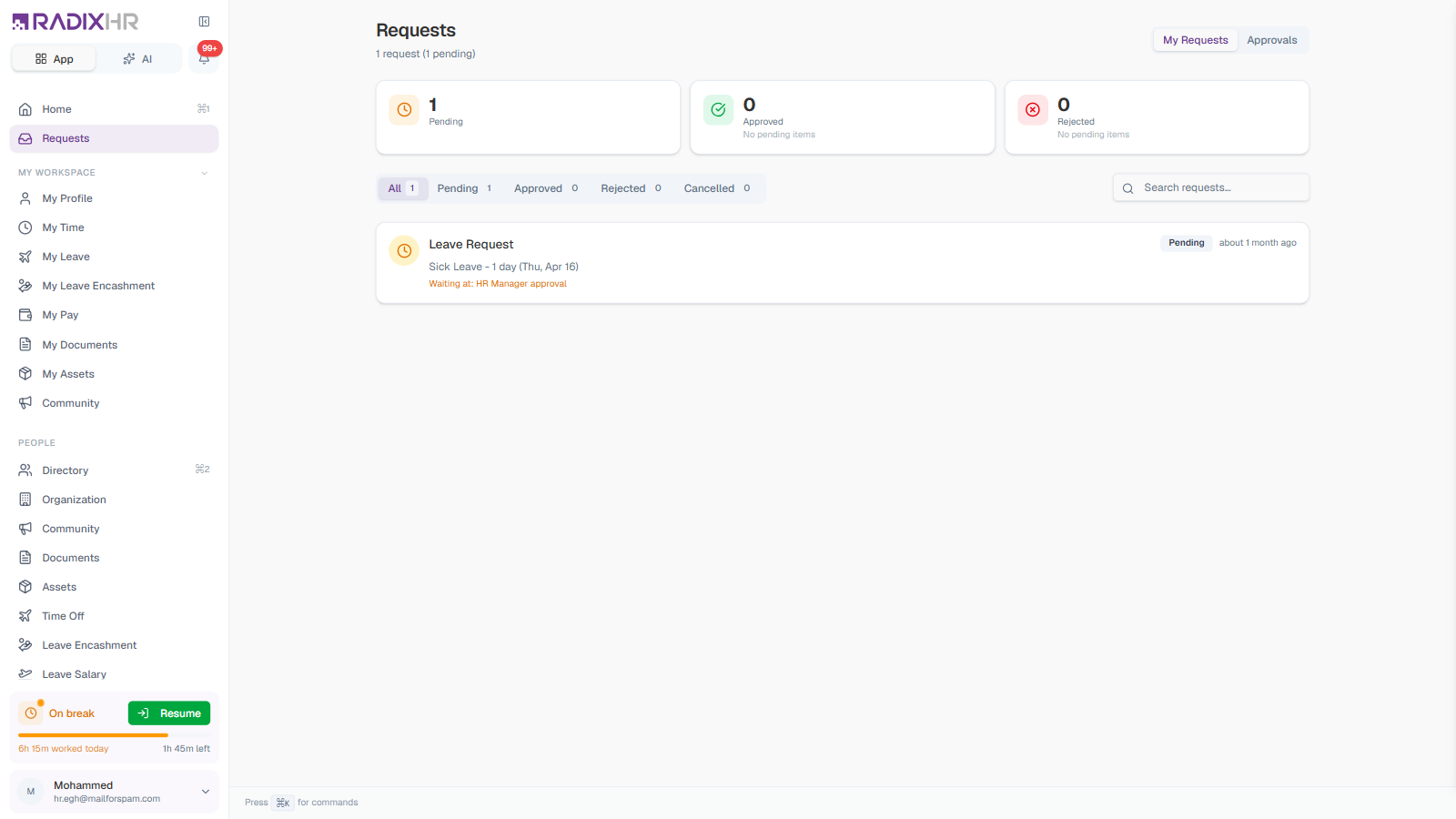
Understanding the Two Views
The Requests page has two views, switched using the tabs at the top of the page next to the page title:
- My Requests — Items you submitted that are flowing through approval (e.g., a leave request you raised). This view is available to everyone.
- Approvals — Items submitted by others that are waiting for your decision. This tab shows a count badge and only appears if you are a manager, HR user, or anyone configured as an approver in a workflow.
When you have pending approvals waiting, the page automatically opens on the Approvals view so you land on actionable items first. Employees who are not approvers will only see the My Requests view.
My Requests
The My Requests view lists every request you’ve submitted across the platform — leave requests, attendance corrections, expense claims, hiring requests, and more — so you don’t have to hop between modules to check on them.
Summary Cards
Three cards across the top of the My Requests view summarize your requests at a glance:
| Card | What it counts |
|---|---|
| Pending | Requests still moving through approval |
| Approved | Requests that have been fully approved |
| Rejected | Requests that were turned down |
The subtitle next to the page title also shows a running total (e.g., 55 requests (36 pending)).
Status Filters
The status filter tabs below the summary cards let you narrow down which requests you see. The number on each tab shows how many requests are in that status.
| Tab | Shows |
|---|---|
| All | Every request you’ve submitted, regardless of status |
| Pending | Requests still moving through approval |
| Approved | Requests fully approved |
| Rejected | Requests that were turned down |
| Cancelled | Requests you cancelled before approval |
Use the Search requests… box on the right to find a request by type or keyword. As you type, a dropdown shows matching requests you can click to open straight away.
Request Card
Each request appears as a card showing:
| Element | Description |
|---|---|
| Icon | An icon indicating the request type |
| Title | The kind of request (e.g., “Late Exception”, “Missing Punch”, “Hiring Request”, “Leave Encashment”) |
| Status badge | The current stage — Pending, Approved, Rejected, or Cancelled |
| Time submitted | How long ago the request was created (e.g., “13 days ago”) |
| Summary line | Key details at a glance (e.g., “Annual Leave - 10 days (AED 16,085.80)“) |
| Waiting at | The approval stage currently holding the request, shown while it’s still pending (e.g., “Waiting at: Manager Approval”) |
Long lists are paged — click Load More at the bottom to load older requests.
Request Details Panel
Click any request card to open its details in a panel that slides in from the right.
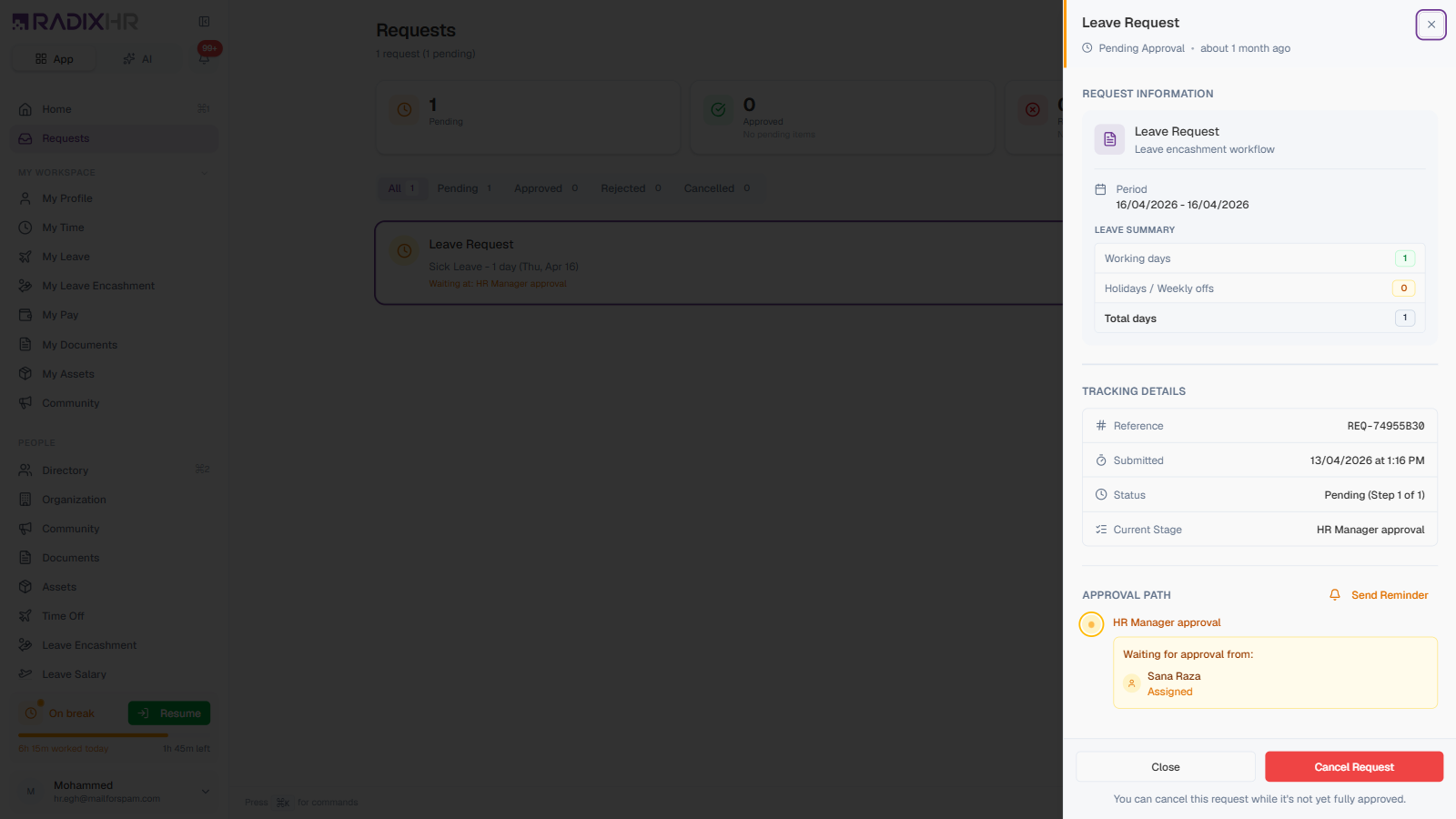
The panel header shows the request title, its status (e.g., “Pending Approval”), and how long ago it was submitted. Below that, the panel is organized into three sections:
| Section | What it shows |
|---|---|
| Request Information | The request type, the workflow it follows, and the key details of the request (date, reason, amount, etc.). For leave requests this includes a Leave Summary box that breaks the period into Working days, Holidays / Weekly offs, and Total days — so you can see exactly how many days will be deducted. |
| Tracking Details | The unique Reference number (e.g., REQ-333409C1), the Submitted timestamp, the Status (with the step number, e.g., “Pending (Step 1 of 3)”), and the Current Stage |
| Approval Path | Each step in the workflow in order, who is responsible at each step, and which step the request is currently waiting at. A Send Reminder link lets you nudge the current approver. |
A workflow is the automated sequence of approval steps a request must pass through. The Approval Path shows you exactly where your request is and who needs to act next.
Cancelling a Request
If your request has not been fully approved yet, you’ll see a Cancel Request button at the bottom of the details panel. Cancelling stops the request from progressing further; it cannot be undone, so the request will need to be re-submitted if you change your mind. Click Close to dismiss the panel without making changes.
Once a request is fully approved, it can no longer be cancelled here. Talk to your HR team or manager if an approved request needs to be reversed.
Approvals
The Approvals view lists every item that other people have submitted and that is now waiting for your decision. This view only appears for users who are part of an approval workflow — typically managers, HR, or finance staff.
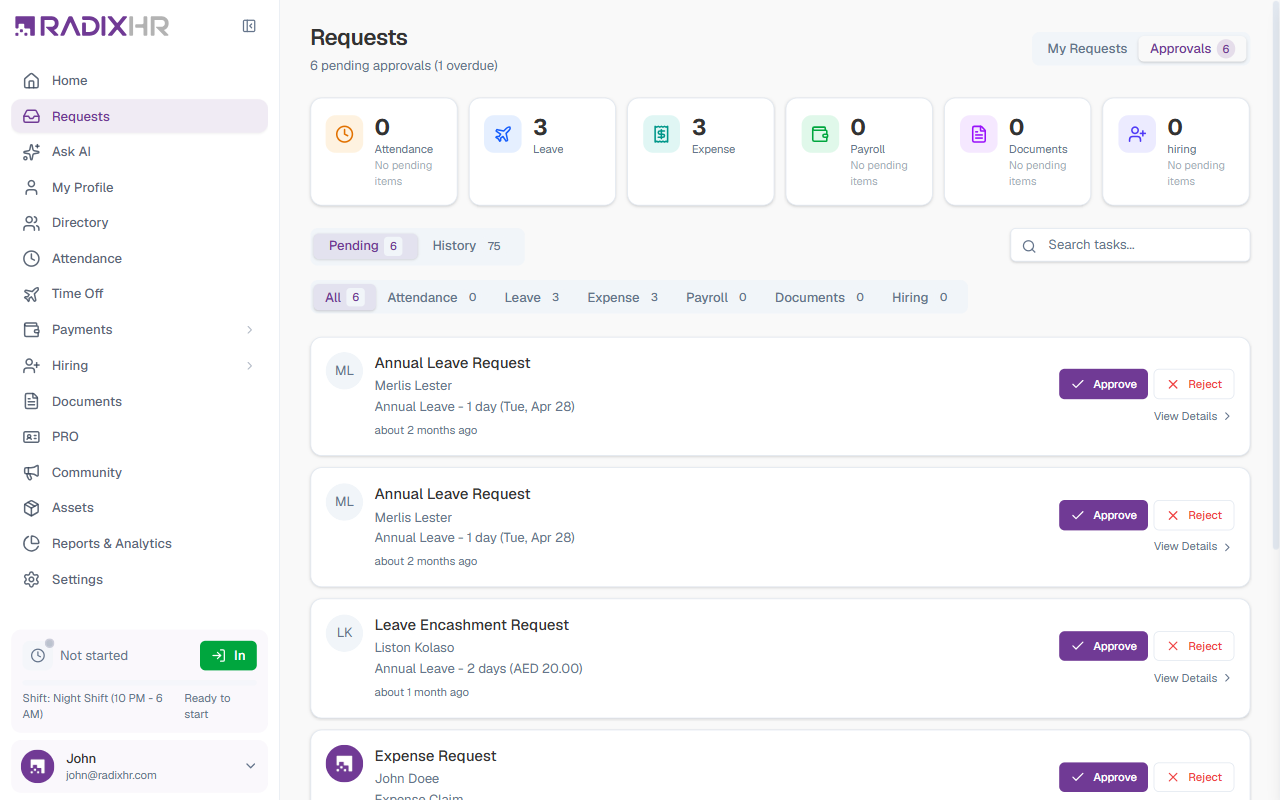
Module Summary Cards
A row of cards across the top of the Approvals view shows how many pending tasks you have in each module — Attendance, Leave, Expense, Payroll, Documents, and Hiring. Modules with nothing pending show “No pending items”. The subtitle next to the page title summarizes the total (e.g., 7 pending approvals (1 overdue)).
Pending and History Tabs
Inside the Approvals view there are two sub-tabs:
| Tab | Shows |
|---|---|
| Pending | Tasks that still need your action |
| History | Tasks you’ve already actioned. Each card shows the requester, an Approved or Rejected badge, and when it was actioned — with no action buttons |
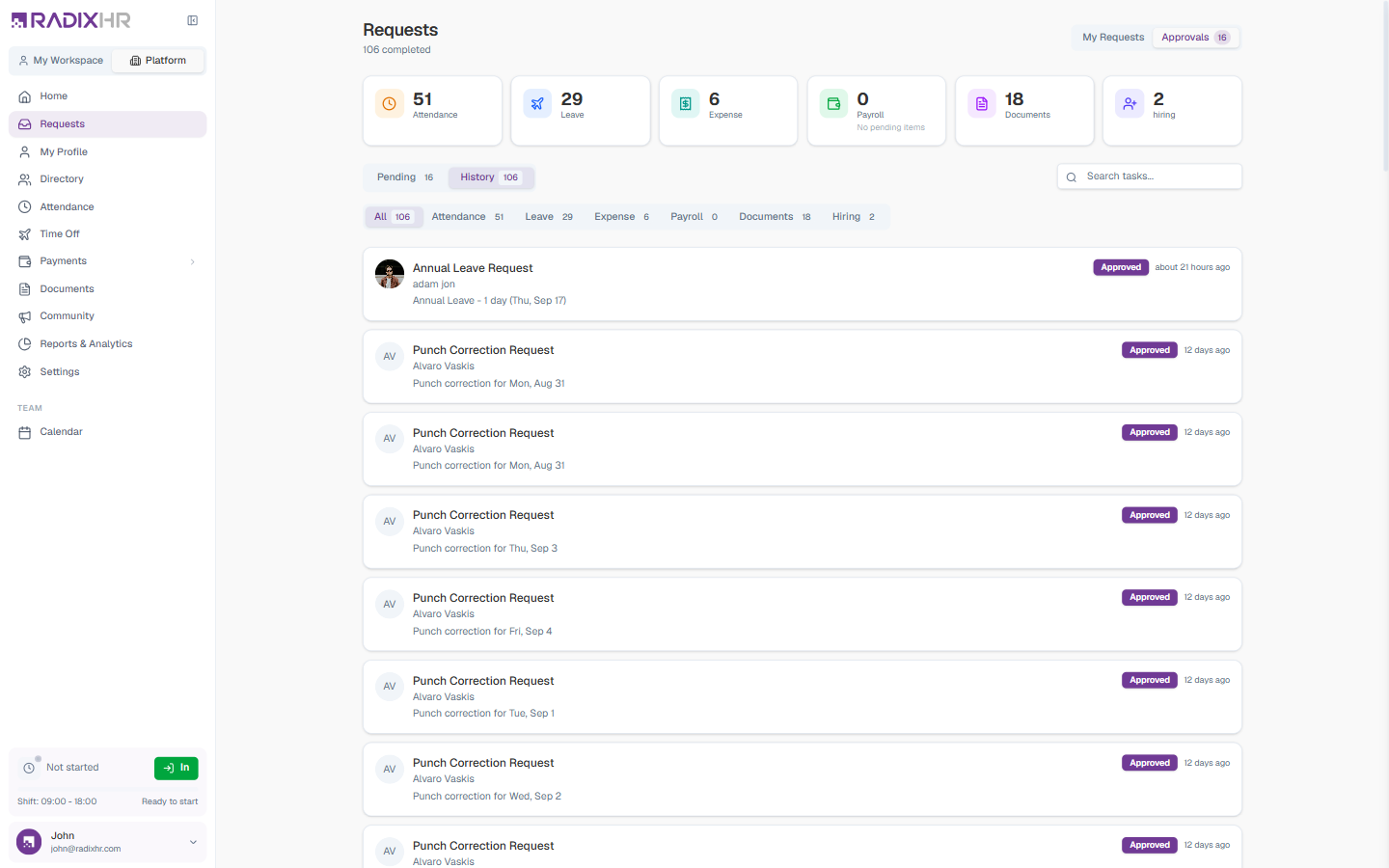
The module summary cards and module filter counts switch to match the tab you’re on — on History they count completed tasks instead of pending ones, and the page subtitle changes to “N completed”.
Use the Search tasks… box to find a task by requester name or keyword. As you type, a dropdown shows matching tasks you can click to open straight away.
Module Filters
Below the Pending/History tabs, a row of module filter tabs lets you show only tasks from a specific module — All, Attendance, Leave, Expense, Payroll, Documents, or Hiring. Each tab shows a count.
Task Card
Each pending task card shows:
| Element | Description |
|---|---|
| Requester | The employee who submitted the request, with their avatar or initials |
| Title | The type of request (e.g., “Annual Leave Request”, “Expense Request”) |
| Summary | A one-line description of what’s being asked (e.g., “Annual Leave - 1 day (Tue, Apr 28)“) |
| Time submitted | How long the task has been waiting |
| Approve / Reject | Action buttons right on the card so you can act without opening it |
| View Details | Opens the full request details panel |
Acting on a Task
You can act on a task in two ways:
- Directly from the card — click Approve or Reject on the task card itself
- From the details panel — click View Details (or the card) to review everything before deciding
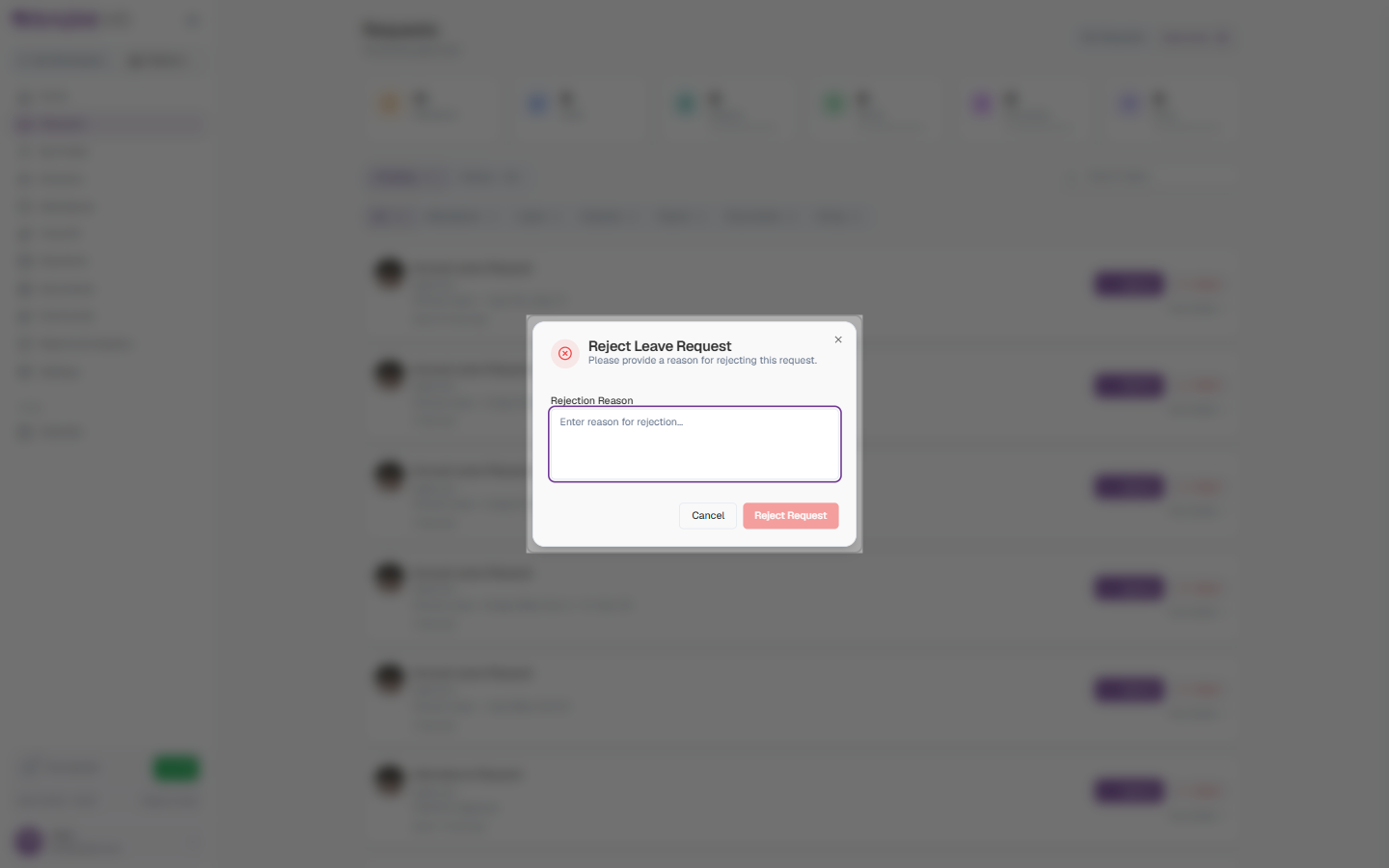
When you reject a request, a Reject … Request dialog asks for a Rejection Reason so the requester knows why. The Reject Request button stays disabled until you type something; click Cancel to back out without rejecting.
The Task Details Panel
Clicking View Details opens a panel from the right with the full picture of the task.
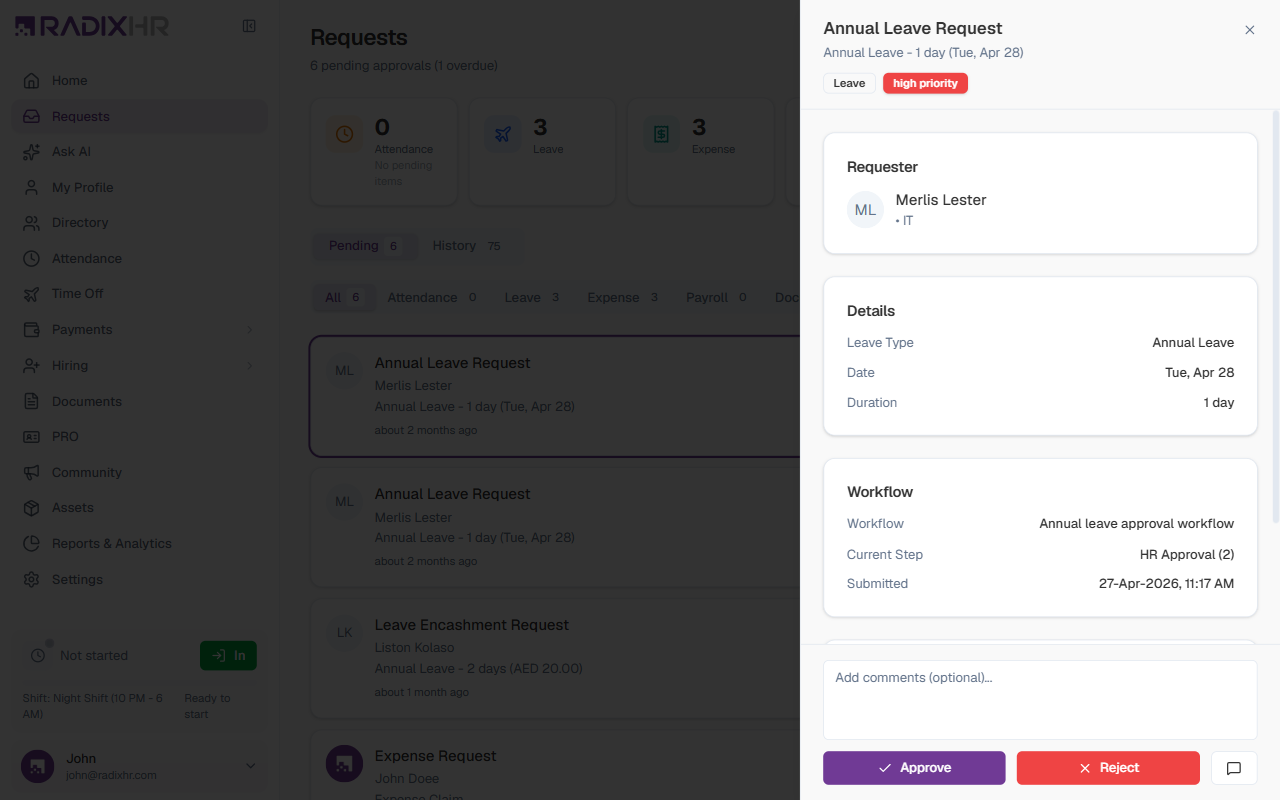
| Section | What it shows |
|---|---|
| Requester | Who submitted the request, with their role and department |
| Details | The key facts of the request (leave type, dates, amounts, etc.) and any Receipts or attachments the requester uploaded |
| Workflow | The approval workflow the request follows, the Current Step it’s at, when it was Submitted, and — if set up — when it will escalate if left unactioned |
| History | A timeline of what’s already happened — earlier approvals, rejections, or questions — and who actioned each step |
At the bottom of the panel you have three actions:
| Action | What it does |
|---|---|
| Approve | Approves the request. You can type an optional comment in the box above the buttons before approving. |
| Reject | Rejects the request. You’ll be asked to enter a reason. |
| Request Information (the message icon) | Opens a box to ask the requester a question before you decide. Your question is sent to them, and their reply shows up in the panel’s Conversation so you can act once it’s answered. |
Use Request Information instead of rejecting when a request is only missing a detail — it’s faster for everyone than rejecting and waiting for a fresh submission.
Tips and Best Practices
Bookmark the Requests page — for managers and HR, it’s the fastest way to clear the day’s pending approvals. The page opens straight to Approvals whenever you have items waiting.
The subtitle “(1 overdue)” next to the page title flags tasks that have been waiting longer than expected. Clear overdue items first so requests don’t stall.