Notification Settings
Control which events trigger a notification and how each one is delivered. The Notifications page lists every event type in RadixHR — attendance, leave, payroll, and more — and lets you toggle delivery on or off per channel (Email, WhatsApp, In-App).
What you can do here:
- Browse every notification type, filtered by category
- Search for a specific notification by name
- Turn Email or In-App delivery on/off for each notification
- See how many notifications are enabled per channel in each category (e.g.,
0/23) - Save changes in bulk, or reset back to system defaults
- Switch to the Activity tab to see a log of recently sent notifications
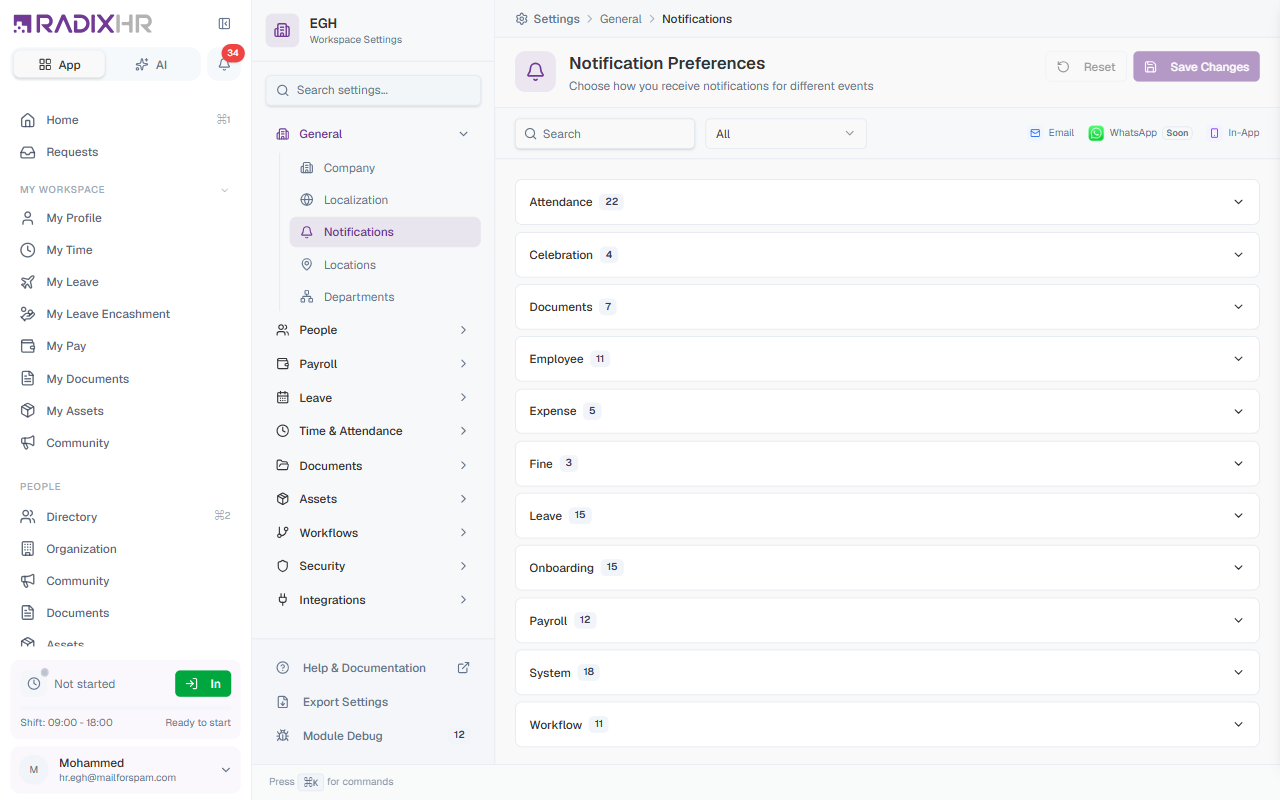
This page is reached via Settings → General → Notifications in the sidebar, but its actual address is /settings/notifications — it’s no longer nested under a /general/ URL segment, though it’s still grouped under General in the nav.
Page Header
| Element | Description |
|---|---|
| Title | ”Notification Settings” with the subtitle “Choose how notifications are delivered across your workspace. These settings apply to every employee.” |
| Reset to defaults | Reverts every notification back to its system default |
| Save Changes | Saves all pending changes across every category in one click (appears once you’ve made an edit) |
Preferences and Activity Tabs
The page has two tabs:
| Tab | What it shows |
|---|---|
| Preferences | The category/channel configuration described in this page — the default tab |
| Activity | A log of notifications RadixHR has actually sent recently, so you can check whether a specific alert went out |
Toolbar
| Control | What it does |
|---|---|
| Search | Filter the list to notifications whose name matches your text |
| Category dropdown (top-right, defaults to All) | Pick a single category to view, or leave on All to browse every category’s notifications together |
| Email / WhatsApp / In-App | Per-row toggle buttons. WhatsApp is marked Soon — it isn’t live yet. |
Categories
Notifications are grouped into the following categories. The number next to each name is the total notifications in that group.
| Category | Count | What it covers |
|---|---|---|
| Attendance | 23 | Clock-in/out, shifts, overtime, comp-off, attendance corrections |
| Celebration | 4 | Birthdays, work anniversaries, new joiners, upcoming holidays |
| Documents | 7 | Sharing, uploading, expiry tracking, generated letters |
| Employee | 11 | Probation, manager changes, transfers, promotions, role changes |
| Expense | 5 | Submission, approval, rejection, reimbursement |
| Fine | 3 | Fine applied, deducted, or waived |
| Leave | 15 | Requests, approvals, balances, encashment, carryover |
| Onboarding | 15 | Welcome emails, onboarding tasks, offboarding lifecycle |
| Payroll | 12 | Payslips, salary credit/revision, advances |
| System | 18 | Security, login, announcements, subscription, scheduled maintenance |
| Workflow | 11 | Generic approval-process notifications across modules |
Counts may vary slightly between workspaces depending on which modules are enabled. The screenshot above was captured from a workspace with all standard modules active.
Inside a Category
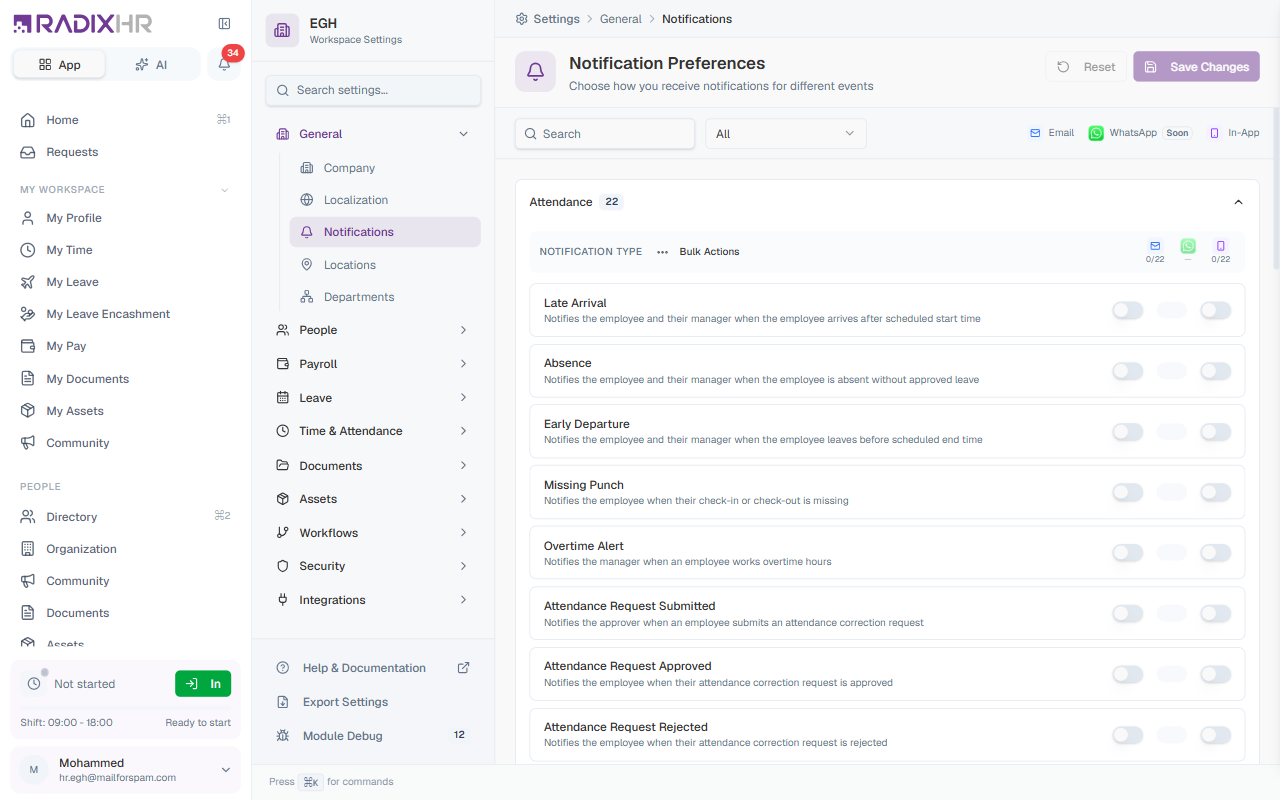
Pick a category from the dropdown (or leave it on All). You’ll see:
| Element | Description |
|---|---|
| Category heading | The category name and its total notification count (e.g., Attendance 23), with a Bulk Actions menu on the right |
| Notification row | Each row has the notification name, a one-line description, and three toggle buttons — Email, WhatsApp, In-App |
| Lock icon | When shown on a row, that notification is required and can’t be turned off — typically for critical alerts like security and salary |
What Each Category Covers
Attendance
Late Arrival, Absence, Early Departure, Missing Punch, Overtime Alert, Attendance Request Submitted/Approved/Rejected, Shift Assigned/Changed, Shift Swap Requested/Approved/Rejected, Weekly Off Changed, Comp-Off Earned/Approved/Expiring/Expired, Overtime Approved/Rejected, Clock-In/Out Reminder, Biometric Sync Failed.
Celebration
Birthday Wishes, Work Anniversary, New Team Member, Upcoming Holiday.
Documents
Document Shared, Document Uploaded, Document Expiring, Document Expired, Document Archived, Mandatory Document Missing, Document Generated.
Employee
Probation Period Ending, Probation Confirmed, Probation Extended, Reporting Manager Changed, Department Changed, Designation Changed, Promotion, Transfer, Role Assigned, Role Expiring, Employment Terminated, Resignation Acknowledged, Contract Renewal, Employment Status Changed.
Expense
Expense Submitted, Expense Approved, Expense Rejected, Expense Pending Approval, Expense Reimbursed.
Fine
Fine Applied, Fine Deducted, Fine Waived.
Leave
Leave Request Submitted/Approved/Rejected, Leave Pending Your Approval, Leave Cancelled, Leave Cancellation Approved, Low Leave Balance, Leave Balance Credited, Leave Encashment Submitted/Approved/Rejected, Leave Info Requested, Leave Carryover Expiring/Expired, Team Member on Leave.
Onboarding
Welcome Email, Login Credentials, First Day Welcome, Task Assigned, Task Due Soon, Task Overdue, Task Completed, Document Pending Verification, Onboarding Completed, Offboarding Initiated, Last Day Reminder, Offboarding Completed.
Payroll
Payslip Ready, Salary Credited, Salary Revised, Advance Request Submitted/Approved/Rejected, Advance Disbursed, Advance Installment Recovered, Advance Closed, Advance Installment Overdue, Payroll Processing Started/Completed.
System
Account Security, Verification Code, Workspace Invitation, Welcome to Workspace, Member Joined, New Device Login, Password Changed, Company Announcements, Urgent Announcement, Acknowledgment Required/Reminder, Policy Update, Scheduled Maintenance, New Feature, Subscription Expiring, Trial Ending, Report Ready, Data Export Ready.
Workflow
Approval Pending, Request Approved/Rejected, Approval Reminder, Approval Escalated, Info Requested/Provided, Approval Delegated, Request Cancelled, Auto Approved, Auto Rejected.
Account Security, Verification Code, and Salary Credited notifications are required and cannot be disabled. These ensure critical security and financial information always reaches the recipient.
Notification Channels
| Channel | Description |
|---|---|
| Notifications delivered to the recipient’s work email. Best for important updates that need a permanent record. | |
| Instant message notifications. Marked Soon — not yet enabled. | |
| In-App | Notifications that appear in the bell icon at the top of the app. Best for real-time prompts. |
How to Update Notification Preferences
- Open Settings → General → Notifications
- Pick a category from the dropdown (or use the Search box to find a specific notification by name)
- Toggle the Email or In-App switch on each row as needed
- Click Save Changes in the top-right when you’re done
Resetting to Defaults
To revert every notification to the system default:
- Click Reset to defaults in the top-right
- Confirm the action when prompted
Check the Activity tab after making changes to confirm a notification actually went out to the right channel.