Profile
Your own account details, personal display preferences, password, and a list of every device where you’re currently signed in. This is a new page (added September 2026) that gathers settings which used to be scattered across other pages into one personal hub — nothing here affects any other employee.
What you can do here:
- Update your display name and phone number
- Choose the language RadixHR shows to you (separate from the workspace’s default language)
- See your timezone and how it compares to the workspace timezone
- Change your password
- Check your own two-factor authentication (2FA) status
- See every browser/device signed in to your account, and sign any of them out
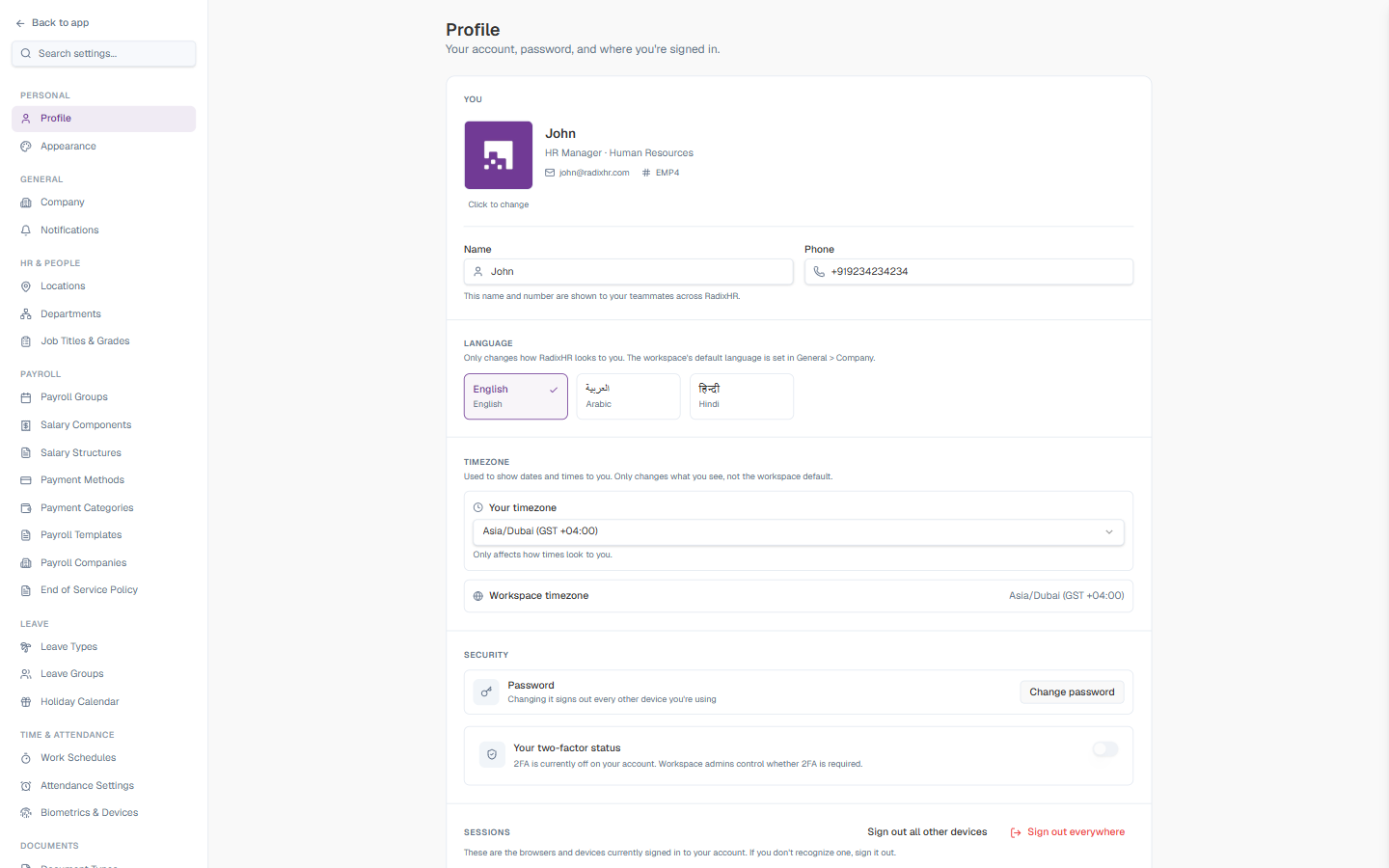
Profile sits in a new Personal section at the very top of the Settings sidebar, above General. Everything here is about you — for workspace-wide settings that affect every employee, see Company.
You
The top card shows who you are: your photo, name, job title and department, email, and employee code (e.g. EMP4). Click the photo to change it.
| Field | Description | Required |
|---|---|---|
| Name | Your display name, shown to teammates across RadixHR. | Yes |
| Phone | Your contact phone number, shown to teammates across RadixHR. | No |
Your job title, department, and employee code are set by HR on your employee profile — you can’t edit them from here. If any of those are wrong, ask your HR administrator to update your Directory profile.
Language
Choose the language RadixHR’s interface displays in, for you only.
| Option | Description |
|---|---|
| English | Default, left-to-right |
| العربية (Arabic) | Right-to-left layout |
| हिन्दी (Hindi) | Left-to-right |
This only changes how RadixHR looks to you — it does not change the workspace’s default language, which admins set on General → Company and which determines the language new users see before they pick their own.
Timezone
| Field | Description |
|---|---|
| Your timezone | A dropdown to pick the timezone RadixHR uses when showing you dates and times. Only affects your own view. |
| Workspace timezone | Read-only — shows the workspace-wide default timezone (set on General → Company) for comparison. |
If you travel or work remotely from a different timezone than your office, set Your timezone here so meeting times, shift schedules, and deadlines display correctly for you — the underlying records (like attendance timestamps) still use the workspace timezone.
Security
| Element | Description |
|---|---|
| Password | Click Change password to set a new one. Changing it signs out every other device you’re using. |
| Your two-factor status | Shows whether 2FA is currently on or off for your account. This toggle is read-only here — whether 2FA is required is controlled by your workspace admin on Authentication Policy. |
Sessions
A list of every browser and device currently signed in to your account, each showing the browser/OS, IP address, and how long ago it signed in.
| Action | What it does |
|---|---|
| Sign out (per row) | Signs out that one device only |
| Sign out all other devices | Signs out everywhere except the device you’re using right now |
| Sign out everywhere | Signs out every device, including this one — you’ll need to sign in again |
If you don’t recognize a device or location in this list, sign it out immediately and change your password — it may mean someone else has access to your account.