Payroll Templates
The Payroll Templates page lets you create and manage HTML/CSS templates for two types of payroll documents: payslip PDFs that employees receive each pay period, and SIF files (Salary Information Files) used for bank or exchange-house salary transfers in the UAE. The active template is used for all generated and emailed payroll documents.
What you can do here:
- View and switch between Payslips and SIF templates
- Set the default template that should be used for new payroll runs
- Preview built-in templates to see how they render
- Duplicate a built-in template and customize it for your branding
- Create a new template from scratch using HTML, CSS, and Nunjucks placeholders
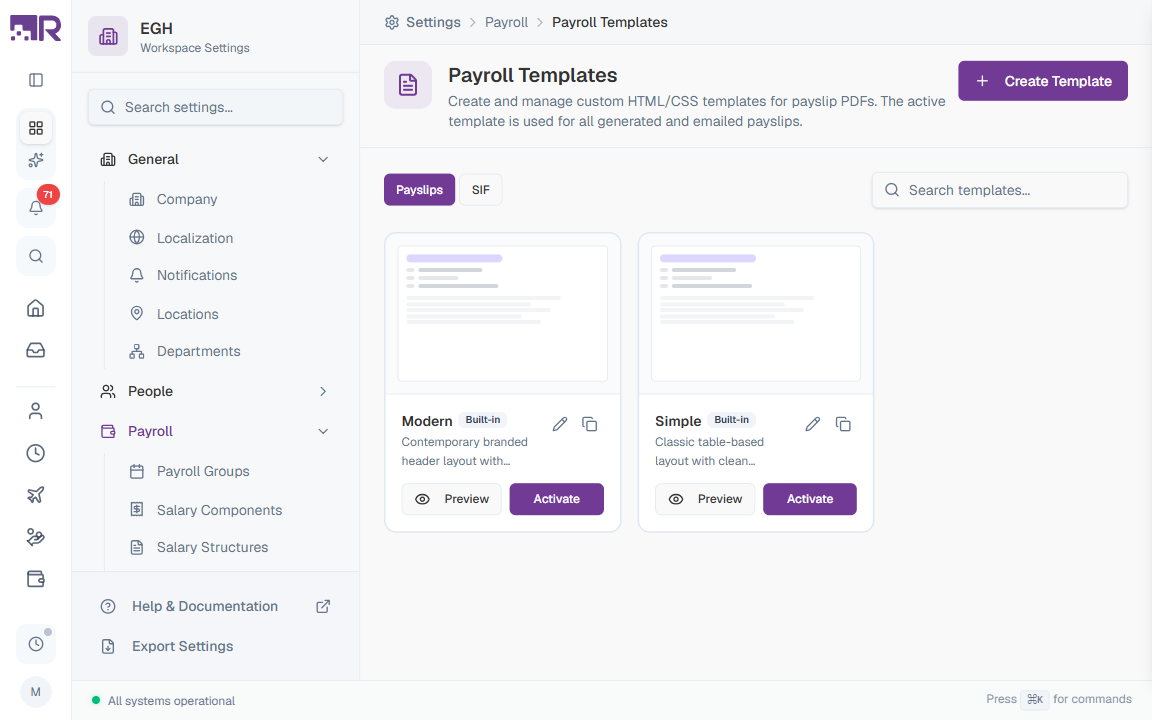
Page Layout
The page has two tabs and a few global controls:
| Element | Description |
|---|---|
| Payslips tab | Templates used to render the payslip PDF that gets emailed to each employee after a payroll run. |
| SIF tab | Salary Information File templates used for UAE bank/exchange-house salary transfers (WPS-style files). |
| Search templates… | Filters the templates within the active tab by name or description. |
| Create Template | Opens a side panel to create a new custom template. |
What is SIF? A Salary Information File is a fixed-format text file that UAE employers send to a bank or exchange house to credit salaries to employees’ accounts. RadixHR generates these files from the active SIF template during payroll processing.
Understanding Template Cards
Each template appears as a card with a thumbnail preview, name, badges, description, and action buttons.
| Element | Description |
|---|---|
| Thumbnail | A small visual preview of the rendered output |
| Template Name | The display name (e.g., “Modern”, “Simple”, “SIF - Bank Model”) |
| Default badge | Purple badge marking the template currently in use (the default for its tab); the card also shows a check-circle and a coloured border |
| Built-in badge | Indicates a system-provided template — you can preview and duplicate it but the source is read-only |
| Description | Short summary of the template’s style or use case |
| Edit (pencil) | Open the template in the HTML/CSS editor (custom templates only) |
| Duplicate (copy icon) | Create a copy you can edit |
| Preview | Render a full preview using sample data |
| Set as Default | Set this template as the default used for all future payroll runs (hidden when it’s already the default) |
Built-in templates are read-only by design. To customize one, click Duplicate to make an editable copy, then customize and Set as Default.
Built-in Templates
Payslip Templates
| Template | Description |
|---|---|
| Simple | Classic table-based layout with clean typography. Good starting point for traditional payslips. |
| Modern | Contemporary branded header layout with accent colours. Good if you want a more designed look. |
SIF Templates
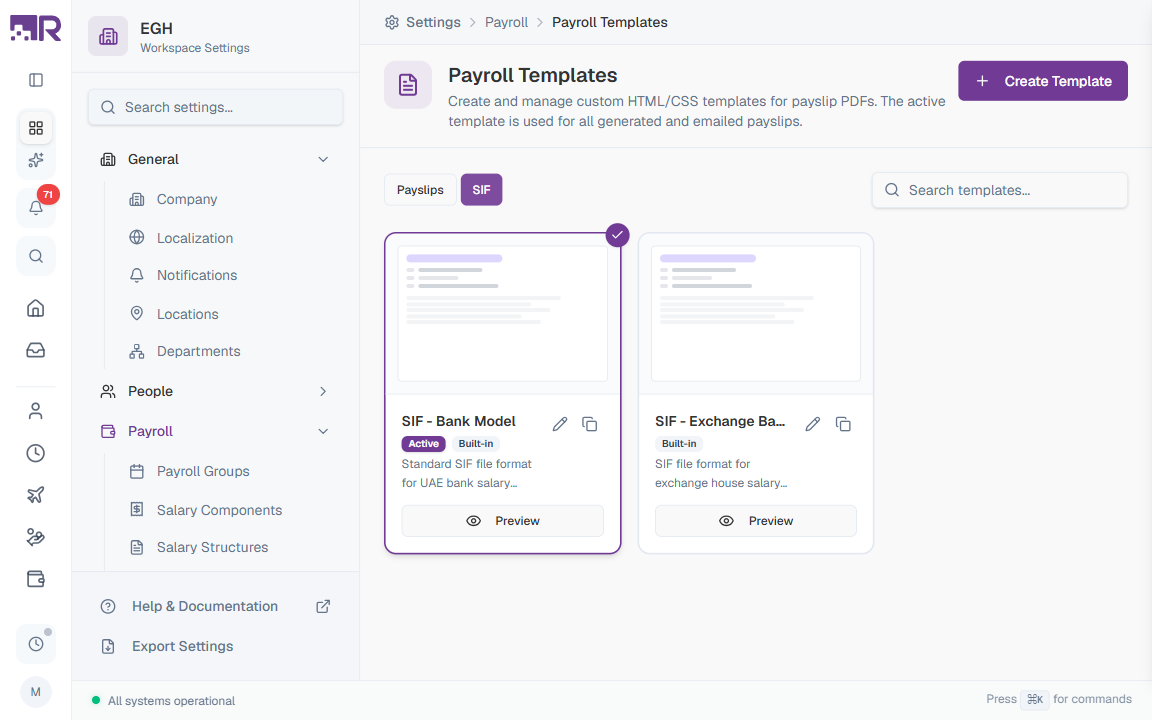
| Template | Description |
|---|---|
| SIF - Bank Model | Standard SIF file format for UAE bank salary transfers. EDR records with employee unique ID, routing code, IBAN, and pay details. |
| SIF - Exchange Bank Model | SIF file format for exchange house salary transfers. EDR records with employee unique ID and exchange house routing details. |
How to Set the Default Template
- Go to Settings > Payroll > Payroll Templates
- Choose the Payslips or SIF tab depending on what you want to change
- Find the template you want to use
- Click Set as Default on its card
The template’s card gets a check-circle marker and a Default badge once it’s set. Only one template can be the default per tab at a time — setting a new one automatically replaces the previous default.
Changing the default template only affects future payroll runs and document generations. Already-issued payslips and SIF files keep the layout they were generated with.
How to Preview a Template
- Find the template you want to preview
- Click the Preview button
- The system renders the template using sample data so you can see exactly how it will look
Use this to compare templates before setting one as the default, or to verify changes you’ve made to a custom template.
How to Duplicate a Built-in Template
Built-in templates can’t be edited directly. To customize one:
- Find the built-in template you want to use as a starting point
- Click the Duplicate icon (the copy icon next to the pencil)
- The system creates an editable copy
- Click the Edit icon on the new copy to start customizing
Duplicating is the fastest way to apply your branding (logo, colours, header text) without writing a template from scratch.
How to Create a Custom Template
- Click Create Template in the top-right of the page
- Fill in the template details
- Write or paste your HTML and CSS — each has its own tab in the editor
- Click Preview to render the template with sample data
- Click Save Template
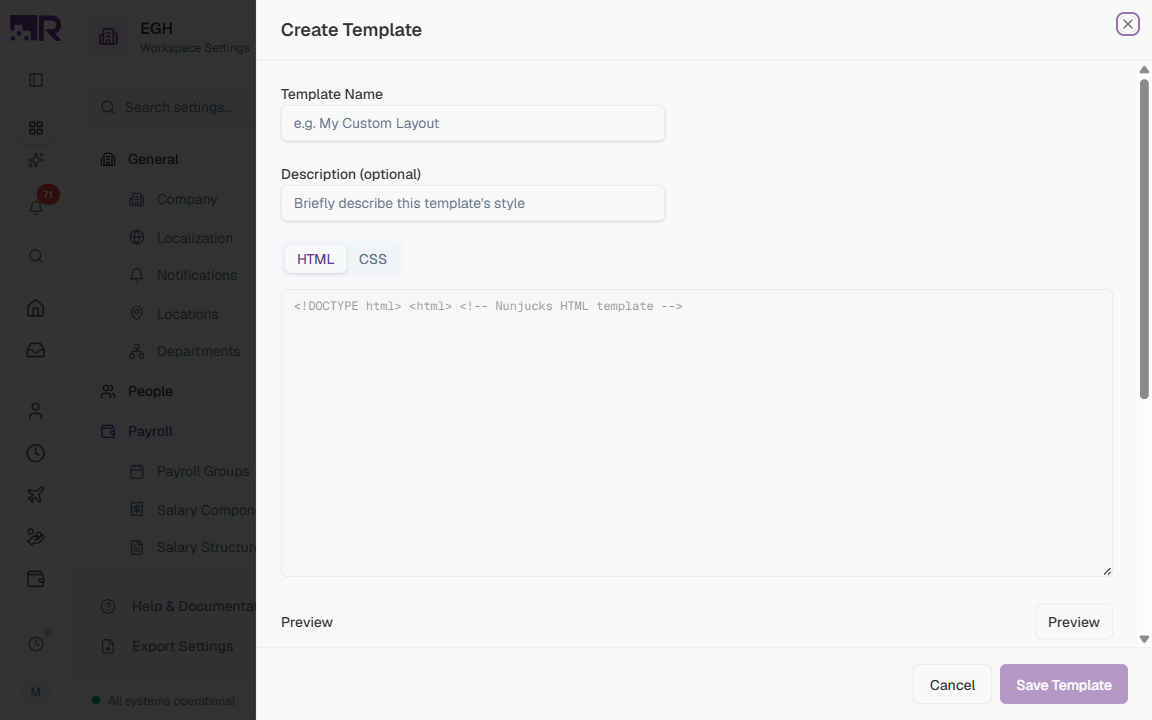
Create Template Form Fields
| Field | Description | Required |
|---|---|---|
| Template Name | The display name for your template (e.g., “EGH Branded Payslip”). Shown on the card and in any selectors that reference templates. | Yes |
| Description (optional) | A short note about the template’s style or purpose. Helps other admins understand when to use it. | No |
| HTML | The HTML body of the template. RadixHR uses Nunjucks as the templating language — wrap dynamic values in {{ ... }} and use {% ... %} for logic. The default starter contains an empty <!DOCTYPE html> document. | Yes |
| CSS | Stylesheet that’s inlined into the rendered output. Use this for layout, fonts, colours, and print rules. | No |
Nunjucks is a templating language similar to Jinja or Twig. It lets you embed variables ({{ employee.name }}), conditions ({% if employee.bonus %}...{% endif %}), and loops ({% for item in items %}...{% endfor %}) inside your HTML.
Previewing While Editing
Click the Preview button (bottom-left of the editor) to render your in-progress template against sample data without saving. Iterate until it looks right, then save.
Save your template before navigating away — the editor doesn’t autosave. Closing the panel without saving discards your changes.
Best Practices
-
Start by duplicating — pick a built-in template close to what you want and duplicate it instead of writing from scratch.
-
Test with realistic data — use the Preview button to render with sample data before setting a template as the default, especially for SIF templates where format errors break bank uploads.
-
Keep CSS print-friendly — payslips are emailed as PDFs. Avoid web-only features (hover states, JavaScript, large fonts), and use absolute units (
mm,pt) overpxwhere possible. -
Validate SIF format carefully — banks reject files that don’t conform exactly to their schema. Always test a small payroll batch first when you change the SIF template.
-
Document your changes — fill in the Description field for any custom template so future admins know what it’s for and when it was last updated.
How This Actually Works
- “Set as Default” only has a real effect on the Payslips tab. Setting a Payslips template as Default updates a single workspace-wide setting that every payroll run’s payslip generation reads from — that works exactly as this page describes.
- For SIF templates, “Set as Default” does not feed into actual file generation at all. It’s why neither SIF template ever shows a Default badge here, even though the button is clickable on both cards — there’s nothing in the system that reads a workspace-wide “default SIF template.”
- The SIF template actually used for a bank/exchange-house export comes from the Payroll Group’s own settings — the SIF Template field on Payroll Groups, set separately per group. Each group can use a different SIF template, or none.
- If a Payroll Group has no SIF Template selected, generating its SIF export fails outright with an error asking you to pick one in that group’s settings — there’s no silent fallback to whatever’s marked “Default” here.
If a UAE bank/exchange-house SIF export fails or comes out in the wrong format, don’t look for the fix on this page — go to the specific Payroll Group’s own SIF Template field instead. Setting a SIF template as “Default” here doesn’t configure anything used at export time.