Salary Structures
Salary Structures are templates that combine salary components into reusable packages. When assigning a salary to an employee, you select a structure and set the basic salary - all other components are calculated automatically based on their rules.
What you can do here:
- Create salary packages by combining components
- Preview how salary breakdowns look
- Set default structures for new employees
- Manage structure templates for different employee types
Why Use Salary Structures?
Salary structures provide a standardized way to:
- Ensure Consistency: Apply the same compensation formula across similar roles
- Simplify Onboarding: Assign salary packages quickly to new employees
- Reduce Errors: Automatic calculations prevent manual mistakes
- Maintain Compliance: Ensure all required statutory components are included
- Enable Comparisons: Compare compensation packages across the organization
Think of a salary structure as a recipe. The components are ingredients, and the structure defines how they combine. When you assign a salary, you just specify the “base” (basic salary) and everything else is calculated automatically.
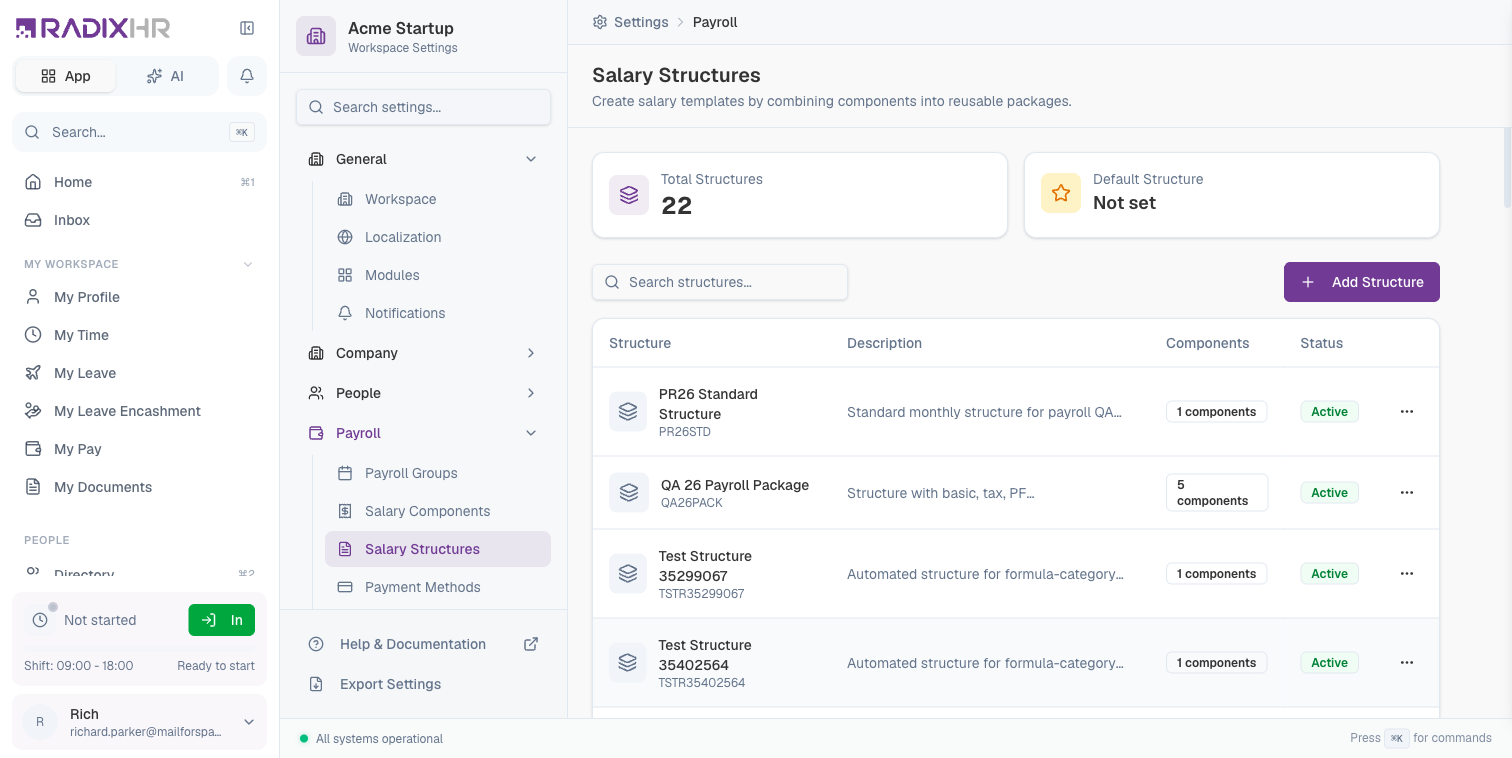
The Summary Cards (Total Structures / Default Structure) that used to sit above the table are gone — the page now goes straight from the header to the table, followed by an About Salary Structures info box at the bottom.
Structure Properties
| Column | Description |
|---|---|
| Structure | Name and code of the salary structure |
| Description | Explanation of the structure’s purpose |
| Components | Number of salary components included |
| Status | Active or Inactive |
Creating a Salary Structure
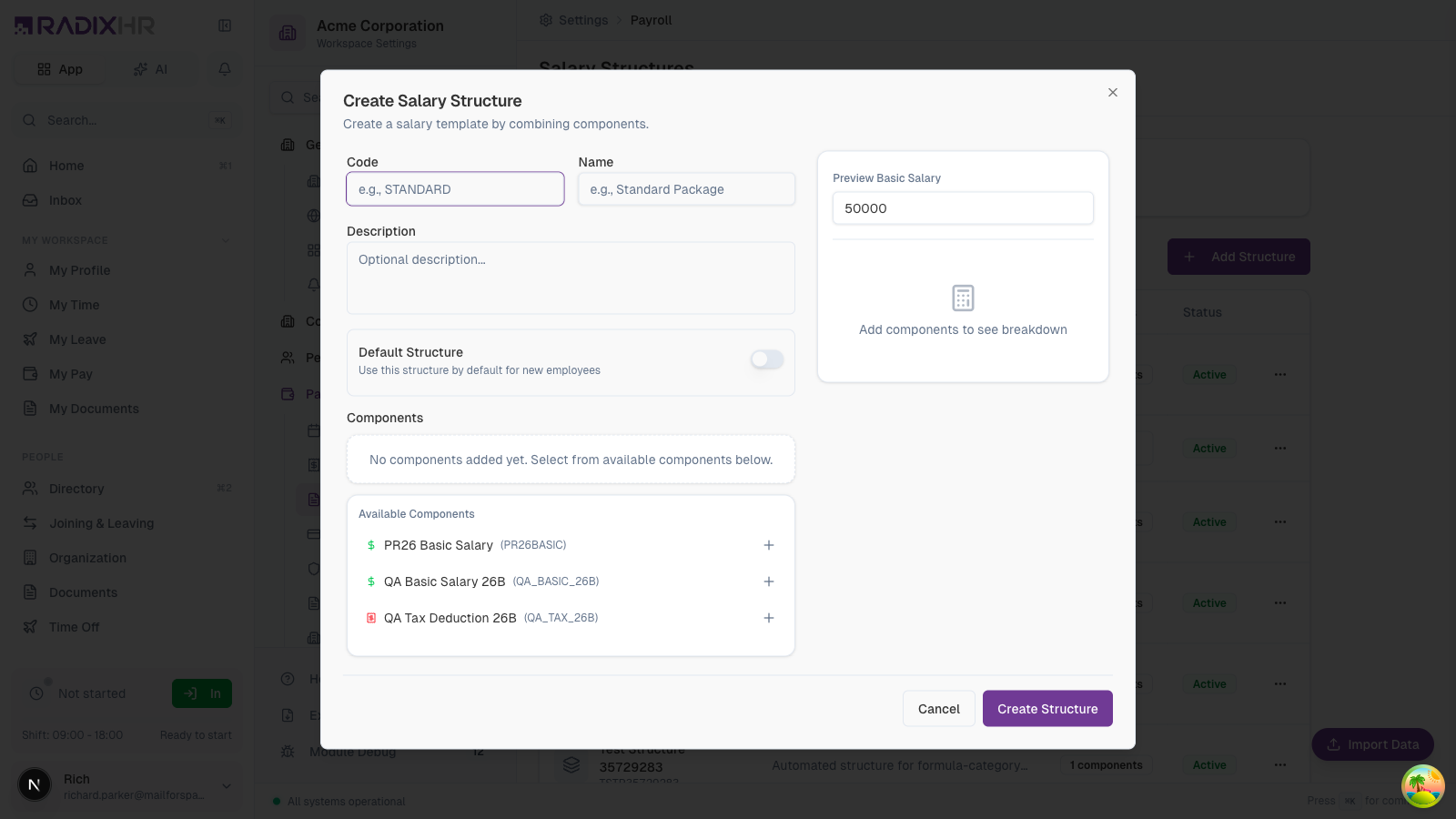
- Click Add Structure
- Enter the structure code and name
- Add a description (optional)
- Select components to include
- Preview the salary breakdown
- Click Create Structure
Basic Fields
| Field | Description | Required |
|---|---|---|
| Code | Unique identifier (e.g., STANDARD, MANAGER, EXECUTIVE) | Yes |
| Name | Display name (e.g., Standard Package, Manager Package) | Yes |
| Description | Optional explanation of who this structure is for | No |
| Default Structure | Use this structure by default for new employees | No |
Adding Components
The components section allows you to select which salary components to include in the structure:
- Browse the Available Components list
- Click the + button next to a component to add it
- Added components move to the Selected Components section
- Components are organized by type (Earnings, Deductions, Employer)
When selecting components, consider the full picture: earnings (what they receive), deductions (what’s withheld), and employer contributions (what the company pays extra).
Preview Panel
The preview panel on the right shows:
| Feature | Description |
|---|---|
| Preview Basic Salary | Enter a sample basic salary to see the breakdown |
| Component Breakdown | Shows calculated values for each component |
| Gross Salary | Total of all earnings |
| Net Salary | Take-home pay after deductions |
| Total CTC | Cost to Company including employer contributions |
The preview helps you verify the structure works correctly before saving. Test with different salary amounts to ensure calculations are accurate at all levels.
How This Actually Works
- Editing or deactivating a structure never retroactively touches employees already on it. Structure edits only apply to future salary calculations — an employee’s existing salary record keeps whatever values it already had until their salary is individually revised on Salary Management. Deactivating a structure only blocks it from being assigned to new employees; it doesn’t unassign or affect anyone currently using it.
- Per-component numbers (Calculation Type, Amount, and — depending on the type — Min/Max caps, the base component for a percentage, or slab thresholds) are all set here, per structure, not on the component itself. The same component can have completely different Calculation Type and cap/base/slab settings in different structures; see Salary Components for what stays fixed at the component level instead (Type, tax/statutory/GL properties, payslip display).
Common Salary Structures
Standard Employee Package
A typical structure for regular employees:
| Component Type | Components |
|---|---|
| Earnings | Basic Salary, HRA, Conveyance Allowance, Special Allowance |
| Deductions | PF (Employee), Professional Tax, TDS |
| Employer | PF (Employer), ESI (Employer), Gratuity |
Executive Package
A structure for senior employees:
| Component Type | Components |
|---|---|
| Earnings | Basic Salary, HRA, Car Allowance, Mobile Allowance, Performance Bonus |
| Deductions | PF (Employee), TDS |
| Employer | PF (Employer), Gratuity |
Consultant Package
A simplified structure for contractors:
| Component Type | Components |
|---|---|
| Earnings | Consulting Fee |
| Deductions | TDS |
| Employer | None |
How Structures Work in Practice
Assigning a Structure
- Go to an employee’s profile
- Navigate to the Salary section
- Select a salary structure
- Enter the basic salary amount
- The system calculates all other components automatically
Calculation Example
For a structure with:
- Basic Salary: Fixed Amount
- HRA: 50% of Basic
- PF Employee: 12% of Basic (capped)
When Basic = 50,000:
- HRA = 25,000 (50% × 50,000)
- PF Employee = 6,000 (12% × 50,000)
Managing Structures
Editing a Structure
- Find the structure in the list
- Click the menu button (…)
- Select Edit
- Modify components or settings
- Click Save Changes
Changes to a structure affect future salary calculations only. Employees already using the structure will keep their current setup until you update their individual salary records.
Deactivating a Structure
If a structure is no longer needed:
- Click the menu button (…)
- Select Deactivate
Deactivating a structure doesn’t affect employees already using it. It only prevents the structure from being assigned to new employees.
Best Practices
- Name structures clearly: Use names that indicate the target group (e.g., “Junior Developer”, “Senior Manager”)
- Start with essentials: Include only necessary components initially, add more as needed
- Include all statutory: Ensure structures include all legally required components
- Set a default: Configure a default structure to speed up onboarding
- Test thoroughly: Use the preview feature to verify calculations before saving
- Document variations: If you have multiple similar structures, document the differences
Create structures based on job levels or departments rather than individual roles. This reduces the number of structures you need to maintain.