Localization
Localization settings control how dates, times, numbers, and currency are displayed throughout your workspace. These settings ensure that all employees see information in a format familiar to their region, making the application easier to use for international teams.
What you can do here:
- Set the default language for your workspace
- Configure your organization’s country and timezone
- Choose date and time display formats
- Set currency and number formatting preferences
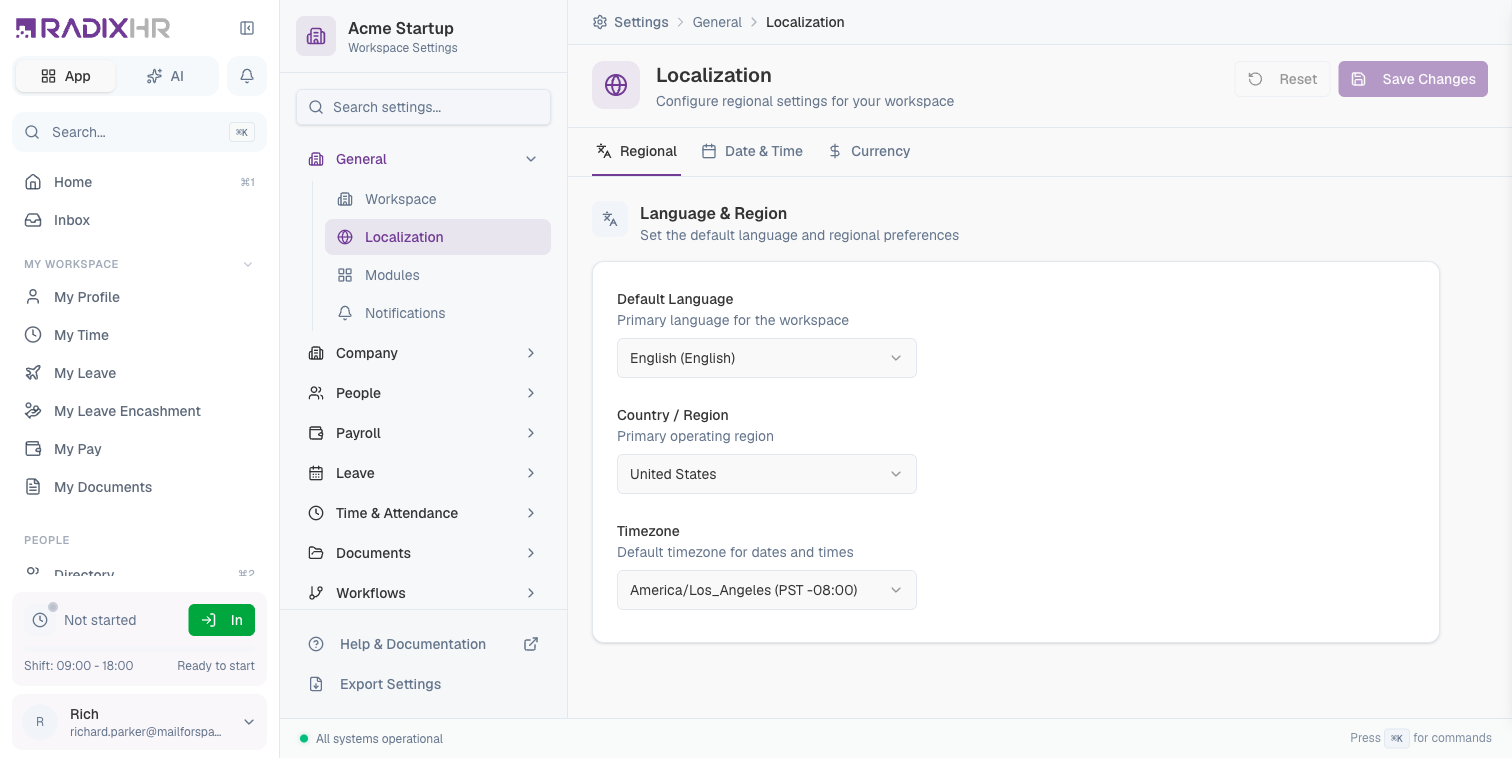
Understanding Localization Settings
Localization settings are divided into three tabs:
| Tab | Purpose |
|---|---|
| Regional | Language, country, and timezone settings |
| Date & Time | How dates and times are displayed |
| Currency | Currency symbol and number formatting |
Changes to localization settings apply to the entire workspace and affect how all employees see dates, times, and numbers in the application.
How to Configure Localization Settings
- Go to Settings > General > Localization
- Select the appropriate tab (Regional, Date & Time, or Currency)
- Configure the settings as needed
- Click Save Changes
Regional Settings
The Regional tab controls the fundamental language and location settings for your workspace.
| Field | Description | Required |
|---|---|---|
| Default Language | The primary language used throughout the workspace interface. This determines the language of menus, labels, buttons, and system messages. Available options: English, Arabic (with right-to-left support), and Hindi. | Yes |
| Country / Region | Your organization’s primary operating country. This affects default formatting conventions and may be used for compliance purposes. Available options include India, United States, United Kingdom, United Arab Emirates, Singapore, Australia, Canada, and Germany. | Yes |
| Timezone | The default timezone for your workspace. All dates and times in the system (like attendance records, leave requests, and scheduled events) are calculated based on this timezone. This is critical for accurate time tracking. | Yes |
Available Languages
| Language | Code | Script Direction |
|---|---|---|
| English | en | Left-to-right |
| Arabic (العربية) | ar | Right-to-left |
| Hindi (हिन्दी) | hi | Left-to-right |
When you select Arabic, the entire interface automatically switches to right-to-left (RTL) layout for proper reading direction.
Available Timezones
| Timezone | Offset | Common Use |
|---|---|---|
| UTC | +00:00 | Universal reference |
| Asia/Qatar | +03:00 | Qatar |
| Asia/Dubai | +04:00 | UAE |
| Asia/Riyadh | +03:00 | Saudi Arabia |
| Asia/Kolkata | +05:30 | India |
| Asia/Singapore | +08:00 | Singapore |
| Europe/London | +00:00 | United Kingdom |
| Europe/Berlin | +01:00 | Germany |
| America/New_York | -05:00 | US Eastern |
| America/Los_Angeles | -08:00 | US Pacific |
| Australia/Sydney | +11:00 | Australia |
The timezone setting is critical for attendance tracking. If set incorrectly, employee clock-in/clock-out times will be recorded in the wrong timezone, leading to inaccurate attendance records. Double-check this setting before going live.
Date & Time Settings
The Date & Time tab controls how dates and times are displayed throughout the application.
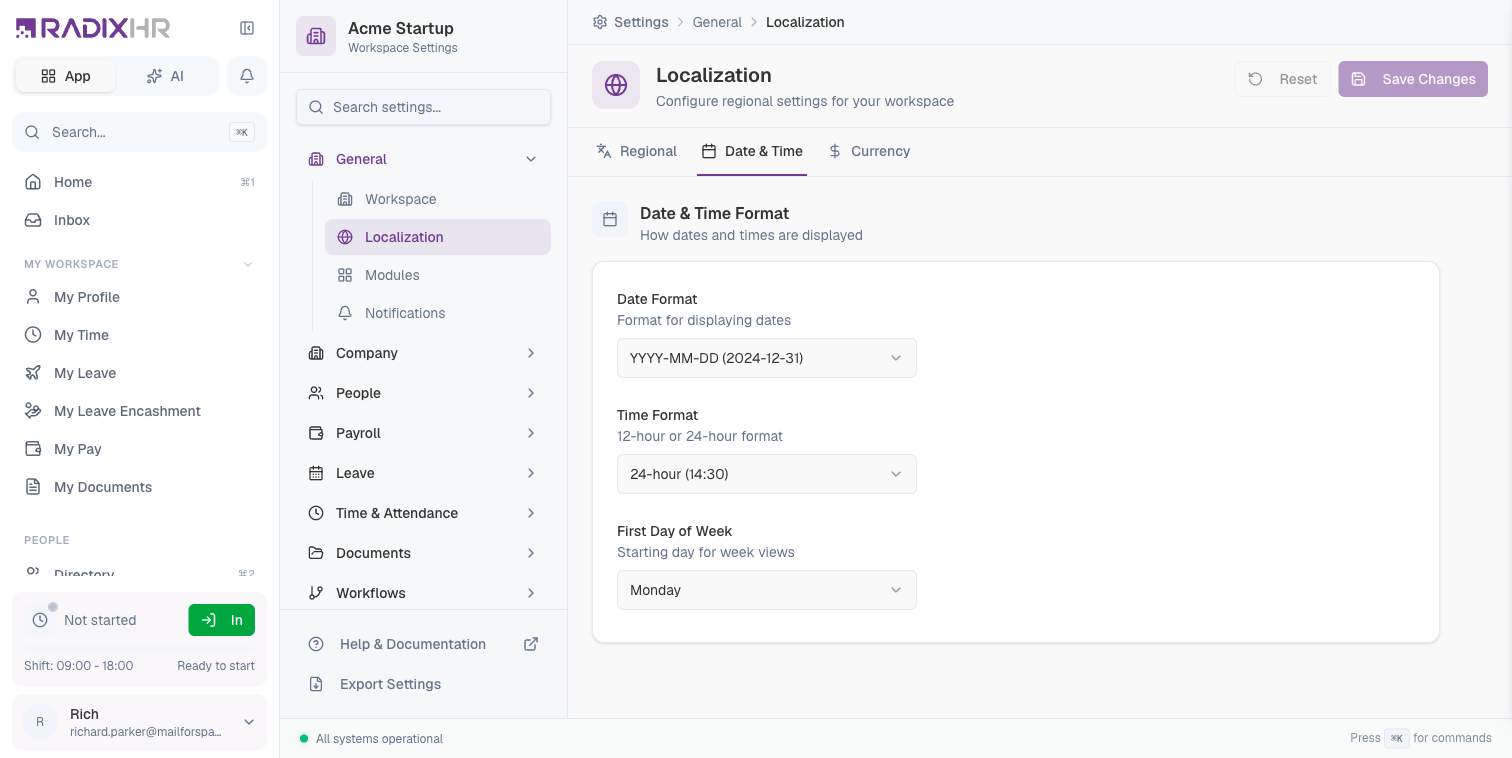
| Field | Description | Required |
|---|---|---|
| Date Format | How dates are displayed throughout the application. Choose a format familiar to your region. | Yes |
| Time Format | Whether times are shown in 12-hour format (with AM/PM) or 24-hour format (military time). | Yes |
| First Day of Week | Which day appears first in calendars and weekly views. This varies by region—Sunday is common in the US, Monday in Europe, and Saturday in some Middle Eastern countries. | Yes |
Date Format Options
| Format | Example | Common In |
|---|---|---|
| DD/MM/YYYY | 31/12/2024 | UK, Europe, India, Australia |
| MM/DD/YYYY | 12/31/2024 | United States |
| YYYY-MM-DD | 2024-12-31 | ISO standard, technical/international |
| DD-MMM-YYYY | 31-Dec-2024 | Business documents, reports |
Time Format Options
| Format | Example | Description |
|---|---|---|
| 12-hour | 2:30 PM | Uses AM/PM notation. Common in US, Canada, Australia. |
| 24-hour | 14:30 | Uses 00:00 to 23:59. Common in Europe, military, healthcare. |
First Day of Week Options
| Day | Common In |
|---|---|
| Sunday | United States, Canada, Japan, Israel |
| Monday | Most of Europe, UK, Australia, South America |
| Saturday | Some Middle Eastern and North African countries |
The First Day of Week setting affects how calendars display in leave management, scheduling, and other date-picker interfaces throughout the application.
Currency Settings
The Currency tab controls how monetary values and numbers are formatted in reports, payroll, and other financial displays.
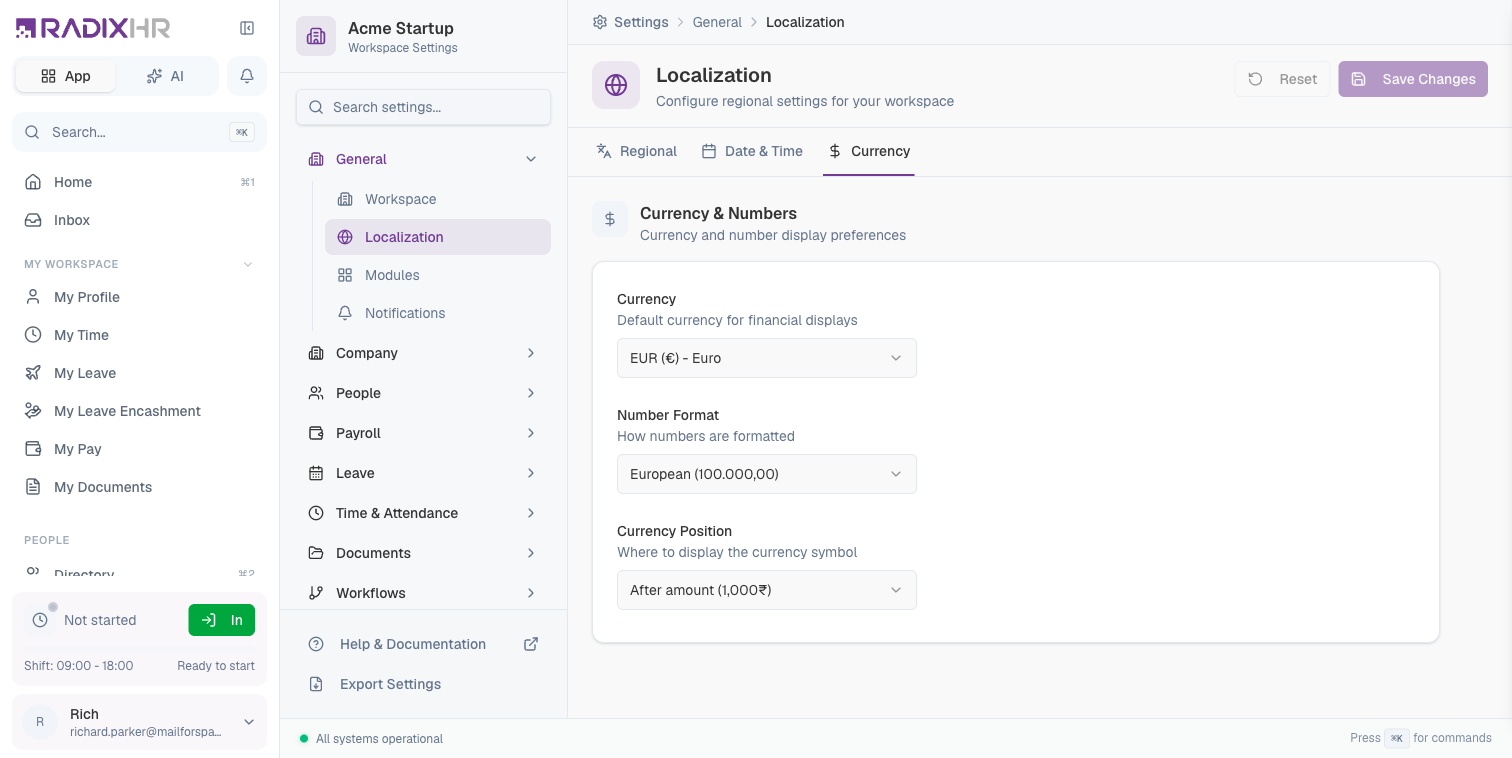
| Field | Description | Required |
|---|---|---|
| Currency | The default currency used for financial displays, including salary information, expense reports, and payroll summaries. | Yes |
| Number Format | How large numbers are formatted with separators. Different regions use different conventions for grouping digits. | Yes |
| Currency Position | Whether the currency symbol appears before or after the amount. | Yes |
Available Currencies
| Currency | Symbol | Code |
|---|---|---|
| Indian Rupee | ₹ | INR |
| US Dollar | $ | USD |
| Euro | € | EUR |
| British Pound | £ | GBP |
| UAE Dirham | د.إ | AED |
| Singapore Dollar | S$ | SGD |
| Australian Dollar | A$ | AUD |
Number Format Options
| Format | Example | Common In |
|---|---|---|
| Indian | 1,00,000.00 | India (uses lakh/crore grouping) |
| International | 100,000.00 | US, UK, most English-speaking countries |
| European | 100.000,00 | Germany, France, Spain (uses comma for decimals) |
Indian Number Format Explained: In India, numbers are grouped differently after the thousands place. Instead of millions and billions, India uses lakhs (1,00,000 = 100,000) and crores (1,00,00,000 = 10,000,000). This format is standard for Indian businesses.
Currency Position Options
| Position | Example | Common In |
|---|---|---|
| Before amount | ₹1,000 or $1,000 | Most countries |
| After amount | 1,000₹ or 1,000€ | Some European countries |
Best Practices
-
Set timezone first: Before adding employees or recording attendance, ensure the timezone is correctly configured. Changing it later can cause confusion with historical records.
-
Match your region: Choose settings that match your primary operating region. If you have offices in multiple countries, use the settings for your headquarters or the location with the most employees.
-
Consider your audience: If your workforce primarily reads reports in a specific format, configure date and number formats accordingly.
-
Test with real data: After changing localization settings, verify that dates, times, and numbers display correctly in reports and employee records.
-
Communicate changes: If you change localization settings after the system is in use, inform employees so they understand why dates or numbers may look different.