Leave Tools
Leave Tools provides administrative utilities for managing leave allocations, accruals, and year-end rollovers. Use these tools to allocate fixed leave entitlements, run accrual calculations for leave types that build up over time, and process carry-over of unused leave into the next year.
What you can do here:
- Allocate fixed leave entitlements for employees by leave type and year
- Run accrual calculations for leave types that accumulate monthly
- Process year-end rollovers to carry over unused leave balances
- Track allocation, accrual, and rollover status per employee
- Run bulk operations for all pending employees at once
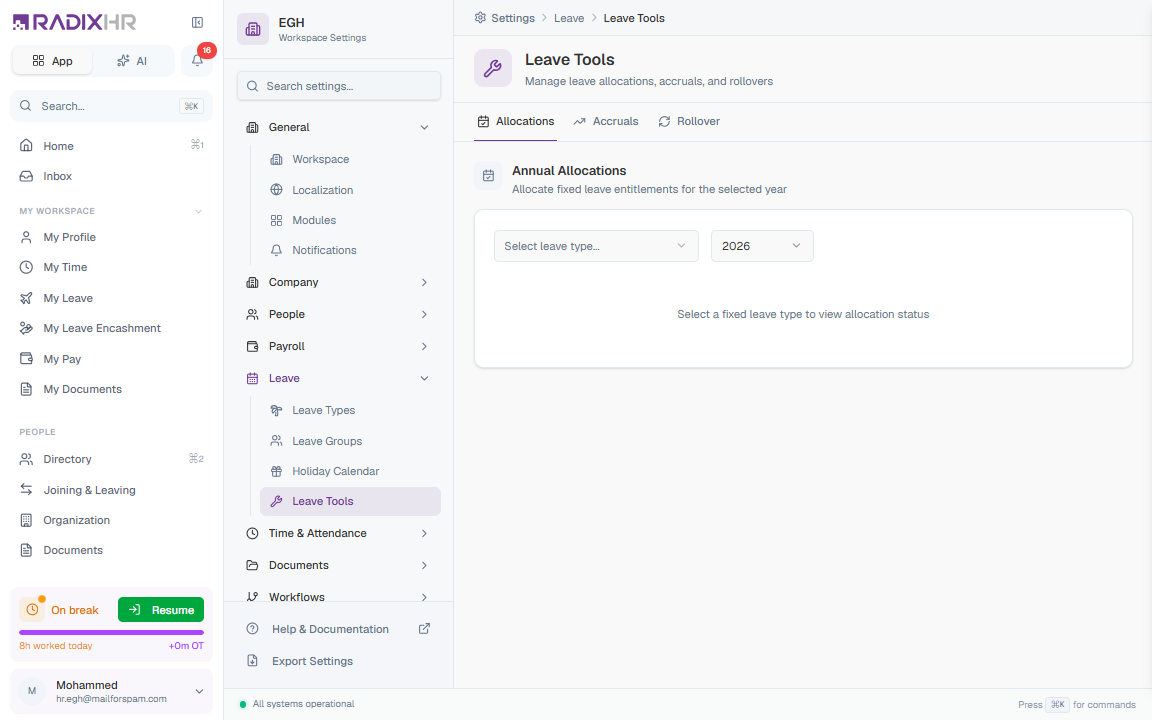
Allocations Tab
The Allocations tab lets you allocate fixed leave entitlements (a set number of days per year) for each employee.
How to Use
- Select a leave type from the dropdown (only fixed-entitlement leave types appear)
- Select the year for the allocation
- The table shows all employees with their allocation status
Employee Table Columns
| Column | Description |
|---|---|
| Employee Name | The employee’s full name |
| Department | The employee’s department |
| Entitlement | Number of leave days the employee is entitled to for this type |
| Status | Pending (not yet allocated) or Allocated (already processed) |
| Allocated Date | When the allocation was processed |
| Action | Button to allocate for individual employees |
Bulk Allocation
If there are employees with a Pending status, an Allocate All Pending button appears to process all pending allocations at once.
Run allocations at the beginning of each leave year to ensure all employees have their entitlements available for requesting leave.
Accruals Tab
The Accruals tab manages leave types where the balance builds up gradually over time (e.g., earning 2.5 days per month).
How to Use
- Select a leave type from the dropdown (only accrued leave types appear)
- Select the year
- The table shows each employee’s accrual status
Employee Table Columns
| Column | Description |
|---|---|
| Employee | The employee’s full name |
| Department | The employee’s department |
| Total Accrued | Total days accrued so far for the selected year |
| Last Accrued Month | The most recent month for which accrual was processed |
| Status | Up to date (current), Behind (needs processing), or None (no accruals yet) |
| Action | Button to run accrual for individual employees |
Bulk Accrual
If there are employees with a Behind status, a Run All Behind button appears to process all pending accruals at once.
Accruals are calculated based on the leave type’s accrual settings (monthly rate, pro-rata rules, etc.) as configured in the Leave Types settings.
Rollover Tab
The Rollover tab handles carrying unused leave balances from one year to the next, based on the carry-over rules configured for each leave type.
How to Use
- Select a leave type from the dropdown (only leave types with carry-over enabled appear)
- Select the from year (the year whose balance you want to roll over)
- The table shows a preview of what will be carried over for each employee
Employee Table Columns
| Column | Description |
|---|---|
| Employee | The employee’s full name |
| Department | The employee’s department |
| Balance | Remaining leave balance from the selected year |
| Carry Over | Number of days that will be carried forward (based on carry-over limits) |
| Forfeit | Number of days that will be forfeited (exceed the carry-over limit) |
| Expiry Date | When the carried-over balance will expire (if configured) |
| Status | Pending (not yet processed) or Processed (already rolled over) |
| Action | Button to process rollover for individual employees |
Bulk Rollover
If there are employees with a Pending status, a Run All Pending button appears to process all rollovers at once.
Rollover processing is typically done once at the end of the leave year. Forfeited days cannot be recovered after the rollover is processed, so review the preview carefully before running it.