Messaging Integrations
Control how your workspace sends notifications to employees over email (and, soon, WhatsApp). The Messaging page lets you toggle email delivery, pick a provider, and plug in your own credentials if you don’t want to use RadixHR’s built-in sender.
What you can do here:
- Enable or disable email notifications for your workspace
- Choose your email provider: RadixHR Email (default platform sender), Resend (your own Resend account), or Custom SMTP (your own mail server)
- Plug in your own credentials — a Resend API key or full SMTP details — when you want email to come from your own domain
- Configure WhatsApp once the channel is available (currently coming soon)
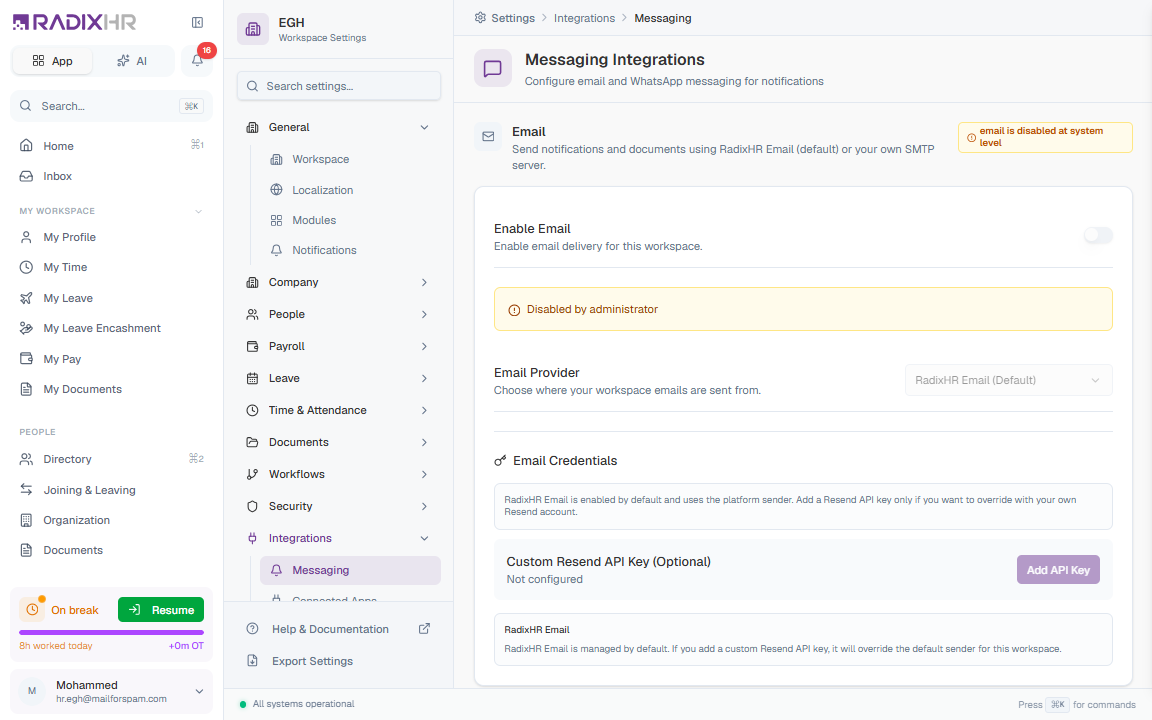
The page subtitle reads “Configure email and WhatsApp messaging for notifications”, but WhatsApp configuration is not yet live. Today, only the Email section is editable. WhatsApp is documented separately under the Notifications page where it’s marked Soon.
Page Header
| Element | Description |
|---|---|
| Breadcrumb | Settings > Integrations > Messaging |
| Title | ”Messaging Integrations” |
| Subtitle | ”Configure email and WhatsApp messaging for notifications” |
The Email section is the heart of this page — every notification, payslip email, password reset, etc. uses what’s configured here.
System-level Status
A status badge at the top-right of the Email section tells you whether email is working at the platform level:
| Badge | What it means |
|---|---|
| Operational (green) | Email is enabled at the system level — you can configure it for your workspace |
| Disabled by administrator (amber) | A platform administrator has disabled email entirely. The workspace-level toggle is read-only until the admin re-enables it. |
Enable Email Toggle
| Setting | Description | Default |
|---|---|---|
| Enable Email | When ON, your workspace can send emails. When OFF, no email is delivered for this workspace. | ON (subject to system-level status) |
If the page shows Disabled by administrator for either channel, the workspace switch is locked. Contact your platform admin if you need email turned on.
Email Provider
Choose where your outgoing email is sent from. The provider is picked from three cards, each showing a status badge:
| Provider | What it does | Status badge |
|---|---|---|
| RadixHR Email | Uses RadixHR’s built-in transactional email service. No configuration needed; your emails go out from the default platform sender. | Default |
| Resend | Sends from your own Resend account and domain. Requires a Resend API key. | Setup needed until a key is added, then Connected |
| Custom SMTP | Sends through your own mail server. Requires your SMTP host, port, username, password, and From address. | Connected once configured |
The selected provider gets a purple border and a check mark. Below the cards, the Configuration panel updates to show the settings for whichever provider is selected.
Provider Configuration
The Configuration panel below the provider cards changes depending on which provider is selected.
RadixHR Email
No setup is required. When RadixHR Email is the active provider, the panel simply confirms: “RadixHR Email is active. Emails are sent from the RadixHR platform sender. Nothing to configure.”
Resend
Add your own Resend API key so email is sent from your own Resend account and domain instead of the RadixHR default sender. Until a key is added, the Resend card shows Setup needed; once a valid key is saved it shows Connected.
Custom SMTP
When Custom SMTP is selected, the Configuration panel exposes the standard SMTP fields:
| Field | Description | Required |
|---|---|---|
| SMTP Host | Your mail server hostname (e.g., smtp.gmail.com, smtp.office365.com) | Yes |
| SMTP Port | The mail server port. Common values: 587 (STARTTLS), 465 (SSL/TLS), 25 (unencrypted). Default: 587. | Yes |
| SMTP Username | The username used to authenticate against your mail server | Yes |
| SMTP Password | The matching password | Yes |
| From Name | The “from” display name in outgoing emails (e.g., “HR Department”) | No |
| From Email | The “from” address (e.g., hr@company.com) | Yes |
| Reply-To | The address where replies should land, if different from From Email | No |
| Use SSL/TLS | ON for implicit TLS (usually port 465). OFF for STARTTLS (usually port 587). | No |
For Gmail, generate an App Password — Google blocks logging in with your normal password from third-party services. For Microsoft 365, use the regular mailbox credentials with port 587.
WhatsApp messaging is not yet generally available in RadixHR. You’ll see WhatsApp listed as Soon in the channel headers on the Notifications page, but no editable configuration appears on this Messaging page today.
When WhatsApp launches, you’ll be able to:
- Enable WhatsApp notifications for your workspace
- Plug in a Meta Business Platform access token
- Set a webhook verify token and subscribe to
messageswebhook events
If you need WhatsApp notifications today, contact RadixHR support — early-access slots may be available depending on your plan.
Tips and Best Practices
Start with the default sender. RadixHR Email works out of the box and is the simplest option. Only switch to Custom SMTP or a custom Resend key if you specifically need email to come from your own domain.
Match the port to the encryption mode. Port 587 typically pairs with Use SSL/TLS OFF (STARTTLS upgrade). Port 465 typically pairs with Use SSL/TLS ON (implicit TLS). Getting this combination wrong is the most common SMTP setup mistake.
Changing the email provider doesn’t migrate previously-sent emails — historical records and bounce logs stay with whichever provider sent them. Test thoroughly after switching.