Connected Apps
The Connected Apps page lets you integrate third-party services with your RadixHR workspace. Connect your Google account to sync calendars, create video meetings, and enhance your hiring and scheduling workflows.
What you can do here:
- Connect Google Calendar to sync events and schedules
- Connect Google Meet to create video meetings directly from RadixHR
- Manage multiple connected accounts per service
- Disconnect services when no longer needed
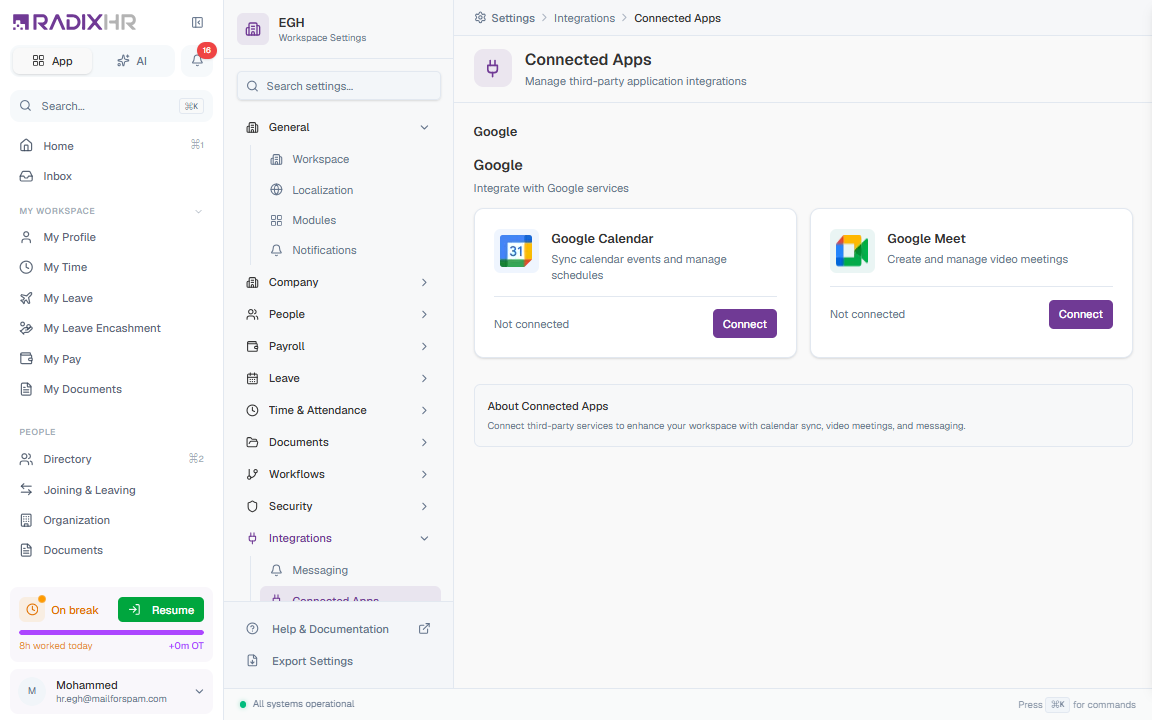
Not in the Settings sidebar (September 2026). The Integrations group now lists only Messaging. This page still works — open it directly at /settings/integrations/connected-apps.
Available Integrations
| Service | Description |
|---|---|
| Google Calendar | Sync calendar events and manage schedules. When connected, RadixHR can read your calendar for availability and create events for interviews and meetings. |
| Google Meet | Create and manage video meetings. When connected, you can generate Google Meet links directly from RadixHR for interviews and other meetings. |
Each integration card shows:
- Service name and icon with a description of what it does
- Connection status — “Not connected” or “X accounts connected”
- Connect button to link a new account
How to Connect an App
- Navigate to Settings > Integrations > Connected Apps
- Find the service you want to connect (e.g., Google Calendar)
- Click the Connect button
- Enter a Profile Name to identify this connection (e.g., “Work Calendar”, “HR Team Calendar”)
- Review the capabilities that the integration provides
- Click Connect — you will be redirected to the service’s authorization page (e.g., Google sign-in)
- Grant the requested permissions
- You will be redirected back to RadixHR with the connection established
You can connect multiple accounts per service. For example, you might connect both a personal and a team Google Calendar. Each connection has its own profile name for easy identification.
Managing Connections
Once connected, each account shows:
| Element | Description |
|---|---|
| Profile Name | The name you assigned when connecting (e.g., “Work Calendar”) |
| The email address associated with the connected account | |
| Status | Active (working), Pending (authorization in progress), Expired (needs re-authorization), or Error (connection issue) |
| Generate Meeting | For Google Meet connections, a button to instantly create a new meeting link |
| Disconnect | Remove the connection |
Disconnecting an App
- Find the connected account you want to remove
- Click the Disconnect button
- Confirm the disconnection in the confirmation dialog
Disconnecting an app revokes RadixHR’s access to that service. Any scheduled events or meetings created through the integration will remain in the external service, but RadixHR will no longer be able to manage them.
Generating Google Meet Links
If you have an active Google Meet connection, you can generate meeting links instantly:
- Click the Generate Meeting button on your Google Meet connection
- A new meeting URL is created
- Copy the URL or click Open Meeting to join directly
This is particularly useful when scheduling interviews — the meeting link can be attached to the interview invitation automatically.