Asset Categories
Asset Categories are the buckets your workspace uses to group every piece of equipment — laptops, phones, vehicles, access cards, anything you track. You need at least one category configured here before you can add an asset on the Assets page.
What you can do here:
- Create a new asset category with a name, short code, and icon
- See every category your workspace currently uses
- Edit or delete an existing category
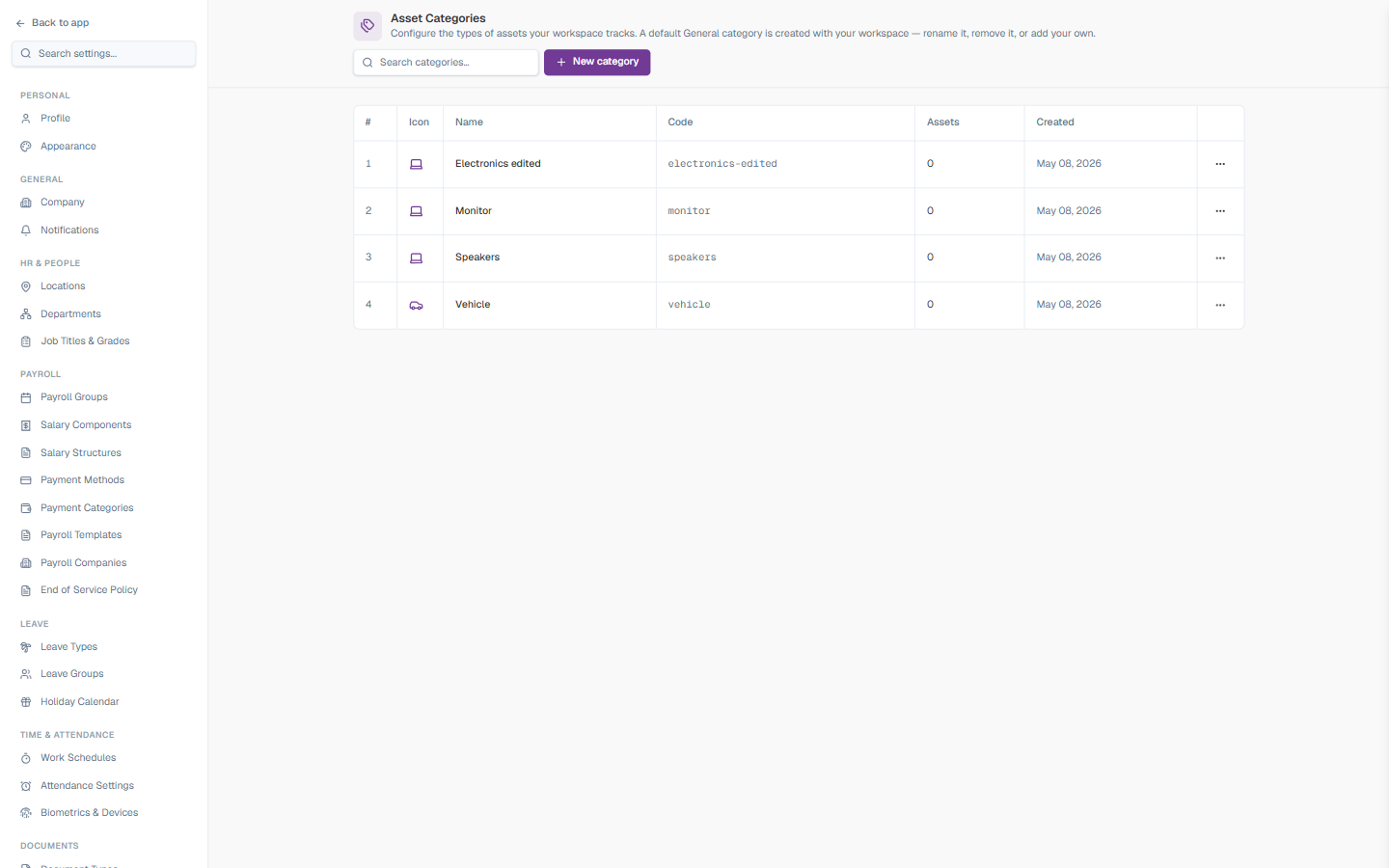
A default “General” category is created with every workspace — you can rename it, remove it, or add your own. Beyond that, your team builds the categories that match the equipment you actually own.
Page Header
| Element | Description |
|---|---|
| Breadcrumb | Settings > Assets > Asset Categories |
| Title | ”Asset Categories” |
| Subtitle | ”Configure the types of assets your workspace tracks. A default General category is created with your workspace — rename it, remove it, or add your own.” |
All Categories Section
The main panel lists every category in your workspace as a table.
| Element | Description |
|---|---|
| All categories | The section header, with the subtitle “Manage the asset categories used across your workspace.” |
| Search categories… | Filters the table by name or code |
| Category count | Shows how many categories exist (e.g., “4 categories”) |
| New category | Button in the top-right that opens the New category dialog |
The table has these columns:
| Column | Description |
|---|---|
| Icon | The icon chosen for the category |
| Name | The category’s display name |
| Code | The short machine-friendly identifier |
| Assets | How many assets currently use this category |
| Created | The date the category was created |
| ⋯ | Row menu — Edit or Delete |
Empty State
Because every workspace starts with a default General category, you’ll normally see at least one row here. If you delete every category, the panel shows an empty state:
No categories yet Categories let you group assets by type — laptops, phones, vehicles, access cards, anything you track. Create your first one to get started.
A Create first category button sits below the message and opens the same dialog as New category.
How to Create an Asset Category
- Open Settings → Assets → Asset Categories
- Click New category (top-right) or Create first category if the list is empty
- Fill in the form (see fields below)
- Click Create category
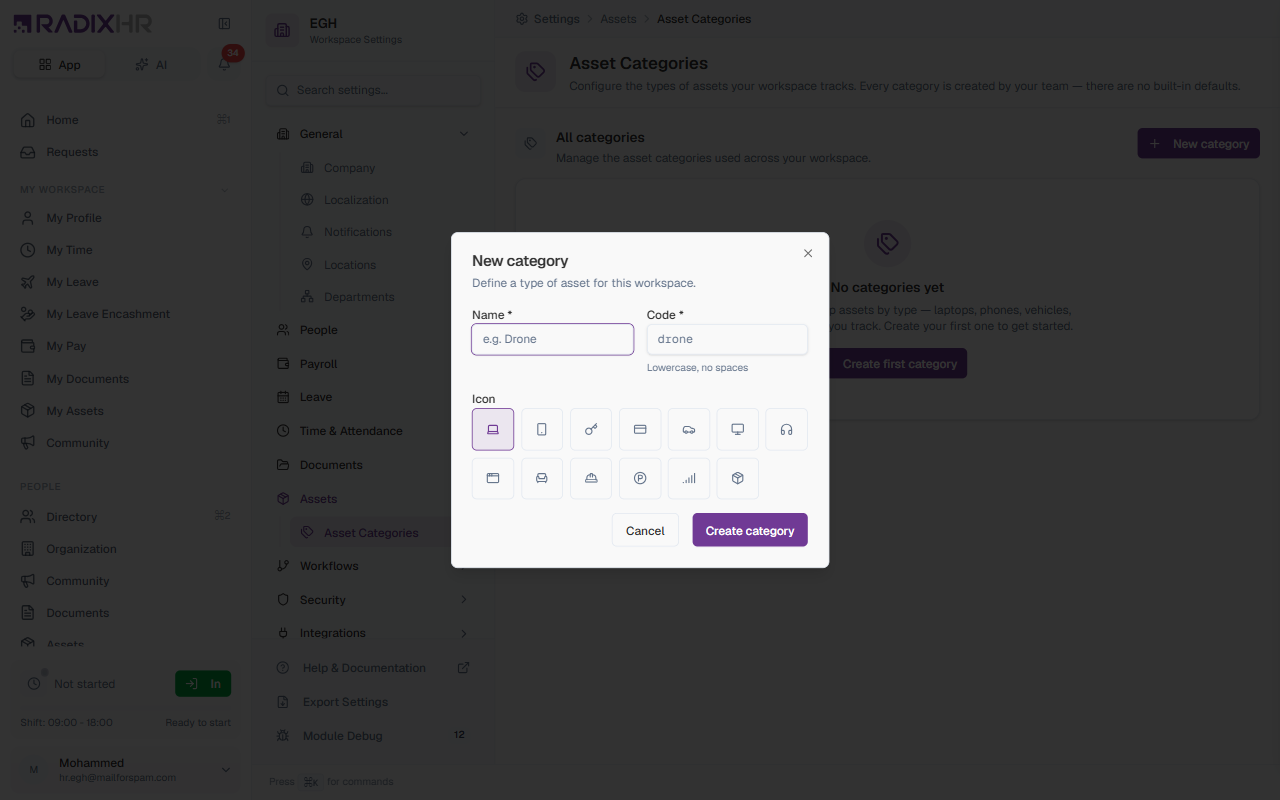
Form Fields
| Field | Description | Required |
|---|---|---|
| Name | The display name shown across the Assets register and on employee profiles (e.g., “Laptop”, “Vehicle”, “Drone”). | Yes |
| Code | A short machine-friendly identifier — lowercase letters only, no spaces (e.g., laptop, vehicle, drone). Used in reports, exports, and API references. | Yes |
| Icon | Pick an icon to represent this category in the assets register and on employee profiles. RadixHR ships with a small library of common asset icons (laptop, phone, key, monitor, headset, briefcase, vehicle, fuel pump, building, parking, etc.). | Yes (defaults to laptop) |
Keep the Code short and predictable — laptop, not office-laptop-windows-2024. Codes are used in reports and exports, so brevity helps.
How to Edit or Delete a Category
Each row in the table shows the category’s icon, name, code, asset count, and created date, plus a ⋯ row-action menu.
| Action | What it does |
|---|---|
| Edit | Reopens the same form so you can change the name or icon |
| Delete | Removes the category from the workspace. Only available when no assets are using it. |
You can’t delete a category that’s still attached to assets. First reassign or delete the affected assets on the Assets page, then come back here to delete the category.
The Code can be edited after creation, but changing it can break saved filters or report bookmarks that reference the old code. Avoid renaming codes once they’re in use.
Best Practices
Start with the broad categories first. Most workspaces only need 5–8 categories total — Laptop, Phone, Vehicle, Access Card, Furniture, Other is plenty. Over-categorising (separate categories for each laptop brand, say) makes reports messy.
Pick the right icon. Icons appear next to every asset in the register and on employee profiles. A recognisable icon makes the list far easier to scan.
Categories are workspace-wide. Anyone who can add or edit assets uses the same list. Coordinate with HR and IT before adding new categories so you don’t end up with duplicates like “Laptop” and “Laptops”.