PRO
The PRO page is the workspace for your Public Relations Officer — the person who handles employees’ government paperwork, such as renewing visas and health insurance. It gives the PRO a single task list of every government document that needs to be applied for, renewed, or cancelled, along with a checklist of the documents to collect from each employee.
What you can do here:
- See every government renewal task in one queue, with its priority and due date
- Track how many of the required documents have been collected for each task
- Create a new task and pick the documents to collect from the employee
- Tick off documents as they come in and send the employee a reminder for what’s missing
- Mark a task complete once all the paperwork is in, or reopen it if something changes
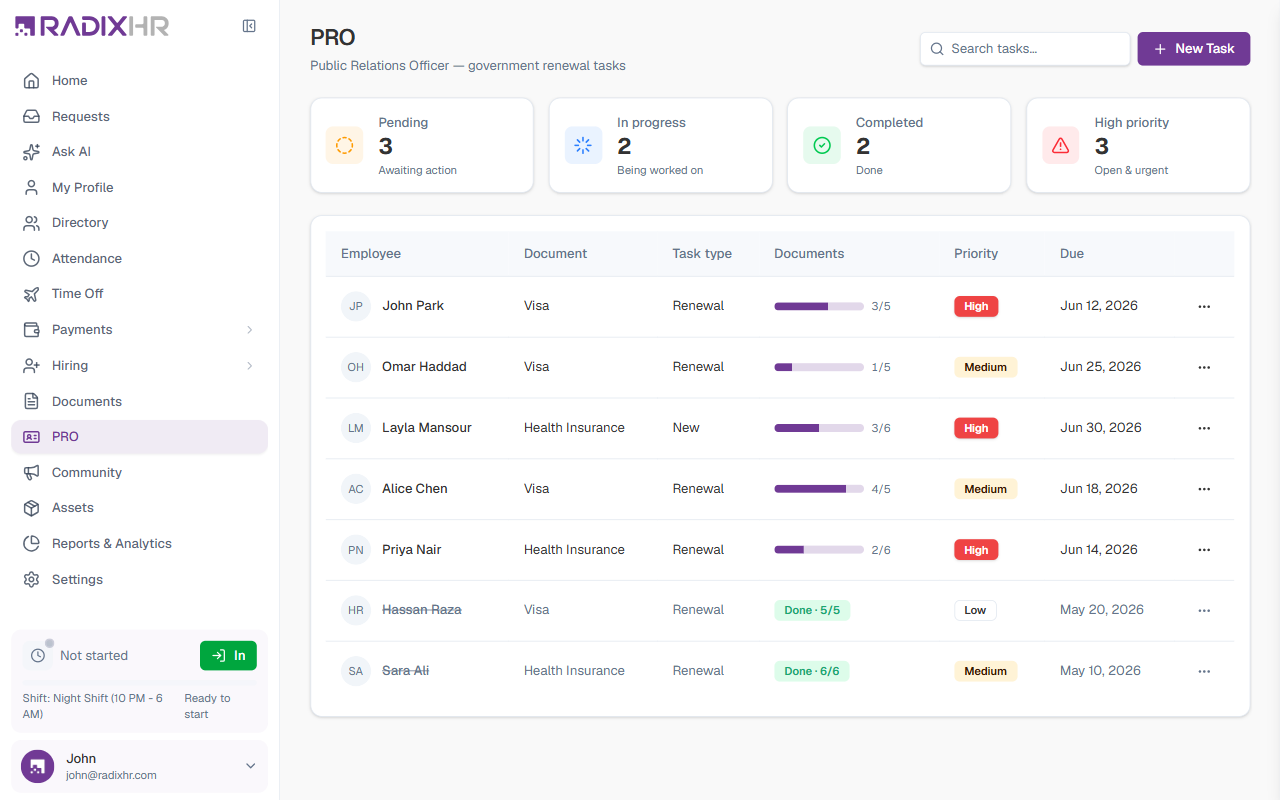
PRO stands for Public Relations Officer — the role responsible for dealing with government departments on the company’s behalf (visas, labour cards, Emirates ID, health insurance, and similar documents). This page is that person’s to-do list.
The Workload Summary
Four cards across the top give the PRO an at-a-glance view of the queue. The numbers update automatically as tasks move through their stages.
| Card | What it counts |
|---|---|
| Pending | Tasks that are awaiting action — none of the documents have been collected yet |
| In progress | Tasks being worked on — some, but not all, documents have been collected |
| Completed | Tasks that have been marked done |
| High priority | Open (not yet completed) tasks flagged as High priority, so urgent work stands out |
The Task List
Below the summary, every renewal task is listed one per row. Click any row to open the task and work through its documents.
| Column | What it shows |
|---|---|
| Employee | The person the task is being done for |
| Document | The government document the task concerns — Visa or Health Insurance |
| Task type | Whether this is a New application, a Renewal, or a Cancellation |
| Documents | A progress bar showing how many of the required documents have been collected (e.g. 3/5). Completed tasks instead show a green Done · 5/5 badge |
| Priority | High (red), Medium (amber), or Low — how urgent the task is |
| Due | The date the task should be completed by |
| ⋯ menu | Row actions — View, Edit, and Delete |
Use the Search tasks… box in the top-right to filter the list by employee name or task title (for example, “Visa Renewal”).
How to Create a Renewal Task
- Click New Task in the top-right corner
- Choose the employee and the document, and set the priority and due date
- The list of required documents loads automatically — tick any you already have
- Click Create task
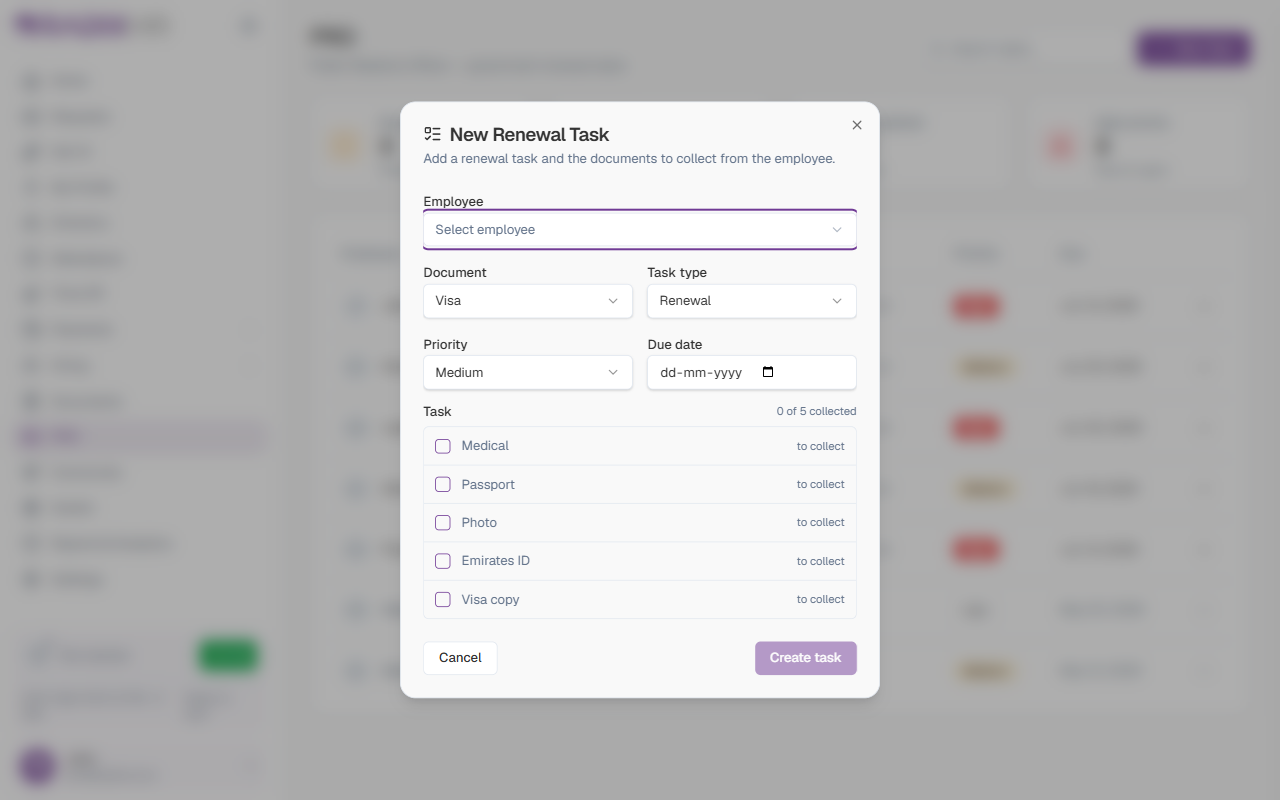
New Task Form Fields
| Field | Description | Required |
|---|---|---|
| Employee | The employee this task is for. Choose from the list of people. | Yes |
| Document | The government document the task is about — Visa or Health Insurance. Choosing a document loads the checklist of items you need to collect for it. | Yes |
| Task type | What kind of request this is: New (a first-time application), Renewal (renewing an existing document), or Cancellation (cancelling one). Defaults to Renewal. | Yes |
| Priority | How urgent the task is — High, Medium, or Low. High tasks show a red badge and count toward the High priority card. Defaults to Medium. | Yes |
| Due date | The date the task must be completed by. | Yes |
| Task (document checklist) | The documents you need to collect from the employee for the chosen document. Tick each item you’ve already received; you can also tick them off later as they come in. | — |
The Create task button stays disabled until you’ve chosen an employee, set a due date, and have at least one document in the checklist.
Which Documents Are Required
The checklist that loads depends on the document you pick:
| Document | Documents to collect |
|---|---|
| Visa | Medical, Passport, Photo, Emirates ID, Visa copy |
| Health Insurance | Medical, Passport, Photo, Emirates ID, Labour contract, Visa copy |
Working on a Task
Click a task row (or choose View from its ⋯ menu) to open it. This is where the PRO works through the paperwork.
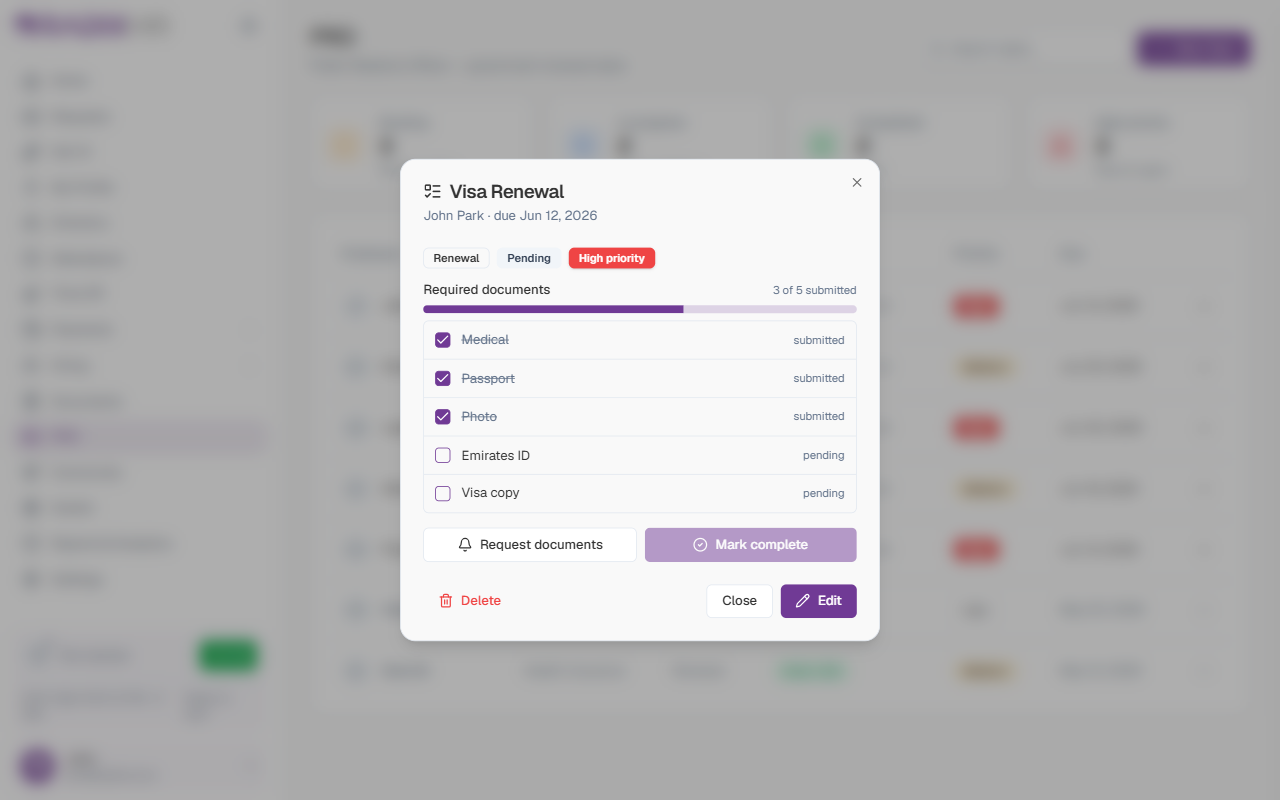
At the top you’ll see badges for the task type, status, and priority. Below them is the Required documents checklist with a progress bar and an X of Y submitted count.
- Tick a document as the employee submits it. The task’s status updates by itself — it moves from Pending to In progress as soon as the first document comes in.
- Request documents sends the employee a reminder listing the documents still outstanding. This is only available while documents are still missing.
- Mark complete becomes available once every document has been collected, and closes the task as done.
- Reopen task appears on a completed task and moves it back to In progress if something needs revisiting.
The footer also has a Delete button to remove the task, Close to step away without changes, and Edit to change the task’s details.
You don’t have to collect everything before saving a task. Create it early, then tick documents off as they arrive — the progress bar and the workload summary keep everyone’s view up to date.
Editing or Deleting a Task
From the ⋯ menu on any row (or the Edit / Delete buttons inside a task) you can:
- View — open the task and its document checklist
- Edit — change the employee, document, task type, priority, due date, or required documents
- Delete — remove the task from the queue