Home
The Home page is the first thing you see when you sign in to RadixHR. It’s your daily starting point — a single screen that surfaces what needs your attention, gives you a live snapshot of your team, and puts your most common actions one click away.
What you can do here:
- See alerts that need action — approvals waiting on you, attendance anomalies, expired and missing documents — grouped by day
- Filter alerts to focus on one kind at a time (Urgent, Documents, Leave, or Attendance)
- Check a live headcount of who’s present, on leave, late, or awaiting approval
- Jump straight into common tasks like adding an employee or running payroll
- Keep track of upcoming birthdays and work anniversaries
- Clock in and out from the sidebar without leaving the page
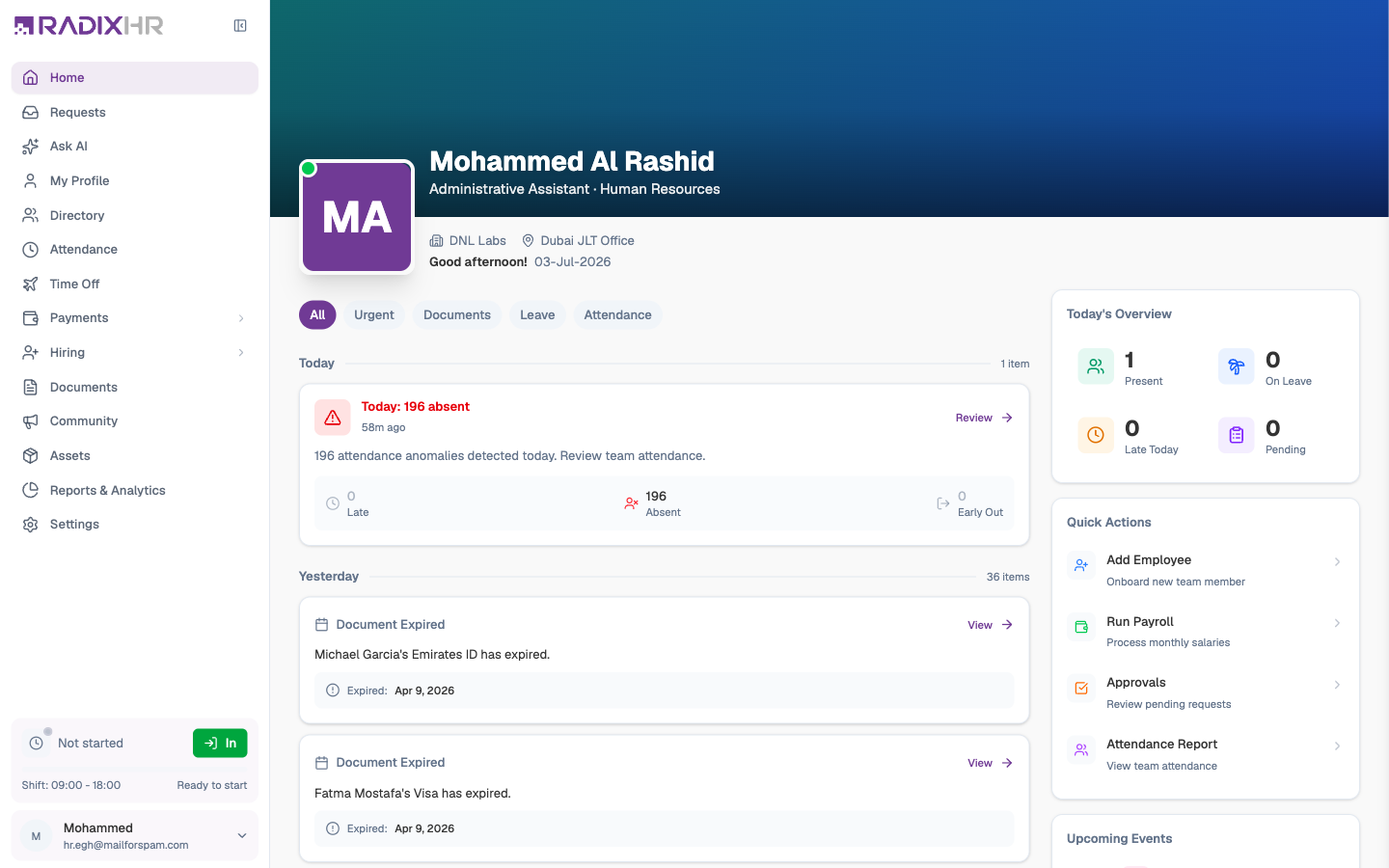
Home looks different depending on which App Mode you’re in. This page describes the Platform view (the org-wide dashboard with Today’s Overview and admin Quick Actions). Switch the sidebar to My Workspace and Home becomes your personal dashboard instead — same alerts feed, but with employee-focused quick actions like Clock In/Out and Request Leave. See Navigating the App for how the two modes work, and Your Home for the personal version.
Page Header
The banner at the top confirms who you’re signed in as. It shows your photo (with a green dot when you’re clocked in), name, job title and department, your company and work location, and a greeting alongside today’s date. Use it as a quick check that you’re in the right company before you act on anything below.
The cover image behind the banner is yours to change — pick a preset gradient or upload your own under Settings → Personal → Appearance. It’s a personal preference, so only you see it.
The Alerts Feed
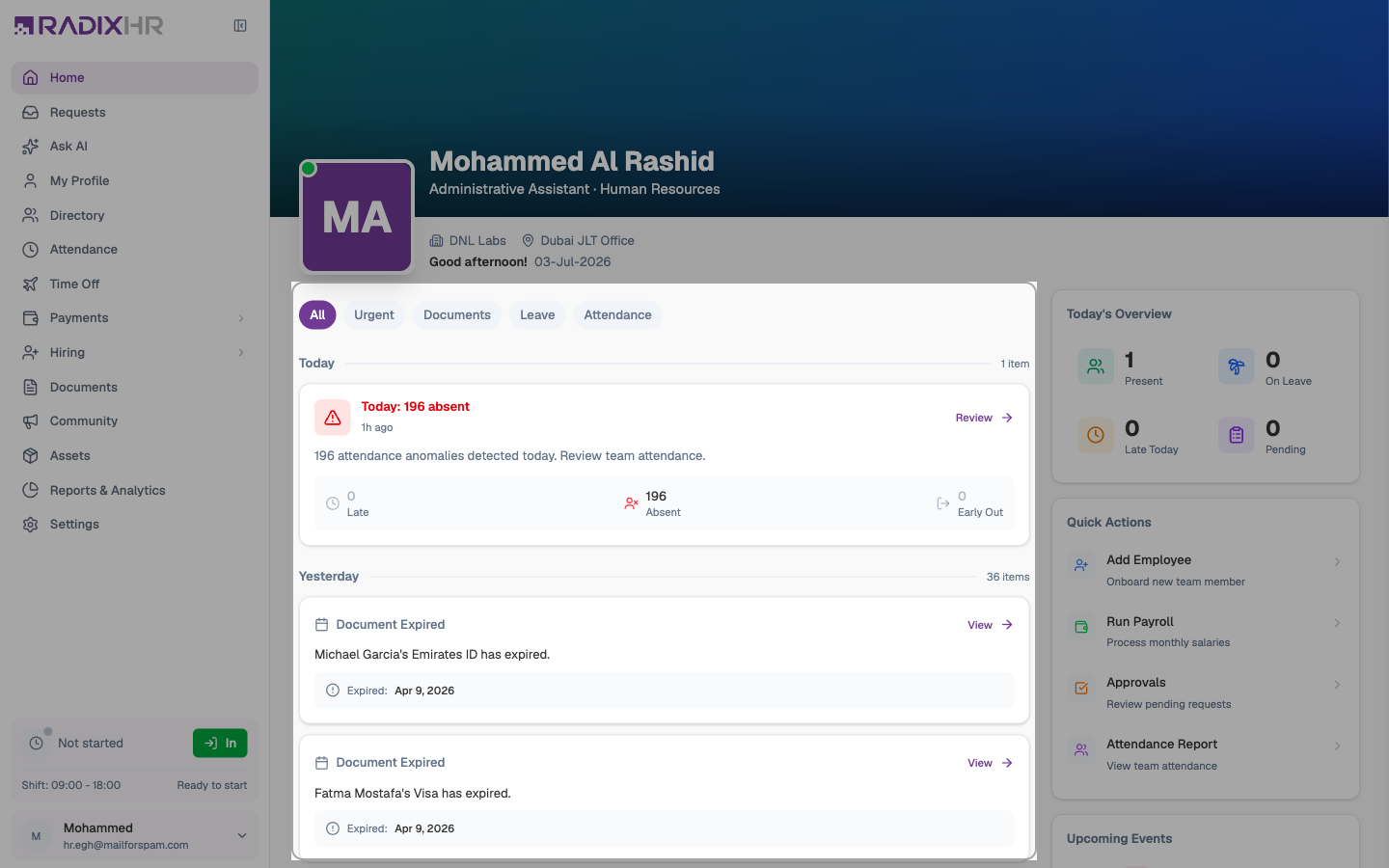
The main column is a running feed of everything that needs looking at. Items are grouped by day — Today, Yesterday, then by date (e.g. Sep 14, 2026) — with a count of how many items sit in each group. The newest group is at the top.
Filter Tabs
The pill buttons above the feed narrow it to one kind of alert, so you can clear a specific type of task in one go. The count next to each day heading updates to match.
| Tab | Shows |
|---|---|
| All | Every alert across all categories (the default) |
| Urgent | Only the items flagged as time-sensitive or overdue |
| Documents | Expired documents and employees missing required documents |
| Leave | Leave-related alerts — requests waiting on your approval, and requests your team has submitted |
| Attendance | Attendance anomalies, such as absences, late arrivals, and early-outs |
Alert Types
Each alert appears as its own card. The card tells you what happened, when, and gives you a button to act on it. You’ll see five kinds:
| Card | What it means | Button |
|---|---|---|
| Requesting leave | A leave request has reached a step where you must approve it — e.g. “Step 2: HR Approval – Requires your approval”. Shows the employee’s name, photo, and department. | View — opens the request so you can approve or reject it |
| Leave Request Submitted | An employee has submitted leave that’s now working through its approval chain (the current step is shown in brackets, e.g. Manager Approval). Shows the leave type, Duration in days, and the Dates. | View — opens the request |
| Document Expired | An employee’s document has passed its expiry date — e.g. “adam jon’s Passport has expired.” — with the Expired date so you can see how overdue it is. | View — opens the document record so you can request a renewal |
| Missing required documents | An employee hasn’t uploaded one or more documents your workspace marks as mandatory — e.g. “Emily Morris is missing 3 required documents.” — with a chip for each missing document type. | View Documents — opens their document folder |
| Attendance anomaly | A daily roll-up of attendance issues for your team, e.g. “Today: 2 early out, 132 absent”, with a breakdown of Late, Absent, and Early Out counts. | Review — opens the Attendance page filtered to today |
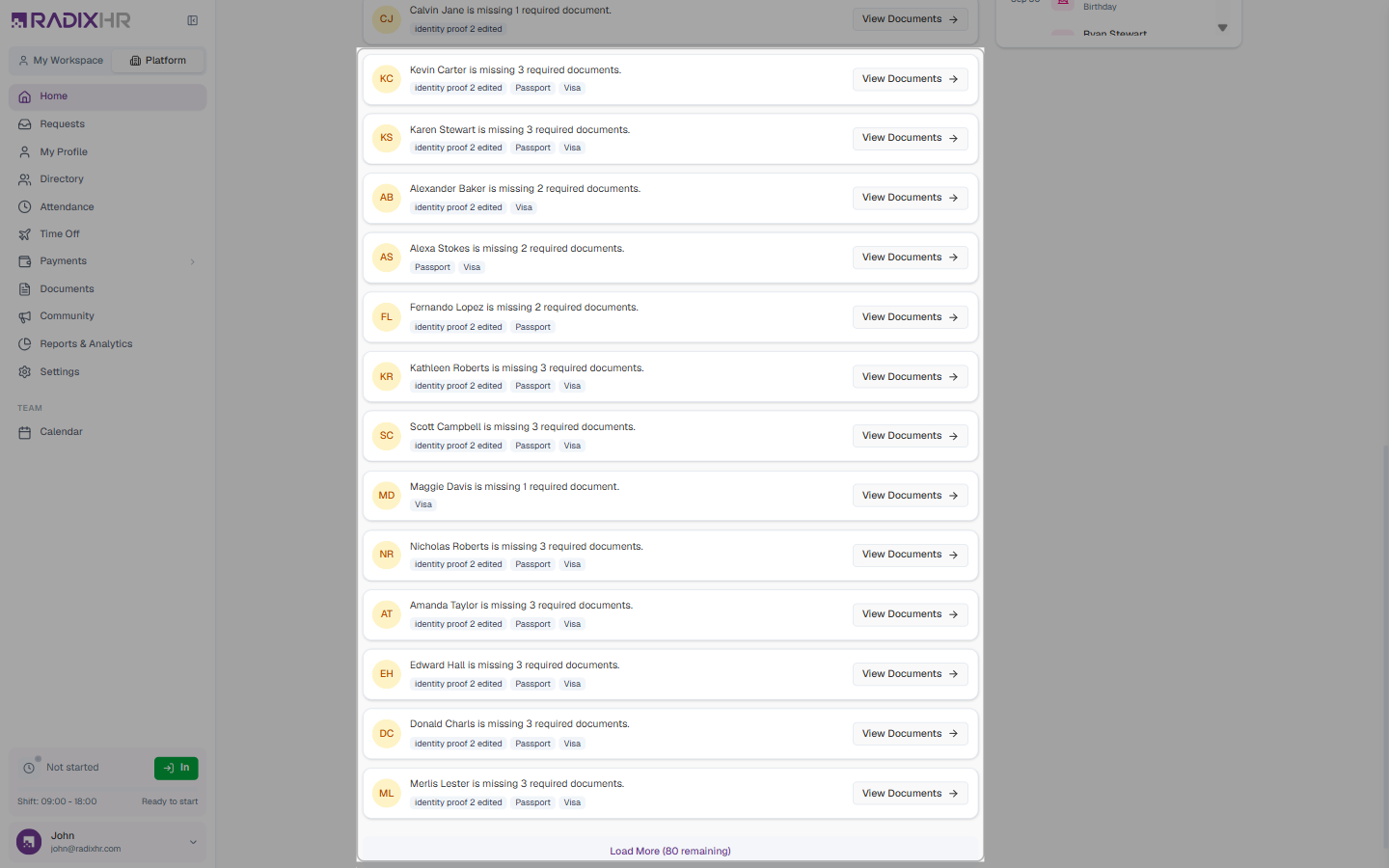
An anomaly simply means something that falls outside the normal rules — an employee marked absent with no approved leave, or a document past its renewal date. Home collects these so you don’t have to go hunting for them across different pages.
Loading More
When a day has more items than fit on screen, a Load More button appears at the bottom of that group (e.g. “Load More (80 remaining)”). Click it to reveal the next batch.
Today’s Overview
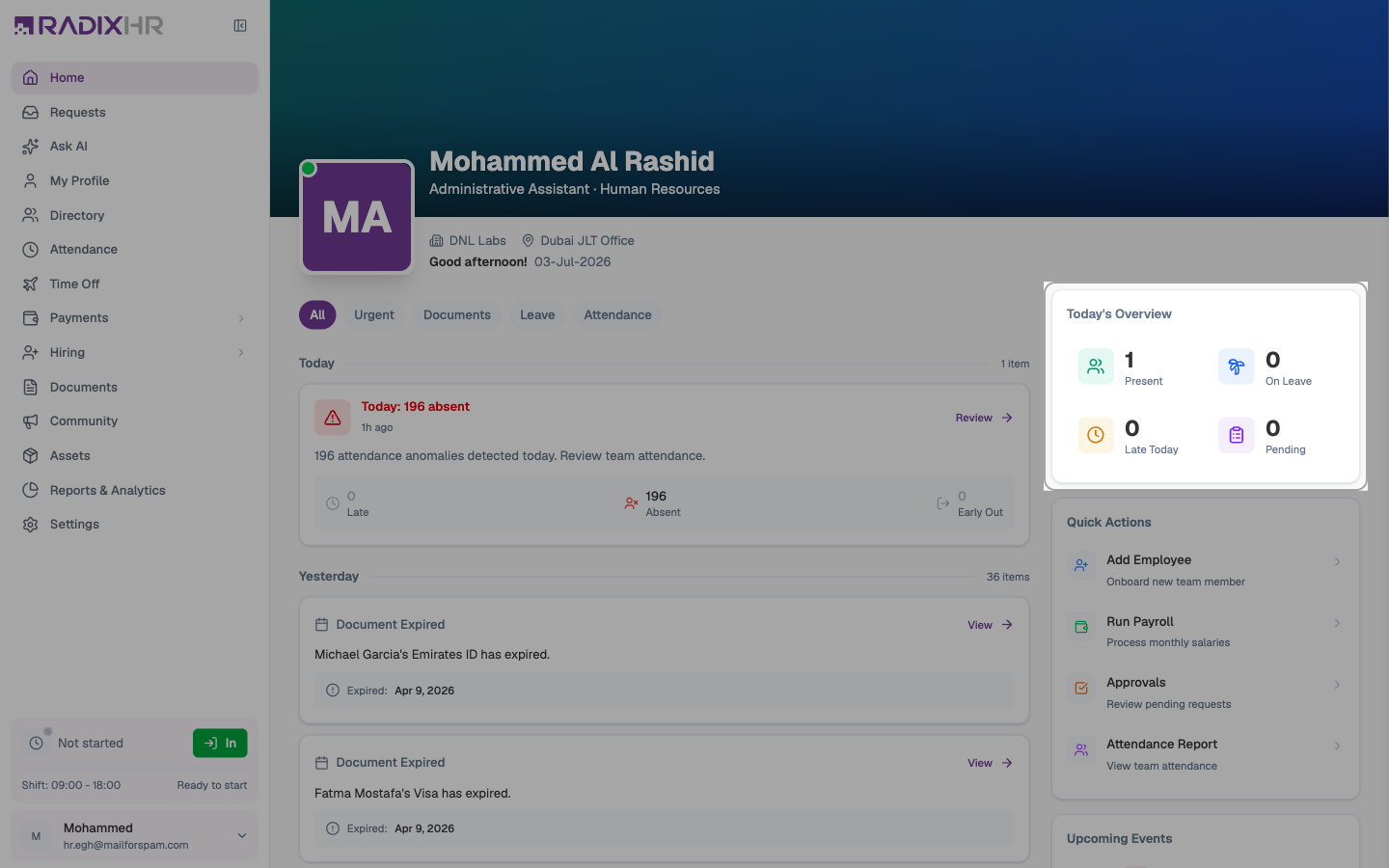
The Today’s Overview card at the top of the right column gives you a live headcount for the current day. Each figure is a button — click it to jump to the full list behind that number.
| Card | What it counts |
|---|---|
| Present | Employees who are clocked in today |
| On Leave | Employees on approved leave today |
| Late Today | Employees who clocked in after their scheduled start |
| Pending | Requests waiting for your approval |
Quick Actions
Quick Actions are shortcuts to the tasks HR and managers reach for most often, so you can start them without going through the sidebar.
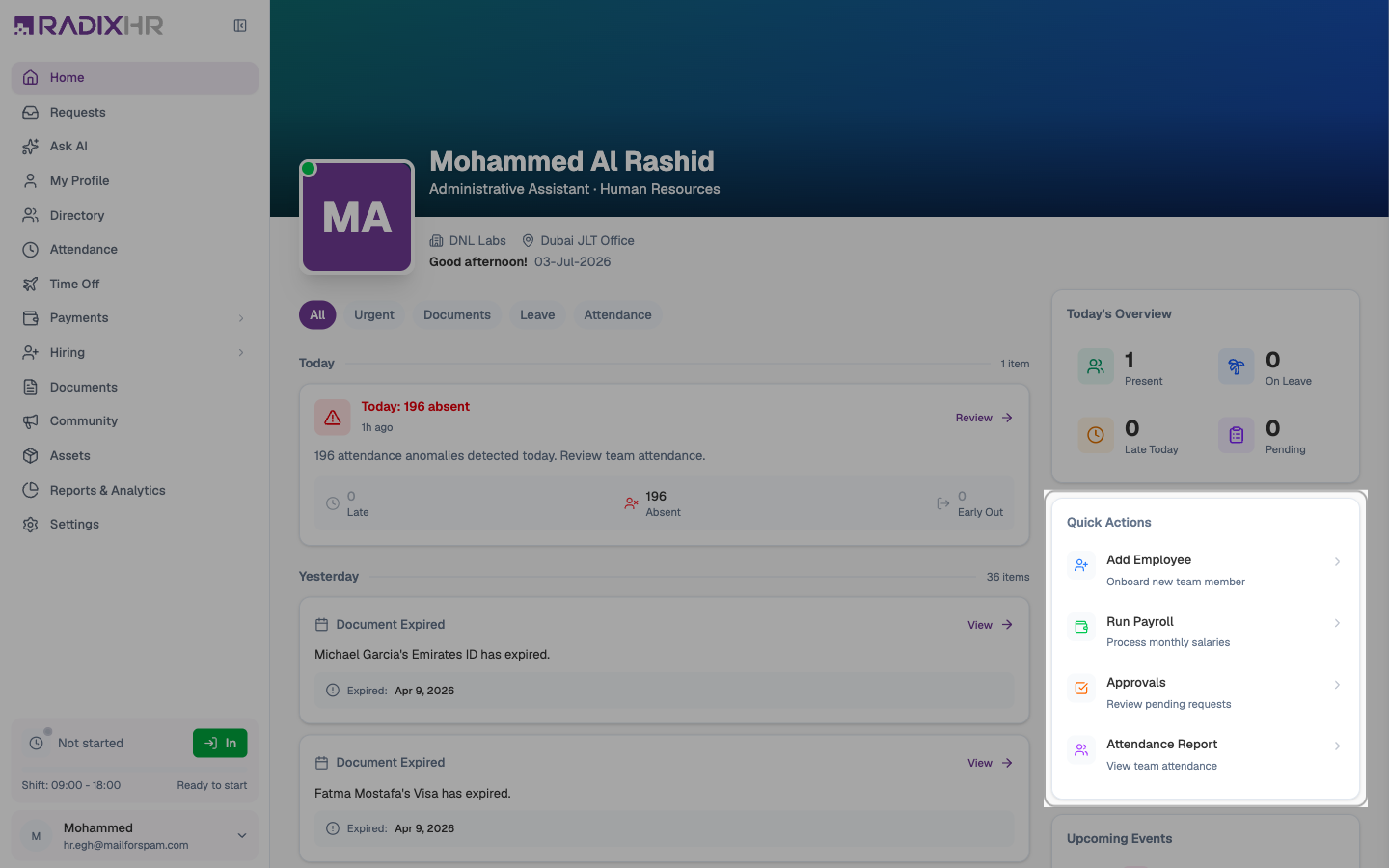
| Action | What it does |
|---|---|
| Add Employee | Opens the form to onboard a new team member |
| Run Payroll | Takes you to Payroll to process monthly salaries |
| Approvals | Opens your pending requests so you can review them |
| Attendance Report | Opens the team attendance view |
Upcoming Events
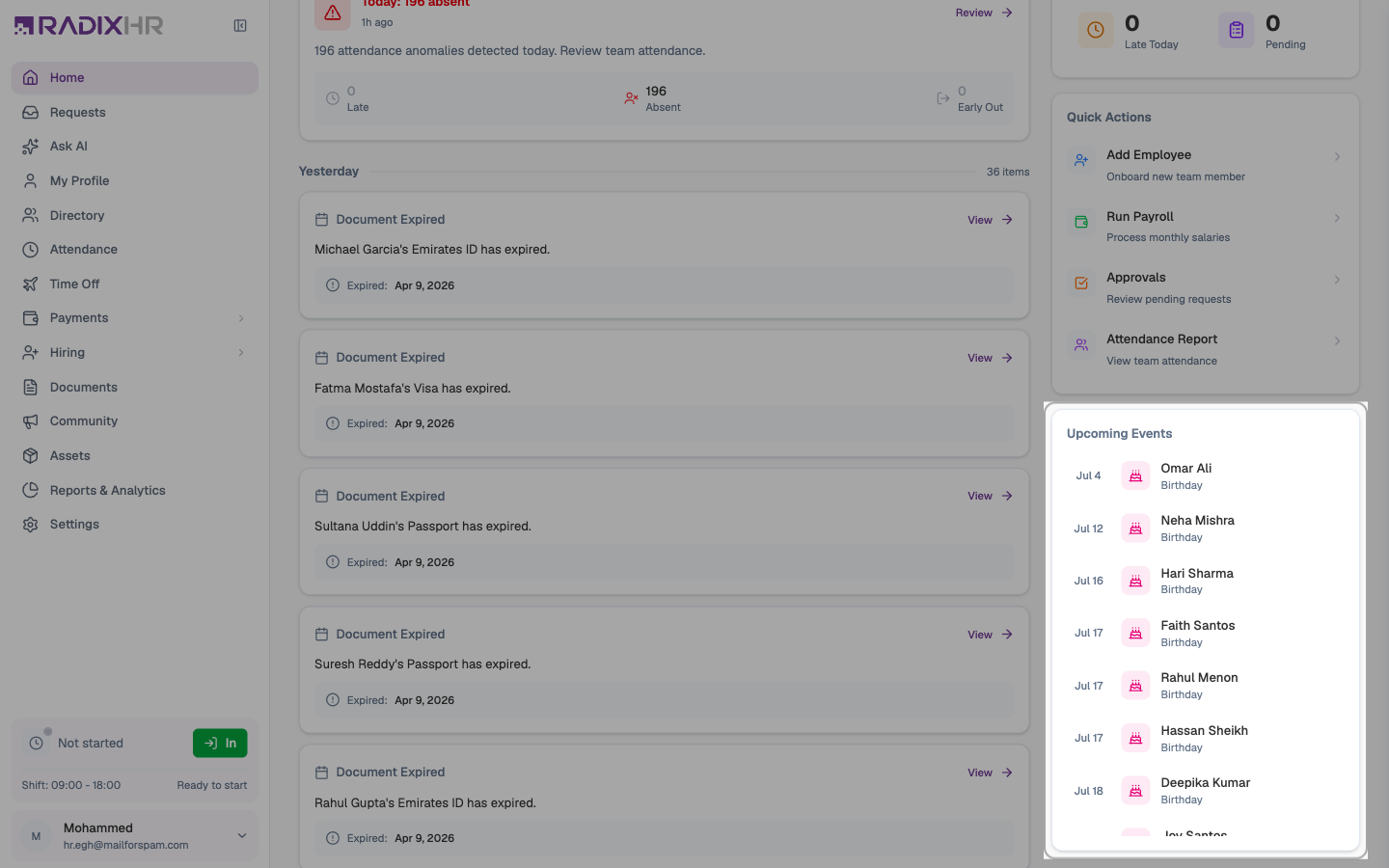
The Upcoming Events card lists personal milestones across the company — birthdays and work anniversaries — each with its date and the employee’s name. The list scrolls if there are more than fit in the card.
Quick Check-In
At the bottom of the sidebar — visible from Home and every other page — is a check-in widget showing your scheduled shift (e.g. “Shift: 09:00 – 18:00”) and its current status (Not started / Ready to start). Click the green In button to clock in without leaving the page; once you’re in, the same widget lets you clock out.
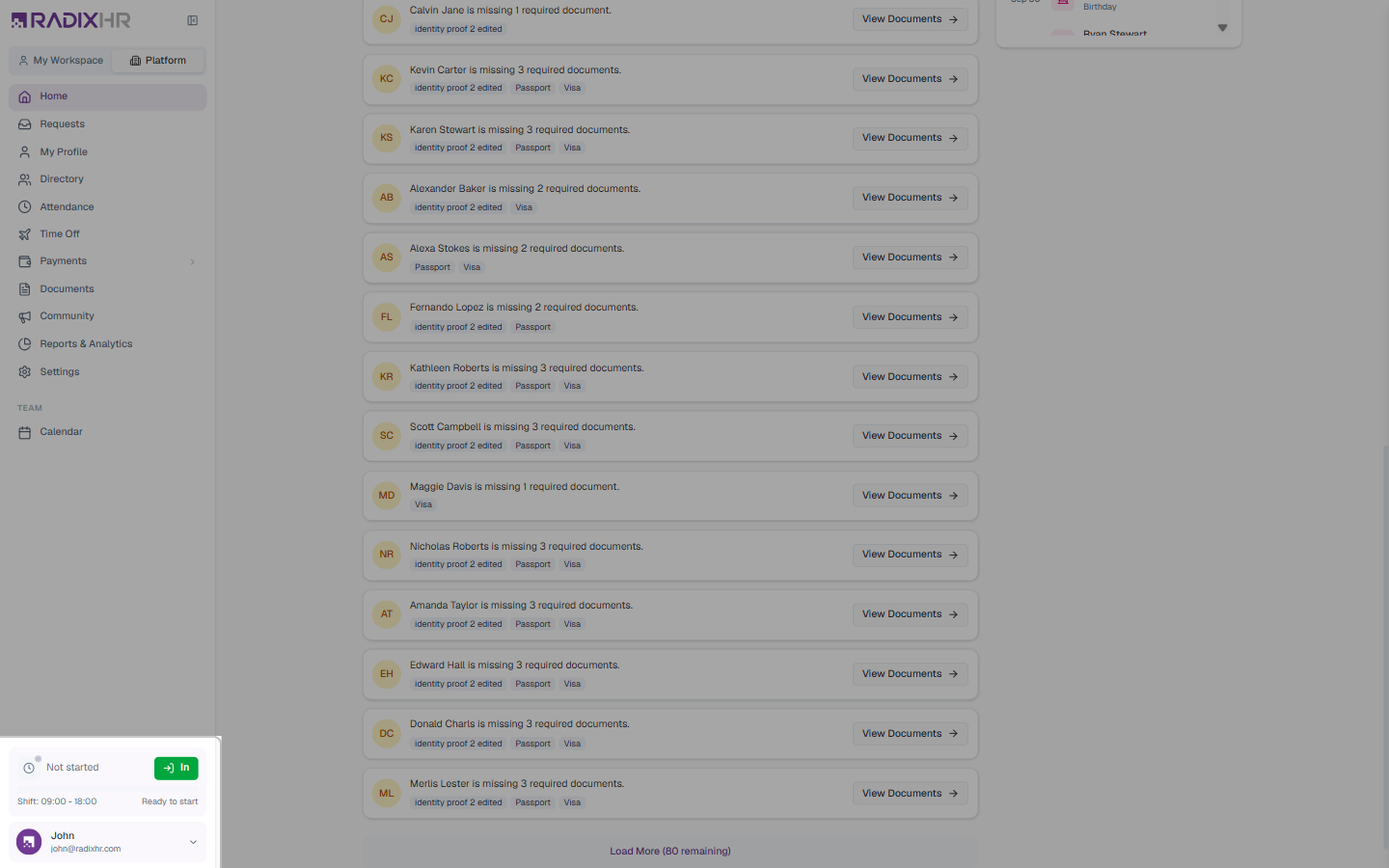
Below the widget, click your name to open the account menu — see Navigating the App.
Make Home your first stop each morning. Clear the Urgent filter first, glance at Today’s Overview to see who’s in, then use Quick Actions to handle anything that needs doing — all before you open another page.