Claims & Deductions
The Claims & Deductions page is the single place to manage every adjustment to an employee’s pay — money paid to an employee (salary advances and expense reimbursements) and money taken from their pay (deductions, fines, and loan repayments). Every item flows through payroll, where it is paid out or recovered automatically.
What you can do here:
- Raise a salary advance or employee loan and recover it in installments
- Reimburse an employee for an approved expense
- Apply a deduction or fine to an employee’s pay
- Track how much has been processed and what is still outstanding
- Pause, resume, or cancel an item
- Open any item to see its installment schedule and payroll transactions
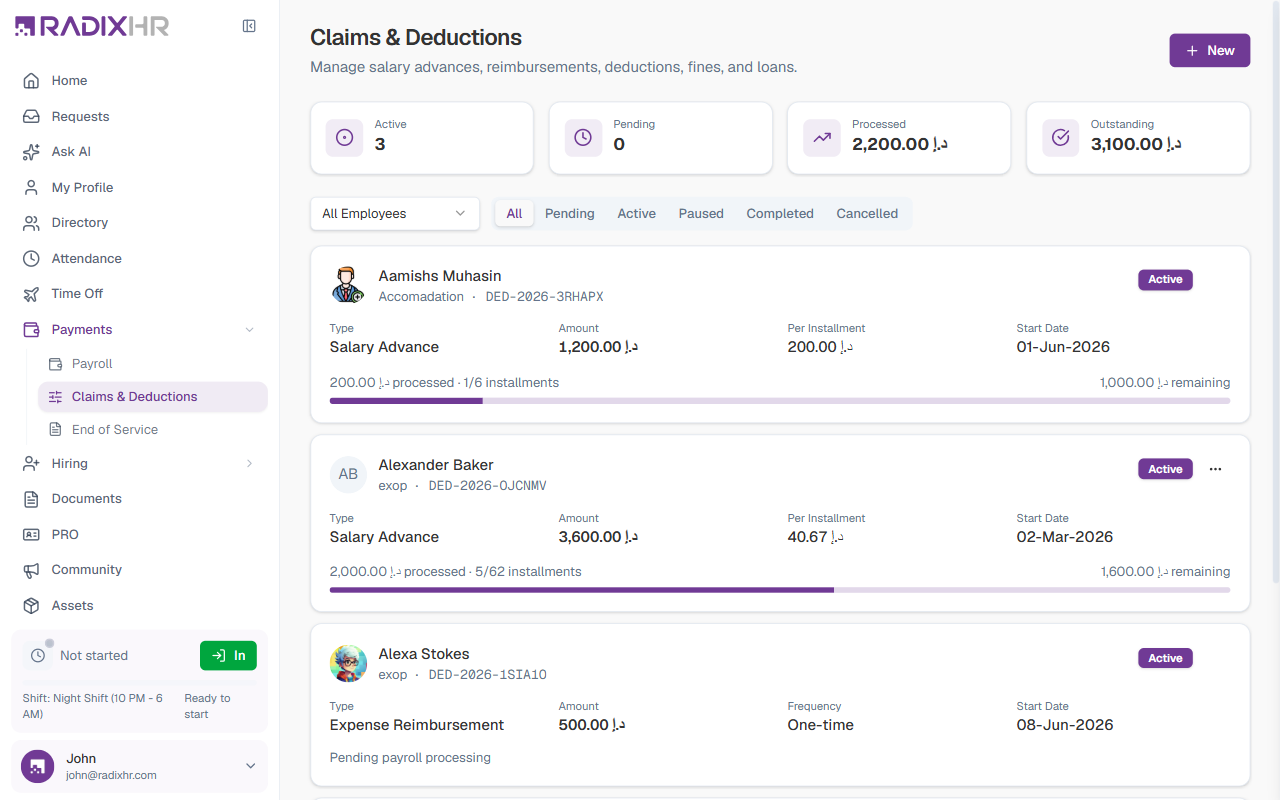
Claims & Deductions brings the former Expenses, Advances, and Deductions pages together into one list. Every item carries a DED-… reference and is settled through payroll.
Summary Cards
Four cards across the top summarize all activity:
| Card | What it shows |
|---|---|
| Active | Items currently being applied or recovered through payroll |
| Pending | Items awaiting approval |
| Processed | The total amount already paid out or recovered through payroll |
| Outstanding | The total amount still to be paid out or recovered |
The List
Use the scope picker (All Employees / My Team for managers, and My Items for your own) and the status tabs — All, Draft, Pending, Active, Paused, Completed, Cancelled — to narrow the list.
Each item appears as a card showing:
| Element | Description |
|---|---|
| Employee | Who the item is for, with their avatar |
| Title & Reference | The item’s title and its auto-generated DED-… reference |
| Status | Active, Pending, Paused, Completed, or Cancelled |
| Type | Salary Advance, Expense Reimbursement, Deduction, Fine, or Loan |
| Amount | The total amount of the item |
| Per Installment / Frequency | The amount recovered each payroll cycle, or the frequency for one-time items |
| Start Date | When the item begins applying |
| Progress | For installment items, a bar showing the amount processed, installments completed, and the remaining balance. One-time items show “Pending payroll processing” until the next run. |
The ⋯ menu on a card offers quick actions based on the item’s status.
Item Types
| Type | What it is |
|---|---|
| Salary Advance | Money paid to the employee ahead of payday, recovered in monthly installments |
| Employee Loan | A personal loan repaid over several installments |
| Expense Reimbursement | Repayment of an approved work expense, added to the employee’s pay |
| Deduction | A recurring or one-time amount withheld from pay (e.g., an insurance premium) |
| Fine | A penalty withheld from pay (e.g., a late-attendance or traffic fine) |
How to Add a Claim or Deduction
- Click New in the top-right corner
- Choose the Employee and enter a Title
- Pick a Category — categories are grouped into Disbursements (employee receives), such as Salary Advance and Expense reimbursement, and Deductions (employee pays)
- The form adapts to the category you choose — fill in its fields
- Click Create
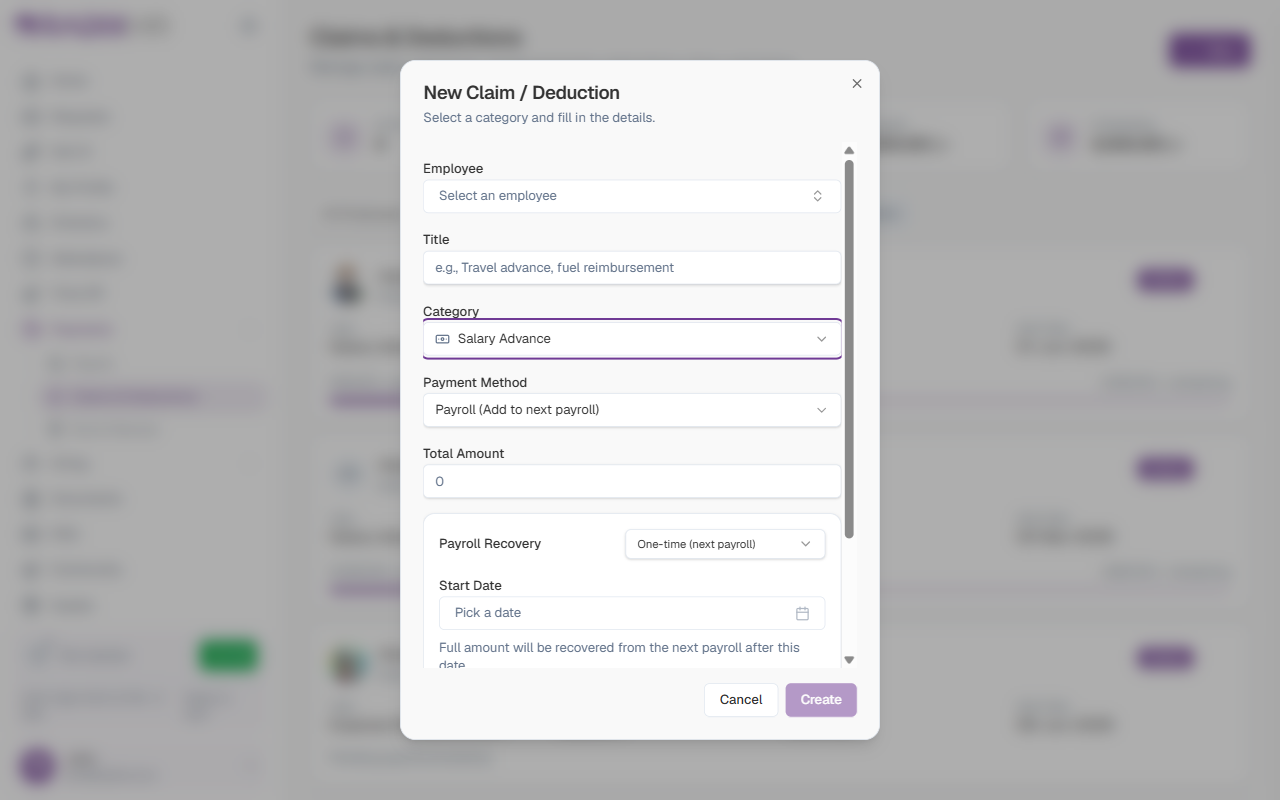
For a Salary Advance, for example, you set the Payment Method, Total Amount, Payroll Recovery (one-time or split into installments), Start Date, and an optional Description. Other categories show the fields relevant to them.
The available categories come from your organisation’s payroll settings, so the exact list can differ between workspaces. Items that need sign-off start in Pending until a manager or HR approves them.
Item Detail Page
Click any item to open its full detail page.
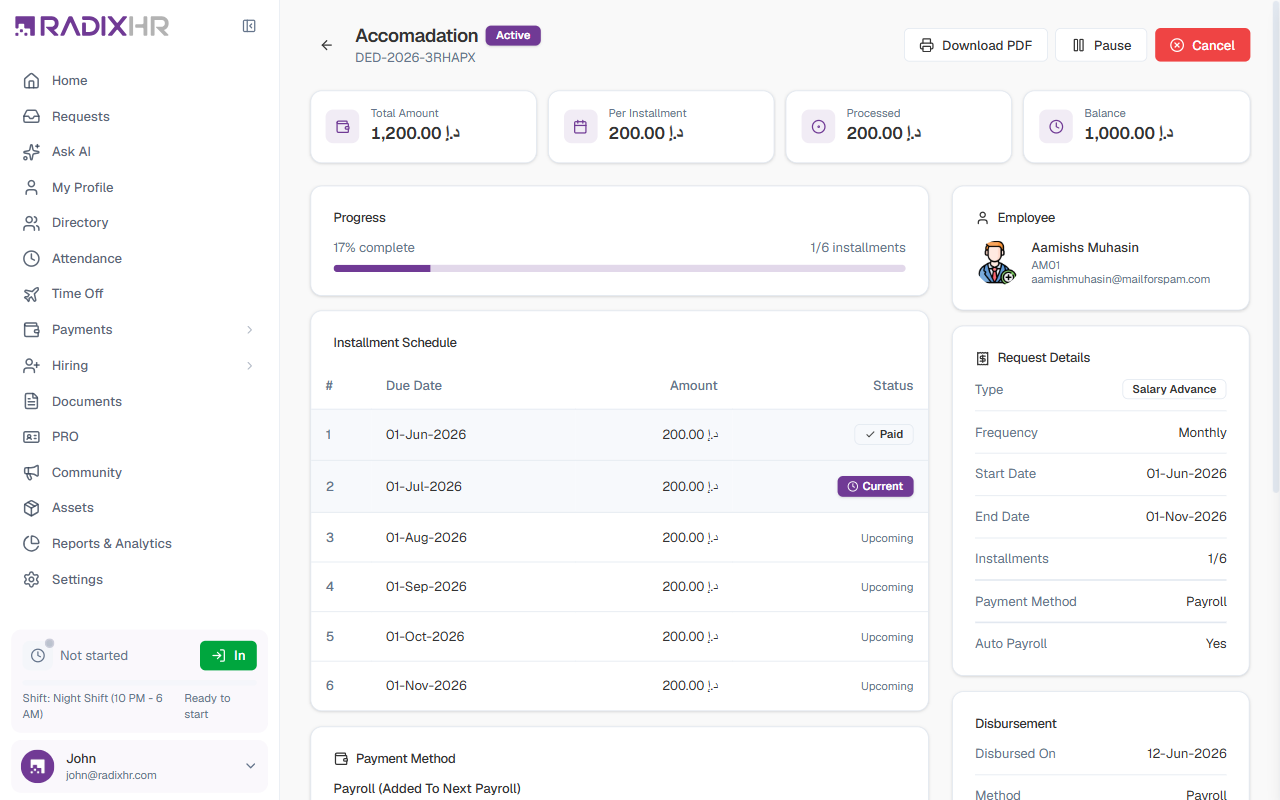
The header shows the title, status, and DED-… reference, with actions to Download PDF, Pause, Extend, and Cancel (which actions appear depends on the status). The rest of the page is organized into:
| Section | What it shows |
|---|---|
| Summary cards | Total Amount, Per Installment, Processed, and Balance |
| Progress | A bar with the percentage complete and installments done |
| Installment Schedule | Every installment with its due date, amount, status — Paid, Pending, or Held — and an Actions column (see below) |
| Payment Method | How the money is paid out or recovered (e.g., Payroll) |
| Payroll Transactions | Each payroll line tied to this item — Disbursement and Recovery rows with their period, amount, and status |
| Notes | Any remarks recorded against the item |
| Employee / Request Details / Disbursement | The employee, the item’s type, frequency, dates and installments, and how it was disbursed (right sidebar) |
Deferring an Installment
If an employee can’t afford a recovery this month, use the Actions column in the Installment Schedule:
| Action | What it does |
|---|---|
| Can’t pay this month | Shown on pending installments. Marks that installment Held (skipped in the next payroll), asks for a short reason, and appends a replacement installment at the end of the schedule so the total is still recovered. |
| Cancel deferral | Shown on a held installment. Releases the hold and removes the appended replacement row. |
Extend in the header does something different: it adds more installments and spreads the outstanding balance across them, lowering the per-installment amount. Every hold, release, and extension is written to the Notes section for audit.
Common Scenarios
“An employee can’t afford this month’s loan installment — can we skip just this one without cancelling the whole loan?” Yes — open the item and use Can’t pay this month in the Installment Schedule’s Actions column, on that specific pending installment. It marks that one installment Held (skipped in the next payroll run) and appends a replacement installment at the end of the schedule, so the total amount owed is still fully recovered — nothing else about the loan changes. Reserve the header-level Pause action for when you need to suspend the whole item for a cycle or two, and Cancel only for stopping it permanently.
Statuses
| Status | Meaning |
|---|---|
| Pending | Awaiting approval |
| Active | Live and being applied or recovered through payroll |
| Paused | Temporarily suspended — skipped in payroll until resumed |
| Completed | Fully paid out or recovered |
| Cancelled | Stopped before completion |
Use Pause to skip an item for a cycle or two without ending it; use Cancel only when it should stop for good. Everything here is applied automatically during payroll, so set items up before running payroll for the cycle.