Attendance Settings
Configure how employee attendance is captured, calculated, and managed across your organisation. The Attendance Settings page is your central hub for choosing how employees clock in and out, defining time-calculation rules, automating attendance for shift workers, connecting attendance requests to approval workflows, and assigning per-employee geofence locations for staff (like those working from client sites) who need different mobile clock-in locations than the workspace default.
What you can do here:
- Enable and configure clock-in/out methods (mobile, web, manual)
- Define attendance policies that govern working hours, overtime, and deductions
- Auto-capture attendance for selected employees based on their assigned shifts
- Link attendance request types (missing punch, overtime, etc.) to approval workflows — this page (not Approval Chains) is where you check whether a specific attendance policy’s requests actually have an approver, since attendance uses its own policy-level-then-global fallback, not the general Approval Chains “Default Workflow” mechanism
Page Layout
The page is split into five sections, each with its own card. They appear in this order:
- Capture Methods — how employees record attendance
- Geofence — per-employee mobile clock-in locations
- Policies — rules for calculating hours, overtime, and deductions
- Auto Attendance — automatic capture for selected employees
- Request Type Workflows — approval routing for attendance requests
Set things up in the order shown on the page: enable capture methods first so employees can clock in, then define policies that interpret those punches, then connect request workflows. Auto Attendance can be turned on later once shifts are assigned.
Biometric device management moved (September 2026). It used to be a “Biometric Devices” channel inside Capture Methods on this page — it’s now its own page, Biometrics & Devices, listed right below Attendance Settings in the sidebar. Capture Methods on this page now covers only Mobile App, Web Portal, and Manual Entry.
Capture Methods
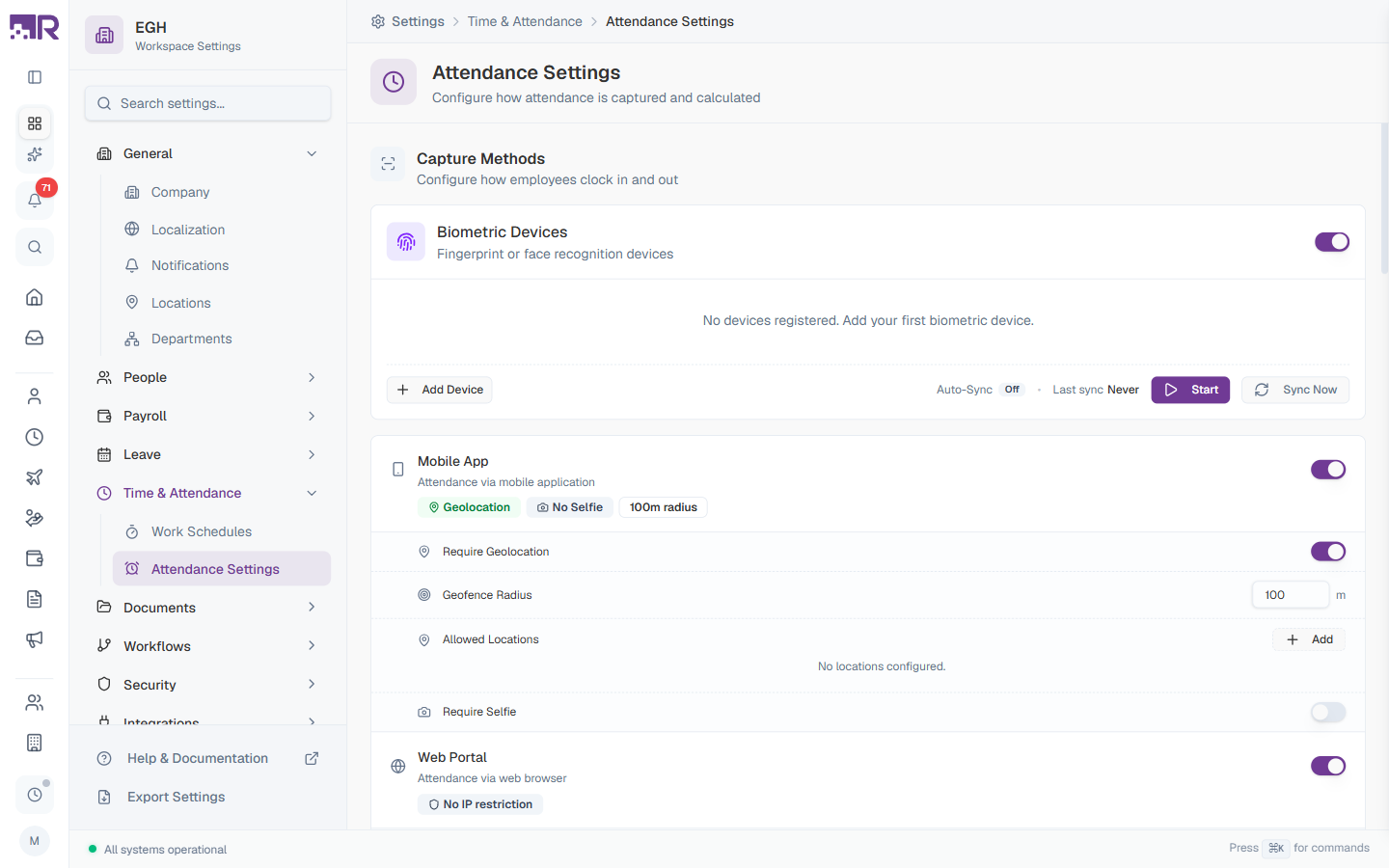
The Capture Methods card lets you turn on and configure each clock-in/out channel independently. Every method has a master toggle on the right side of its row.
Mobile App
Clock-in via the RadixHR mobile app, with optional location and selfie checks.
| Setting | Description |
|---|---|
| Status badges | Quick view of what’s enabled — e.g., Geolocation, No Selfie, 100m radius |
| Require Geolocation | ON: Employees can only clock in/out when the app reports a GPS location. OFF: Location is not checked. |
| Geofence Radius (m) | Maximum distance (in metres) from an allowed location at which a clock-in counts. Default: 100. |
| Allowed Locations | List of geofenced points where mobile clock-ins are accepted. Click + Add to add a location. Empty state shows “No locations configured.” |
| Require Selfie | ON: A selfie is required at every clock-in/out for visual verification. OFF: No selfie needed. |
Web Portal
Clock-in from a desktop browser inside the RadixHR app.
| Setting | Description |
|---|---|
| Status badge | Shows the current restriction (e.g., No IP restriction) |
| IP Address Restriction | ON: Web clock-ins are only accepted from a defined list of office IP ranges. OFF: Any network is allowed. |
Manual Entry
Lets HR or admin users add attendance records manually for someone else.
| Setting | Description |
|---|---|
| Status badge | Shows whether manual entries require approval |
| Require Approval | ON: Manual entries must be approved before counting toward attendance. OFF: Manual entries take effect immediately. |
You can enable several capture methods at once — for example, web portal for office staff plus mobile app with geofencing for field workers. For fingerprint or face-recognition hardware, see Biometrics & Devices instead — that’s now a separate page.
Geofence
The Geofence card controls mobile clock-in locations on a per-employee basis. The workspace default (set under Capture Methods → Mobile App → Allowed Locations) applies to everyone; use this section to assign specific geofence locations to individual employees who need different or additional locations.
| Element | Description |
|---|---|
| Search employee… | Filter the list by employee name |
| Assign location | Assign one or more geofence locations to a specific employee |
| Employee / Assigned Locations | The table lists each employee who has a personal geofence assignment, alongside the locations assigned to them |
When an employee has no personal assignment, the workspace default locations apply. Until you assign anyone, the section shows “No employees have active geofence locations yet. Assign location to get started.”
If employees are being blocked because they’re not at the workspace default location (for example, staff who work from client sites), the fix is to ADD a personal geofence assignment covering where they actually work — not to remove one. Removing an existing personal assignment does the opposite of fixing a blocking problem: it sends that employee back to the workspace default, which is what was blocking them in the first place. Only remove a personal assignment when you want that employee to go back to using the workspace default location.
Policies
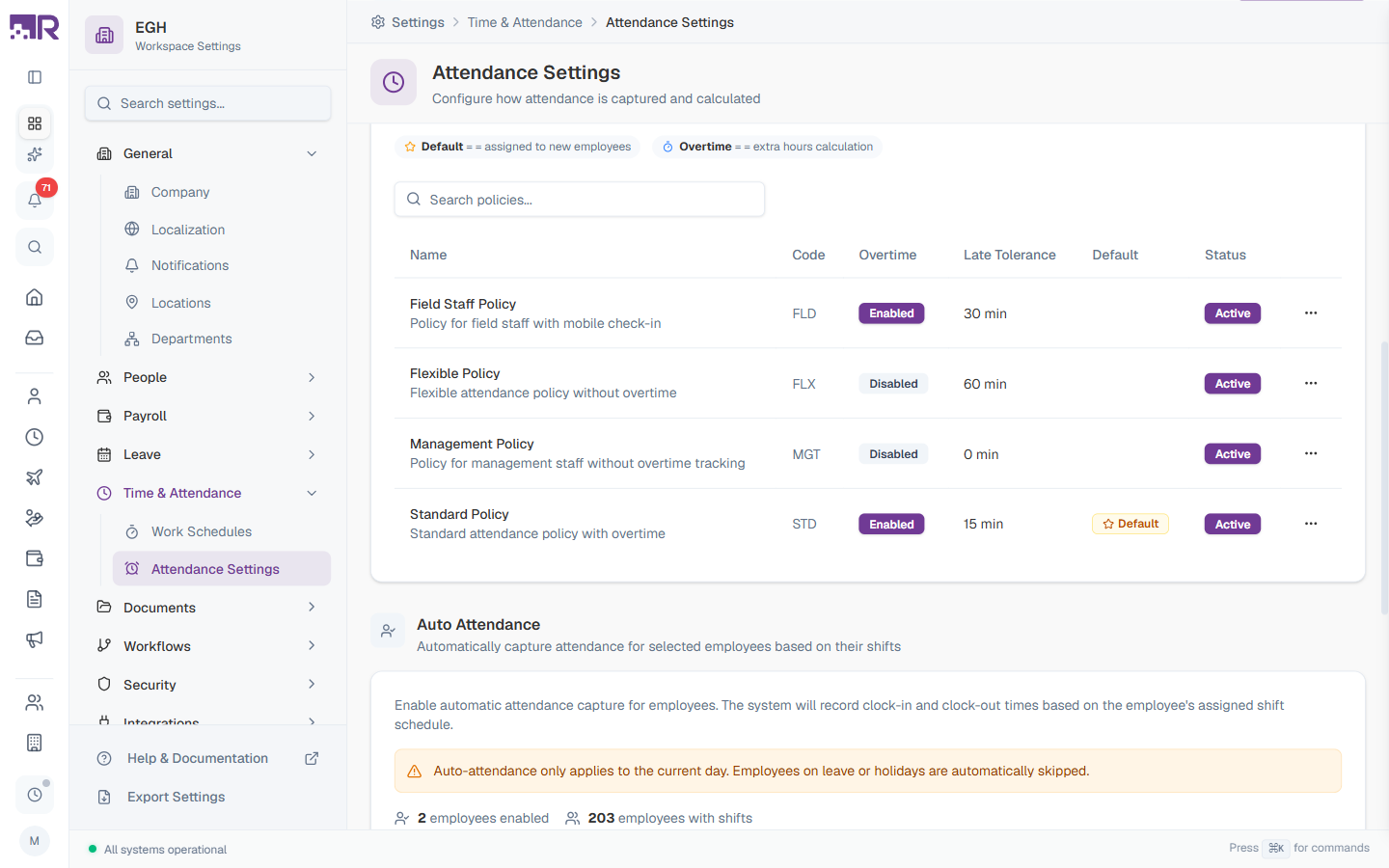
Attendance policies define how the system interprets clock-in data. Each policy controls working-hour calculations, overtime tracking, late tolerance, and deduction rules.
Policies Table
| Column | Description |
|---|---|
| Name | Policy name and short description (e.g., “Field Staff Policy — Policy for field staff with mobile check-in”) |
| Code | Short identifier used in reports and integrations (e.g., STD, FLX, MGT) |
| Overtime | Shows Enabled or Disabled depending on whether the policy tracks overtime |
| Late Tolerance | Grace period in minutes before an arrival counts as late |
| Default | A Default badge marks the policy that’s auto-assigned to new employees. Only one policy can be default at a time. |
| Status | Active policies can be assigned to employees; Inactive ones cannot |
| ⋯ | Row menu for editing or deleting the policy |
The legend at the top of the card explains the two key icons:
- Default — assigned to new employees
- Overtime — extra hours calculation
Click Add Policy to create a new policy. For full details on the policy form (Time Rules, Overtime Settings, Deductions, Alerts), see the dedicated guide.
Learn more about Attendance Policies →
Use the Search policies… box above the table to filter by name or code when you have many policies.
Auto Attendance
Auto Attendance automatically generates clock-in and clock-out records for selected employees based on their assigned shift schedule. This is useful for office workers on fixed shifts who don’t physically punch in.
How It Works
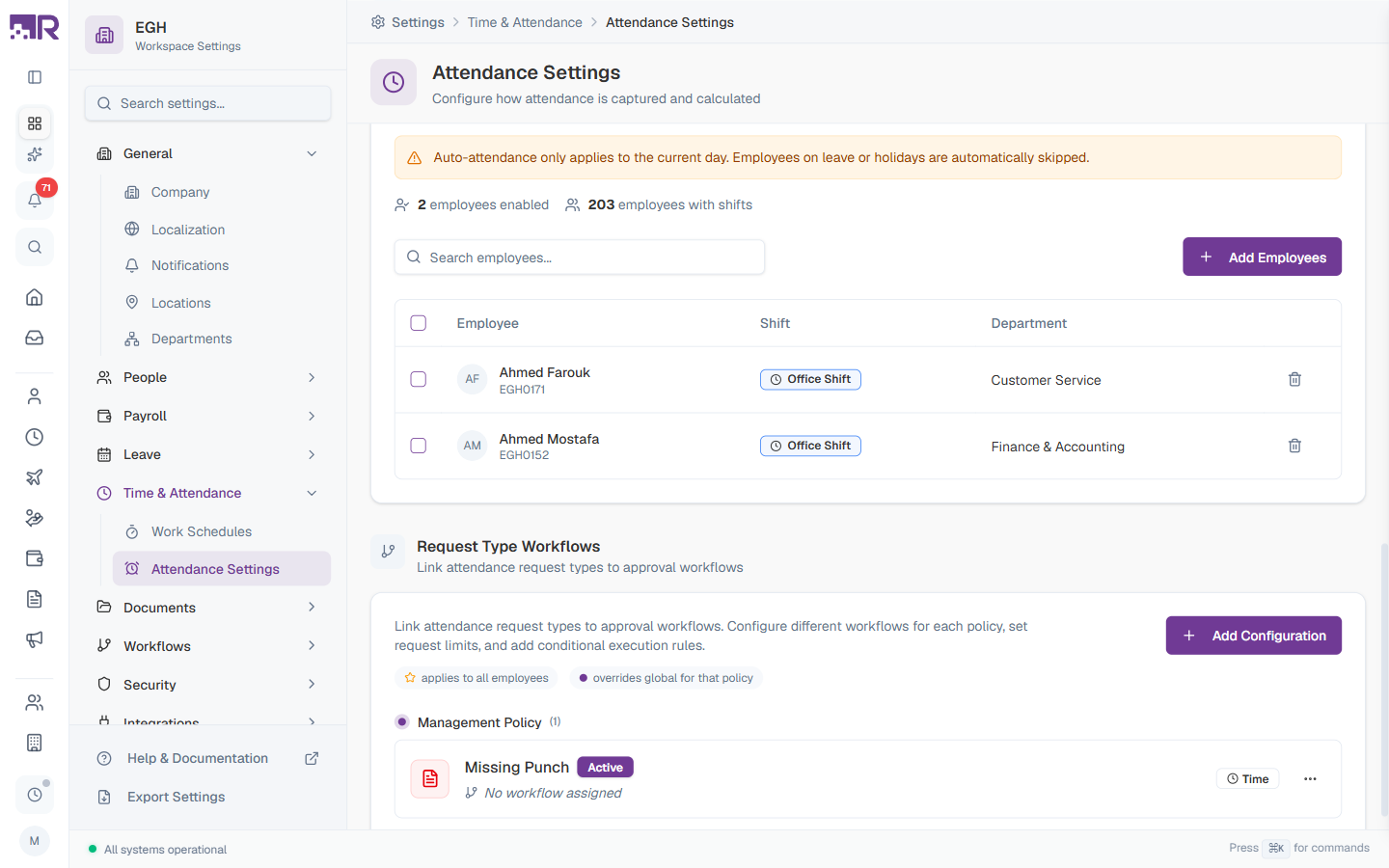
The system records clock-in and clock-out times that match the employee’s assigned shift’s start/end times. Auto-attendance applies only to the current day — past days are not back-filled, and employees on leave or public holidays are automatically skipped.
Counters
| Counter | Description |
|---|---|
| N employees enabled | The number of employees currently set to auto-attendance |
| N employees with shifts | The total pool of employees who have a shift schedule (eligible to be added) |
Adding Employees
- Click Add Employees in the top-right of the card
- Pick employees from the list (filtered by the ones with assigned shifts)
- Confirm to enable auto-attendance for them
The table below shows each enabled employee’s name, ID, assigned shift, and department. Use the trash icon at the end of a row to remove an employee from auto-attendance.
Auto Attendance bypasses physical clock-in. Only enable it for employees you trust to be present per their shift schedule, or for situations where presence is verified through other means.
Auto Attendance only works if the employee has a Work Schedule assigned. Without a shift, the system has no reference times to record.
Request Type Workflows
This section connects different types of attendance requests (missing punch, late exception, overtime, etc.) to the approval workflows (automated sequences of approval steps) that should handle them.
How It’s Organised
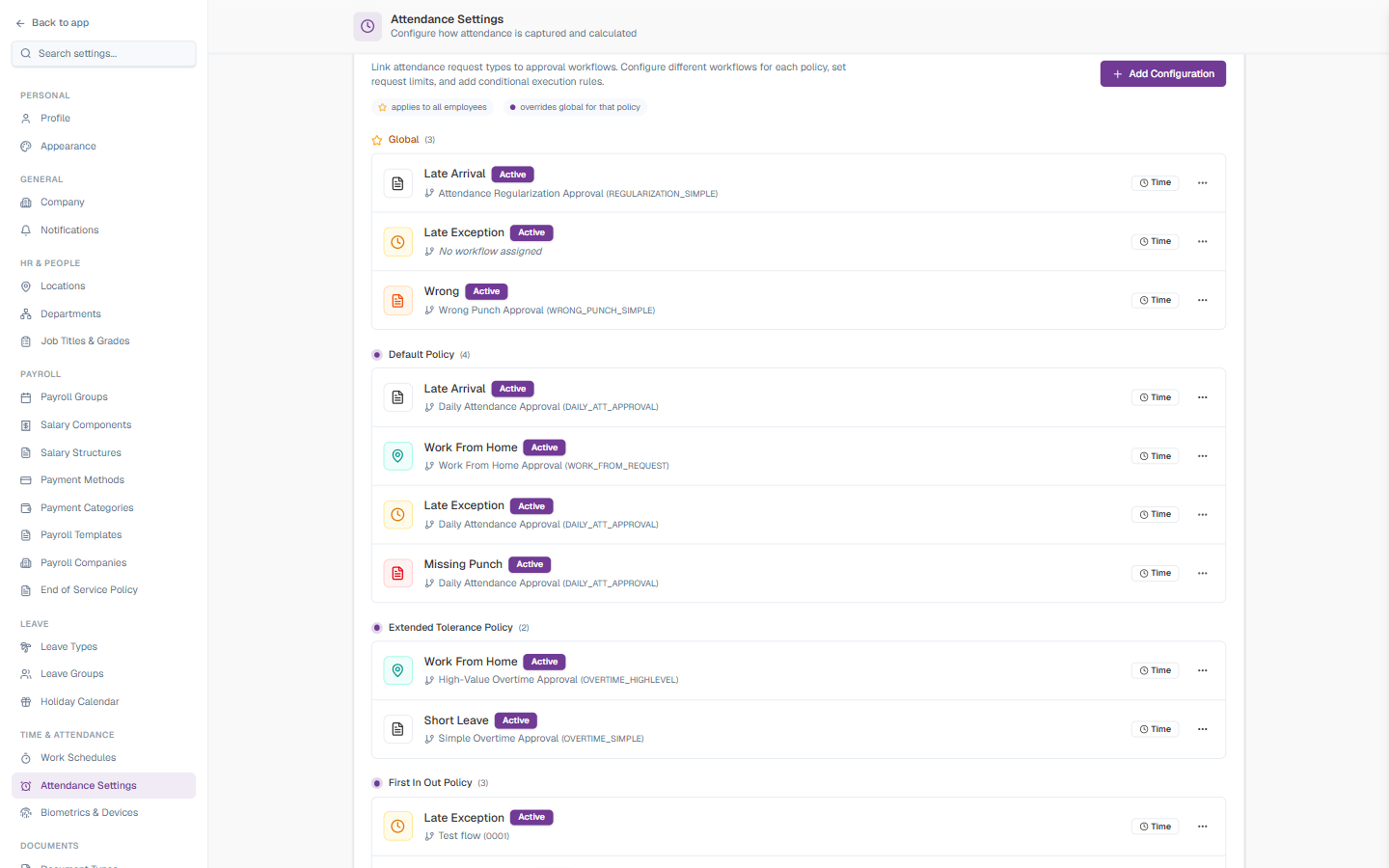
Configurations are grouped first by policy, then by request type. The legend at the top distinguishes:
- A global workflow — applies to all employees regardless of policy
- A policy-level workflow — overrides the global setting for employees on that specific policy
So you can have one default workflow for missing-punch corrections across the company, but override it with a stricter chain for the Field Staff Policy.
Configuration Cards
Each request-type card shows:
| Element | Description |
|---|---|
| Request type name | E.g., Missing Punch, Late Exception, Overtime Request |
| Status badge | Active if the configuration is in use |
| Workflow name | The linked approval chain (or No workflow assigned if not yet set) |
| Time / limits | Quick view of any request limits or time windows configured |
| ⋯ | Edit, delete, or change the linked workflow |
Click Add Configuration to add a new request type or override the workflow for a specific policy.
For shared approval-chain configuration, see Approval Chains under Workflow Settings.
If a configuration shows No workflow assigned, requests of that type for the matching policy fall back to the global workflow. If there’s no global workflow either, employees can’t submit that request type at all — they see “No approval workflow is configured … requests” until an admin links one. (HR admins and workspace owners are unaffected: their own submissions auto-approve.)
Getting Started
For a brand-new workspace, work through the page top-to-bottom:
- Capture Methods — turn on the channels your employees actually use (e.g., web portal for office, mobile for field staff), and connect biometric hardware on Biometrics & Devices if you have it
- Policies — create at least one policy (mark it as Default) so newly added employees get a sensible set of rules
- Auto Attendance — only after a few employees have shifts assigned, optionally enable it for shift-based employees
- Request Type Workflows — link each request type (Missing Punch, Late Exception, Overtime Request, etc.) to an approval chain so corrections get reviewed properly
How This Actually Works
This page mixes settings at three different scopes — knowing which is which prevents most wrong answers:
- Capture Methods is workspace-wide, not per-employee or per-policy. Toggling Require Geolocation off to exempt one group of employees turns off location checking for every Mobile App user in the workspace, not just them. There is no per-employee or per-policy version of this switch.
- A personal Geofence assignment does not turn location checking on or off — it only changes which locations count for that one employee. Checking still only happens at all when Require Geolocation (above) is on; without a personal assignment, the workspace default Allowed Locations apply, they are not skipped.
- Web Portal and Manual Entry never check location, regardless of the Mobile App’s Require Geolocation setting — they’re separate capture channels with their own independent settings (IP restriction, and approval requirement, respectively).
- Policies are assigned per employee (one active policy per person, with one marked Default for new hires) — unlike Capture Methods, which is a single workspace-wide configuration everyone shares. Every setting inside a policy (Late Tolerance, overtime rules, deductions, etc.) belongs entirely to that one policy — there is no global/fallback layering for these, unlike Request Type Workflows below. Different groups getting different rules (e.g. late tolerance) just means each group is on a different policy, full stop — nothing “falls back” to anything.
- Request Type Workflows specifically (and only this) fall back automatically, in this order: a policy-level workflow (if configured) → the global workflow (if configured) → blocked entirely for that request type, with HR admins/workspace owners exempt (their own submissions auto-approve). This global/policy-level fallback pattern is unique to Request Type Workflows on this page — it does not apply to Policies’ own settings (Late Tolerance, overtime, etc. — see the point above) or to any other card here.
- Auto Attendance bypasses Capture Methods and Geofence entirely — it doesn’t use GPS or a clock-in channel at all, it generates records straight from an employee’s assigned Work Schedule, so none of the geolocation/geofence settings above apply to employees using it.
Common Scenarios
“We have field sales staff who don’t work from any office — how do we track their attendance without geofencing them to a location?” Require Geolocation (under Capture Methods → Mobile App) is a single workspace-wide switch — turning it off to exempt field staff turns off location checking for everyone on Mobile App, not just them, and assigning or skipping a personal Geofence entry doesn’t avoid location checking either, it only changes which locations count. The way to actually exempt field staff while keeping location checks on for everyone else is to have them use Web Portal or Manual Entry instead of Mobile App — neither of those channels checks location at all.