Users
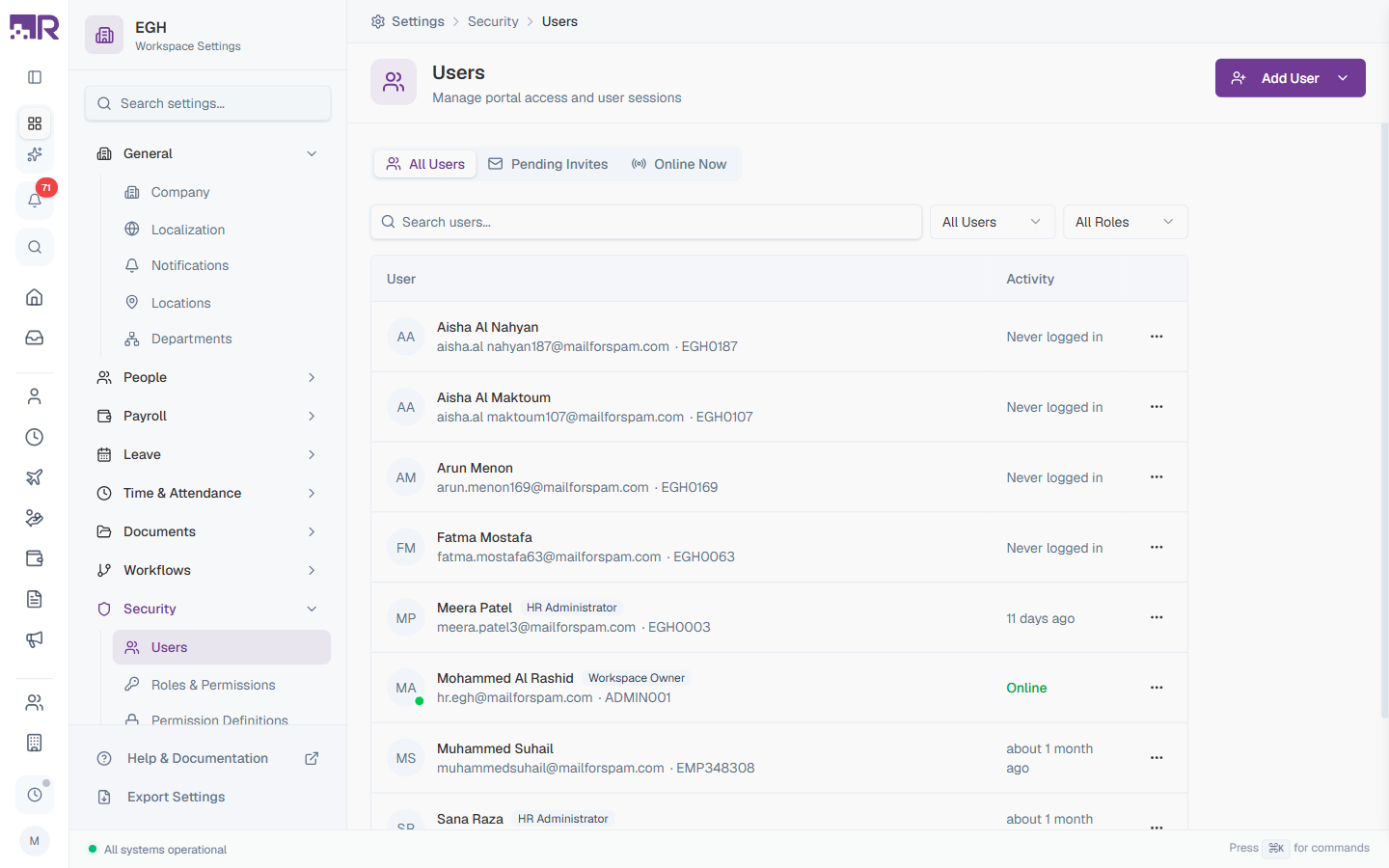
The Users page is where you control who can sign in to RadixHR and what level of access they have. From here you invite employees to the portal, assign them a role, monitor their login activity, and revoke access when needed.
What you can do here:
- View every user with portal access
- Invite employees via email or add them directly with credentials
- Assign a role on top of the default self-service access
- Monitor login activity (online, never logged in, last seen)
- Manage pending invitations and revoke access for ex-employees
Understanding Users
A user is an employee who has been granted access to the RadixHR portal. Not every employee needs portal access — typically you invite the people who:
- Need to submit and track their own requests (leave, expenses, etc.)
- Approve requests from teammates
- Manage HR data, payroll, or settings
- Need to view reports
Each user has:
| Attribute | Description |
|---|---|
| Login credentials | An email + password (or magic link) used to sign in |
| Role assignment | A role on top of the default self-service access — controls what extra features they can use |
| Activity status | When they last logged in (Online, Never logged in, or relative time like “11 days ago”) |
Self-service is automatic. Every invited user gets basic self-service access (view their own profile, submit leave/expense requests, see their payslips). Roles only add extra permissions on top of that baseline.
Page Layout
September 2026 change: this used to be three tabs (All Users / Pending Invites / Online Now). It’s now one scrolling page with an All Users list followed by a Pending Invites section — “Online Now” is a filter option within All Users instead of its own tab.
| Element | Description |
|---|---|
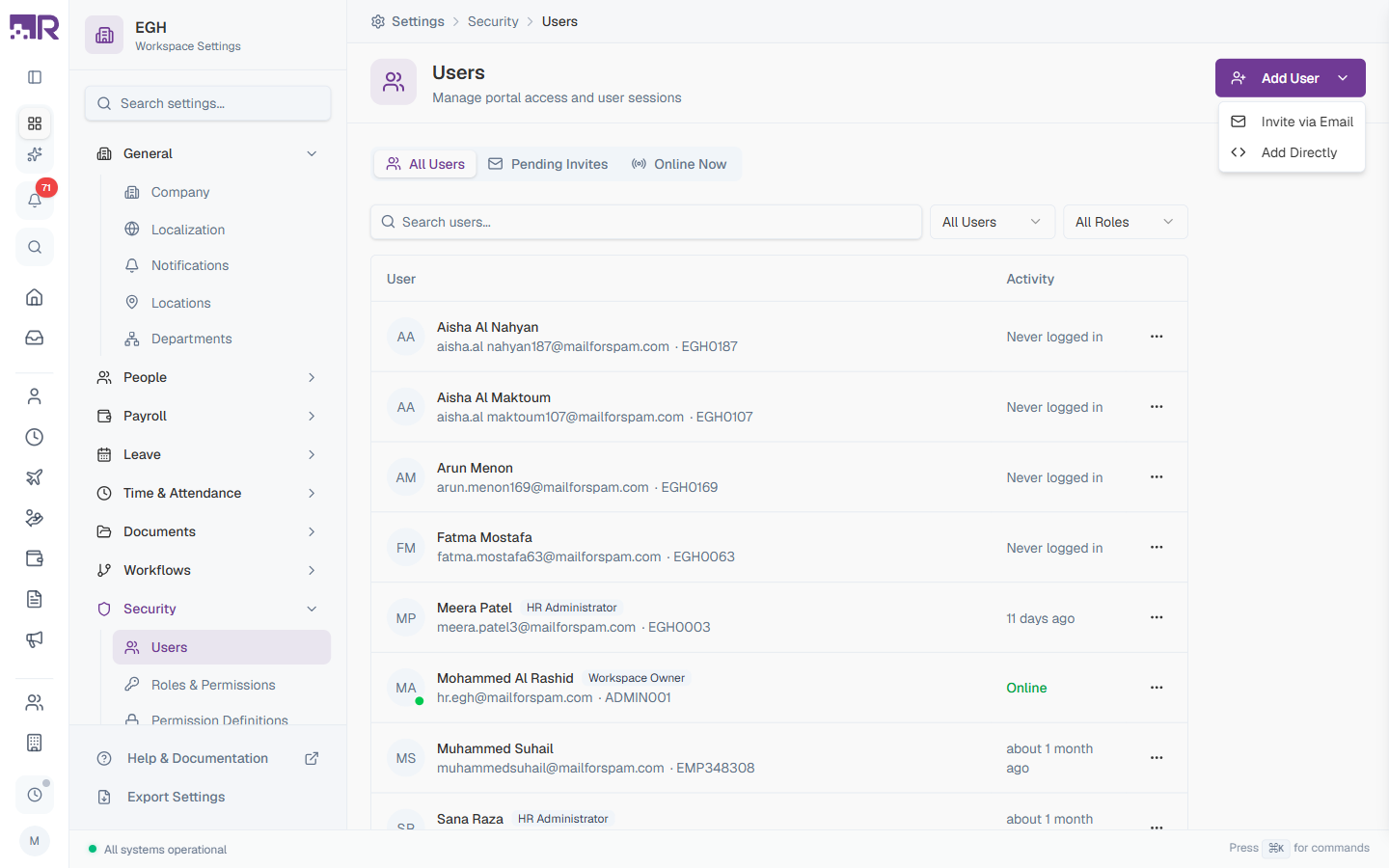
| Add User | Top-right purple button — opens a small menu with Invite via Email and Add Directly options |
| All Users list | Every user with portal access, with a status filter (All Users / Online / Never Logged In) and a role filter dropdown |
| Pending Invites section | Further down the same page — invitations sent but not yet accepted |
| Search users… | Free-text search by name or email |
Each row shows the user’s avatar, name, role badges, email, employee code, and their activity state on the right. Click any row to open that user’s own detail page — there’s no per-row ⋯ menu here (unlike Pending Invites, which still has one).
How to Invite a User
You can add users in two ways. Invite via Email is the recommended path for normal onboarding; Add Directly is for cases where you need an account immediately without waiting for the user to verify their email.
Invite via Email
- Go to Settings > Security > Users
- Click Add User in the top-right
- Choose Invite via Email from the dropdown
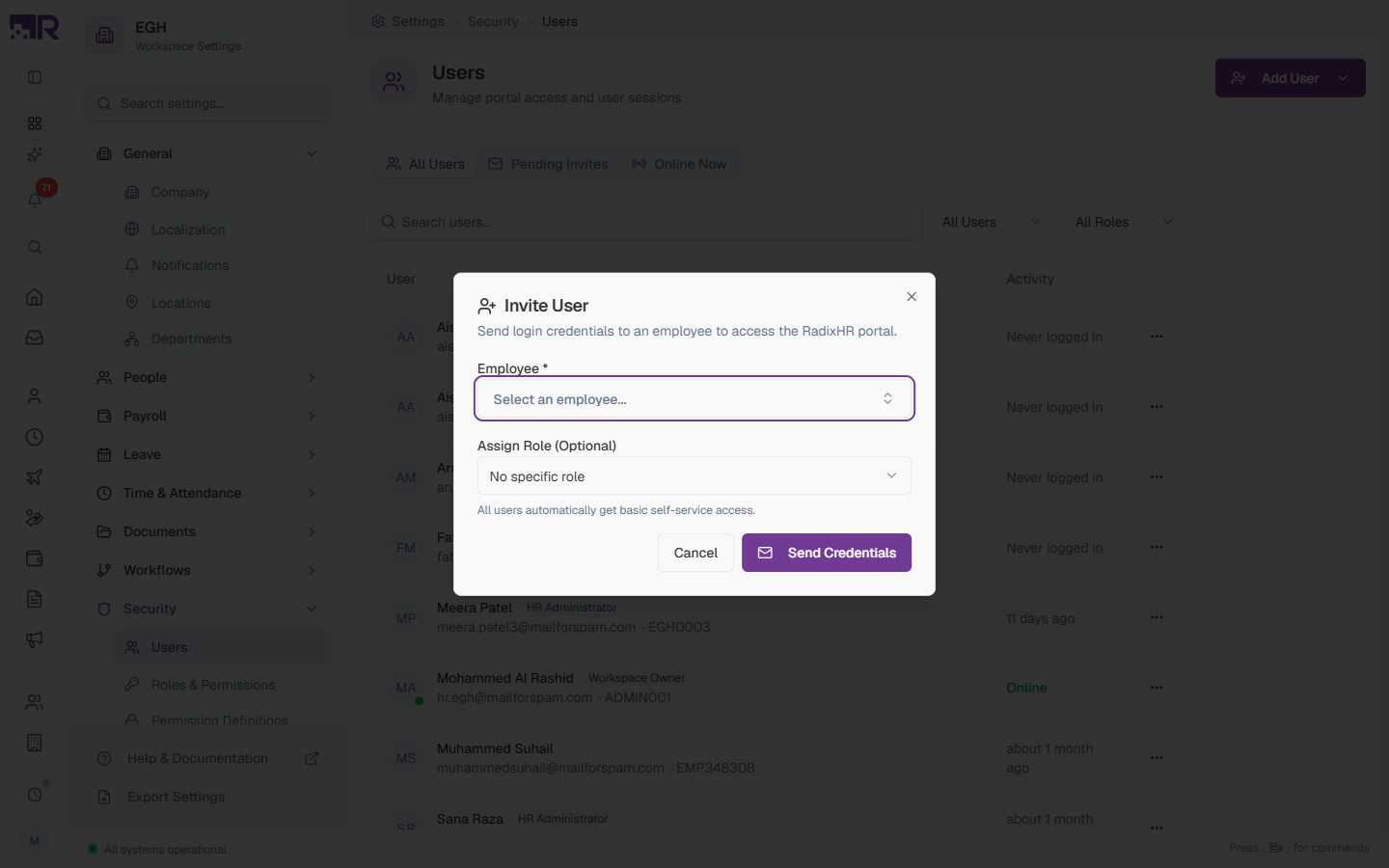
- Pick the employee
- Optionally pick a role
- Click Send Credentials
Form Fields
| Field | Description | Required |
|---|---|---|
| Employee | Pick the employee to invite. Only employees who don’t already have access appear in the list. | Yes |
| Assign Role (Optional) | Pick a role to grant extra permissions on top of self-service. Defaults to No specific role; the list contains every role defined under Roles & Permissions (e.g., Employee, HR Manager, HR Administrator, Workspace Owner). | No |
The user receives an email with a link to set their password and sign in. Their entry shows up immediately in the Pending Invites section further down the page.
All users automatically get basic self-service access — picking a role is only needed if they should see more than their own profile (e.g., HR Administrator for HR staff, Employee for managers who approve requests).
Add Directly
Use this method when you need an account live straight away — for example, the user can’t access the invitation email yet, or you’re testing. The dialog is titled Add User (Dev Mode) because it skips the email verification step entirely.
- Click Add User > Add Directly
- Pick the employee
- Optionally type a password — leave it empty and RadixHR generates a random 12-character one for you
- Optionally assign a role
- Click Create User
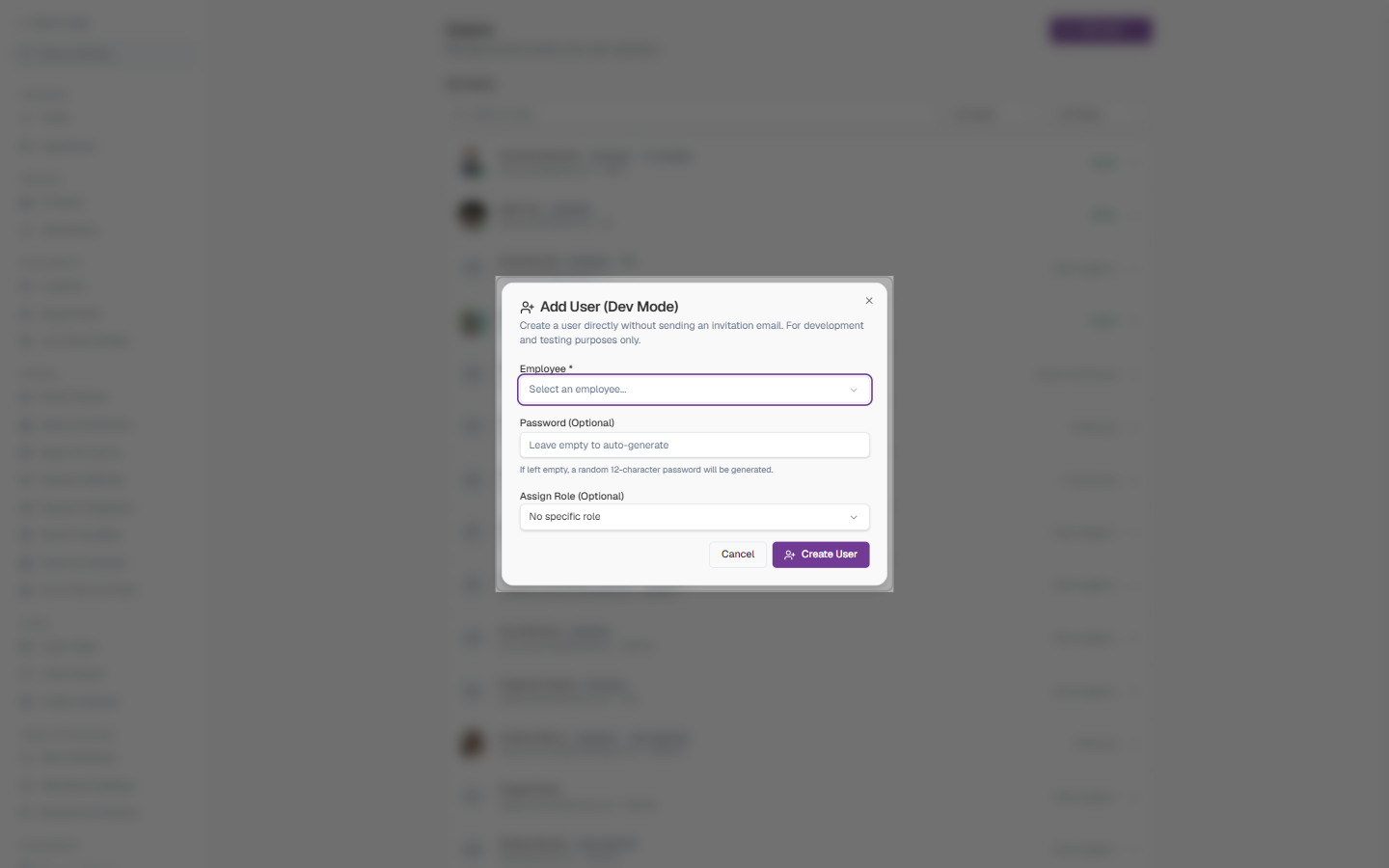
| Field | Description | Required |
|---|---|---|
| Employee | The employee who gets the account | Yes |
| Password (Optional) | A temporary password. Placeholder: “Leave empty to auto-generate” — if you leave it blank a random 12-character password is generated | No |
| Assign Role (Optional) | Same role list as the invite dialog; defaults to No specific role | No |
Communicate the temporary password through a secure channel (in person, encrypted message) and instruct the user to change it on first login. Avoid sending it via email. The dialog itself notes it’s intended for development and testing purposes — prefer Invite via Email for real onboarding.
Activity States
The Activity column shows the user’s current login state.
| State | Description |
|---|---|
| Online (green) | The user is currently signed in |
| Never logged in | An account exists but the user hasn’t completed first sign-in yet |
| N days/months ago | Relative time since the user’s most recent sign-in (e.g., “11 days ago”, “about 1 month ago”) |
The User Detail Page
Click any row in All Users to open that person’s own page — everything about managing a user’s access lives here now, instead of behind a ⋯ menu.
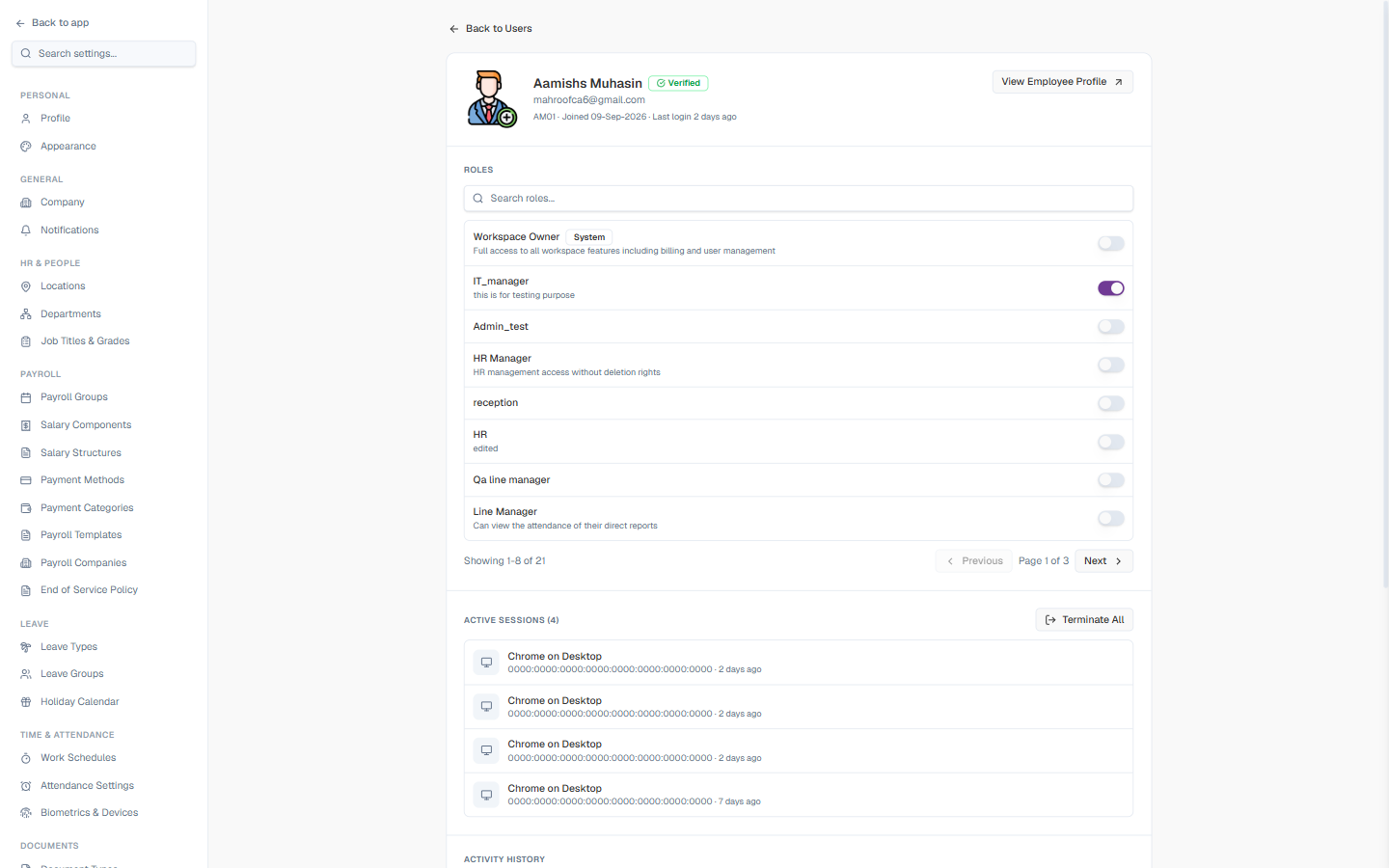
| Section | What it does |
|---|---|
| Header | Name, a Verified badge, email, employee code, join date, last login, and a View Employee Profile link out to their full HR profile |
| Roles | Every role in the workspace as a searchable, paginated list, each with an on/off toggle — turn a role on or off for this user directly. A user can hold more than one role at once. |
| Active Sessions | Every device currently signed in as this user, with a Terminate All button or a per-device sign-out |
| Activity History | A short recent-activity log for this user, with a View full audit log link |
| Two-Factor Authentication | Reset 2FA — use when the user has lost their authenticator app and backup codes |
| Danger Zone | Lock Account (signs them out and blocks sign-in, reversible) and Revoke access & delete account (deletes the portal login only — their employee record stays intact) |
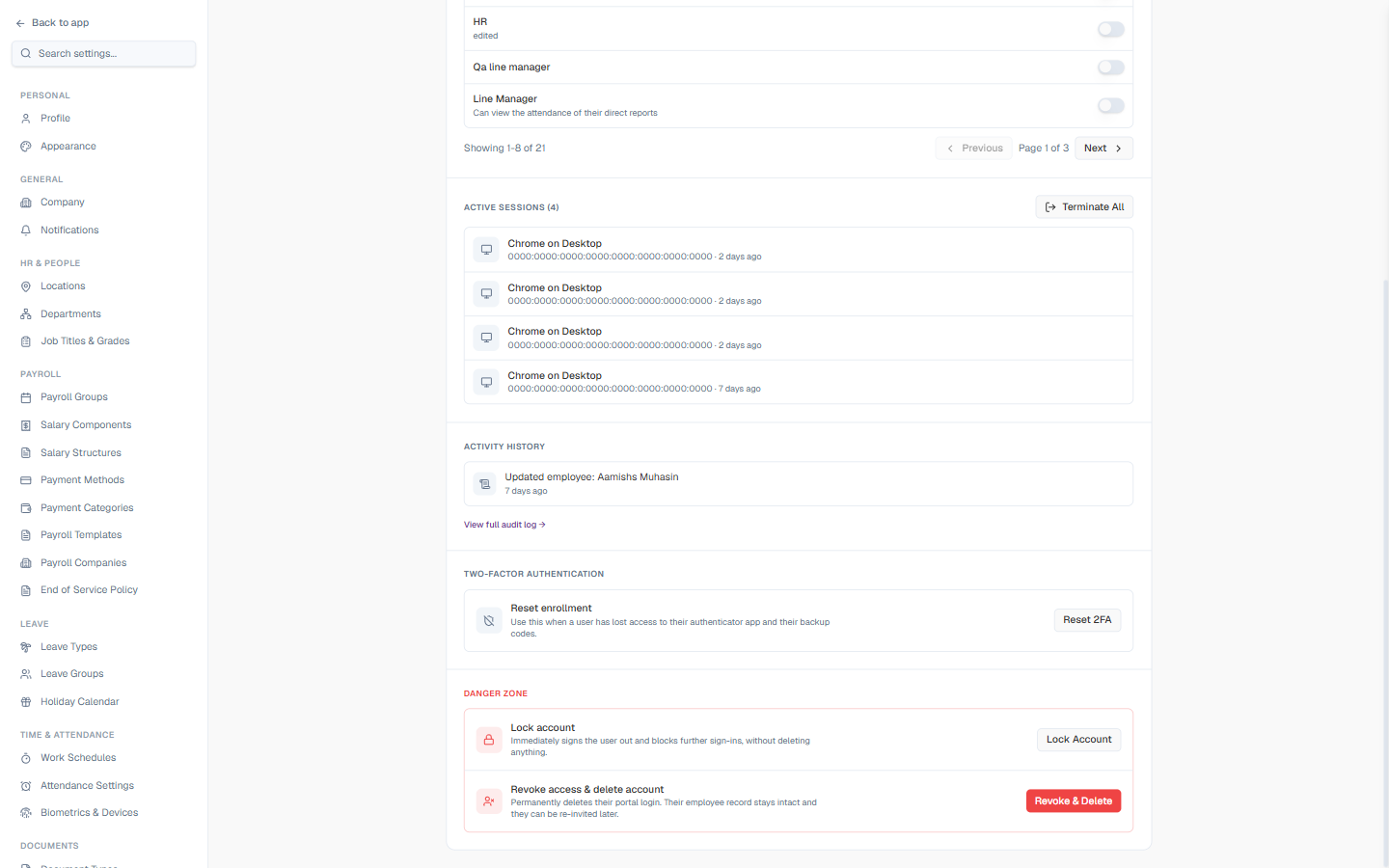
Revoke access & delete account doesn’t delete the employee — it only removes their ability to sign in. The employee record, leave history, payslips, and documents all remain intact for HR and audit purposes. Use Lock Account instead if you might want to restore access later without re-inviting them.
Pending Invites
Invitations that were sent but haven’t been accepted yet — a section below All Users on the same page (not a separate tab).
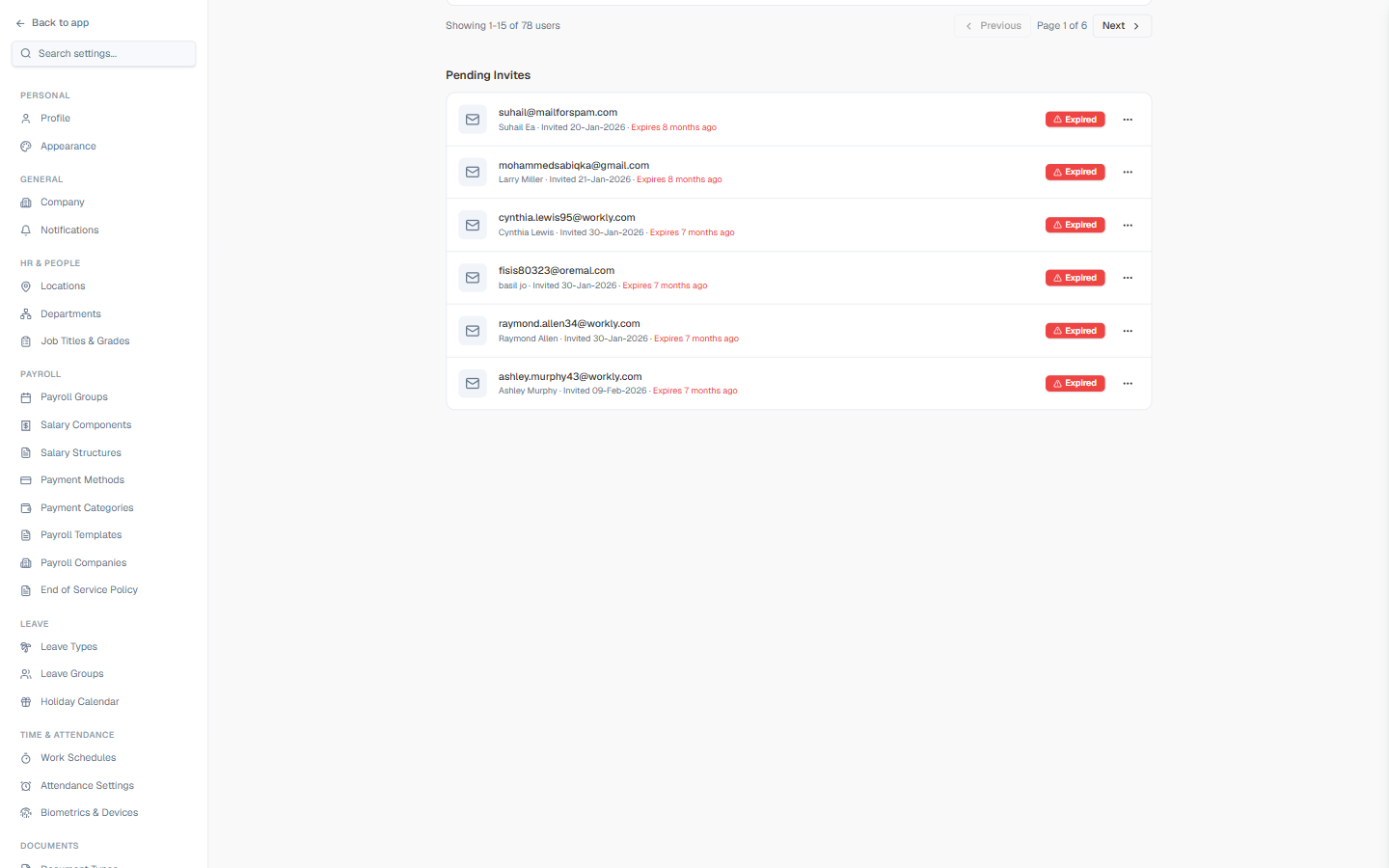
Each row shows the invited Email (with the employee’s name below), the Invited date, when the invite Expires (relative time), and its Status (e.g., Expired). From the ⋯ menu you can:
| Action | Description |
|---|---|
| Resend | Send the invitation email again (useful if the original landed in spam) |
| Cancel | Withdraw the invitation before the user accepts |
If an employee says they didn’t receive the invitation, ask them to check their spam folder first. If it’s not there, use Resend to send a fresh email with a new link.
Searching and Filtering
Above the user list:
- Search users… — Type a name or email to filter the list in real time
- All Users (status filter) — Switch between All Users, Online, and Never Logged In
- All Roles (role filter) — Show only users with a specific role
Best Practices
-
Use roles instead of per-user permissions — assign a role like HR Administrator rather than granting permissions one user at a time. Easier to audit and update.
-
Audit users quarterly — go through the list, check who hasn’t logged in for 90+ days, and revoke access for ex-employees who may have been missed during offboarding.
-
Revoke access on the day someone leaves — don’t wait. Use the Revoke Access action immediately, then end any active sessions with End Sessions.
-
Send invitations during onboarding — invite employees on day one so they can immediately access self-service tools (leave, payslips, profile updates).
-
Reset passwords through the platform — never share passwords over email or chat. Use Reset Password so the user sets their own.
-
Filter by Online during sensitive operations — for example, before running payroll or making bulk changes, check who’s online to coordinate.
When an employee leaves the organisation, revoke their portal access immediately. Use End Sessions to log them out of any active devices. This prevents unauthorised access to HR data.