Documents
The Documents page is the central store for every file in your organization — employee paperwork like passports and Emirates IDs, company-wide files, and your own personal documents. You can upload files, organize them into folders, track expiry dates, and share them.
What you can do here:
- Browse documents across five scopes — all employees, the company, your own, shared with you, and archived
- Search and filter documents by type, employee, and expiry status
- Organize files into folders
- Upload documents and assign them to employees
- Preview, download, share, edit, archive, or delete a document
- Keep an eye on documents that are expiring or already expired
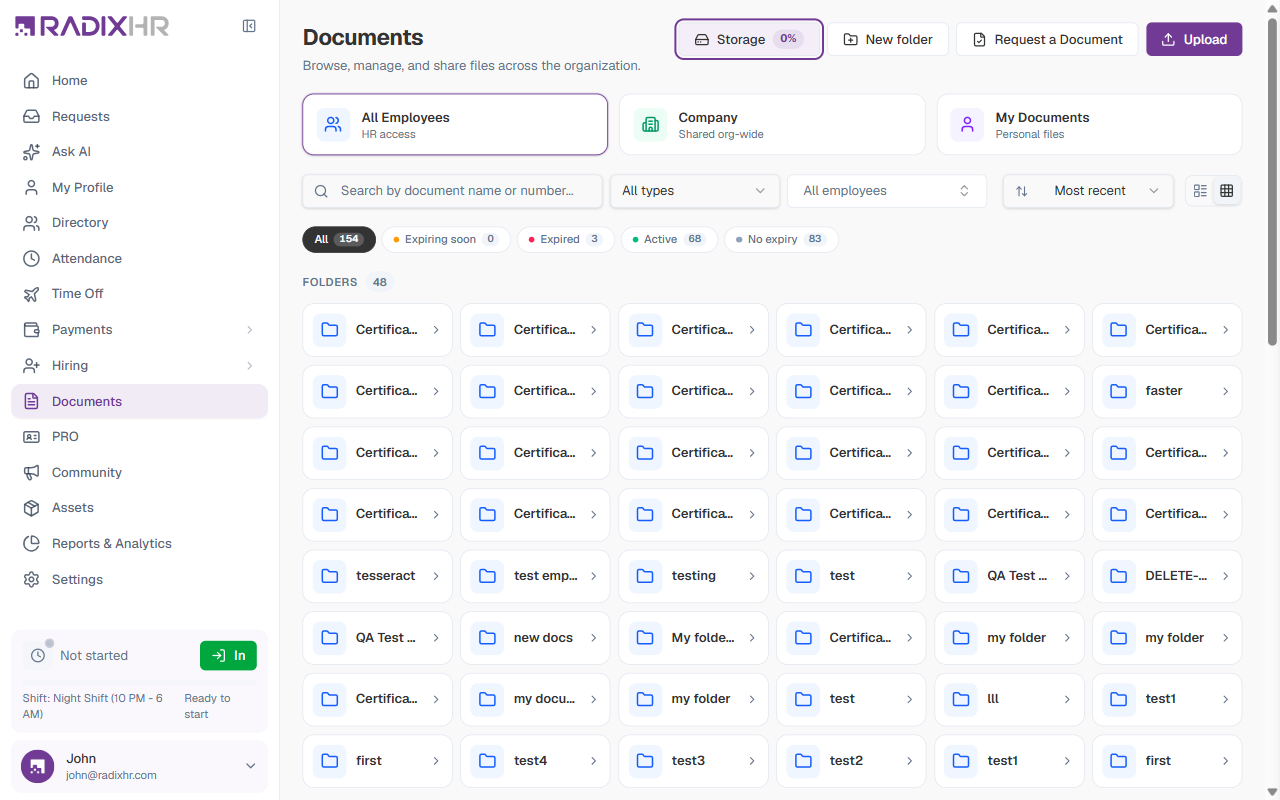
Everything you can create lives under the single + New button in the top-right: Upload file, New folder, Request a document, and Issue document. The left panel holds the scope buttons, a Document Types list (each type shows a count and a Required tag where applicable) that filters the list, and a Storage meter with a View details link.
The Scopes
The buttons in the left panel switch between the document scopes; each shows a count. Each scope shows a different set of documents.
| Scope | Who it’s for | What it shows |
|---|---|---|
| All Employees | HR | Every employee’s documents across the organization — the HR master view |
| Company | Everyone | Company-wide documents shared with the whole organization |
| My Documents | You | Your own personal files |
| Shared with me | You | Documents that other people have shared with you |
| Archived | HR | Documents that have been archived (moved out of the active list) — restore or review them here |
Company
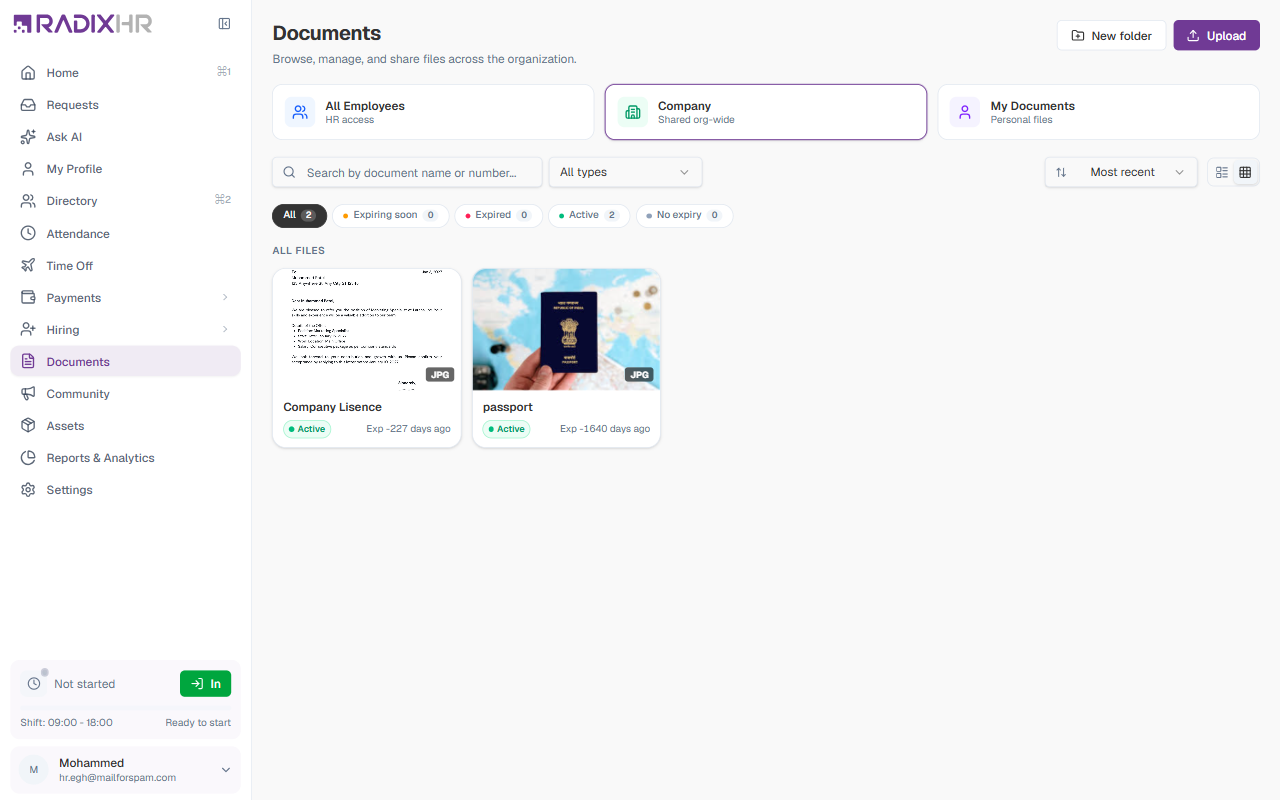
The Company scope holds files that apply to the whole organization rather than to a single employee.
My Documents
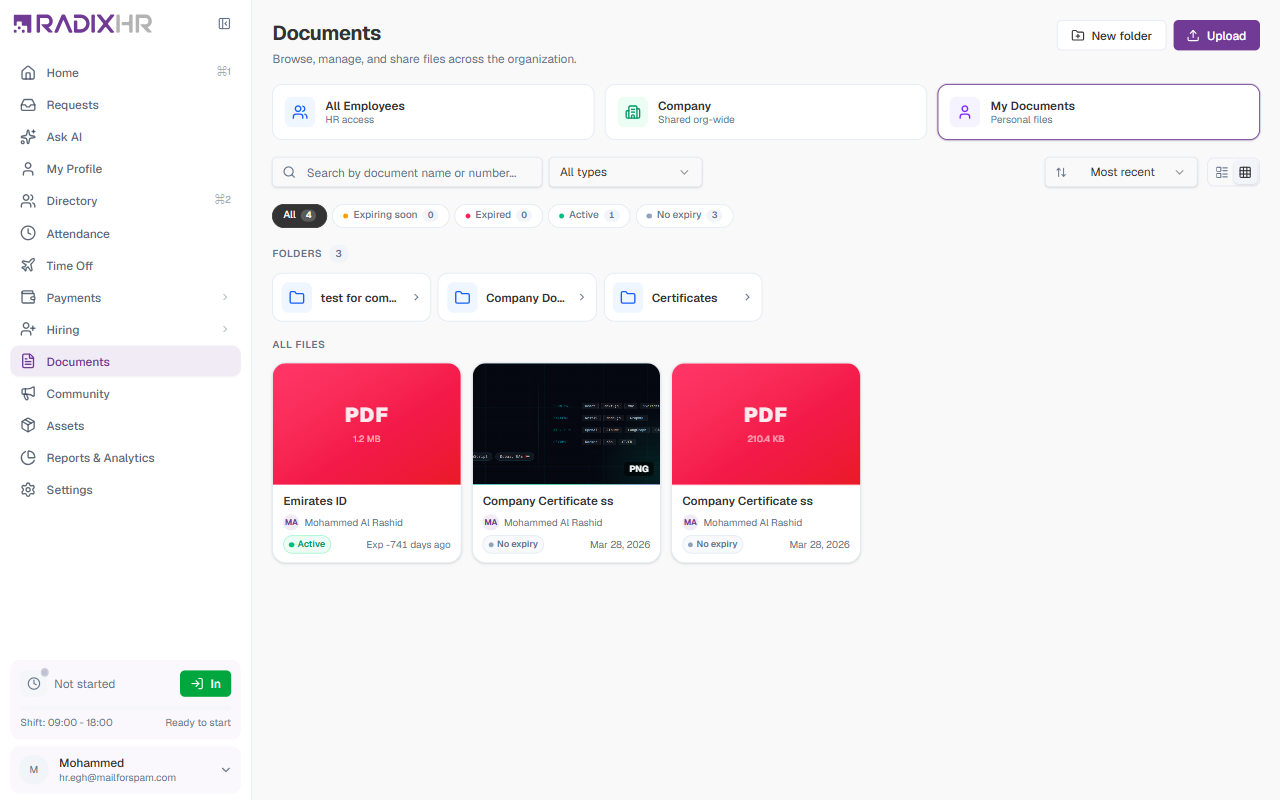
My Documents shows the files that belong to you — the documents HR has uploaded for you and shared, plus any folders within your space.
Shared with me
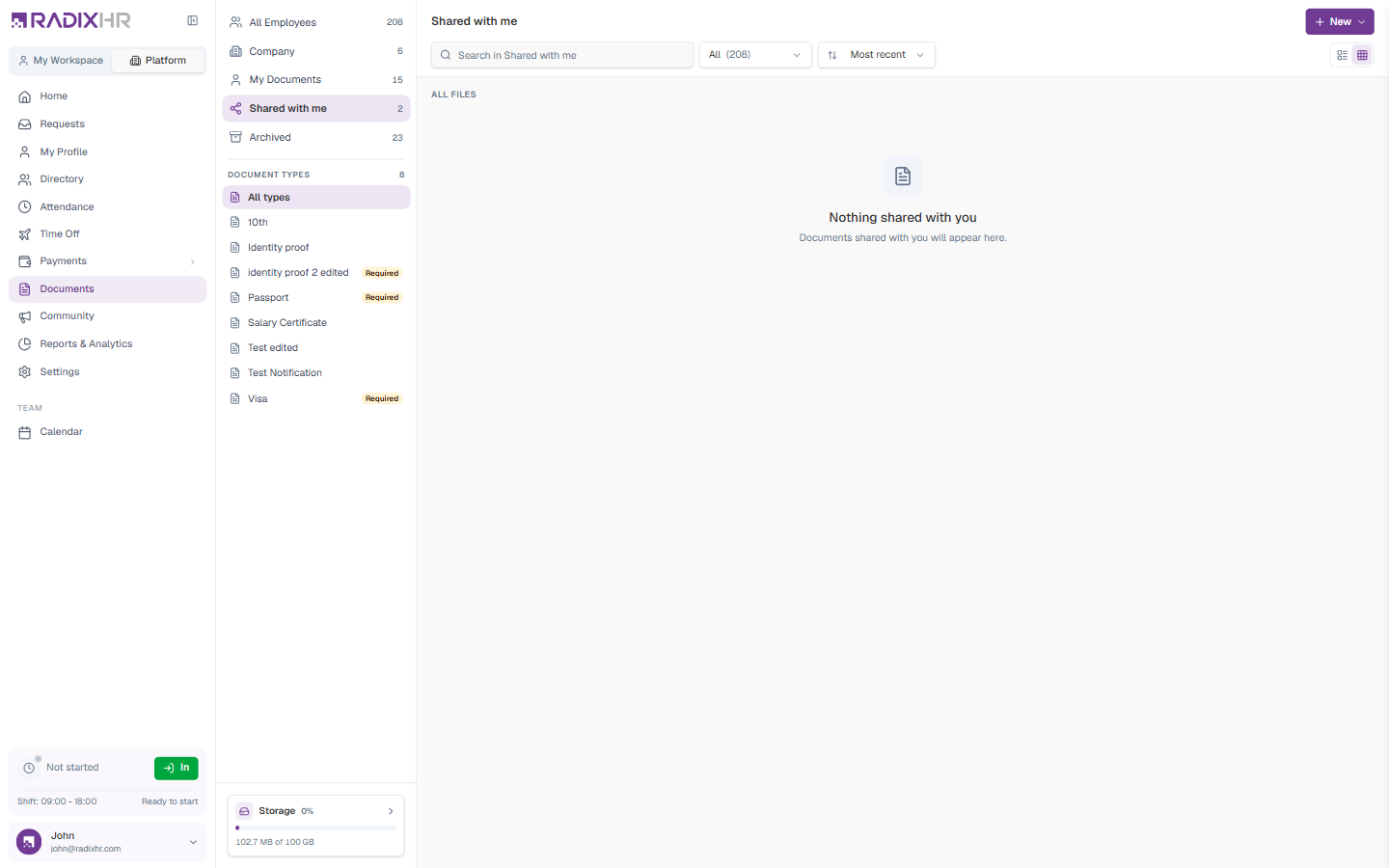
Shared with me collects documents that other people have shared with you directly.
Archived
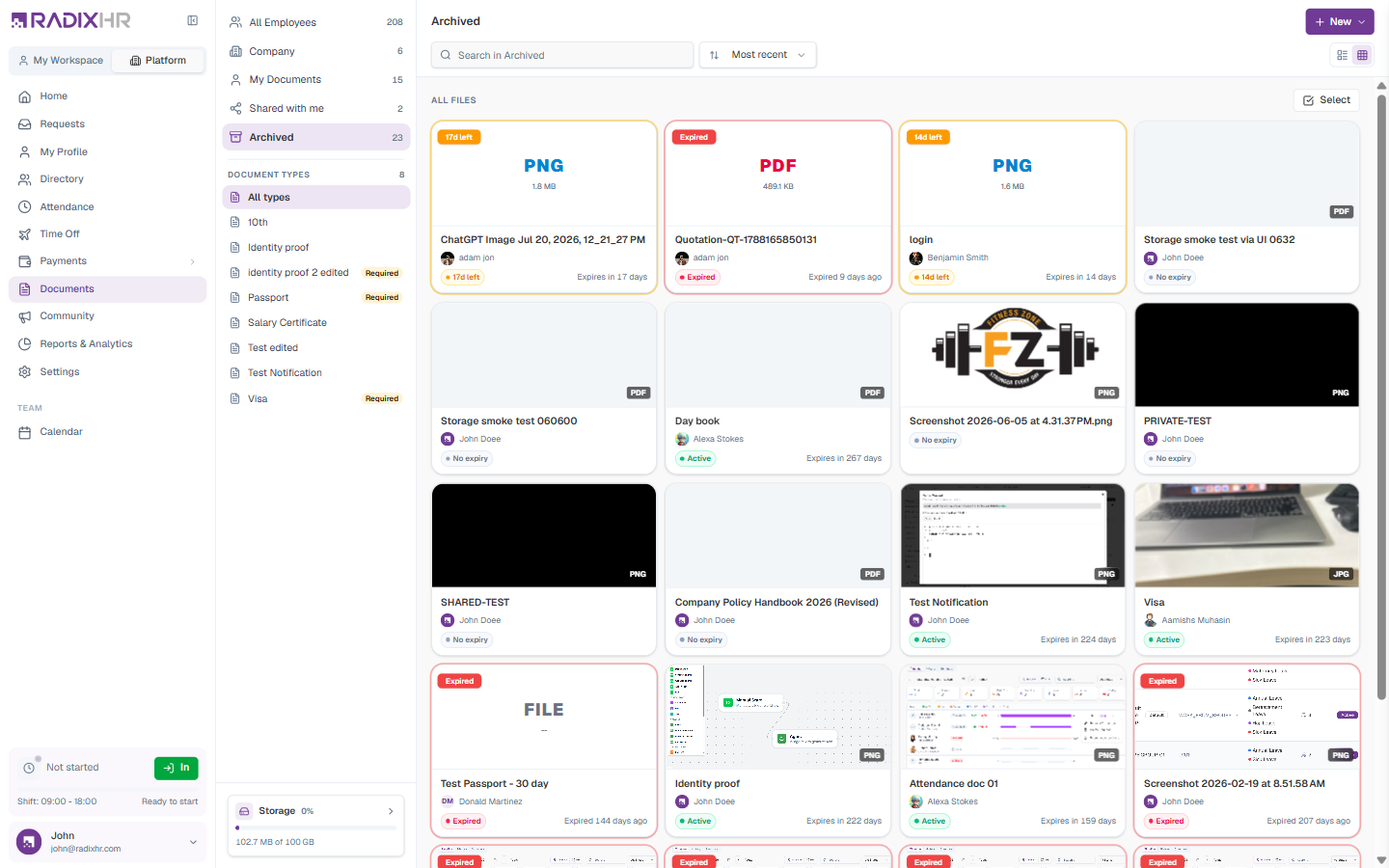
Archived shows documents that have been archived — moved out of the active list but kept on record. Use the Archive action on a file’s ⋯ menu to send a document here, then restore or review it from this scope.
Filtering and Sorting
A toolbar above the file list helps you find documents.
| Control | What it does |
|---|---|
| Search | Finds documents by name or document number |
| All types | Filters by document type — for example Emirates ID, Passport, Visa, Salary certificate, Company insurance |
| All employees | Filters to a specific employee’s documents (shown in the All Employees scope) |
| Sort | Orders the list — Most recent, Oldest first, Name (A → Z), or Expiring soonest |
| View toggle | Switches the file list between grid view and list view |
Status Tabs
Below the toolbar, a row of tabs filters documents by their expiry status. Each tab shows a count.
| Tab | What it shows |
|---|---|
| All | Every document, regardless of status |
| Expiring soon | Documents whose expiry date is approaching |
| Expired | Documents whose expiry date has already passed |
| Active | Documents that are valid and not near expiry |
| No expiry | Documents that don’t track an expiry date |
Check the Expired and Expiring soon tabs regularly. Documents like passports, visas, and Emirates IDs need to be renewed on time, and these tabs surface the ones that need attention.
Folders
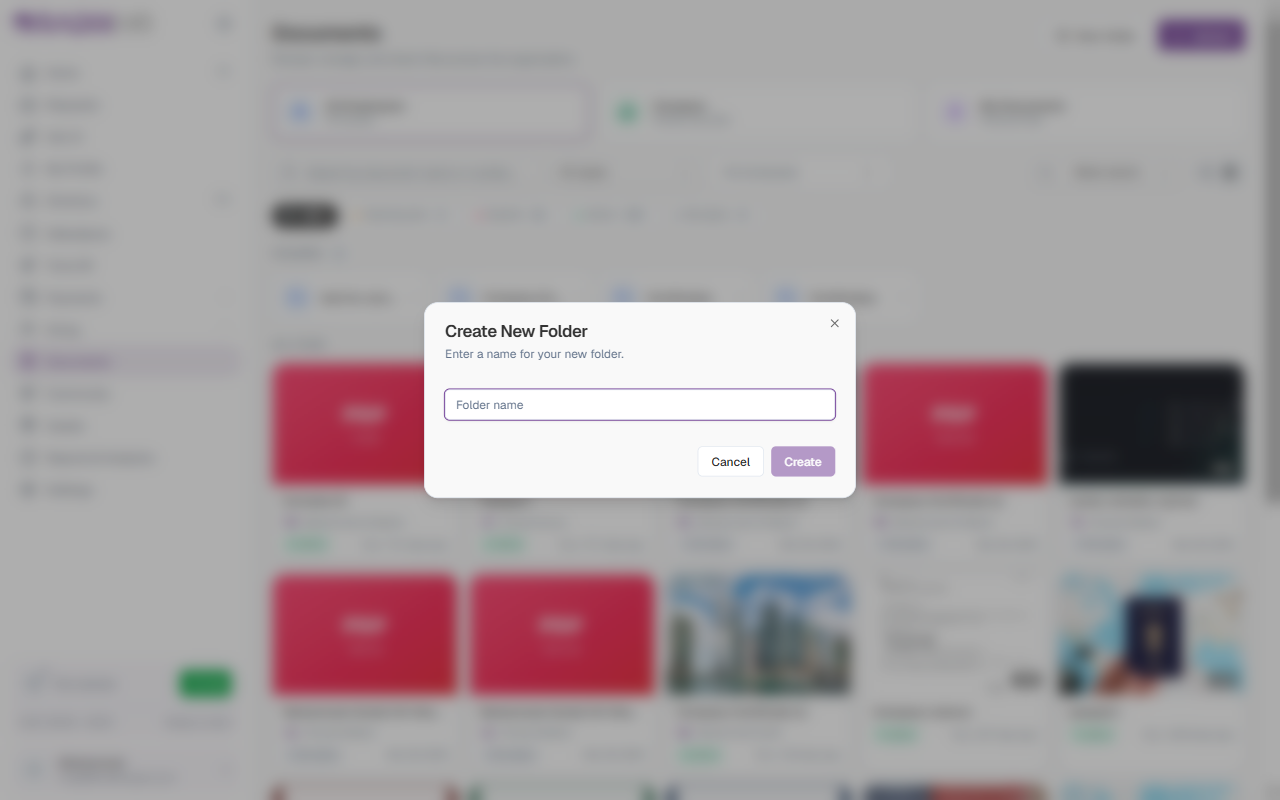
The Folders section lists the folders in the current scope. Click a folder to open it — the page shows a breadcrumb trail so you can navigate back, and you can upload files directly into the open folder.
How to Create a Folder
- Click + New in the top-right corner and choose New folder
- Enter a name for the folder
- Click Create
The File List
Below the folders, the All files section shows the documents themselves. Each file appears as a card with:
| Element | Description |
|---|---|
| Preview / type | A thumbnail for images, or a coloured badge showing the file type (PDF, PNG, JPG, SVG) |
| File size | How large the file is |
| Name | The document’s name |
| Owner | The employee the document belongs to, with their avatar |
| Status | A badge — Active, Expired, or No expiry — with the expiry date or how long ago it expired |
If there are more documents than fit on screen, a Load more button at the bottom loads the next batch.
File Actions
Hovering over a file card reveals three quick actions:
| Action | Description |
|---|---|
| Preview (eye icon) | Opens the document to view it |
| Download | Saves the file to your computer |
| More (⋯) | Opens a menu with further actions — see below |
The More (⋯) menu has these options:
| Option | Description |
|---|---|
| Share | Share the document with other employees |
| Edit Details | Update the document’s name, type, description, and dates |
| Archive | Move the document out of the active list while keeping it on record |
| Delete | Permanently remove the document |
Delete is permanent. If you only want to take a document out of the active list but keep it for records, use Archive instead.
Viewing a Document
Click a file card to open its detail view. It shows a preview of the file alongside its information:
- Document Details — the description
- File Info — file type, size, and category
- Employee — the employee the document belongs to, with their ID
- Upload Info — when it was uploaded and the original filename
- A Download button to save the file
How to Upload a Document
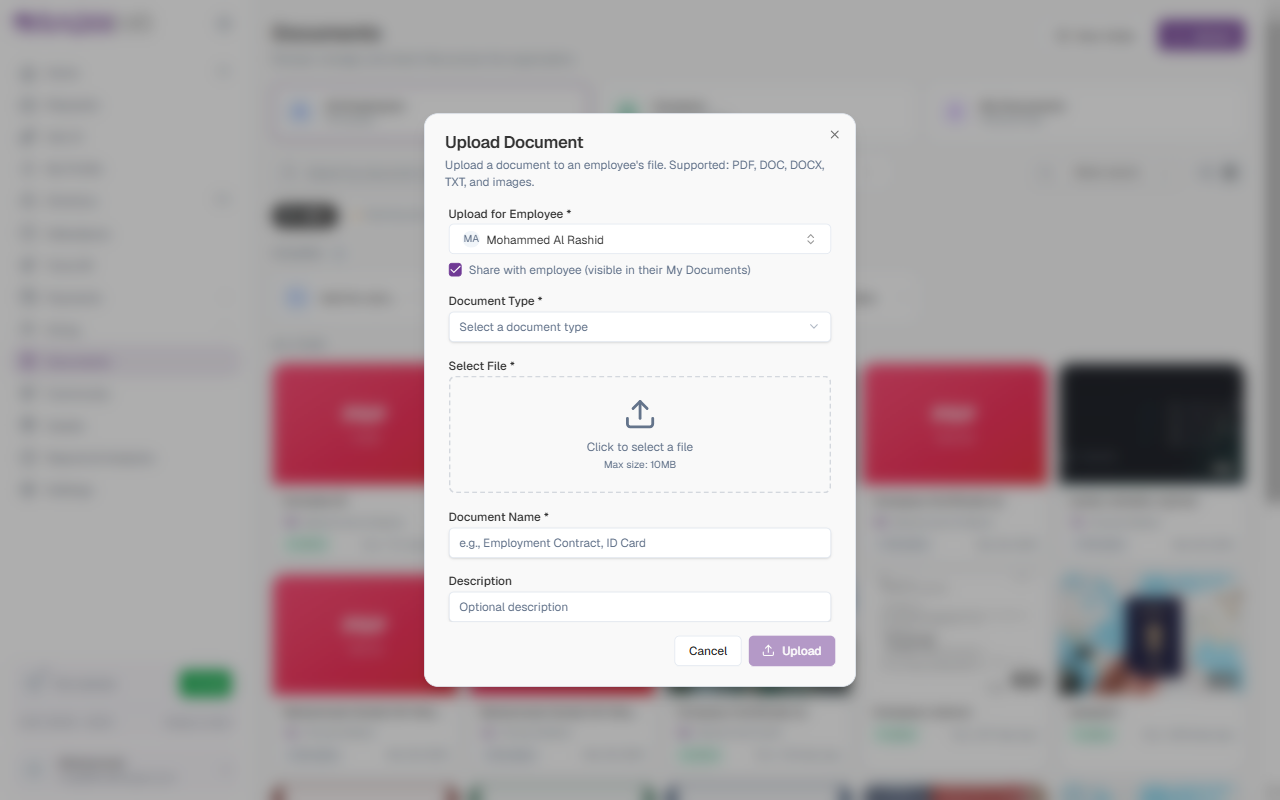
- Click + New in the top-right corner and choose Upload file
- Fill in the form (see the fields below)
- Click Upload
Upload Form Fields
| Field | Description | Required |
|---|---|---|
| Upload for Employee | The employee this document belongs to. | Yes |
| Share with employee | When ticked, the document is visible to the employee in their My Documents. Ticked by default. | No |
| Document Type | The category of document — for example Emirates ID, Passport, Employee certificate, or Salary certificate. Some types (like Emirates ID and Passport) also track an expiry date. | Yes |
| Select File | The file to upload. Supported formats: PDF, DOC, DOCX, TXT, and images. Maximum size: 10 MB. | Yes |
| Document Name | A clear name for the document (e.g., “Employment Contract”, “ID Card”). | Yes |
| Description | Optional notes giving more context about the document. | No |
Choose the right Document Type when uploading. Types that track expiry (such as Emirates ID, Passport, and Visa) feed the Expiring soon and Expired tabs automatically, so the document is monitored for you.
Requesting a Document
Instead of uploading a file, you can have the system generate a document for an employee from their existing data — useful for letters like a salary certificate. Click + New in the top-right corner and choose Request a document.
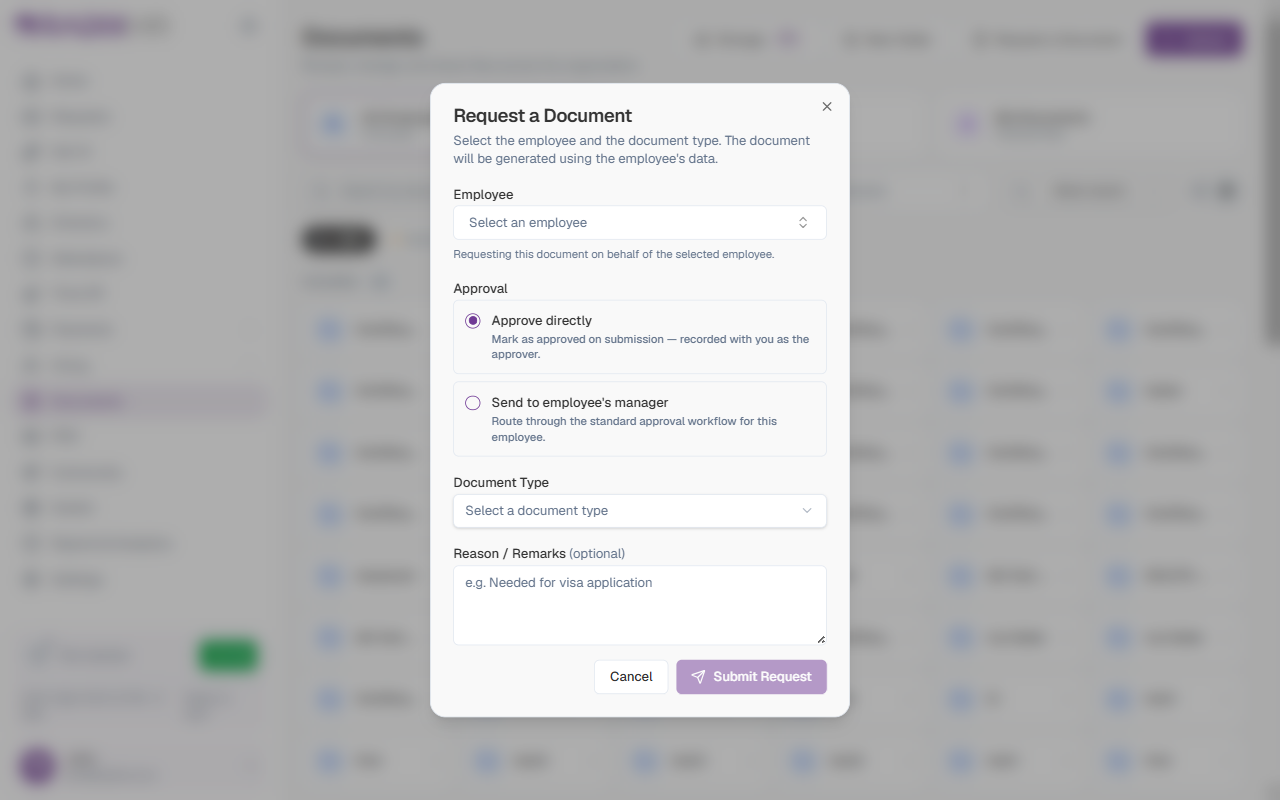
| Field | Description | Required |
|---|---|---|
| Employee | The employee the document is requested for. The document is generated using their data. | Yes |
| Approval | Approve directly marks it as approved on submission (recorded with you as the approver), or Send to employee’s manager routes it through the standard approval workflow. | Yes |
| Document Type | The type of document to generate. | Yes |
| Reason / Remarks | An optional note about why the document is needed (e.g., “Needed for visa application”). | No |
Click Submit Request to generate the document.
Issuing Documents from a Template
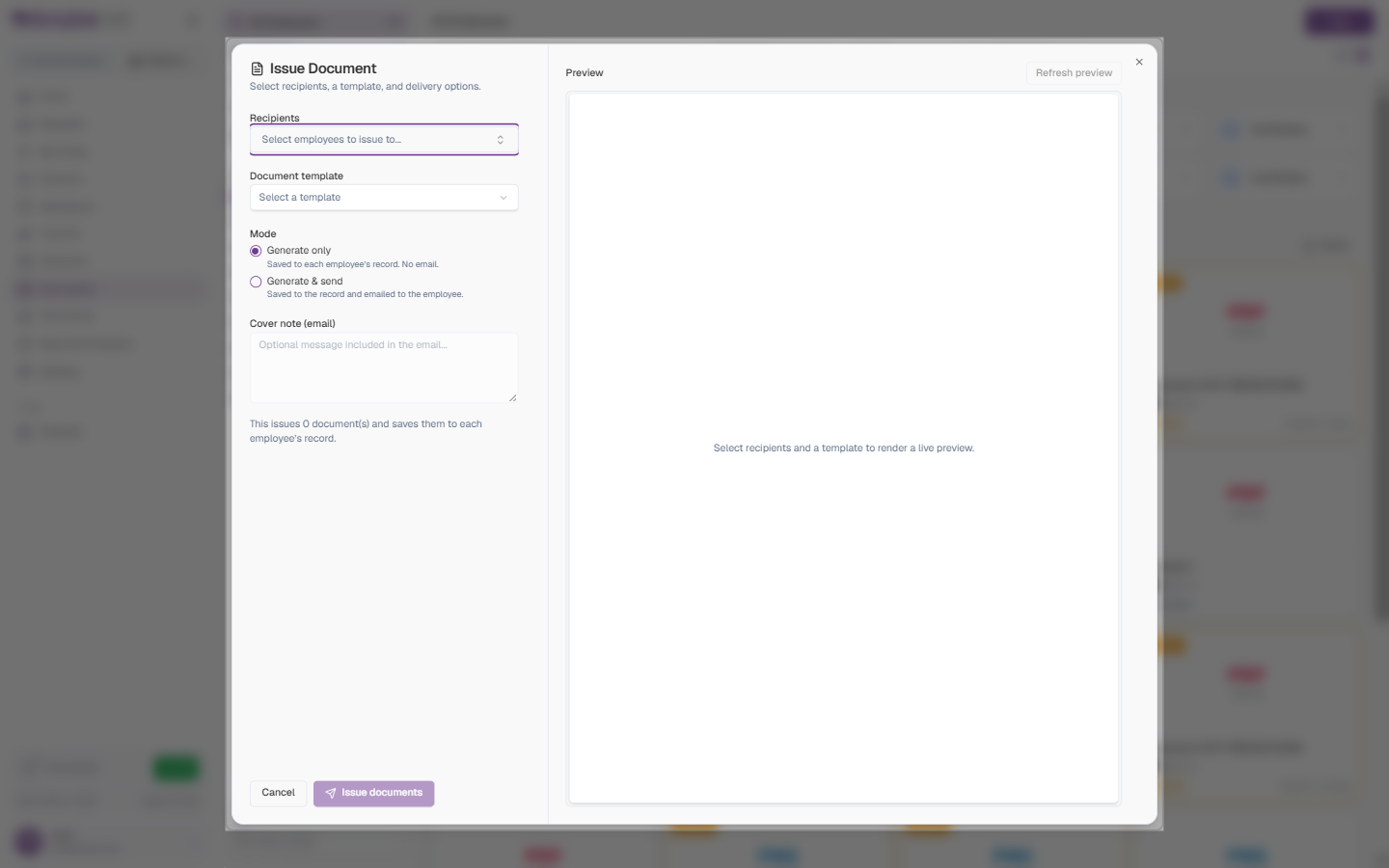
Issue document is the bulk version of a request: pick one or more employees and a document template, and RadixHR generates a copy for each person from their data — optionally emailing it to them. Click + New and choose Issue document.
| Field | Description | Required |
|---|---|---|
| Recipients | The employees to issue the document to — pick as many as you need. | Yes |
| Document template | The template to generate from (managed under Settings → Documents → Templates). | Yes |
| Mode | Generate only saves the document to each employee’s record with no email; Generate & send saves it and emails it to the employee. | Yes |
| Cover note (email) | An optional message included in the email when using Generate & send. | No |
The right-hand Preview pane renders a live preview once you’ve chosen recipients and a template — click Refresh preview after changing either. The footer counts how many documents will be issued; click Issue documents to run it.
Storage Usage
Click View details under the Storage meter in the left panel to see how much document storage your workspace is using.
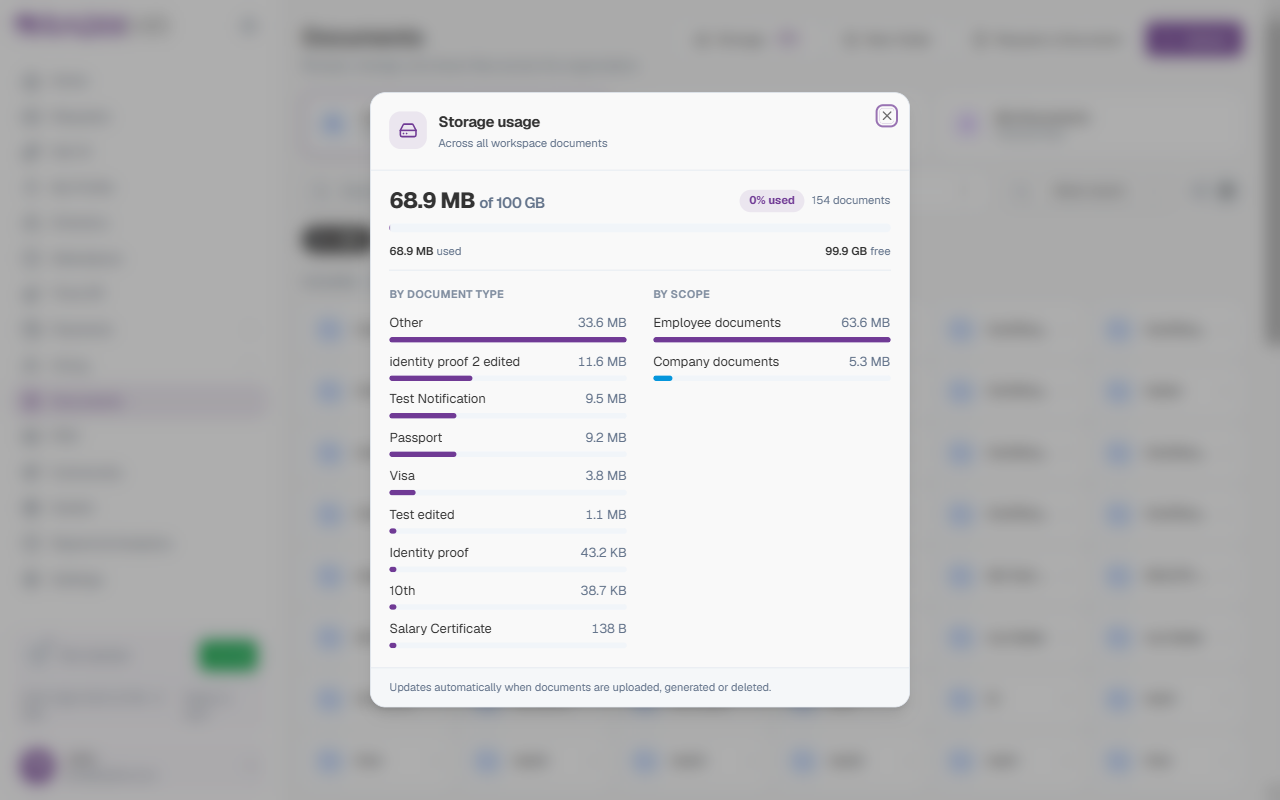
The Storage usage panel shows the total space used out of the workspace limit, the number of documents, and how much is free. It also breaks the usage down by document type (Passport, Visa, Salary Certificate, etc.) and by scope (Employee documents vs. Company documents). It updates automatically as documents are uploaded, generated, or deleted.