Community
The Community page is your company’s internal noticeboard. HR shares announcements, policies, training material, events, and celebrations here, and employees read them in a single feed. The page has two tabs — Feed (what everyone reads) and Manage Posts (where HR creates and manages posts).
What you can do here:
- Read company posts in the Feed, filtered by category
- See upcoming work anniversaries
- Create posts with rich text, banner images, and attachments
- Target a post to the whole company or a specific audience
- Schedule posts to publish later and expire automatically
- Pin important posts, and track how many people have viewed each one
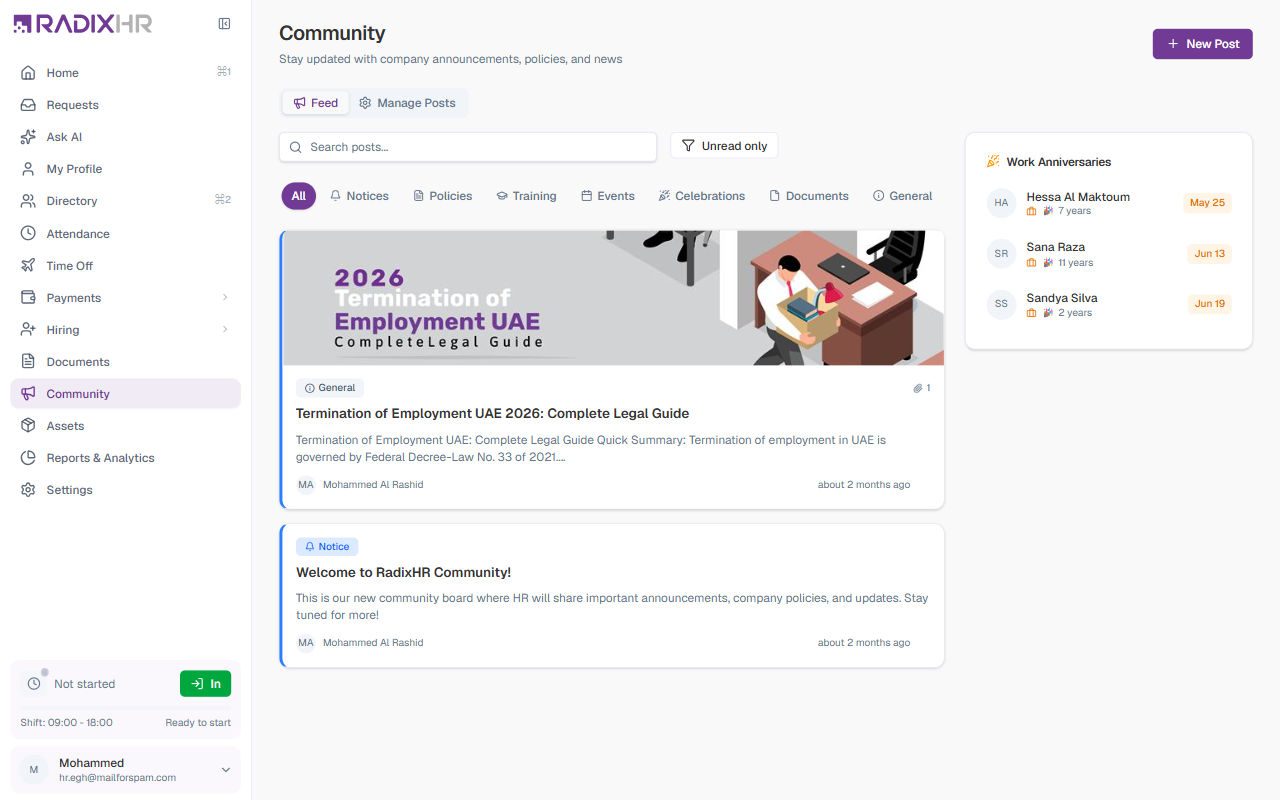
Every employee can read the Feed. The Manage Posts tab and the New Post button are for HR users with permission to manage community posts.
The Feed
The Feed tab is the company noticeboard as employees see it. Posts appear newest first, with pinned posts at the top.
Finding Posts
| Control | Purpose |
|---|---|
| Search posts… | Filter posts by keyword |
| Unread only | Show only posts you haven’t opened yet |
| Category tabs | Filter the feed by category — All, Notices, Policies, Training, Events, Celebrations, Documents, General |
Each post in the feed shows its category badge, a comment count, the title, a short excerpt, the author, and how long ago it was posted. Click a post to open and read it in full.
Work Anniversaries
A sidebar on the right of the feed lists upcoming work anniversaries — each colleague’s name, how many years they’re completing, and the date. It’s a quick way to recognize teammates’ milestones.
Manage Posts
The Manage Posts tab is the HR view of every post in the system, regardless of status.
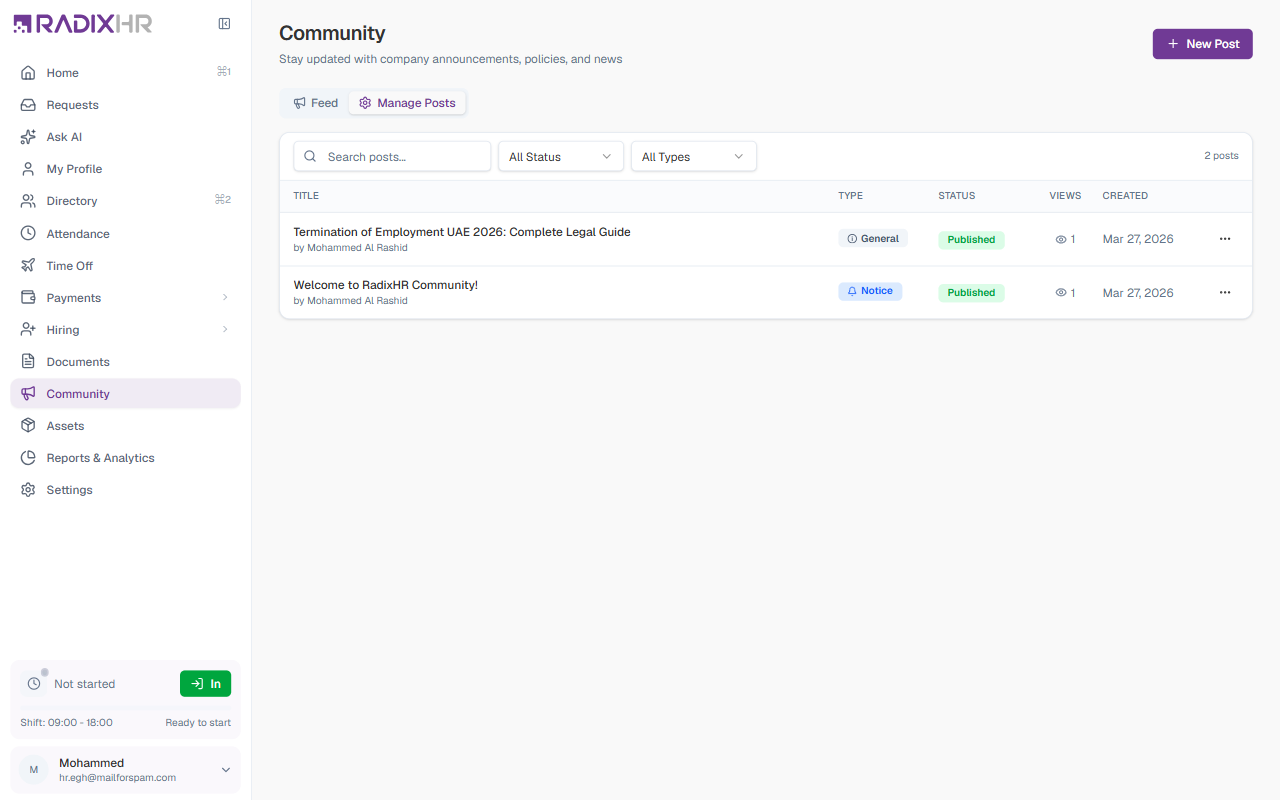
The list shows these columns:
| Column | Description |
|---|---|
| Title | The post’s title, with the author below it |
| Type | A badge showing the post category (Notice, Policy, Training, Document, General, Event, or Celebration) |
| Status | Draft, Scheduled, Published, or Archived |
| Views | How many employees have opened the post |
| Created | The date the post was created |
| Actions | A ⋯ menu — see Row Actions below |
Filters
Three controls at the top of the list narrow it down:
| Control | Purpose |
|---|---|
| Search posts… | Filter by post title |
| All Status | Filter by Draft, Scheduled, Published, or Archived |
| All Types | Filter by category — Notice, Policy, Training, Document, General, Event, or Celebration |
A small N posts count shows how many posts match the current filters.
Row Actions
Click the ⋯ at the end of any row to open its action menu:
| Action | Description |
|---|---|
| Edit | Open the post in the editor |
| Analytics | View the post’s performance — how many people viewed it |
| Archive | Take the post out of the active feed (it stays in records) |
| Delete | Permanently delete the post |
Delete is permanent. Once a post is deleted, it cannot be recovered. If you might want it back later, use Archive instead.
Post Statuses
| Status | Meaning |
|---|---|
| Draft | Created but not yet published. Not visible to employees. |
| Scheduled | Set to publish automatically on a future date |
| Published | Live in the employee feed |
| Archived | Removed from the active feed but kept in records |
Post Categories
Posts use the same categories that drive the feed’s category tabs:
| Category | When to use it |
|---|---|
| Notice | Short announcements that need attention |
| Policy | A new or updated company policy |
| Training | Training material or course announcements |
| Document | Reference documents, forms, or templates |
| Event | Workshops, gatherings, and company events |
| Celebration | Birthdays, anniversaries, awards, and recognitions |
| General | Anything that doesn’t fit the other categories |
How to Create a Post
- Click New Post in the top-right corner
- Fill in the form (see the fields below)
- Click Save as Draft to keep it unpublished, or Publish to send it live
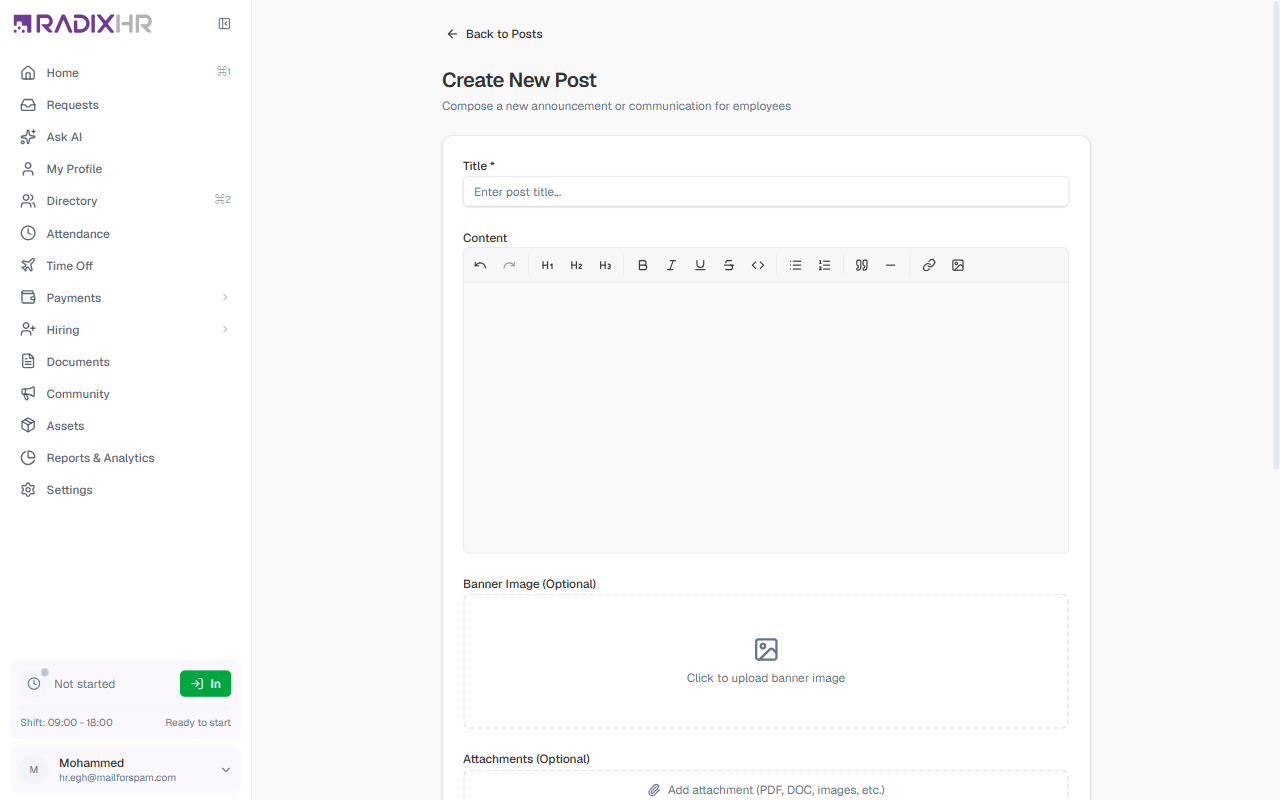
Title and Content
| Field | Description | Required |
|---|---|---|
| Title | The post’s headline, shown on the post card and detail. | Yes |
| Content | The body of the post. The rich-text editor supports headings, bold/italic/underline/strikethrough, inline code, bullet and numbered lists, quotes, horizontal rules, links, and images. | No |
Banner Image and Attachments
| Field | Description | Required |
|---|---|---|
| Banner Image | An optional cover image shown at the top of the post. Click the upload area to add one. | No |
| Attachments | Supporting files (PDF, DOC, images, etc.) that employees can download from the post. | No |
Post Type, Priority, and Visibility
| Field | Description | Required |
|---|---|---|
| Post Type | The post’s category — Notice, Policy, Training, Document, General, Event, or Celebration. Decides which feed tab it appears under. Defaults to General. | No |
| Priority | Low, Normal, or High. Defaults to Normal. | No |
| Visibility | Who can see the post. See the options below. Defaults to All employees. | No |
Visibility options:
| Option | Who sees the post |
|---|---|
| All employees | Everyone in the organization |
| Specific departments | Only employees in the chosen departments |
| Specific locations | Only employees at the chosen locations |
| Specific designations | Only employees with the chosen job titles |
| Specific employees | Only the individual employees you select |
Use a specific visibility audience for posts that only matter to part of the company (e.g., “Office closure — Dubai branch only”). It keeps everyone else’s feed uncluttered.
Scheduling, Expiry, and Pinning
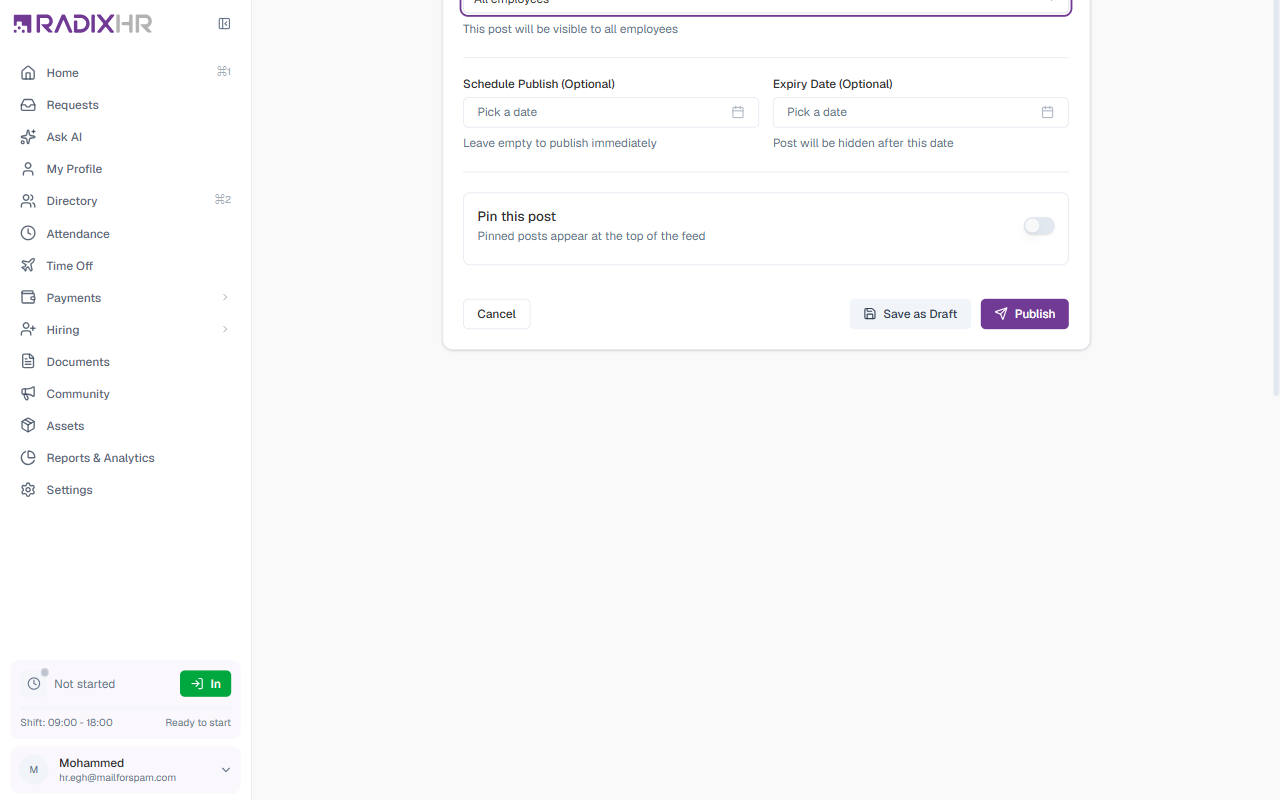
| Field | Description | Required |
|---|---|---|
| Schedule Publish | A future date for the post to publish automatically. Leave it empty to publish immediately. | No |
| Expiry Date | A date after which the post is hidden from the feed automatically. Useful for time-sensitive notices. | No |
| Pin this post | When on, the post stays at the top of the feed regardless of its date. | No |
Form Actions
| Button | Effect |
|---|---|
| Cancel | Closes the form without saving |
| Save as Draft | Saves the post as a Draft — not visible to employees yet |
| Publish | Publishes the post (or schedules it, if a Schedule Publish date is set) |
Save important posts as a draft first so you can review the formatting and audience before employees see anything — then publish when you’re ready.