Roles & Permissions
Roles control what each user can see and do in RadixHR. A role is a named bundle of permissions; a permission is a single capability such as “view team leave” or “approve payroll”. You assign roles to employees, and the system grants them every permission inside those roles.
What you can do here:
- See every role in the workspace and how many users hold each one
- Create custom roles for job functions that don’t match the built-in ones
- Edit the permissions inside a custom role
- Assign roles to employees (or remove them)
- Search by role name or description to find a specific one
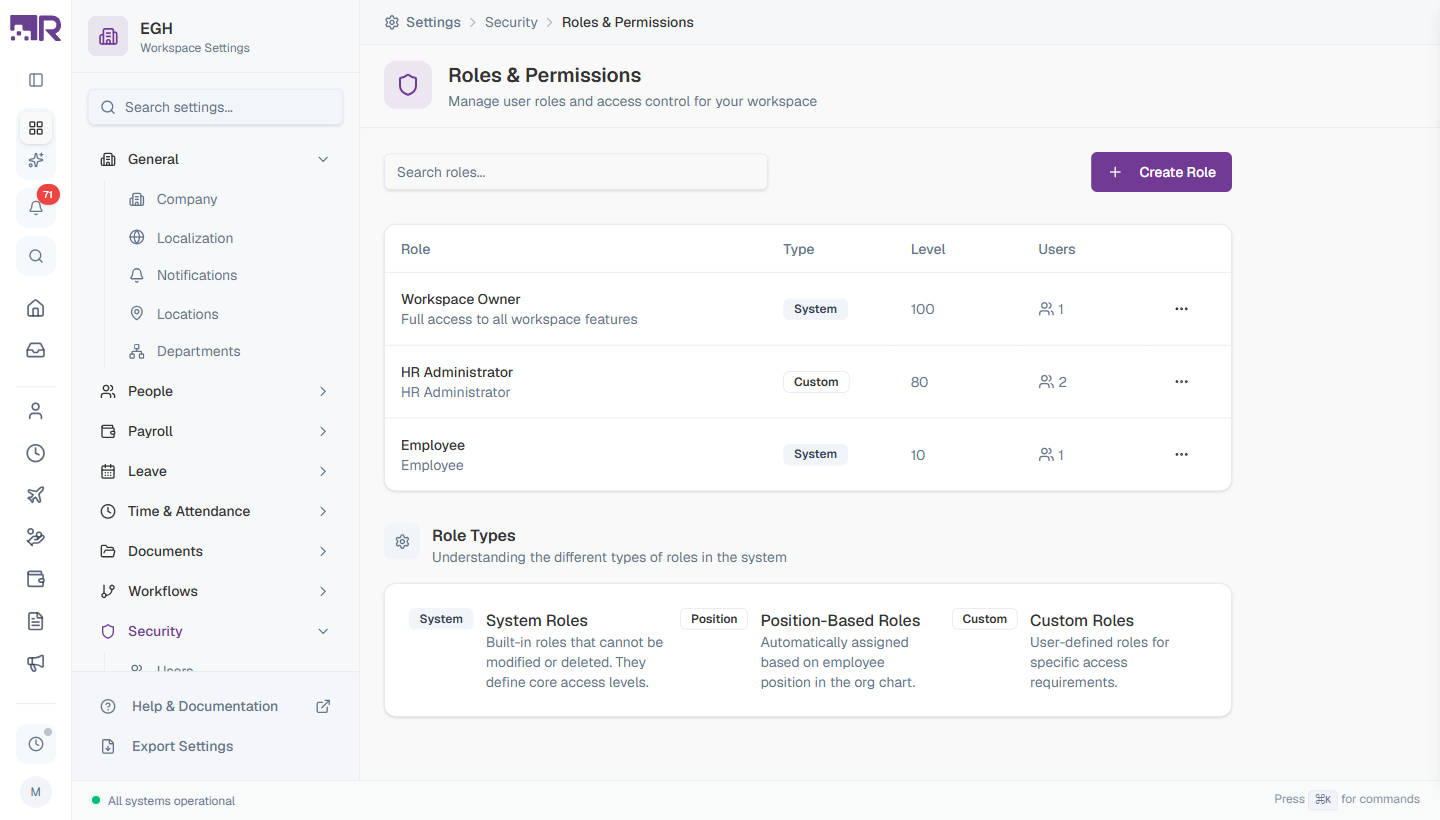
This page has two tabs: Roles (the role list described below) and Permission Catalog — the full list of individual permissions in your workspace, formerly its own Permission Definitions page. See Permission Catalog Tab further down.
Understanding Roles
When a user signs in, RadixHR collects the permissions from every role they hold and uses that combined set to decide what they can access. Permissions are additive — there is no “deny” flag. If any of a user’s roles grants a permission, they have it.
Role Types
The Type column on each row tells you where the role came from and how much you can change about it.
| Type | What it is | Can you edit it? | Can you delete it? |
|---|---|---|---|
| System | Built-in roles that ship with RadixHR (e.g., Workspace Owner, Employee). They define the foundational access levels every workspace needs. | No — name, code, level, and permissions are all locked | No |
| Position | Roles that are automatically assigned to employees based on their position in the org chart (e.g., everyone in the “Manager” position gets a Manager role). | Permissions yes, assignments are automatic | No |
| Custom | Roles you create yourself for the job functions in your organisation (e.g., “Recruiter”, “Finance Approver”, “Office Admin”). | Yes — name, description, level, and permissions all editable | Yes, but only when no users are assigned |
System roles can’t be modified because RadixHR depends on them internally. If you need behaviour that differs from a system role, create a custom role with the permissions you want and assign it instead.
Role Properties
Every role — system, position, or custom — has the same four core properties shown in the table:
| Property | Description |
|---|---|
| Role | The display name plus a short description. Names are what employees and admins see; descriptions help admins understand a role’s purpose at a glance. |
| Type | System, Position, or Custom (see above). |
| Level | A number from 0 to 100 representing the role’s seniority. Higher = more authority. Used to resolve conflicts when one approver delegates to another, or when sorting role lists. |
| Users | How many employees currently hold this role. Click the count to open the Manage Users dialog for that role. |
Priority Level — what it does
The Level number does not override permissions (permissions are always additive). It is used to:
- Order the role list so higher-authority roles surface first
- Resolve approval routing when an employee holds multiple roles — the highest-level role’s approver is preferred
- Display the user’s “primary” role in places where only one badge is shown
A typical scale:
| Level | Used for |
|---|---|
| 100 | Workspace Owner (system) |
| 80–99 | Top-tier admins (HR Administrator, Finance Director) |
| 50–79 | Mid-management (Department Heads, Senior Managers) |
| 20–49 | Team leads, supervisors |
| 0–19 | Self-service employee roles |
The Roles List
The main page shows every role in the workspace as a list of cards. Each row shows the role’s name, type badge (System or Custom), level, a one-line description, and its users count. Above the list you also have a search box (filters by role name or description) and the + Create Role button.
September 2026 change: rows no longer have a ⋯ menu. Click anywhere on a role’s row to open its own role detail page, where you view and edit everything about that role — permissions, users, and (for custom roles) its name, description, and level. See The Role Detail Page below.
How to Create a Custom Role
Custom roles let you grant access that doesn’t fit the built-in roles — for example, a “Recruiter” who needs hiring access but no payroll, or an “Office Admin” who manages documents and announcements but nothing else.
- Go to Settings > Security > Roles & Permissions
- Click + Create Role in the top-right
- Fill in the role details
- Click Create Role
The new role appears in the list immediately with 0 users and 0 permissions — you’ll add those in the next steps.
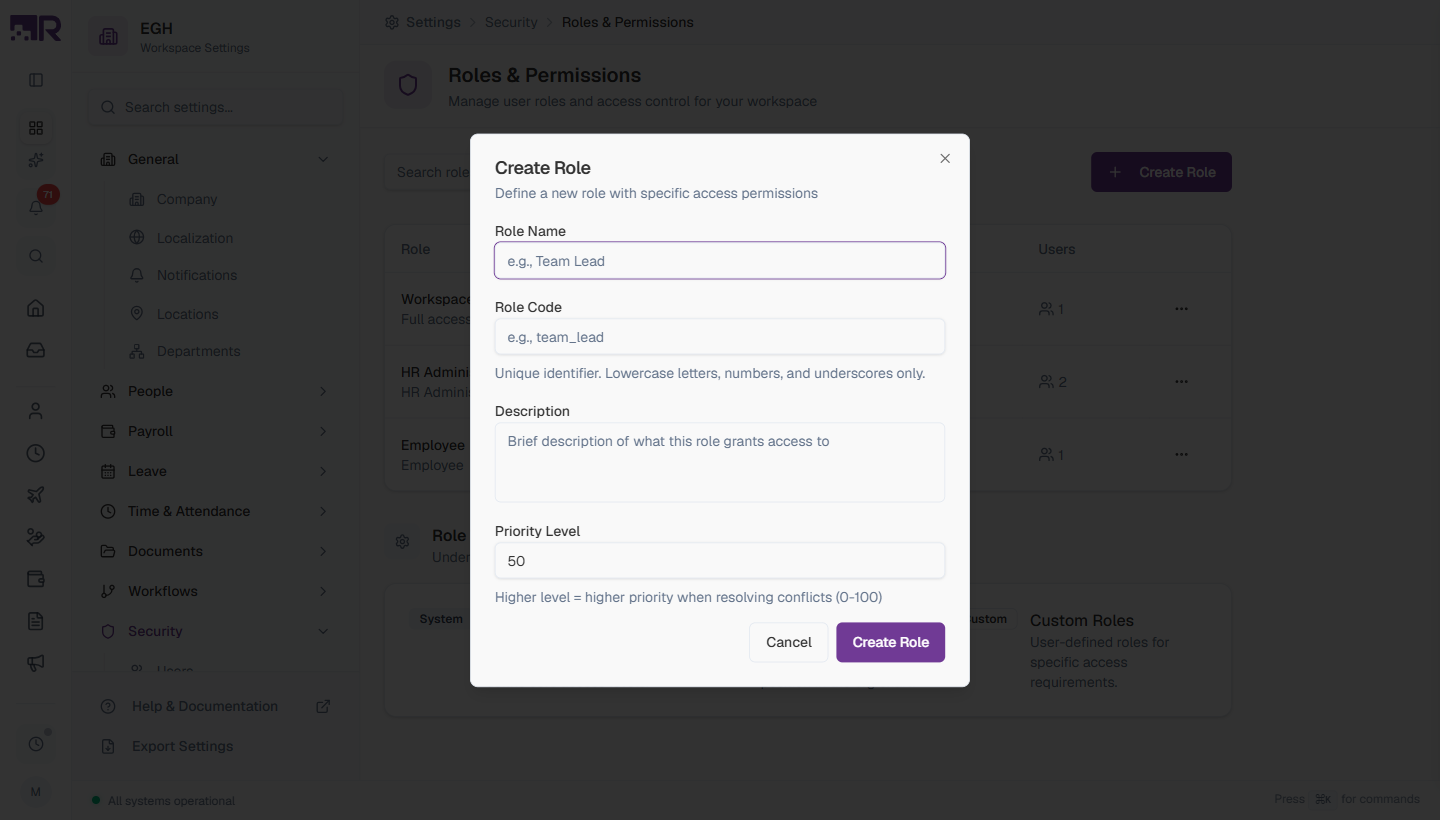
Create Role Fields
| Field | Description | Required |
|---|---|---|
| Role Name | The display name shown everywhere (e.g., “Team Lead”, “Finance Approver”). Use a name that clearly describes the job function. | Yes |
| Role Code | A unique machine identifier. Auto-generated from the name (e.g., “Team Lead” → team_lead). Lowercase letters, numbers, and underscores only. Cannot be changed after the role is created. | Yes |
| Description | A short explanation of what this role grants and who should have it. Shown below the name in the list. | No |
| Priority Level | Number from 0 to 100 (default 50). Higher = more senior. See Priority Level — what it does above. | Yes |
Pick the Role Name carefully — the Role Code is locked once you save, but the Name can still be changed afterwards. The Code shows up in API/audit logs, so a clear code (e.g., recruiter rather than role_a) helps later.
Creating a role does not grant any access by itself. Open the new role and add permissions right away, otherwise users assigned to it will have no access through this role.
The Role Detail Page
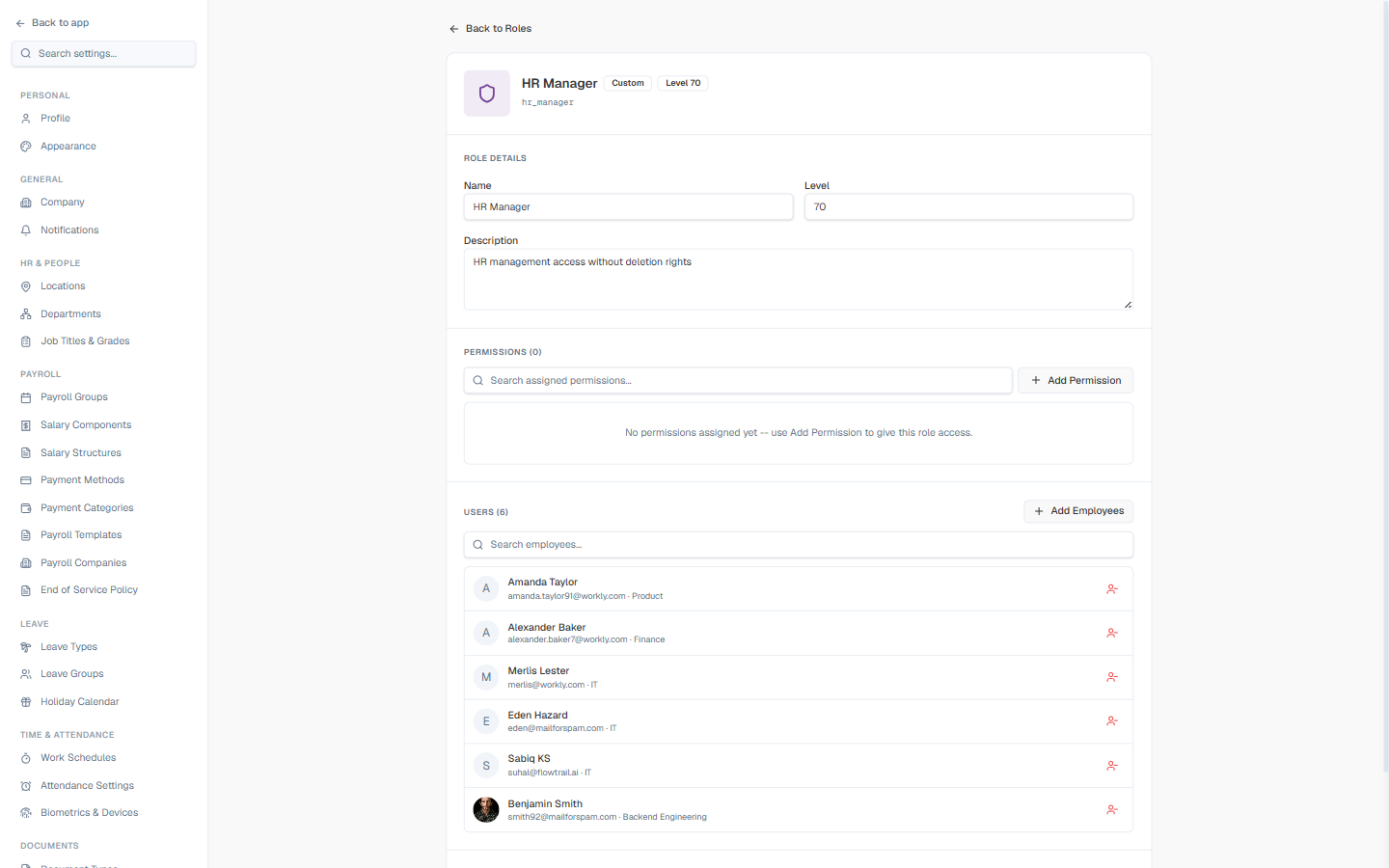
Click any role’s row to open it. The page has the same three sections for every role — Role Details, Permissions, and Users — plus a Danger Zone for custom roles. What you can change depends on the role’s type.
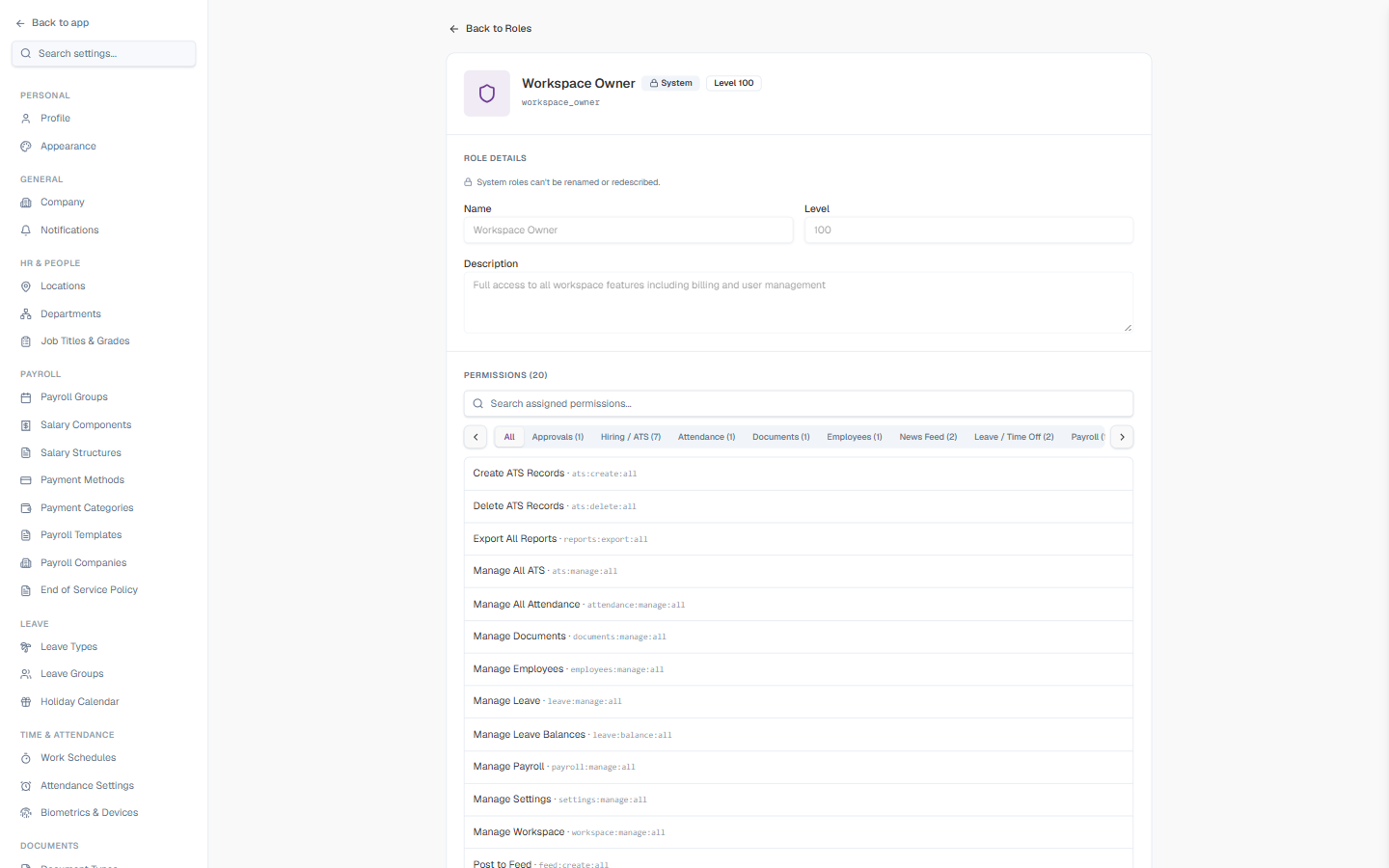
For a System role (like Workspace Owner), every field on this page is disabled and a notice reads “System roles can’t be renamed or redescribed.” You can still browse its permissions and its list of users — you just can’t change either.
Role Details
For a Custom role, Name, Level, and Description are plain editable fields right on the page — click into one and type. There’s no separate “Edit Role” dialog and no visible Save button; edits to these fields apply directly. The role’s code (shown under the title, e.g. hr_manager) is fixed and can’t be changed after creation.
How to Edit a Role’s Permissions
Instead of a single dialog with a checkbox per permission, permissions are managed as a searchable, add-one-at-a-time list directly on the role page:
- Open the role and scroll to the Permissions section
- Click + Add Permission
- In the search box that appears, find the permission you want (results are grouped by module) and click the + next to it
- Repeat for each permission the role needs
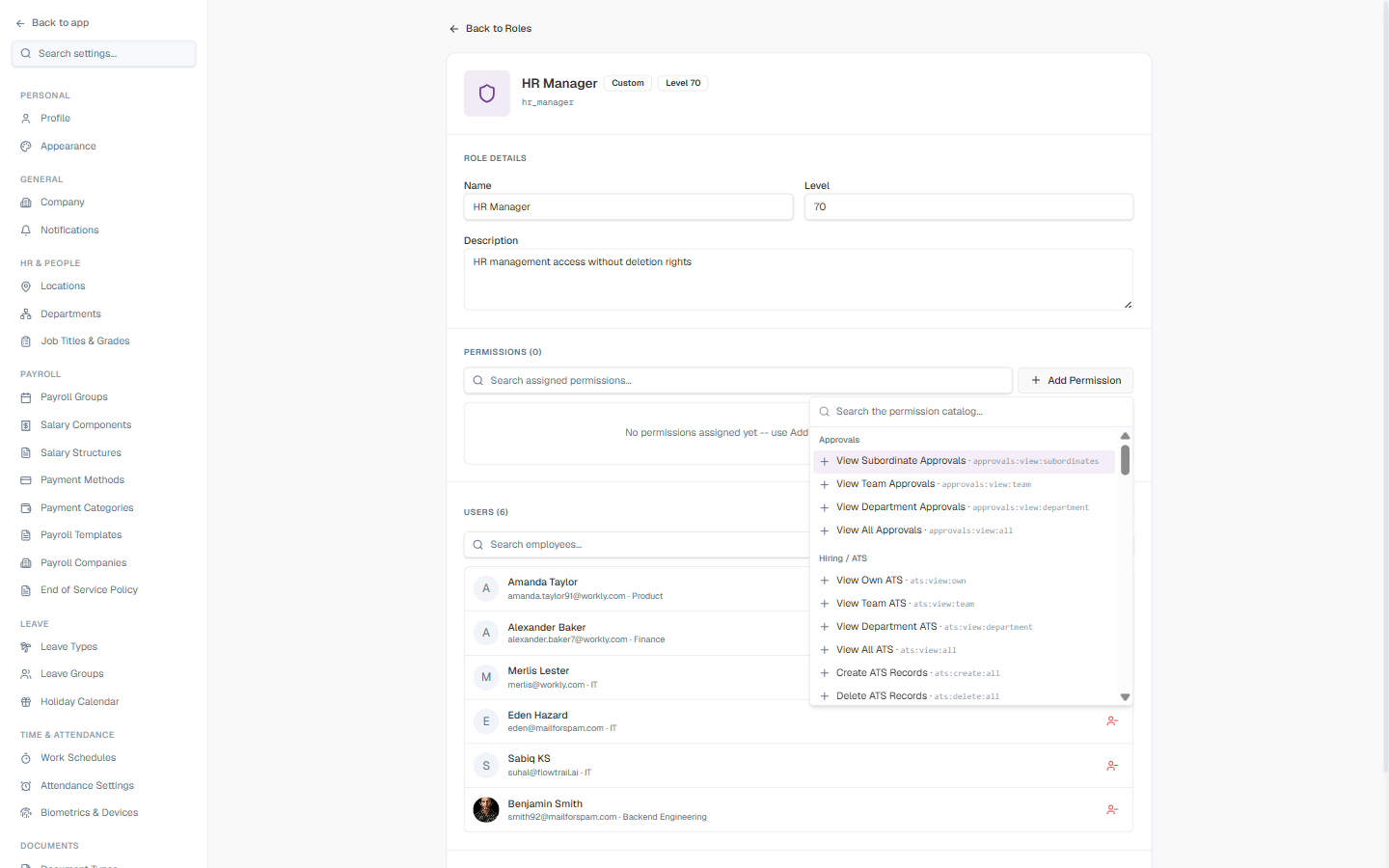
To remove a permission, find it in the assigned list and click the × at the right of its row.
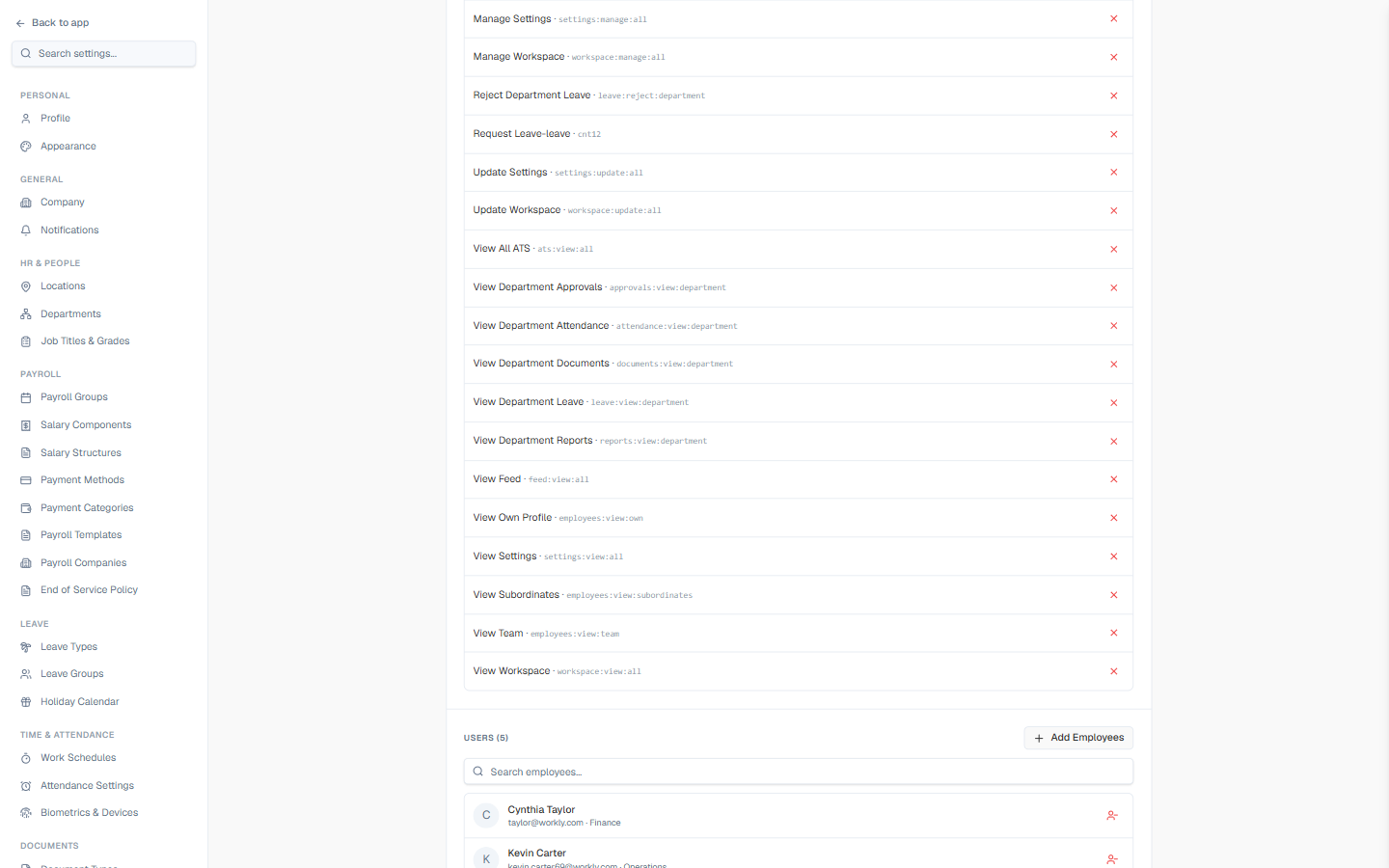
| Element | Description |
|---|---|
| Permissions (N) heading | Total permissions currently assigned to this role |
| Search assigned permissions… | Filters the already-assigned list below — not the Add Permission search |
| Module tabs (All, Approvals, Attendance, …) | Filter the assigned list to one module at a time, each with its own count |
| Permission row | Name, then module:action:scope code in monospace, with a × remove button on the right |
Permission codes follow the pattern module:action:scope — for example, leave:approve:team means “approve leave requests for members of the user’s team”. See Permission Definitions for the full catalogue and what each scope means.
Creating a role does not grant any access by itself. Add permissions right after creating it, otherwise users assigned to it will have no access through this role.
How to Assign or Remove Users on a Role
The Users (N) section at the bottom of the role page lists everyone who holds it — for both Custom and System roles.
- Click + Add Employees
- In the Search employees to add… box that appears, find and select one or more people (the selected count updates as you go)
- Click Assign
To remove someone, click the small remove icon at the right of their row in the Users list.
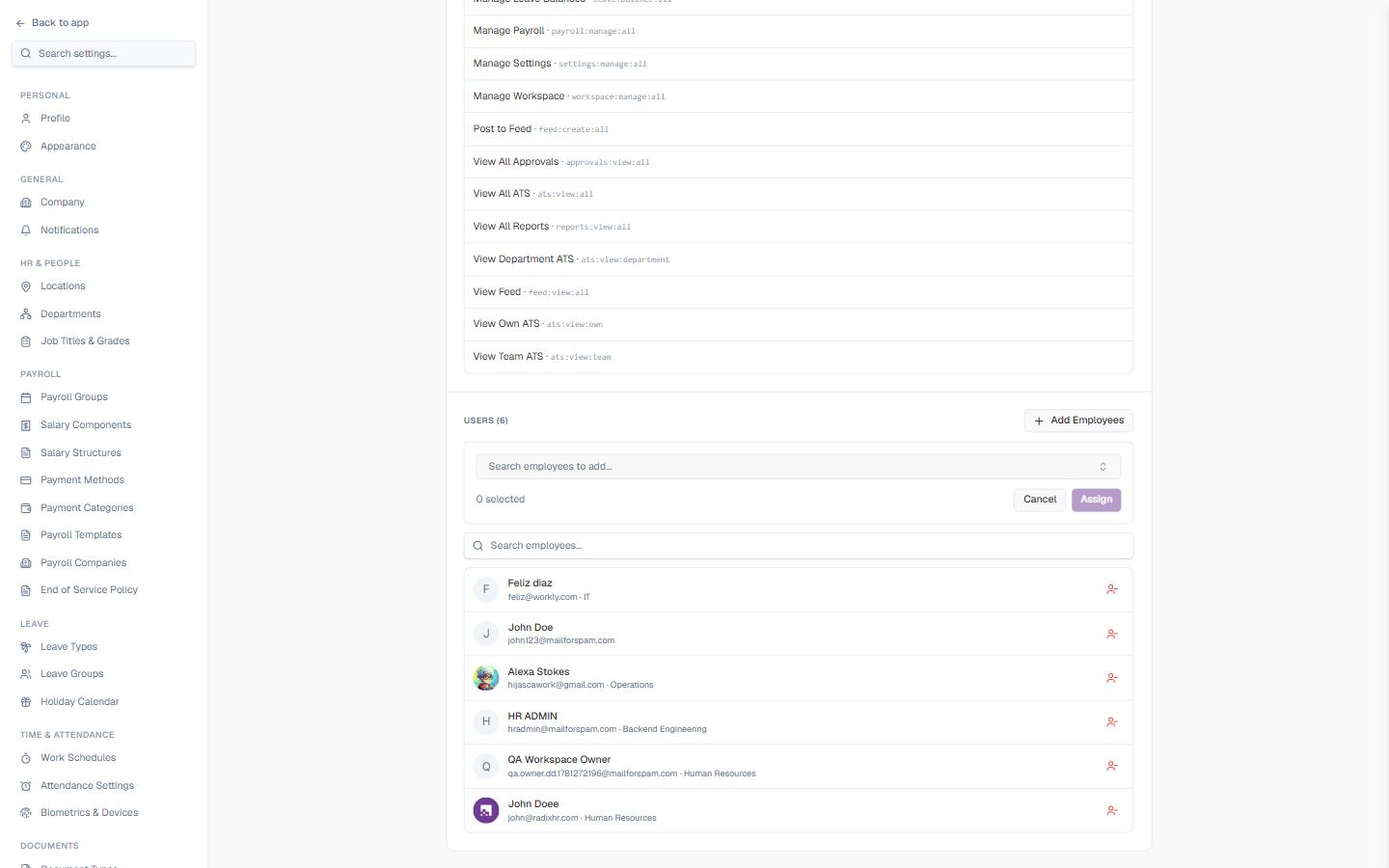
You can also assign a role from an employee’s profile (Directory > select employee > Access section). Adding employees here is faster when you’re rolling out a role to several people at once.
How to Delete a Custom Role
Custom roles have a Danger Zone at the bottom of their detail page.
- Make sure no employees are assigned to the role — if any are, remove them from the Users section first (the page reminds you how many are left)
- Click Delete Role
- Confirm the deletion in the prompt
Deleting a role is permanent. If the role had any custom permission assignments, those mappings are lost — you cannot undo a deletion. Consider removing all its permissions instead if you want to keep the role around as an empty placeholder.
System roles have no Danger Zone — they cannot be deleted under any circumstances.
Permission Catalog Tab
Click the Permission Catalog tab at the top of the page (next to Roles) to see every individual permission that exists in your workspace — the raw building blocks that get bundled into roles above. This used to be its own Settings → Security → Permission Definitions page; it’s now a tab here instead, with the same content.
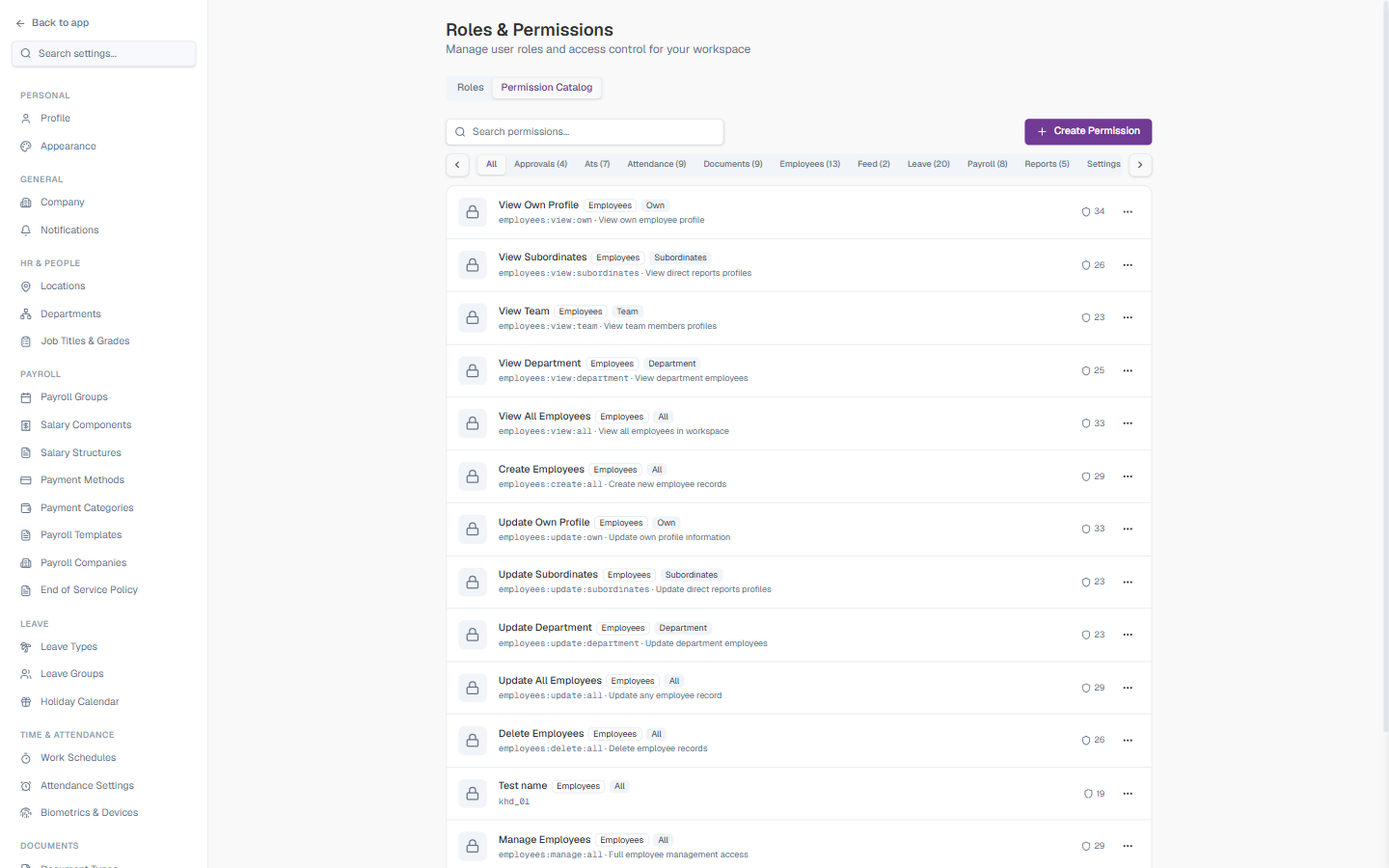
The tab shows a + Create Permission button, a row of module filter tabs (All, Approvals, Ats, Attendance, Documents, Employees, Feed, Leave, Payroll, Reports, Settings, Workspace — each with a permission count), and a card per permission with its display name, module, scope, module:action:scope code, description, and how many roles currently use it.
| Module | What it controls |
|---|---|
| Employees | Viewing and managing employee profiles, org data, imports/exports |
| Leave | Leave requests, balances, approvals, and policy management |
| Attendance | Time tracking, clock-in/out, attendance corrections and approvals |
| Payroll | Salary, payslips, payroll runs, and processing |
| Documents | Uploading, viewing, signing, and managing documents and templates |
| Approvals | Approval workflows, chains, delegations |
| Reports | Viewing and exporting reports |
| Settings | System-wide configuration including security |
| Feed | Company feed posts and announcements |
| Workspace | Workspace-level administration |
| Ats | Hiring requests, jobs, candidates, interviews |
For the full field-by-field reference — every default permission code, what each action and scope means, and how to create or edit a custom permission — see the deep-reference Permission Definitions page. Everything on that page still applies; only its location in the app’s nav has changed.
Best Practices
-
Start with the built-in roles. RadixHR ships with Workspace Owner, HR Administrator, and Employee — most workspaces only need a handful of additional custom roles on top of these.
-
Name roles by function, not person. A role called “Recruiter” can outlive any individual recruiter. Avoid names like “Sara’s Permissions”.
-
Follow least privilege. Grant the narrowest scope that lets the user do their job. Prefer
leave:approve:teamoverleave:approve:allif a team-only scope is sufficient. -
Set the priority level deliberately. Use 0–19 for self-service-only roles, 20–49 for team leads, 50–79 for mid-management, 80–99 for top admins. Reserve 100 for the Workspace Owner.
-
Document custom roles. Use the Description field — when an admin two years from now asks “what does the ‘Office Admin’ role do?”, a sentence in the description saves the conversation.
-
Review annually. Periodically open the role list and confirm each custom role is still needed and that the people holding it are still the right ones.
-
Test before deploying. When you create or significantly change a role, assign it to a test account and verify the access is what you intended before rolling it out to real users.
Troubleshooting Access Issues
If a user reports they can’t see or do something they expect to:
- Open Settings > Security > Users, find the user, and check the roles assigned to them.
- Open each of those roles and check its Permissions list for the relevant permission at a wide enough scope (e.g.,
:teamor:all). - If multiple roles are assigned, remember permissions are additive — the user has the union of all roles’ permissions. The user is missing a permission only if none of their roles grants it.
- Check whether a delegation rule is rerouting their requests — they may have access but the system is sending the work elsewhere.
Common Scenarios
“I want our finance manager to see payroll numbers but not be able to approve or change anything — how do I set that permission?”
Create a custom role with payroll:view:all but without payroll:approve:all, payroll:update:all,
or payroll:manage:all. manage is shorthand for full control (view + create + update + delete +
approve) — don’t grant it if you only want view access.
“Our IT admin needs to manage logins and reset passwords but should never see anyone’s salary — how do I set up their role?” Grant the Security module permissions they need (managing Users), and simply don’t grant any Payroll module permissions at all — permissions are opt-in per module, so leaving Payroll out of the role entirely means they have no payroll access, view or otherwise.
“We have a regional HR manager who should only see employees at their own location, not the whole company — is that possible?”
Not directly — this is a real limitation, not just an unclear setting. The documented scope hierarchy
is own → subordinates → team → department → all — there is no location-based scope. The closest
built-in option is department scope, which only works if your departments happen to map to locations
(e.g., a “Dubai Office” department). If departments and locations don’t line up in your organisation, this
isn’t achievable through roles alone today.