E-Signature
E-Signature settings allow you to configure digital signature requirements for documents. When enabled, employees can electronically sign documents, and the system maintains a complete audit trail of all signatures.
What you can do here:
- Enable or disable e-signatures for your organization
- Choose a signature provider
- Configure reminder settings for unsigned documents
- Select which document types require signatures
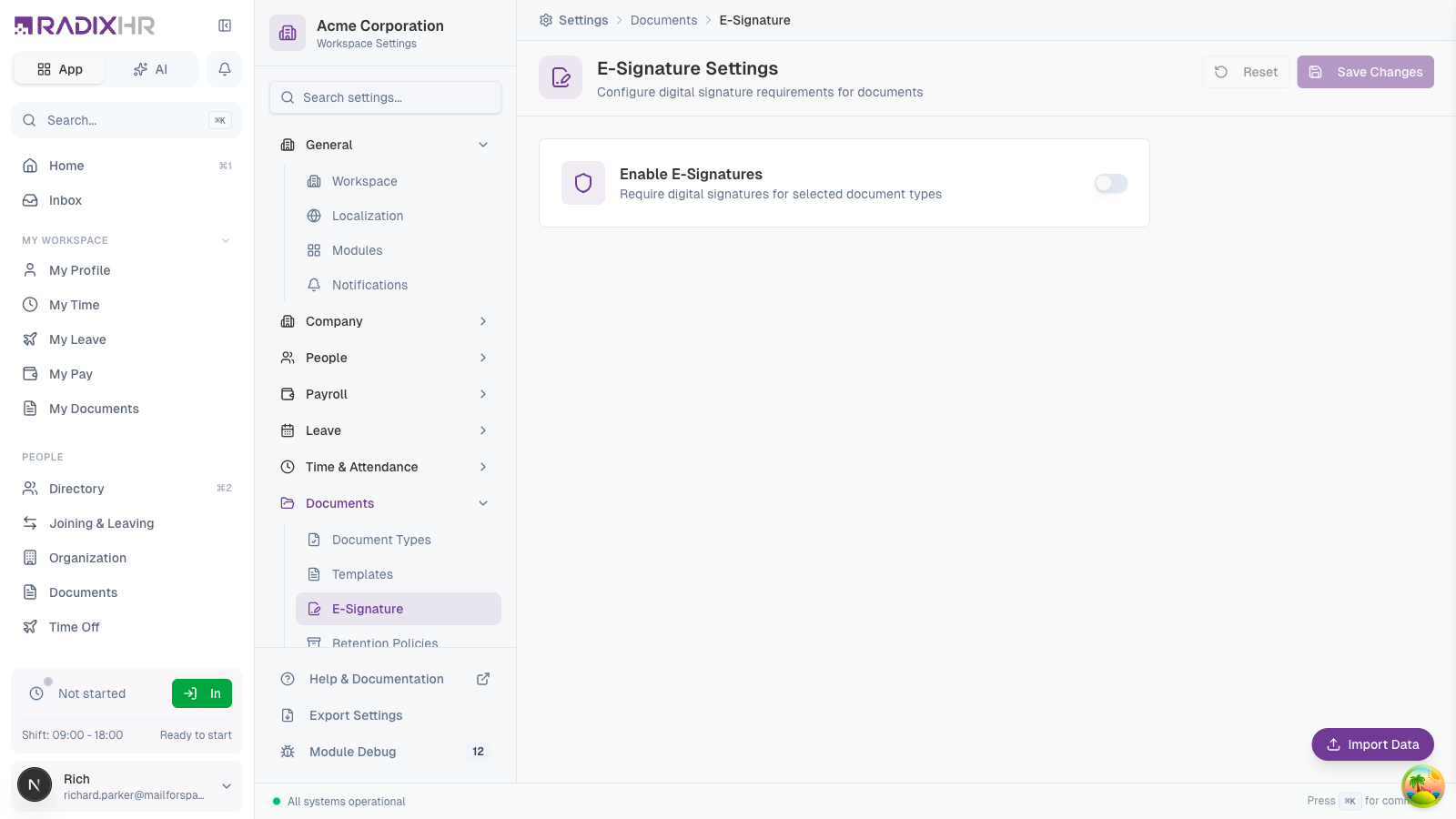
Not in the Settings sidebar (September 2026). The Documents group now lists only Document Types and Templates. This page still works — open it directly at /settings/documents/e-signature. Until you switch Enable E-Signatures on, the page shows only that toggle; the provider, reminder, escalation and document-type sections appear once it’s enabled.
Understanding E-Signatures
An electronic signature (e-signature) is a digital way for employees to sign documents without printing, signing by hand, and scanning. E-signatures are legally binding and include verification to ensure authenticity.
Benefits of E-Signatures
| Benefit | Description |
|---|---|
| Faster Processing | Documents can be signed in seconds from any device |
| Audit Trail | Complete record of who signed, when, and from where |
| Reduced Paper | Eliminate printing, scanning, and physical storage |
| Remote Signing | Employees can sign from anywhere |
| Security | OTP verification ensures signer identity |
RadixHR’s built-in e-signature solution uses OTP (One-Time Password) verification to confirm signer identity. This provides a secure, legally compliant signing process.
Enabling E-Signatures
- Go to Settings > Documents > E-Signature
- Toggle Enable E-Signatures to on
- Configure the signature provider and settings
- Select which document types require signatures
- Click Save Changes
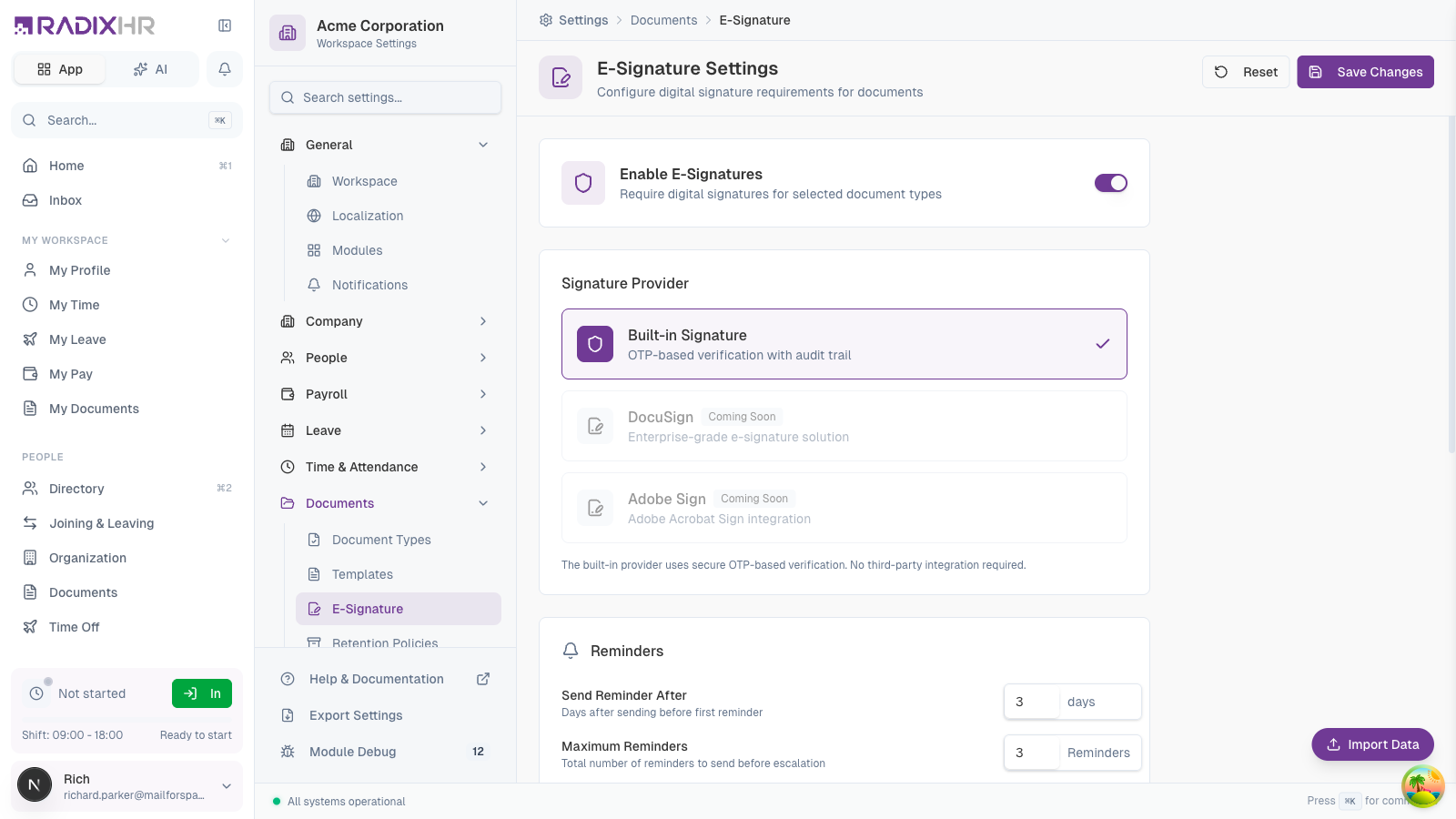
Signature Providers
Choose how employees will sign documents:
| Provider | Status | Description |
|---|---|---|
| Built-in Signature | Available | RadixHR’s native e-signature with OTP-based verification and audit trail. No additional setup required. |
| DocuSign | Coming Soon | Enterprise-grade e-signature solution for organizations requiring advanced features. |
| Adobe Sign | Coming Soon | Adobe Acrobat Sign integration for seamless document workflows. |
Built-in Signature
The built-in provider offers:
- OTP Verification: Signers receive a one-time code via email or SMS to verify their identity
- Audit Trail: Complete record of all signing activity
- No Extra Cost: Included with your RadixHR subscription
- Simple Setup: Works immediately with no third-party integration
The built-in signature provider is recommended for most organizations. It provides secure, legally compliant signatures without additional complexity or cost.
Reminder Settings
Configure how the system reminds employees about unsigned documents:
Send Reminder After
| Setting | Description |
|---|---|
| Days | Number of days after sending a document before the first reminder is sent |
| Default | 3 days |
| Range | 1-30 days |
Maximum Reminders
| Setting | Description |
|---|---|
| Count | Total number of reminder emails to send before escalating |
| Default | 3 reminders |
| Range | 1-10 reminders |
After all reminders have been sent, the system can automatically escalate to HR if that option is enabled.
HR Escalation
When signatures are overdue after all reminders have been sent, the system can notify HR:
Escalate to HR
| Setting | Description |
|---|---|
| Toggle | Enable or disable HR escalation |
| Escalate After | Days after the last reminder before notifying HR |
| Default | 7 days |
When escalation is triggered:
- HR receives a notification about the overdue signature
- The document appears in HR’s pending signatures queue
- HR can follow up directly with the employee
HR escalation should be used for important documents where timely signatures are critical, such as employment contracts or compliance documents.
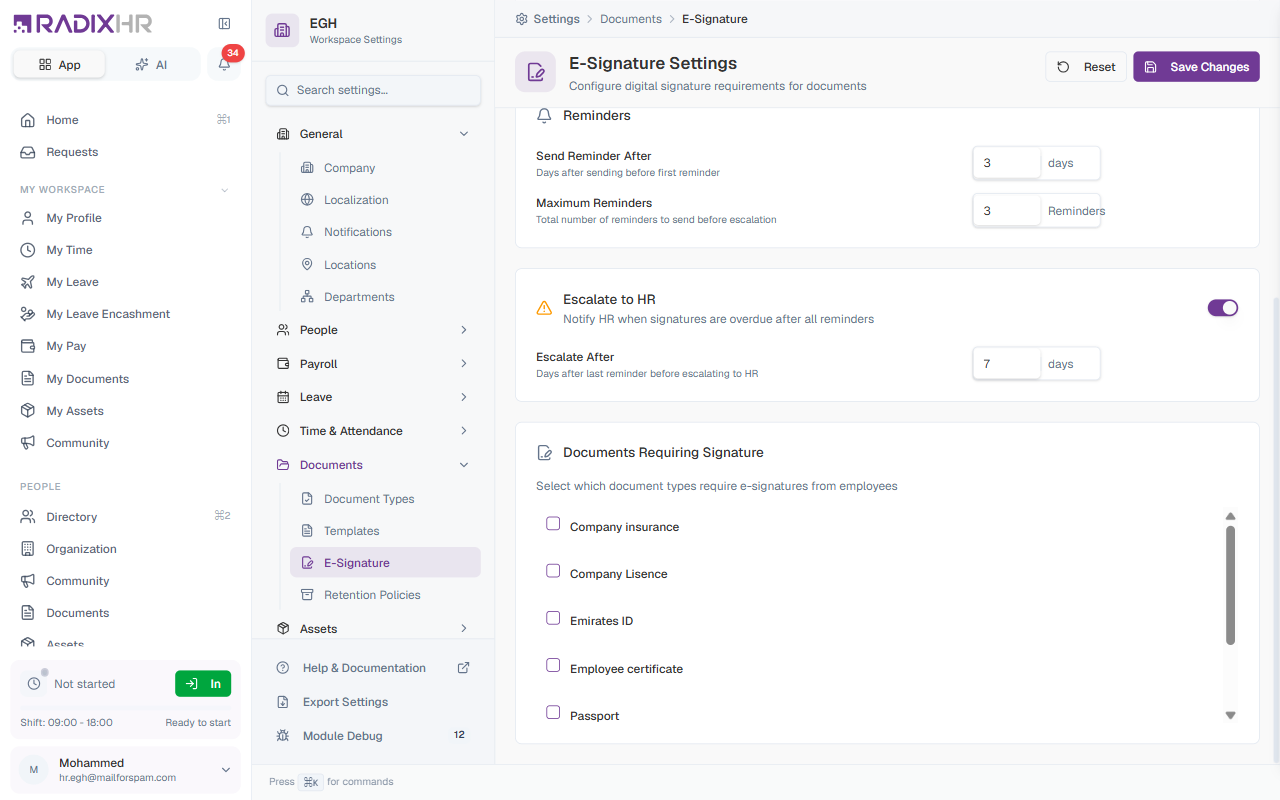
Documents Requiring Signature
Select which document types require e-signatures from employees. When a document of a selected type is sent to an employee, they will be prompted to sign it electronically.
Selecting Document Types
The list shows every document type configured in your workspace. Check the boxes next to the ones that should require signatures. Typical choices include:
| Document Type | Why Require Signature |
|---|---|
| Employment Contract | Formal employment terms |
| Employment Offer Letter | Confirms acceptance of job offer |
| Non-Disclosure Agreement | Legally binding confidentiality agreement |
| Company Insurance | Acknowledgement of insurance enrolment |
| Policy Acknowledgments | Confirms the employee has read company policies |
The document types that appear here are managed in Settings → Documents → Document Types. If a document type you want isn’t on the list, add it there first.
Only require signatures for documents that genuinely need them. Requiring signatures for informational documents can create unnecessary friction for employees.
How E-Signing Works
For Employees
- Employee receives notification that a document needs their signature
- They open the document in RadixHR
- They review the document content
- They click “Sign” and enter the OTP sent to their email/phone
- The signature is recorded with timestamp and verification details
For HR/Administrators
- Create or upload a document that requires signature
- Send it to the employee(s)
- Track signature status in the documents section
- Receive notifications when signatures are completed
- View the audit trail for compliance purposes
Signature Audit Trail
Every e-signature includes a complete audit trail:
| Information | Description |
|---|---|
| Signer Identity | Name and employee ID of the person who signed |
| Timestamp | Exact date and time of signature |
| IP Address | Network location where signature occurred |
| Device Info | Browser and device used for signing |
| Verification Method | How identity was verified (OTP, etc.) |
| Document Hash | Cryptographic proof document wasn’t modified |
The audit trail is automatically generated and cannot be modified. It provides legal evidence of when and how a document was signed.
Best Practices
- Start small: Enable e-signatures for a few critical document types first
- Communicate changes: Let employees know about the new signing process
- Set reasonable deadlines: Give employees adequate time to sign documents
- Review reminder settings: Adjust reminder frequency based on your organization’s needs
- Monitor completion rates: Track how quickly documents are being signed
- Keep documents current: Update templates before requiring signatures
Troubleshooting
Employee Didn’t Receive OTP
- Check that the employee’s email/phone is correct in their profile
- Ask them to check spam/junk folders
- Verify the employee has access to their registered contact method
- Resend the document if needed
Signature Not Completing
- Ensure the employee is using a supported browser
- Check for any popup blockers that might interfere
- Have them clear their browser cache and try again
- Contact support if issues persist
Document Shows as Unsigned
- Verify the employee completed all steps including OTP verification
- Check the audit trail to see if a signing attempt was made
- The employee may have started but not finished the process
Common Scenarios
“We need every new hire to e-sign their offer letter before their first day — how do I make that mandatory?” Go to Documents Requiring Signature and check Employment Offer Letter (or Employment Contract) — this makes it a required-signature document type going forward, so it’s sent for signature whenever issued. One thing this doesn’t do: there’s nothing documented here that blocks or gates a new hire’s first day, onboarding progress, or portal access on signature completion — “mandatory” here means the document requires a signature, not that the system enforces a deadline. Use Reminder Settings and HR Escalation to make sure someone follows up if it’s not signed in time, rather than relying on the system to block anything automatically.