Assets
The Assets page tracks every piece of company equipment — laptops, phones, and other gear — and who currently holds each item. The page has two tabs: My Assets (the equipment issued to you) and Manage Assets (the full company-wide register, for HR).
What you can do here:
- See the equipment currently issued to you
- Browse the full asset register and search by name, tag, or serial number
- Add a new asset with purchase, warranty, and depreciation details
- Filter assets by status and category
- Open an asset to see its details, assignment history, and activity log
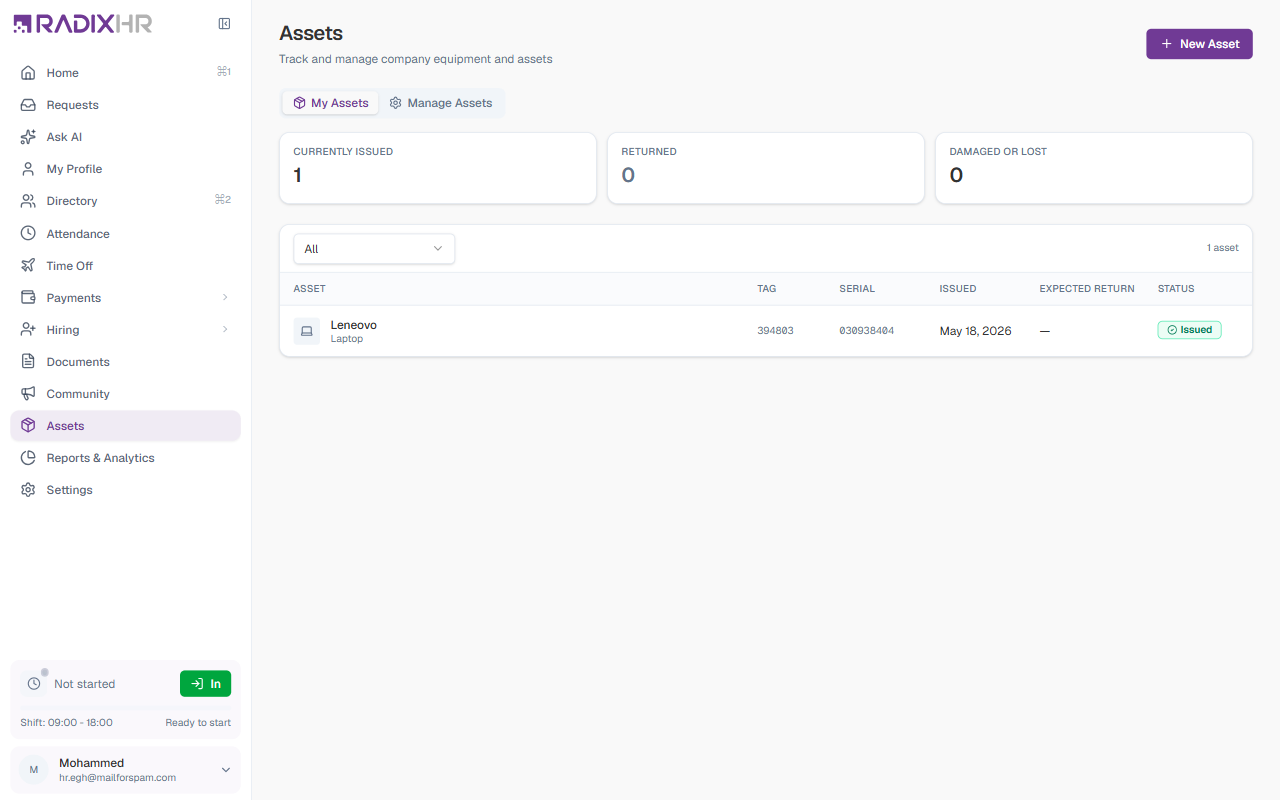
Every employee can see the My Assets tab — the equipment issued to them. The Manage Assets tab and the New Asset button are for HR users who maintain the register.
My Assets
The My Assets tab shows the equipment currently in your hands. Three cards at the top summarize your assets:
| Card | Meaning |
|---|---|
| Currently issued | Assets you hold right now |
| Returned | Assets you’ve handed back |
| Damaged or Lost | Assets reported damaged or lost |
Below the cards, a table lists each asset with its Asset name and type, Tag, Serial number, the date it was Issued, the Expected return date, and its Status. A filter above the table lets you narrow the list.
Manage Assets
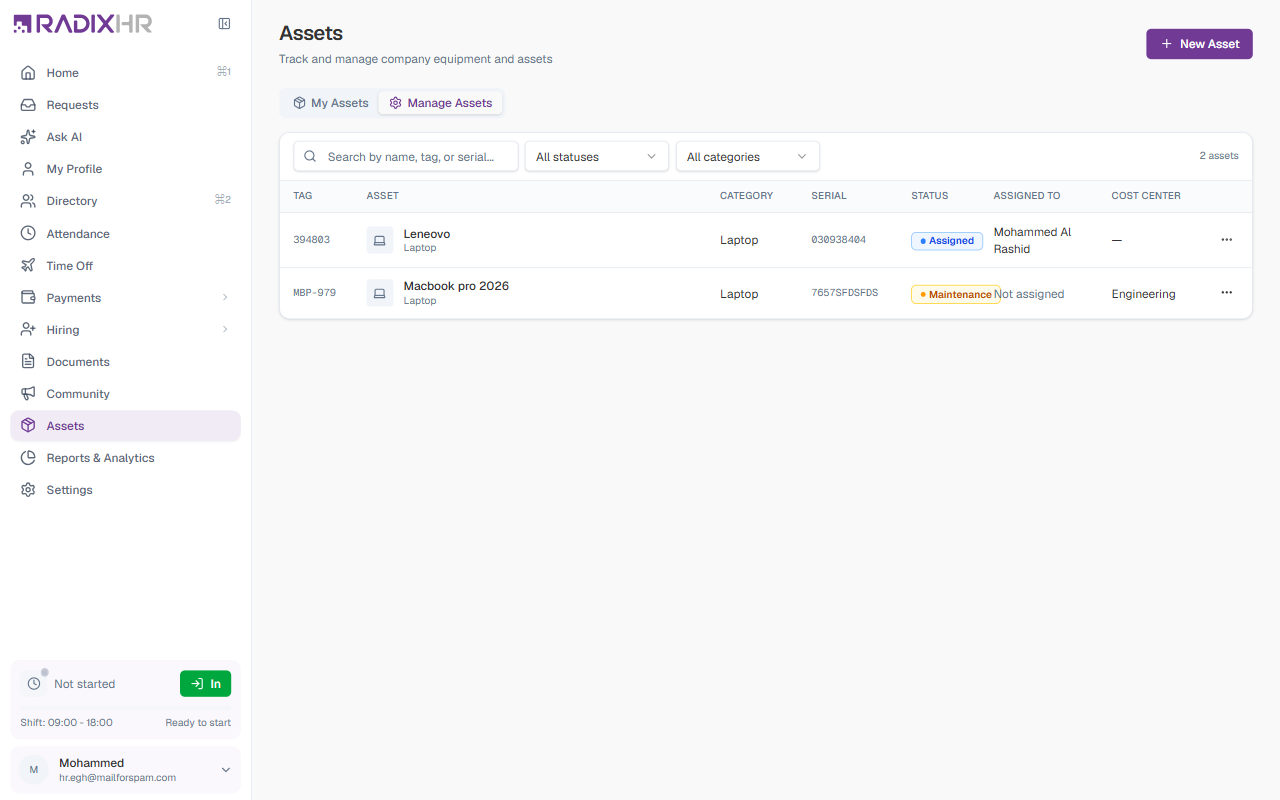
The Manage Assets tab is the HR view of every asset the company owns.
Search and Filters
| Control | What it does |
|---|---|
| Search by name, tag, or serial… | Filters the register as you type |
| All statuses | Filters by asset status — Available, Assigned, Under maintenance, Retired, or Lost |
| All categories | Filters by asset category (the categories currently in use) |
A N assets count shows how many assets match the current filters.
The Asset Table
| Column | What it shows |
|---|---|
| Tag | The asset tag used to identify the item |
| Asset | The asset name, with its category below |
| Category | The category the asset belongs to |
| Serial | The manufacturer’s serial number |
| Status | The asset’s current state |
| Assigned to | The employee holding the asset, or “Not assigned” |
| Cost center | The team or department bearing the expense |
| ⋯ menu | Row actions — View, Edit, Delete |
Asset Statuses
| Status | What it means |
|---|---|
| Available | In stock and ready to be issued |
| Assigned | Currently issued to an employee |
| Under maintenance | Being serviced and temporarily out of circulation |
| Retired | Taken out of service |
| Lost | Reported lost |
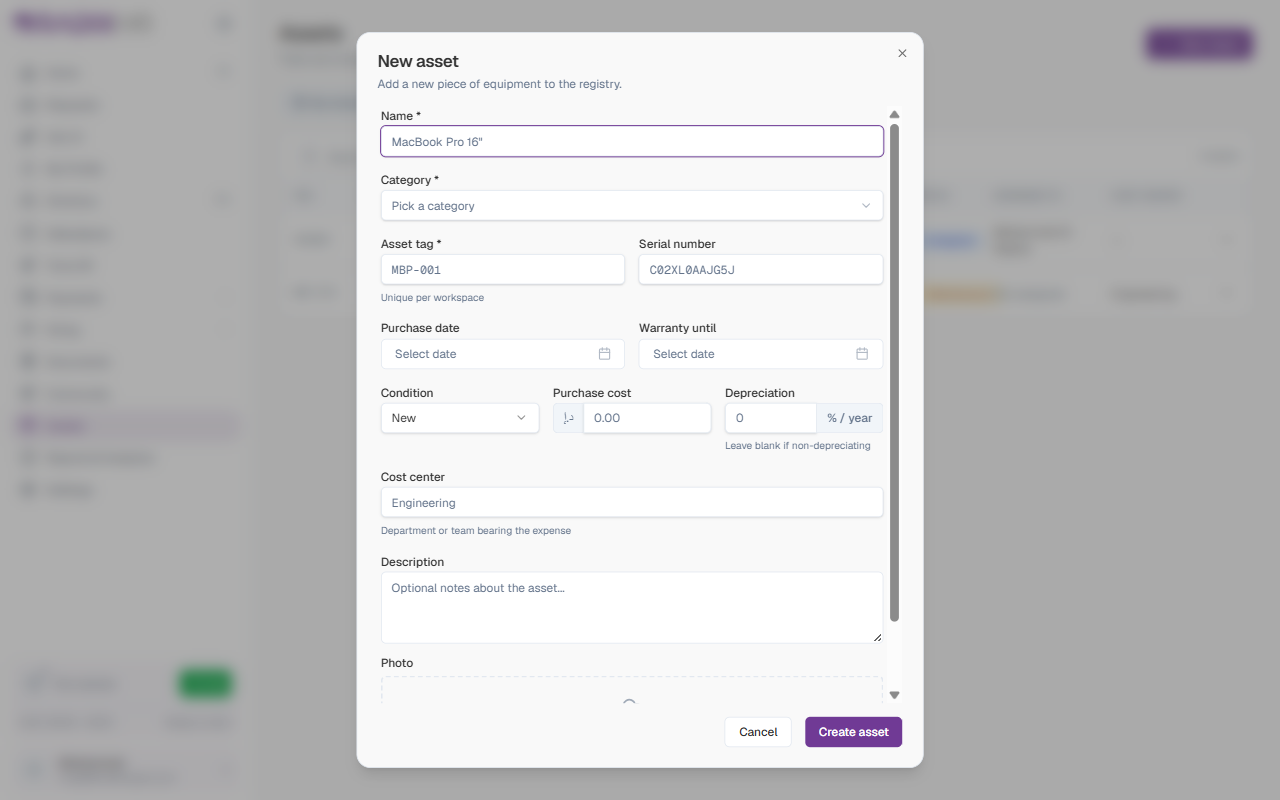
How to Add a New Asset
- Click New Asset in the top-right corner
- Fill in the form (see the fields below)
- Click Create asset
New Asset Form Fields
| Field | Description | Required |
|---|---|---|
| Name | The asset’s display name (e.g., MacBook Pro 16"). | Yes |
| Category | The category the asset belongs to. | Yes |
| Asset tag | The label used to track this item (e.g., MBP-001). Must be unique within the workspace. | Yes |
| Serial number | The manufacturer’s serial number. Useful for warranty claims and insurance. | No |
| Purchase date | The date the asset was bought. | No |
| Warranty until | The date the warranty cover ends. | No |
| Condition | The asset’s physical condition — New, Good, Fair, Poor, or Damaged. Defaults to New. | No |
| Purchase cost | The amount paid for the asset, in the workspace currency. | No |
| Depreciation | A percentage per year that the asset loses in book value. Leave blank if the asset doesn’t depreciate. | No |
| Cost center | The department or team bearing the expense (e.g., “Engineering”). | No |
| Description | Optional notes about the asset. | No |
| Photo | A picture of the asset — JPG, PNG, or WebP, up to 5 MB. Drag and drop or browse to upload. | No |
Add the serial number and purchase date when you first create the asset — they’re easy to forget later and you’ll need them for insurance claims and warranty work.
Asset Detail Page
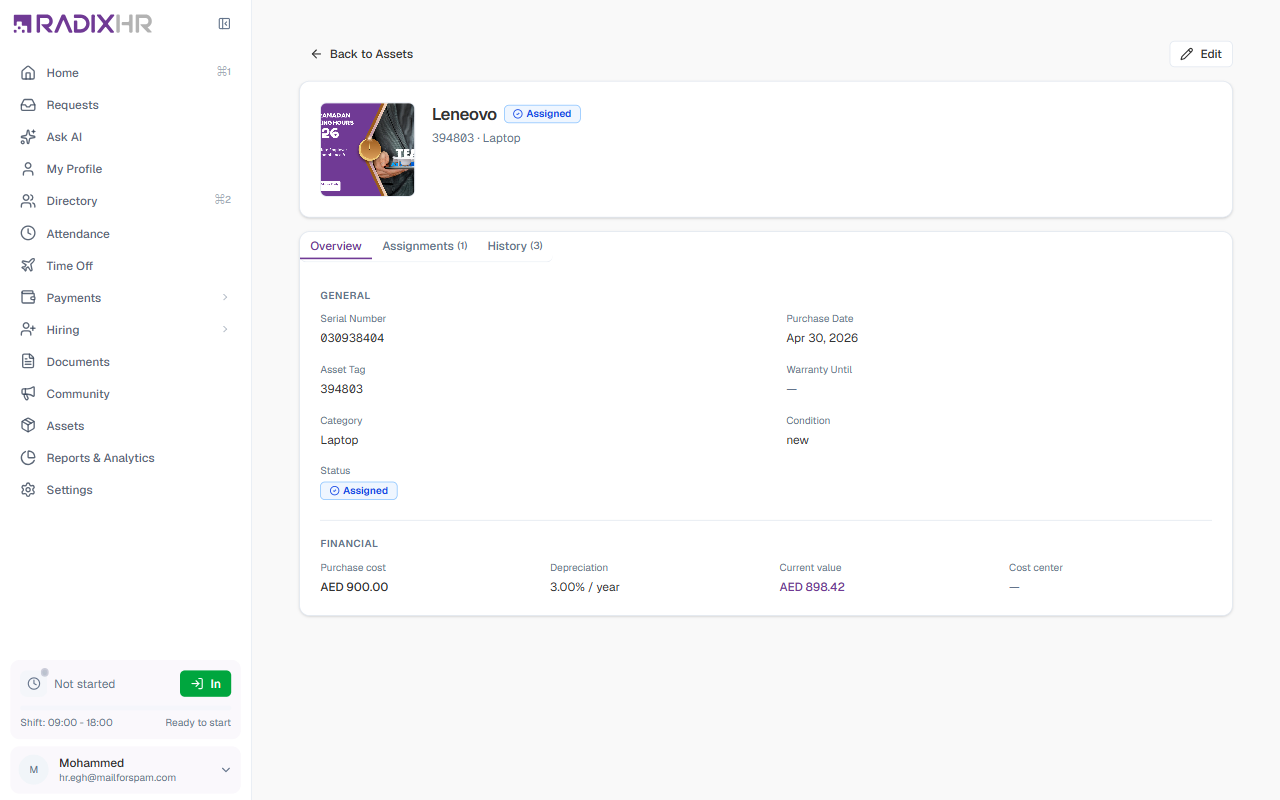
Click View in an asset’s ⋯ menu (or open it from the register) to see its detail page. The header shows the asset name, its status, and its tag and category, with an Edit button. Below that are three tabs:
Overview Tab
The Overview tab is split into two sections:
| Section | Fields |
|---|---|
| General | Serial Number, Purchase Date, Asset Tag, Warranty Until, Category, Condition, Status |
| Financial | Purchase cost, Depreciation, Current value (the depreciated value calculated from the purchase cost and depreciation rate), Cost center |
Assignments Tab
Lists everyone the asset has been issued to, with the Issued date, Expected return date, Returned date, and Status. A Return action on an active assignment marks the asset as handed back.
History Tab
A timeline of everything that has happened to the asset — when it was created, when a photo was uploaded, when it was issued to an employee, and so on — each entry showing who made the change and when.