Attendance
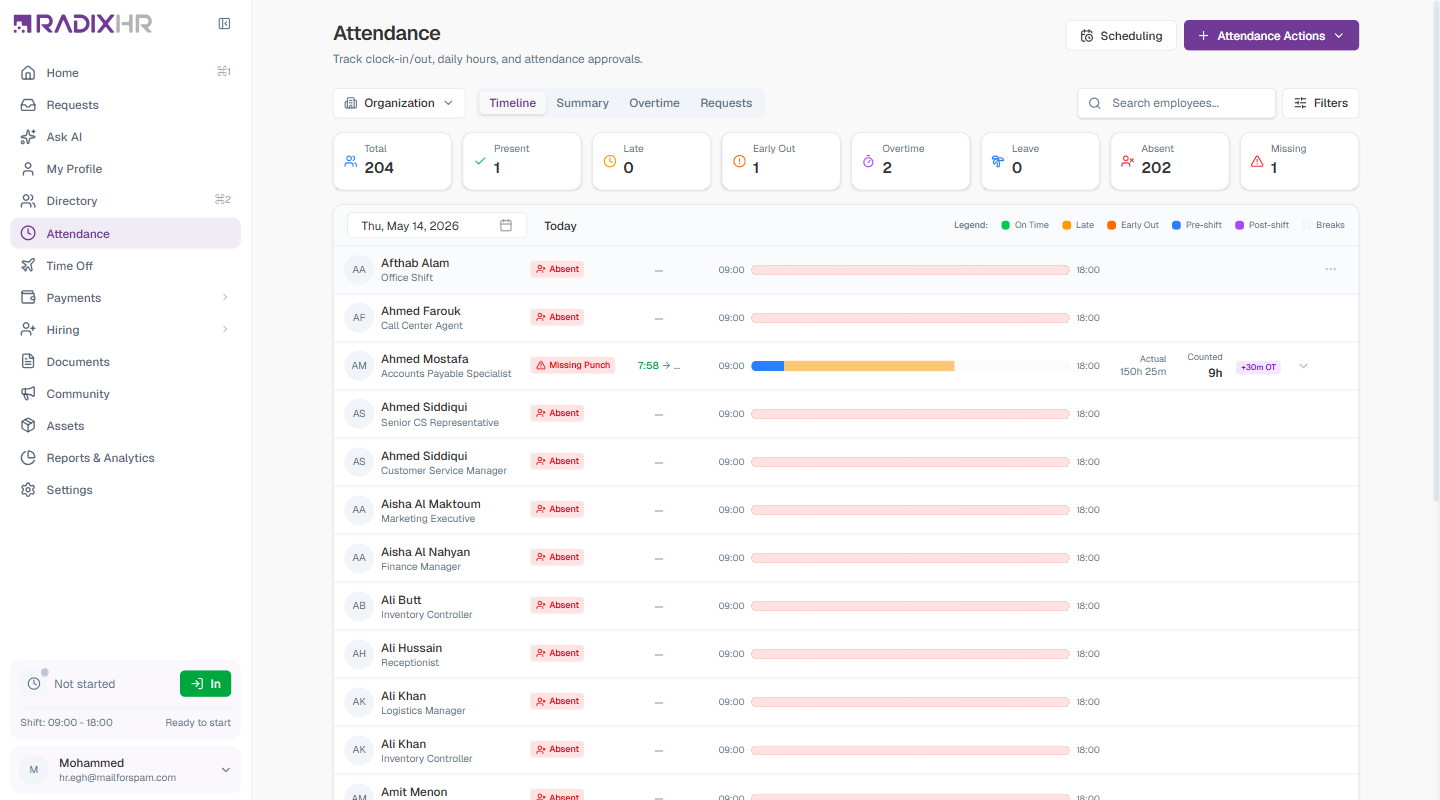
Attendance is the central hub for tracking clock-ins, clock-outs, daily hours, and attendance approvals across your organization. Managers and HR can monitor real-time status, review historical records, analyze trends, and add or correct attendance entries — all from one page.
What you can do here:
- See a live daily timeline of every employee’s clock-in status
- Switch scope between Organization, Team, or your own personal attendance
- View summary analytics — attendance rate, average hours, overtime, late incidents
- Track and review overtime entries by employee and department
- View, submit, and track attendance correction requests (missing punches, wrong punches, work from home, outdoor duty) for the whole organisation, your team, or yourself
- Add manual attendance records for one or multiple employees
- Import attendance data from CSV or Excel
- Clock in and out and track your own weekly and monthly attendance history
Scope Selector
The scope dropdown at the top left controls whose attendance you see. Click it to switch between three scopes:
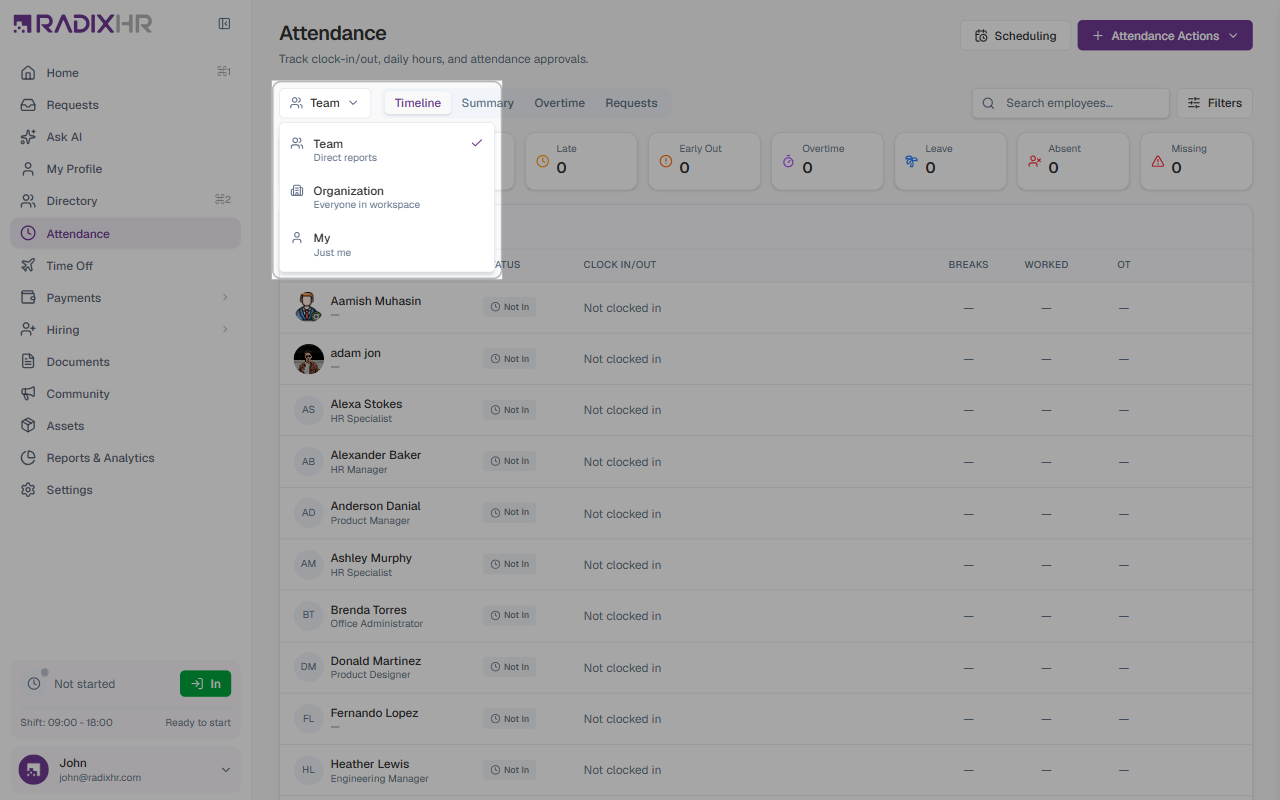
| Scope | Who it shows | Description |
|---|---|---|
| Organization | Everyone | All employees in the workspace |
| Team | Direct reports | Only employees who report to you |
| My | Just you | Your own personal attendance — completely different layout |
Switching to My changes the entire page layout. Instead of a team table, you see a personal Today card with a Clock In/Out button and a weekly or monthly calendar of your own attendance history.
Organization Scope
Organization scope shows attendance for all employees in the workspace. This is the default view for HR admins and managers who need a company-wide picture.
Status Summary Cards
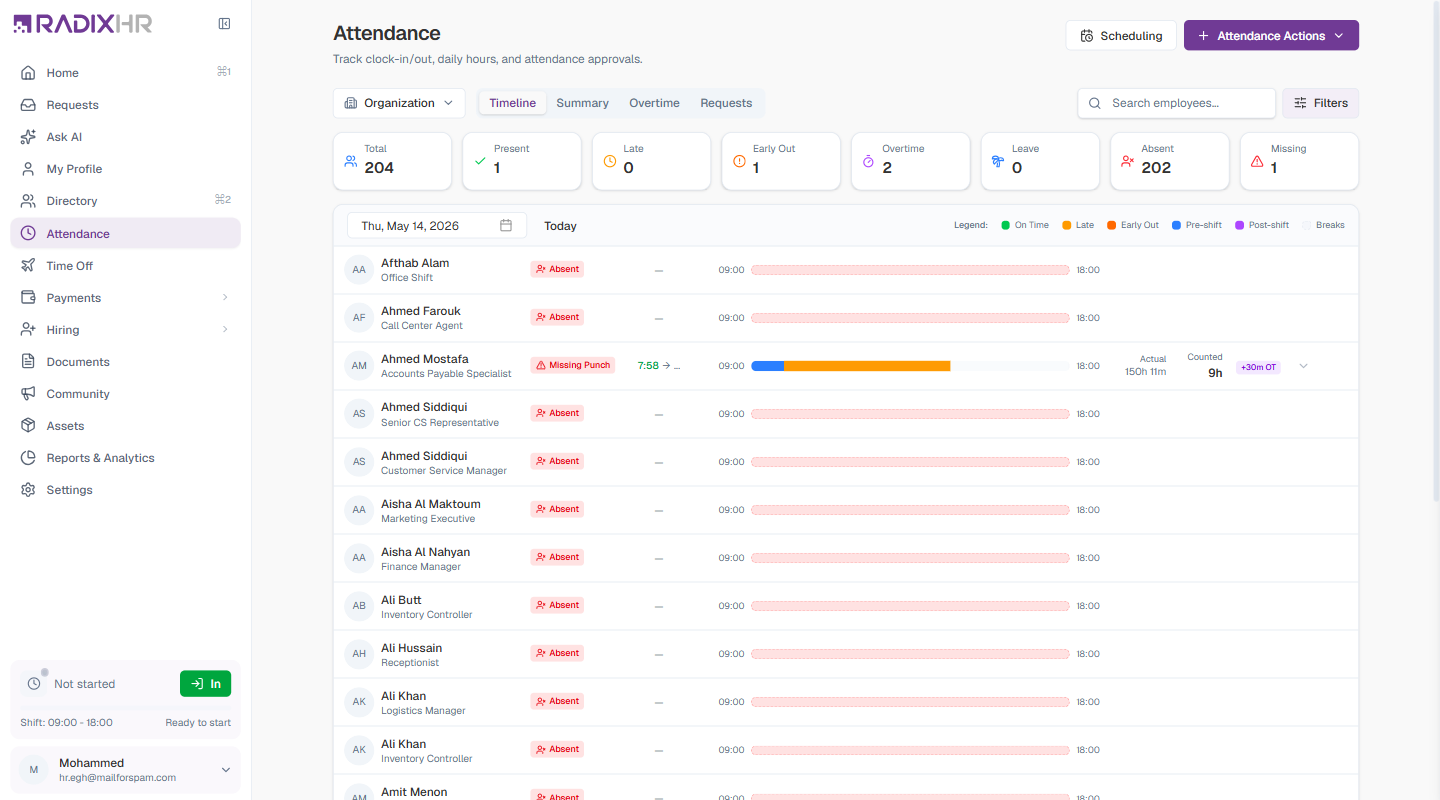
Eight cards across the top show a real-time count for the selected date:
| Card | Description |
|---|---|
| Total | Total employees in scope |
| Present | Employees who clocked in |
| Late | Employees who clocked in after their scheduled start |
| Early Out | Employees who clocked out before their scheduled end |
| Overtime | Employees who worked beyond their scheduled end |
| Leave | Employees on approved leave |
| Absent | Employees with no clock-in and no approved leave |
| Missing | Employees with incomplete records (clocked in but never clocked out, or vice versa) |
Click any card to filter the list to just those employees.
Timeline Tab
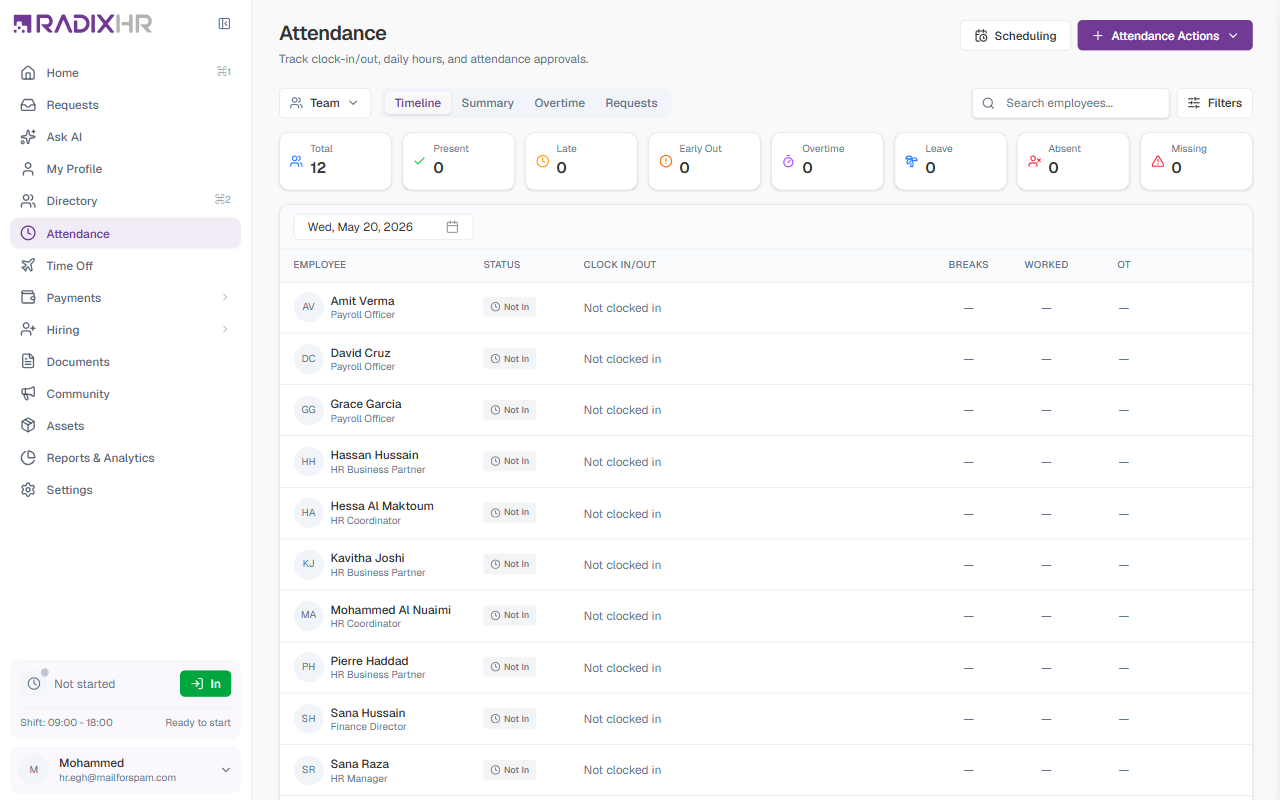
The Timeline tab shows attendance for a selected date. Use the date picker to jump to any day, or click Today to return to the current date. The employee list is paged — use the Rows per page selector and the page controls at the bottom to move through large teams.
View Modes
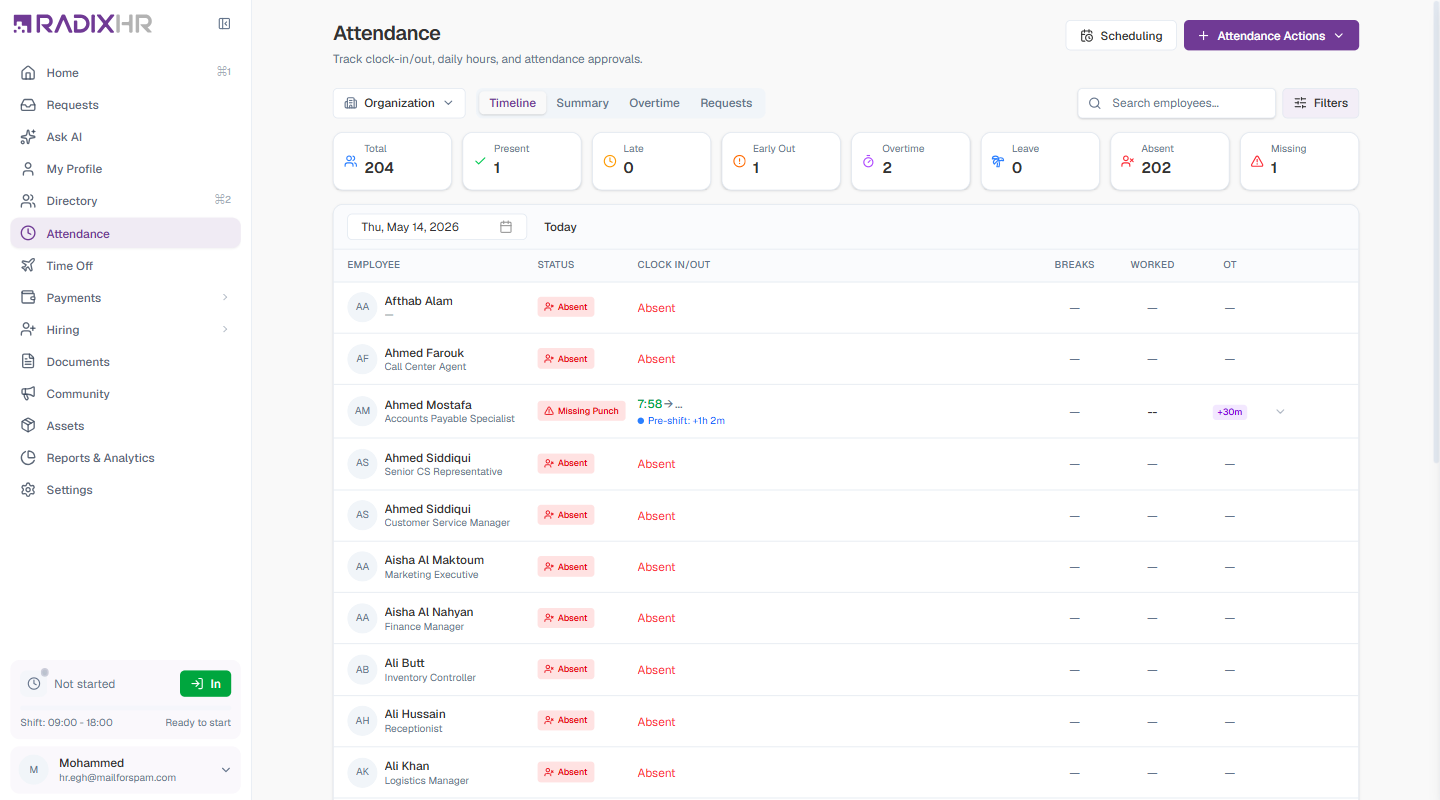
Click Filters (top right) then toggle between two layout modes:
Timeline view — visual bar chart per employee:
| Column | Description |
|---|---|
| Employee | Name and job title |
| Status | Badge showing attendance status |
| Clock In/Out | Actual times clocked in and out |
| Bar | Coloured bar showing when the employee was clocked in, plotted from shift start (09:00) to shift end (18:00) |
| Actual / Counted / OT | Right side shows actual hours worked, counted hours (after policy rules), and overtime |
Bar colours in the legend:
| Colour | Meaning |
|---|---|
| Green (On Time) | Clocked in within the expected window |
| Orange (Late) | Clocked in after the scheduled start |
| Orange/Red (Early Out) | Clocked out before the scheduled end |
| Blue (Pre-shift) | Worked before the scheduled start time |
| Purple (Post-shift) | Worked after the scheduled end time |
| Gray (Breaks) | Time recorded as a break |
Grid view — compact data table:
| Column | Description |
|---|---|
| Employee | Name, avatar, and designation |
| Status | Attendance status badge |
| Clock In/Out | Clock-in and clock-out times, plus any pre-shift or post-shift indicators |
| Breaks | Break time recorded |
| Worked | Total time worked |
| OT | Overtime duration |
Expanding a Row
Click any row that has attendance data to expand it inline. The expanded view shows three sections:
| Section | What it shows |
|---|---|
| Sessions | Each individual clock-in/out session with start time, end time, and duration |
| Breaks | Any breaks recorded during the day |
| Summary | Total worked time, the employee’s shift schedule, and overtime |
Row Actions
Each row has a ⋯ (three-dot) button on the right for HR and manager actions:
| Action | Description |
|---|---|
| Edit Attendance | Edit the clock-in/out sessions for this employee on this day. Optionally override the calculated status. Requires a reason. |
| Create Request | Create an attendance correction request on behalf of the employee. Choose a request type from the dropdown. |
| Reprocess Attendance | Re-run the attendance calculation for this employee’s record, useful after fixing a shift or policy configuration. |
| Remove Record | Delete the attendance record for this day. |
Added a holiday (or fixed a shift/policy) after attendance was already marked Absent for that day? There is no single bulk action that reprocesses already-calculated records — the bulk Reprocess Pending button (in Attendance Actions, below) only covers days that have not yet been processed, so it will not touch records that are already marked Absent. To fix already-processed records, use Reprocess Attendance here, one employee’s row at a time.
Fixing one employee’s missing clock-out? Use Edit Attendance here — it lets you set the clock-in/out sessions directly for that one day. This is the admin/manager equivalent of the pencil-icon quick-edit on the employee’s own attendance view; there is no hover-to-edit pencil icon in Organization or Team scope, only this row menu. If you’d rather route it through an approval, use Create Request instead, or + New Request on the Requests Tab.
Summary Tab
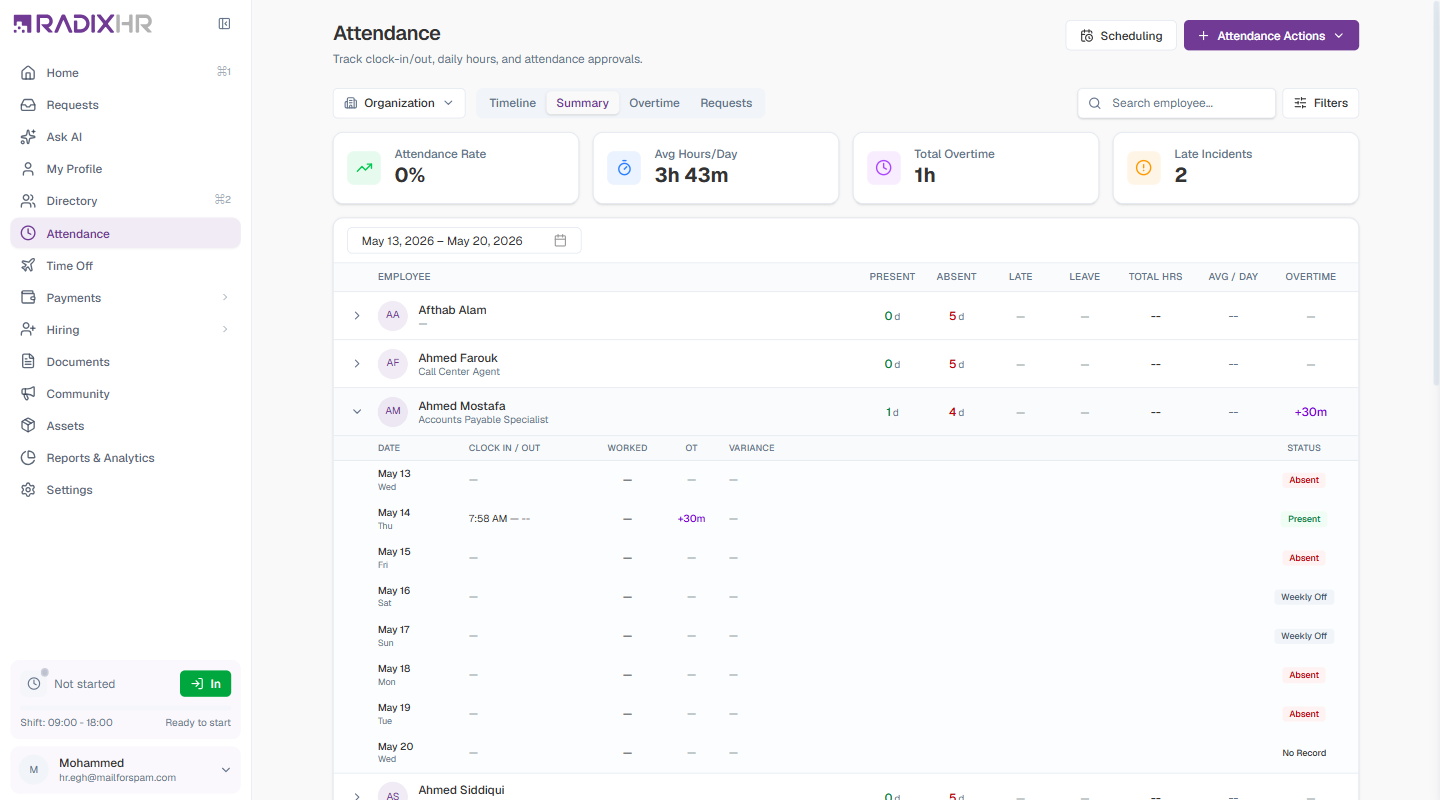
The Summary tab shows attendance analytics over a date range. Use the date range picker to define the period.
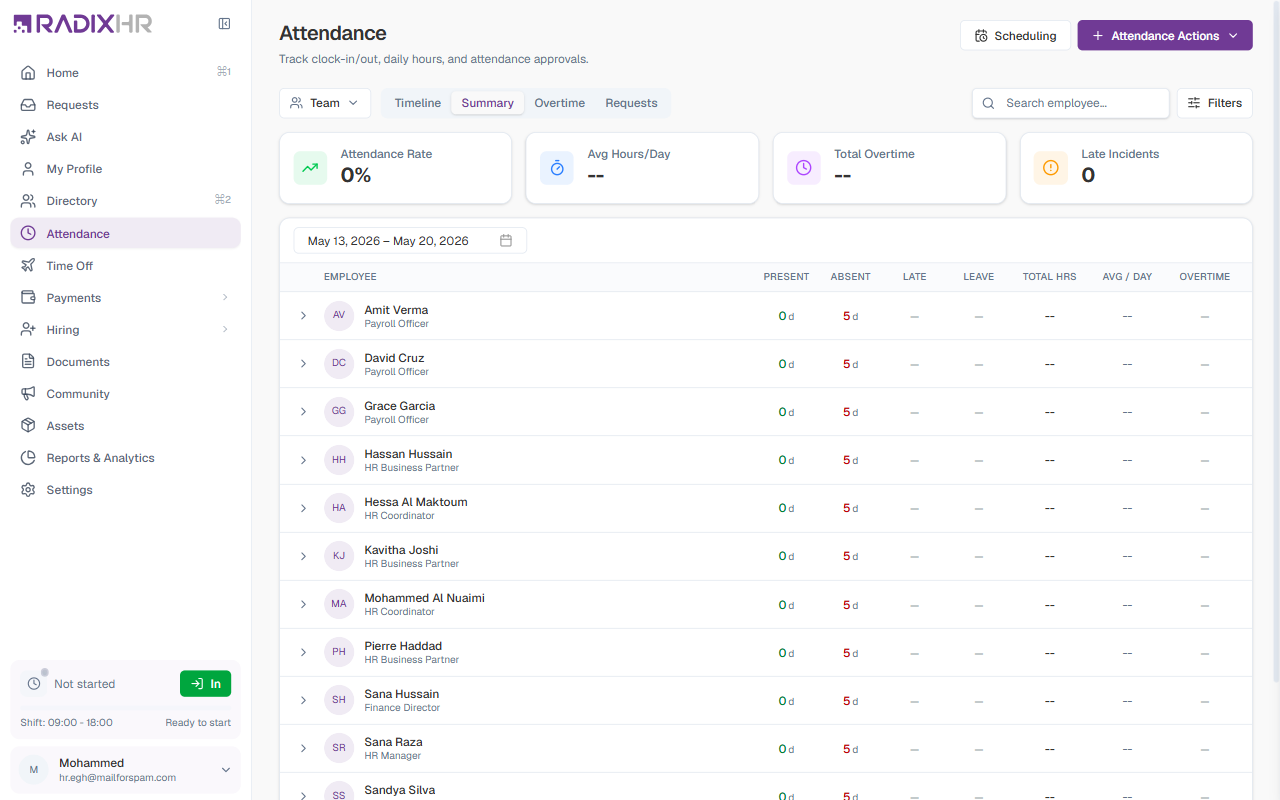
Four KPI cards summarize the period:
| Card | Description |
|---|---|
| Attendance Rate | Percentage of scheduled working days where employees were present |
| Avg Hours/Day | Average hours worked per day across all employees |
| Total Overtime | Combined overtime hours in the period |
| Late Incidents | Total number of late clock-ins |
Below the KPIs, a per-employee table shows:
| Column | Description |
|---|---|
| Employee | Name and designation. Click › to expand the daily breakdown. |
| Present | Days present |
| Absent | Days absent |
| Late | Late incidents |
| Leave | Leave days taken |
| Total Hrs | Total hours worked |
| Avg / Day | Average hours per working day |
| Overtime | Total overtime for the period |
When you expand a row, the daily breakdown shows: Date, Clock In/Out, Worked, OT, Variance, and Status for each day in the range.
Overtime Tab
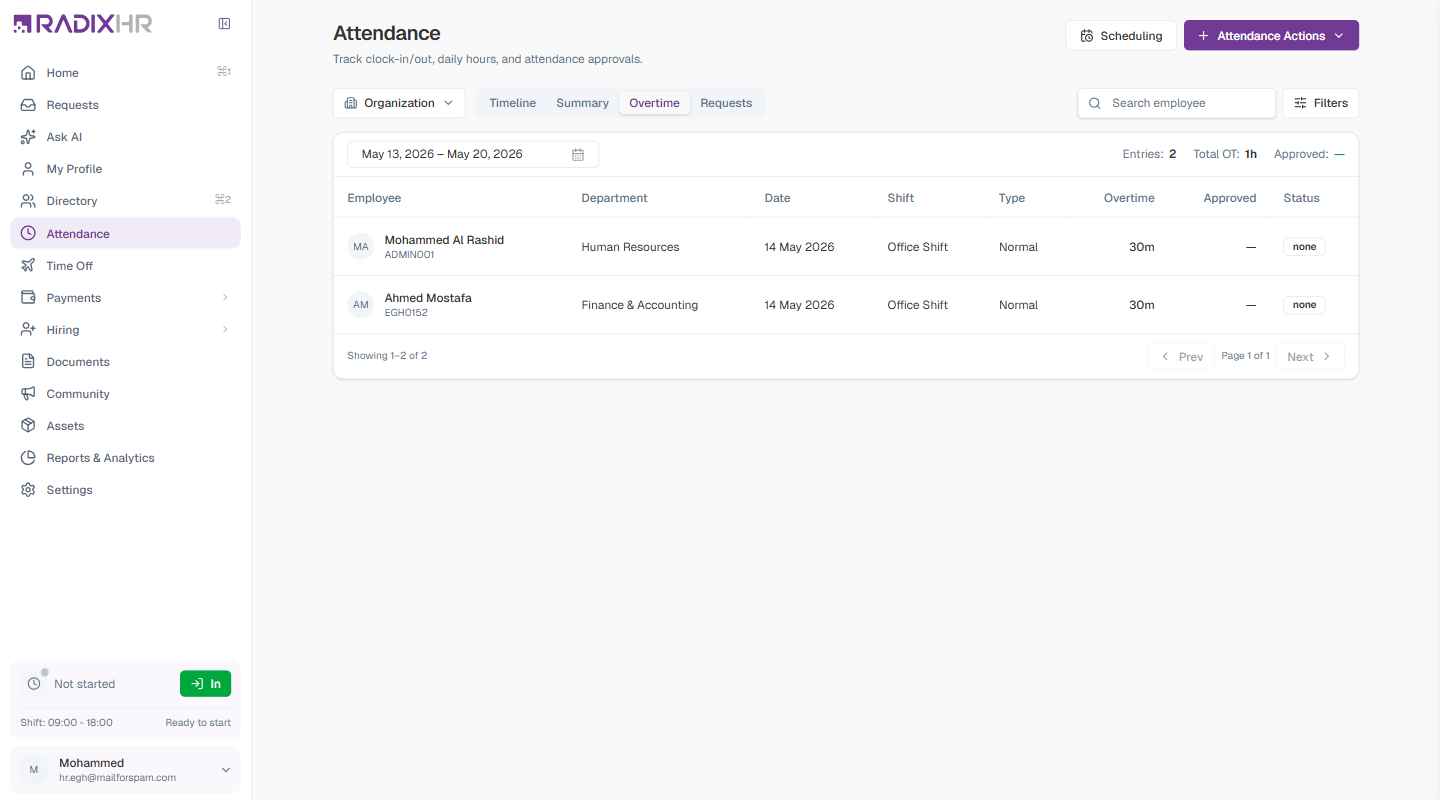
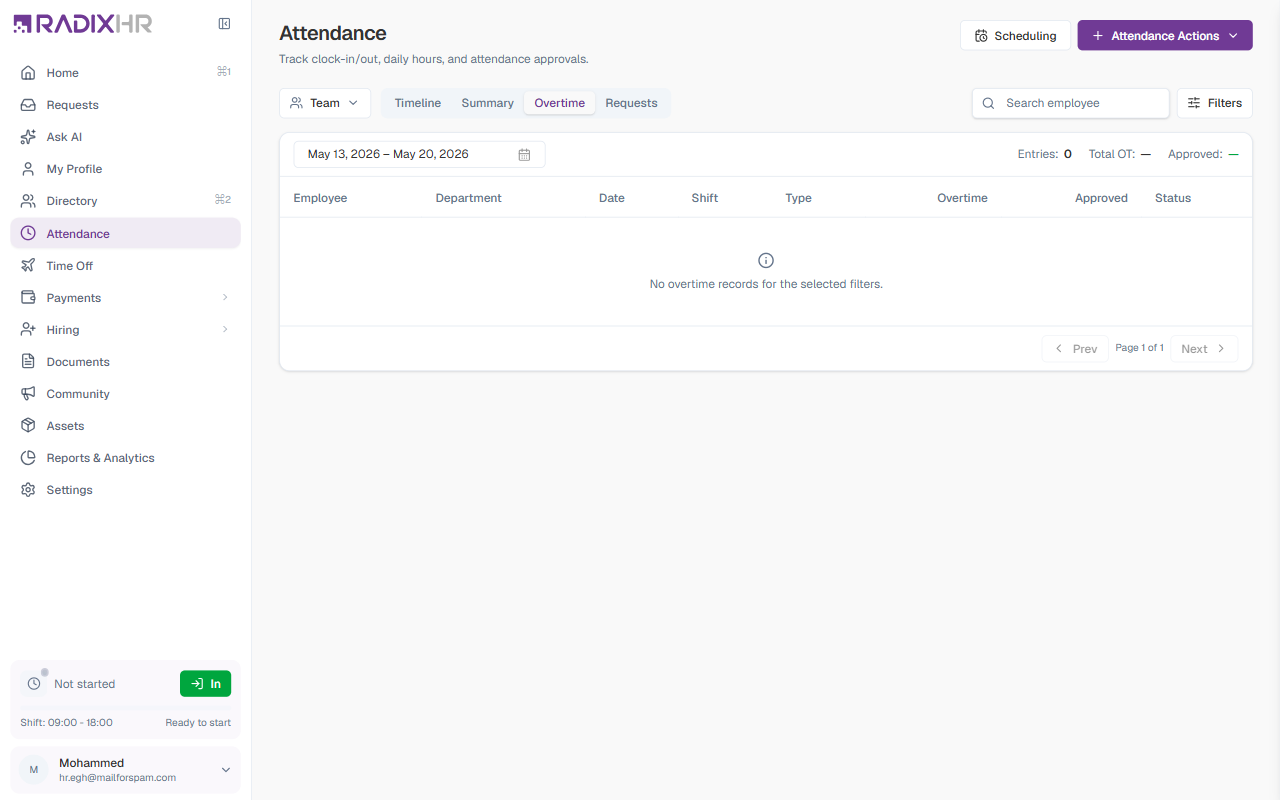
The Overtime tab lists individual overtime entries within a date range. The header shows aggregate stats:
| Stat | Description |
|---|---|
| Entries | Number of overtime records in the selected period |
| Total OT | Combined overtime duration |
| Approved | Total approved overtime duration |
Each row shows:
| Column | Description |
|---|---|
| Employee | Name and employee code |
| Department | The employee’s department |
| Date | The date overtime occurred |
| Shift | The assigned shift on that day |
| Type | Overtime type — Normal or other configured types |
| Overtime | Duration of overtime |
| Approved | Approved overtime duration (if applicable) |
| Status | Approval status — none, pending, approved |
Requests Tab
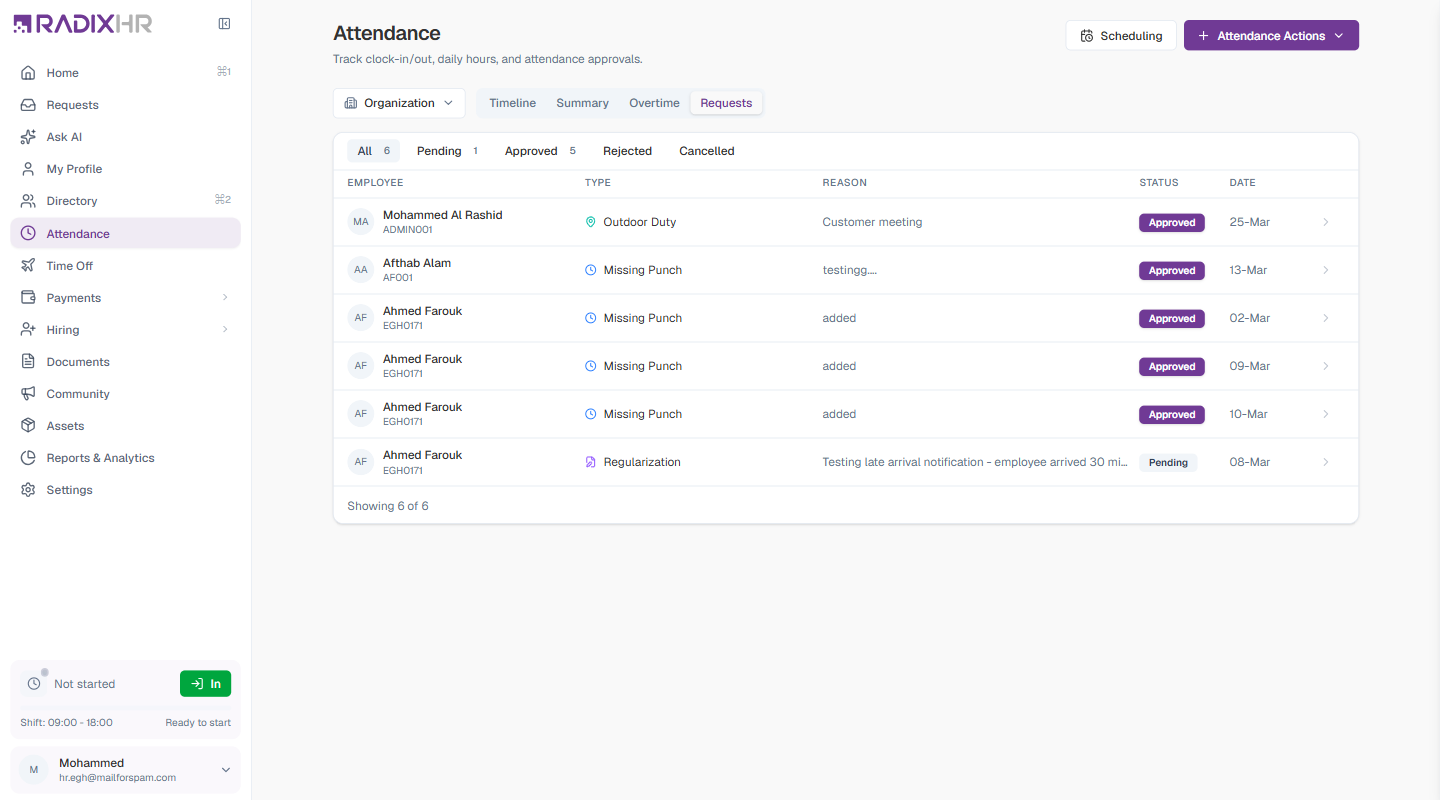
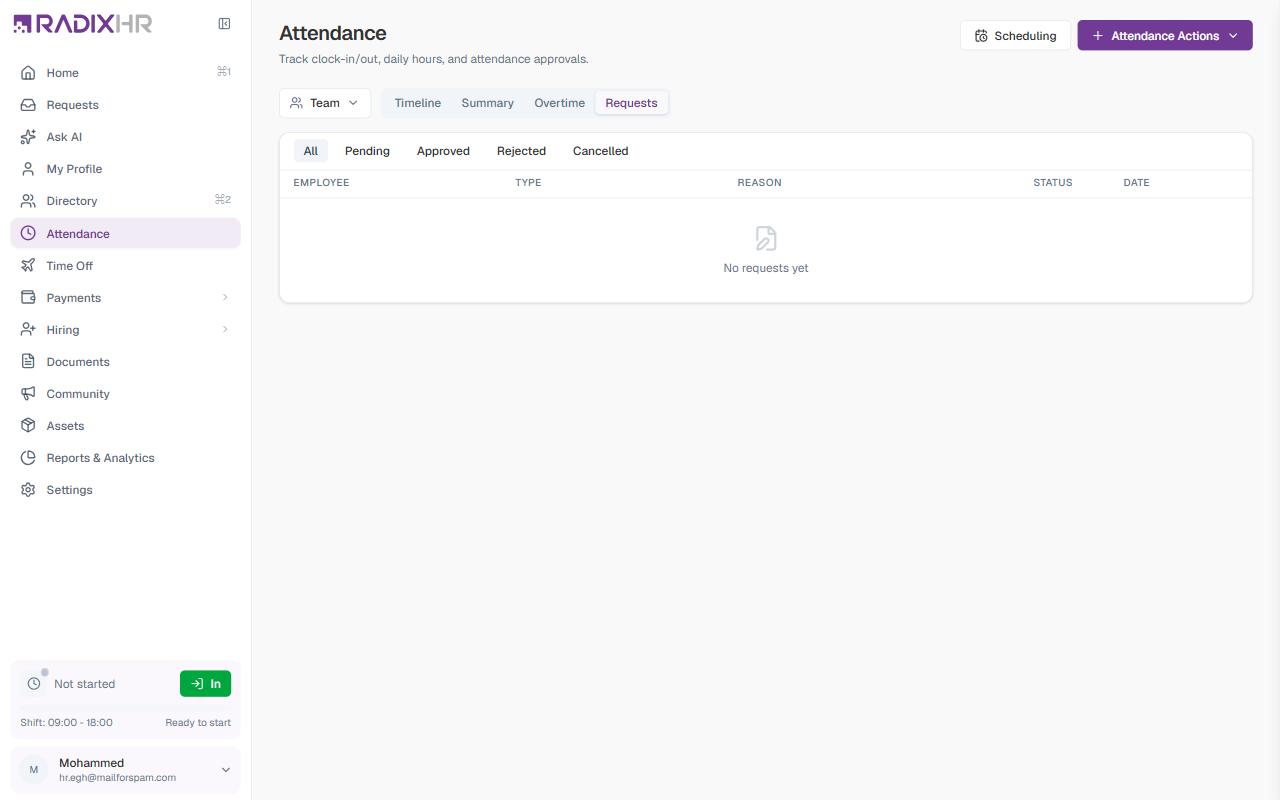
The Requests tab lists attendance correction requests for the current scope — in Organization scope the card is titled All Requests and shows every employee’s requests; in Team scope it’s Team Requests (your direct reports); in My scope it’s My Requests (just yours). The footer shows “Showing N of M” with a Load more button.
Use the status filter tabs to narrow results (each shows a count):
| Tab | Description |
|---|---|
| All | Every request regardless of status |
| Pending | Requests awaiting approval |
| Approved | Requests that have been approved |
| Rejected | Requests that were declined |
| Cancelled | Requests that were withdrawn |
The table shows:
| Column | Description |
|---|---|
| Employee | Who the request is for — avatar, name, and employee code (not shown in My scope) |
| Type | The type of correction — Missing Punch, Wrong Punch, Work From Home, Late Exception, etc., each with an icon |
| Reason | The reason given on the request |
| Status | Current approval status badge |
| Date | The date the request applies to |
Click any row to open the request detail panel on the right. The panel shows:
- Request Information: request type and category (e.g., “Wrong Punch — Attendance Correction”), the date, start and end times requested, and the reason
- Tracking Details: reference number, submission timestamp, current status, and current stage — plus who approved it and when, once it’s complete
- For pending requests: a Send Reminder button to nudge the approver, and a Cancel Request button to withdraw the submission
Click + New Request (top right of the card) to raise a correction. In Organization and Team scope the form starts with an Employee picker so you can submit on someone’s behalf; in My scope it’s for you. See + New Request below for the request types.
This tab is for viewing and submitting. To approve or reject requests, use the Requests page’s Approvals view, or Settings → Workflows → Approval Management.
Attendance Actions
The + Attendance Actions button at the top right (visible in Organization and Team scopes) provides tools for HR to manually manage attendance records.
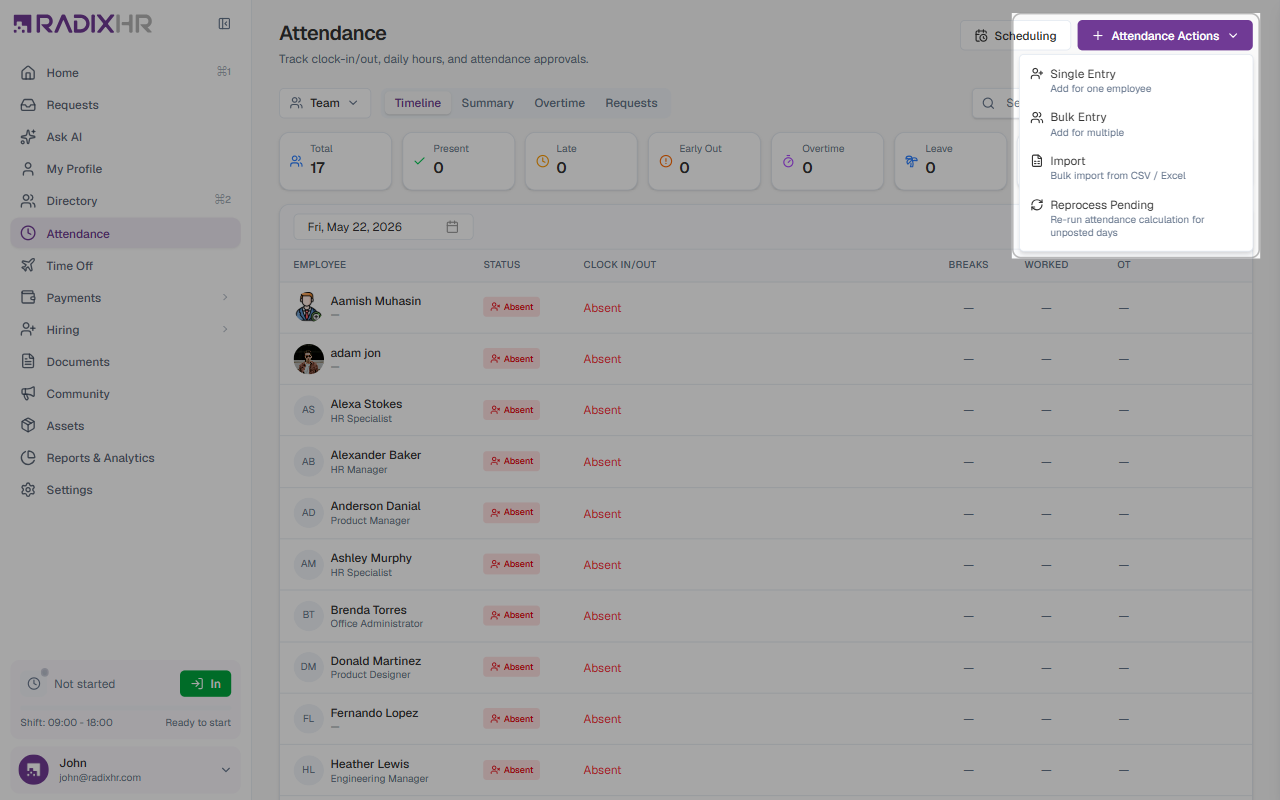
| Action | Description |
|---|---|
| Single Entry | Manually add or update an attendance record for one employee |
| Bulk Entry | Add attendance records for multiple employees at once |
| Import | Upload attendance data from a CSV or Excel file |
| Reprocess Pending | Re-run the attendance calculation for days that have not yet been processed |
Single Entry
- Click + Attendance Actions → Single Entry
- Select the Employee
- Choose the Date
- Set the Session times (clock-in and clock-out). Click + Add Session for multiple sessions (e.g., split shifts)
- Optionally enable Override Status to manually set the attendance status instead of letting the system calculate it from the shift schedule
- Enter a Reason for the manual record
- Click Submit — the entry will be sent for approval
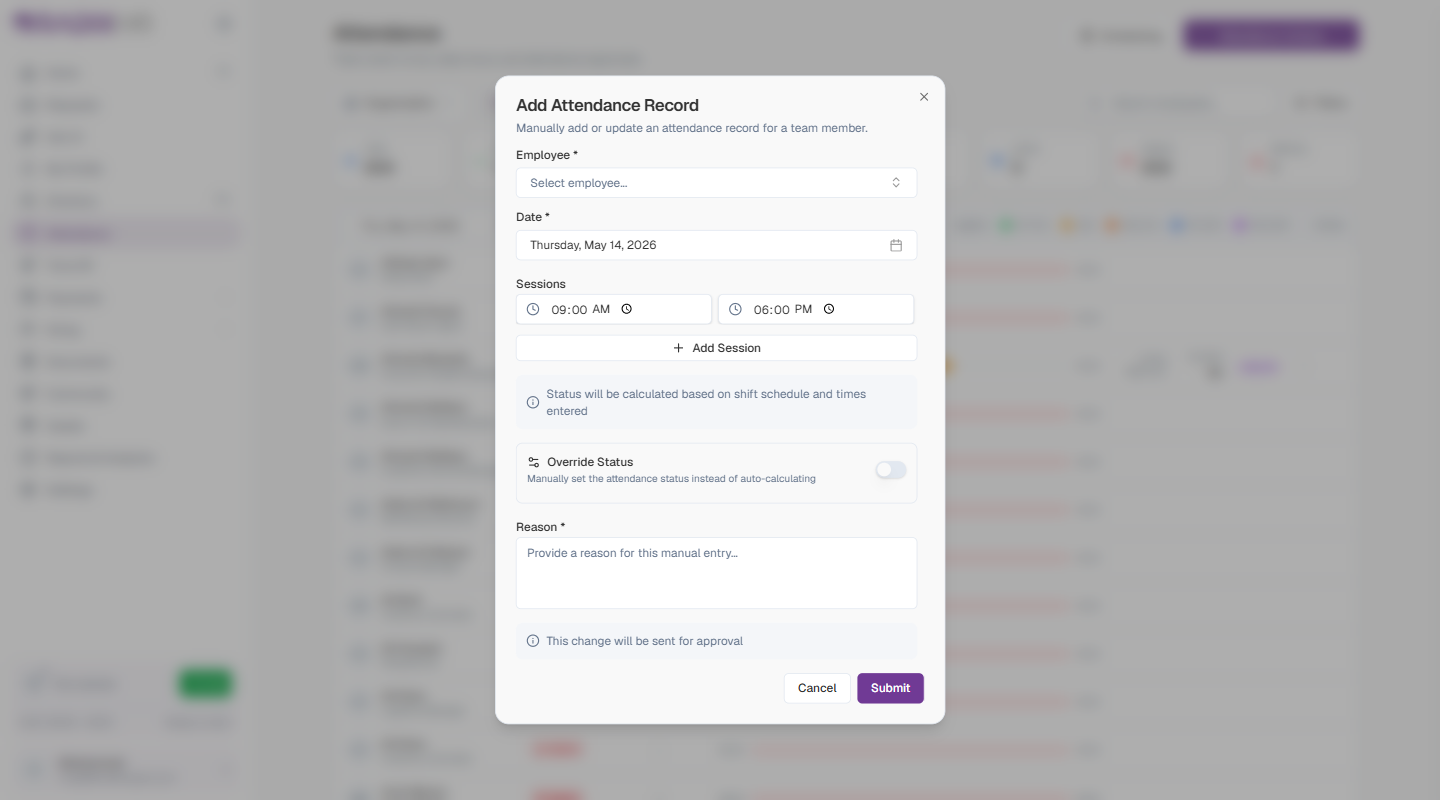
| Field | Description | Required |
|---|---|---|
| Employee | The employee whose attendance is being recorded | Yes |
| Date | The date the attendance applies to | Yes |
| Sessions | Clock-in and clock-out times. Use + Add Session for multiple sessions. | Yes |
| Override Status | When enabled, lets you manually set the attendance status instead of auto-calculating from the shift schedule | No |
| Reason | A note explaining why this record is being added manually | Yes |
Manual attendance entries are sent for approval before taking effect. The approver will see the entry in the Requests tab.
Bulk Entry
The Bulk Entry wizard lets you add records for multiple employees in one step:
- Select Employees — choose the date and pick which employees to add records for
- Set Sessions — enter the clock-in/out times that apply to the selected employees
Filters
Click Filters (top right) to open the filter panel:
| Filter | Description |
|---|---|
| View | Switch the Timeline tab between Timeline (visual bar chart) and Grid (data table) layout |
| Department | Show only employees from a specific department |
| Status | Filter by attendance status (On Time, Late, Early Out, Absent, etc.) |
Team Scope
Team scope shows attendance only for employees who report directly to you. It is designed for managers who want to monitor their own team without seeing the whole organization.
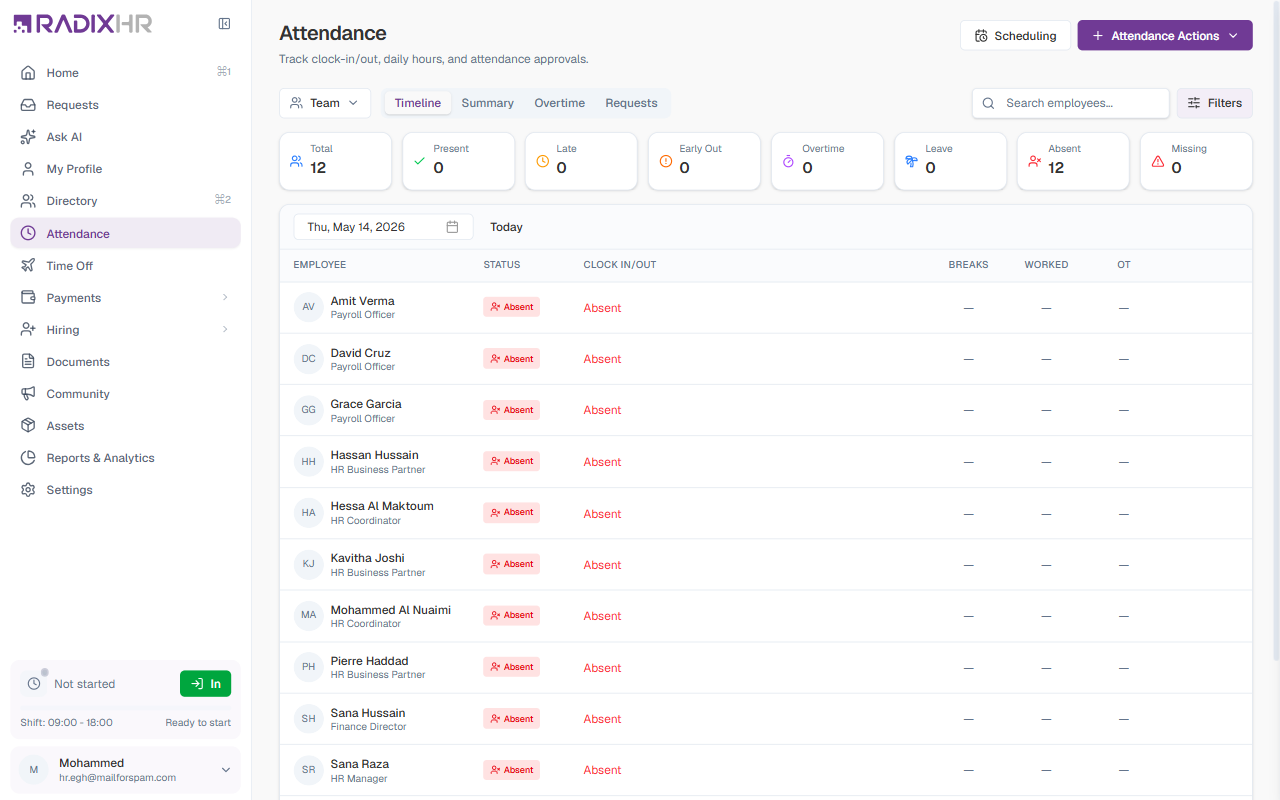
Team scope has the same four tabs, status cards, row actions, Attendance Actions button, and Filters as Organization Scope — refer to that section for full details on each feature. The key difference is the employee list: only your direct reports appear.
Timeline Tab (Team)
Shows the daily attendance grid for your direct reports. Use the date picker to navigate to any day. The same Timeline / Grid view toggle is available via Filters.
Summary Tab (Team)
Shows attendance analytics for your direct reports over a selected date range. The same four KPIs (Attendance Rate, Avg Hours/Day, Total Overtime, Late Incidents) and per-employee breakdown table are shown as in Organization scope.
Overtime Tab (Team)
Lists overtime entries for your direct reports within the selected date range.
Requests Tab (Team)
Titled Team Requests — the same table and status filters as Organization scope, limited to requests from your direct reports. Click a row for the detail panel, or use + New Request to submit one on a team member’s behalf.
My Scope
Switching to My shows your own personal attendance — the layout is completely different from the Organization and Team views.
Today Card
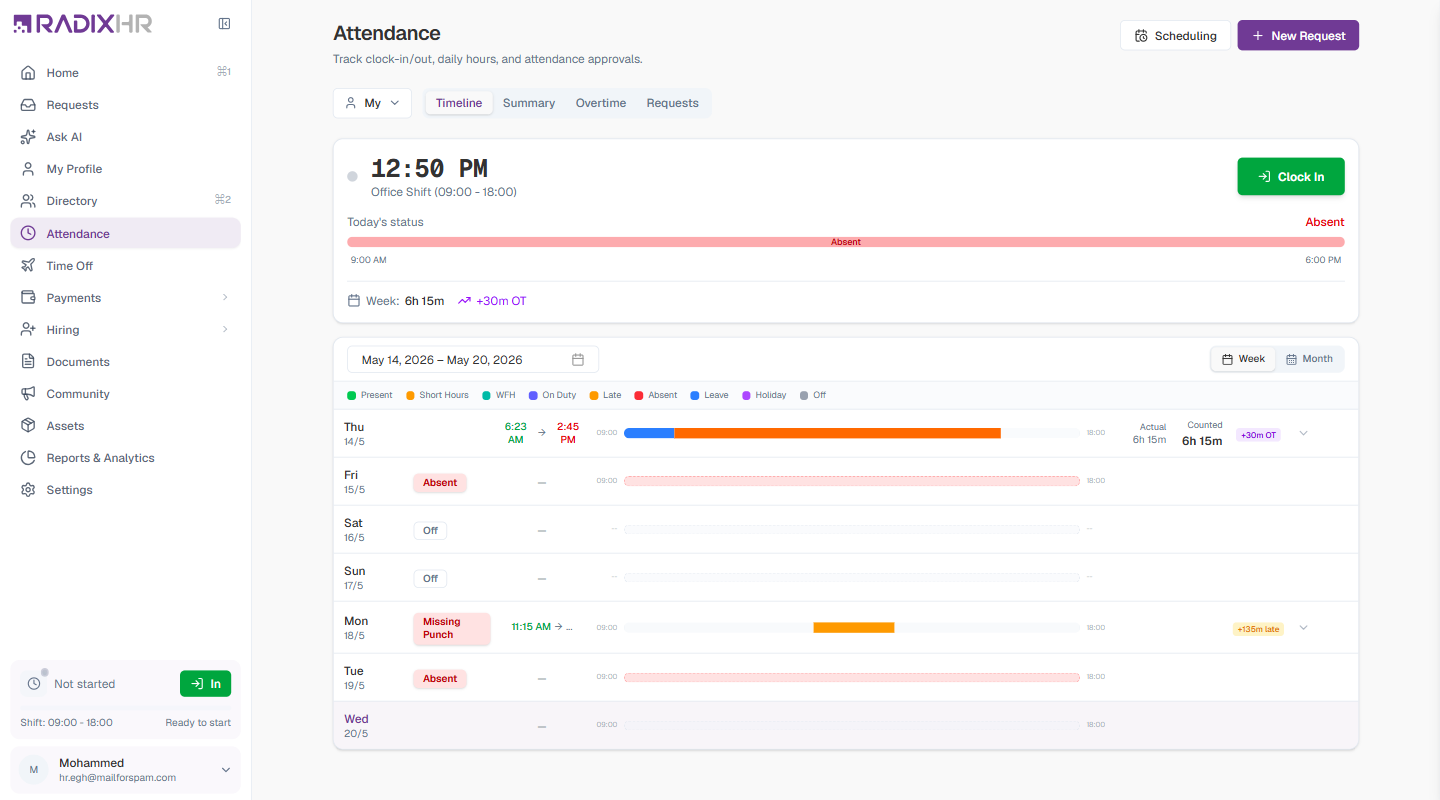
At the top of the Timeline tab, the Today card shows your real-time clock status:
| Element | Description |
|---|---|
| Current time | Live clock showing the current time |
| Shift | Your assigned shift name and scheduled hours (e.g., Office Shift 09:00–18:00) |
| Clock In / Clock Out | Button to clock in or out directly from this page |
| Today’s status | Visual bar spanning your shift hours, showing your current attendance status |
| Week summary | Total hours worked this week and any overtime |
Timeline Tab — Week and Month Views
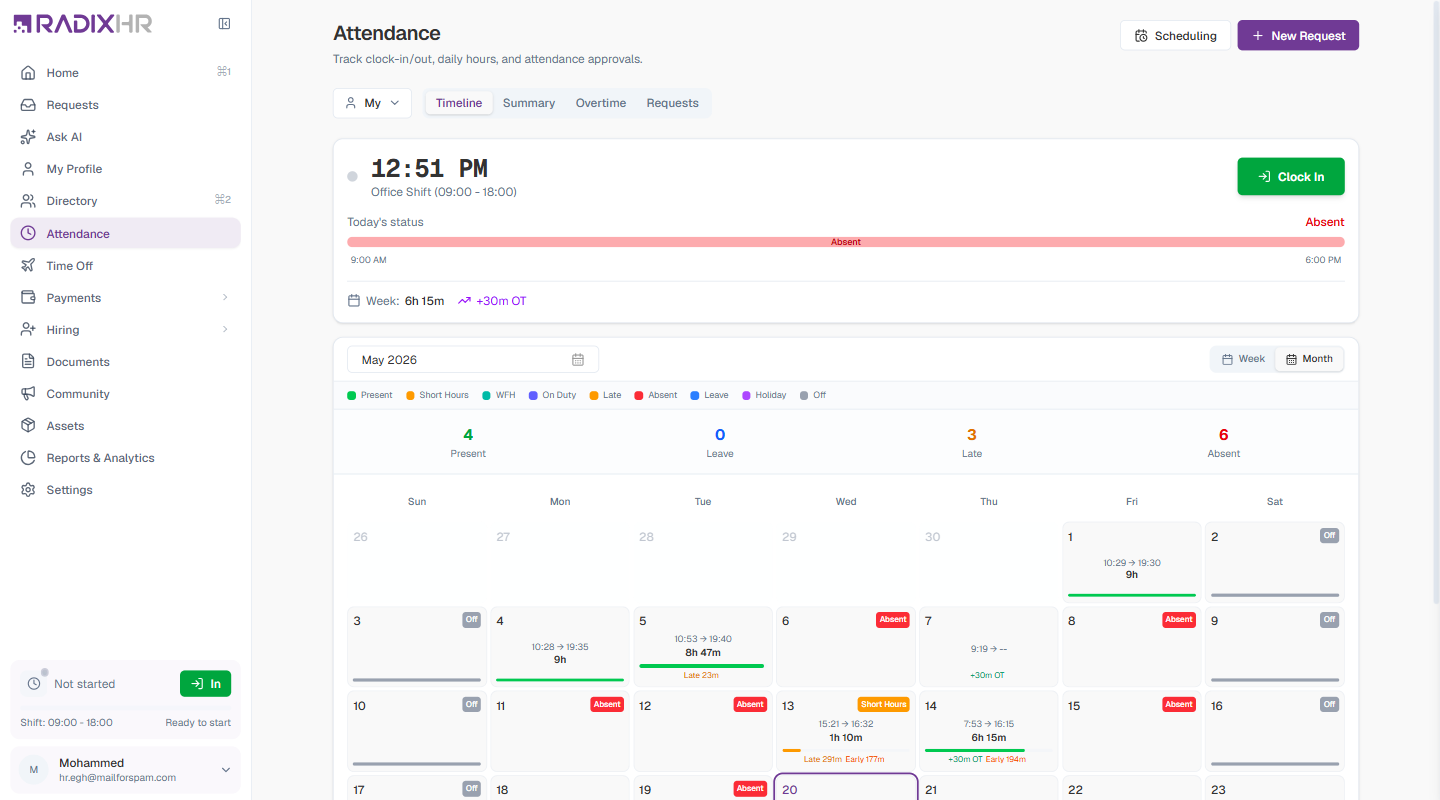
Below the Today card, your attendance history is shown as a calendar. Use the Week or Month toggle to switch views.
Legend for both views: Present, Short Hours, WFH (work from home), On Duty, Late, Absent, Leave, Holiday, Off
Week view — each day is a row showing:
- Day name and date
- Status badge (Present, Absent, Late, Missing Punch, Off, etc.)
- Clock in and clock out times
- Visual bar from shift start to end
- Actual hours, counted hours, and OT or late indicators
Month view — a full calendar grid showing:
- Monthly summary stats: Present days, Leave days, Late incidents, Absent days
- Each day cell shows clock times, worked hours, and a colour bar indicating status
Summary Tab (My)
Four KPI cards at the top:
| Card | Description |
|---|---|
| Attendance Rate | Your attendance rate as a percentage |
| Total Hours | Total hours you worked in the period |
| Avg / Day | Your average hours per working day |
| Overtime | Total overtime recorded in the period |
Below the KPIs, a legend shows your Present, Absent, Late/Early, and Leave day counts for the period.
The day-by-day table shows: Date, Status, In, Out, Worked, Overtime for each day in the date range.
Overtime Tab (My)
Same structure as the Organization/Team Overtime tab, filtered to show only your own overtime entries.
Requests Tab (My)
Titled My Requests — your own attendance correction requests. Columns are: Type, Reason, Status, Date (no Employee column since these are your own requests).
+ New Request
Click + New Request (top right of the page in My scope, or on the Requests card in the other scopes) to submit an attendance correction request:
| Field | Description | Required |
|---|---|---|
| Employee | Who the request is for. Only shown in Organization and Team scope — in My scope the request is always for you. | Yes |
| Date | The date the request applies to | Yes |
| Request Type | What you need to correct — see options below. Choosing a type reveals its own fields (e.g., corrected punch times or a reason). | Yes |
Available request types:
| Type | When to use |
|---|---|
| I forgot to punch in/out | You missed clocking in or out |
| I made a wrong punch | You clocked in/out at the wrong time by mistake |
| Excuse my late arrival | You arrived late and need it noted with a reason |
| Excuse my early departure | You left early and need approval for it |
| Excuse my absence | You were absent and need the absence excused |
| Out-Pass | You need to step out during the shift for a short while (a permission-to-leave pass) |
| I was on a business trip/errand | You were away from the office on official business |
| I was on outdoor duty | You were working outside the office (e.g., client visit) |
| I worked from home | You worked remotely and couldn’t use the normal clock-in |
| I worked overtime after my shift | You stayed beyond your shift end and want the extra time recorded as overtime |
All attendance requests go through an approval workflow before changes are applied to your record.
Scheduling
The Scheduling button (top right, all scopes) links to the Scheduling page where you can manage shifts and work schedules for employees.
Common Scenarios
“I have two employees who forgot to punch in yesterday — how do I add their attendance for them?” From the Attendance page, use + Attendance Actions → Bulk Entry for more than one employee at once, or Single Entry for just one.
“An employee clocked in this morning but forgot to clock out — how do I fix that one entry?” Open that employee’s row on the Timeline for that date, click the ⋯ menu, and choose Edit Attendance — this is the admin/manager way to fix one entry directly. There is no hover-to-edit pencil icon in Organization or Team scope (that’s an employee self-service feature); the row menu is the equivalent here.
“Our office wifi geofencing is blocking a few employees who work from client sites — how do I turn that off just for them?” Don’t remove anything. Go to Attendance Settings → Geofence and assign those employees their own geofence location(s) covering where they actually work. This creates a personal override; removing an existing personal assignment does the opposite of fixing a blocking problem — it sends the employee back to the (more restrictive) workspace default.
“I forgot to add a public holiday and now half the team is marked absent for that day — how do I fix this after the fact?” Add the holiday to the Holiday Calendar first, then there is no single bulk fix — the bulk Reprocess Pending button (in Attendance Actions) only covers days that have not yet been processed, so it will not touch records that are already marked Absent. Fix each affected employee individually: open their row, ⋯ menu, Reprocess Attendance.
“Some of our staff work from home two days a week — how do I make that count as valid attendance instead of absent?” Work From Home is already a real attendance request type, not something you have to build — the employee raises an attendance request from their own Attendance page and picks Work From Home (unlike punch-correction types, it can be raised for a future date, so they can request it ahead of time). Once approved, that day shows as WFH in their status, not Absent. The one thing you need to check on your end: go to Attendance Settings → Request Type Workflows and confirm Work From Home has an approval workflow linked — if it shows No workflow assigned and there’s no global fallback, employees will see “No approval workflow is configured for … requests” and won’t be able to submit it at all.