Calendar
The Calendar gives you a month-at-a-glance view of who is off and when — every approved and pending leave request across the organisation, plus public holidays — so you can plan cover, spot clashes, and answer “is anyone free that week?” without opening each request.
What you can do here:
- See every employee’s leave for a month laid out on a calendar grid
- Tell approved leave from pending requests at a glance
- See public holidays alongside leave
- Narrow the view to a single department
- Open any busy day to list everyone who is off
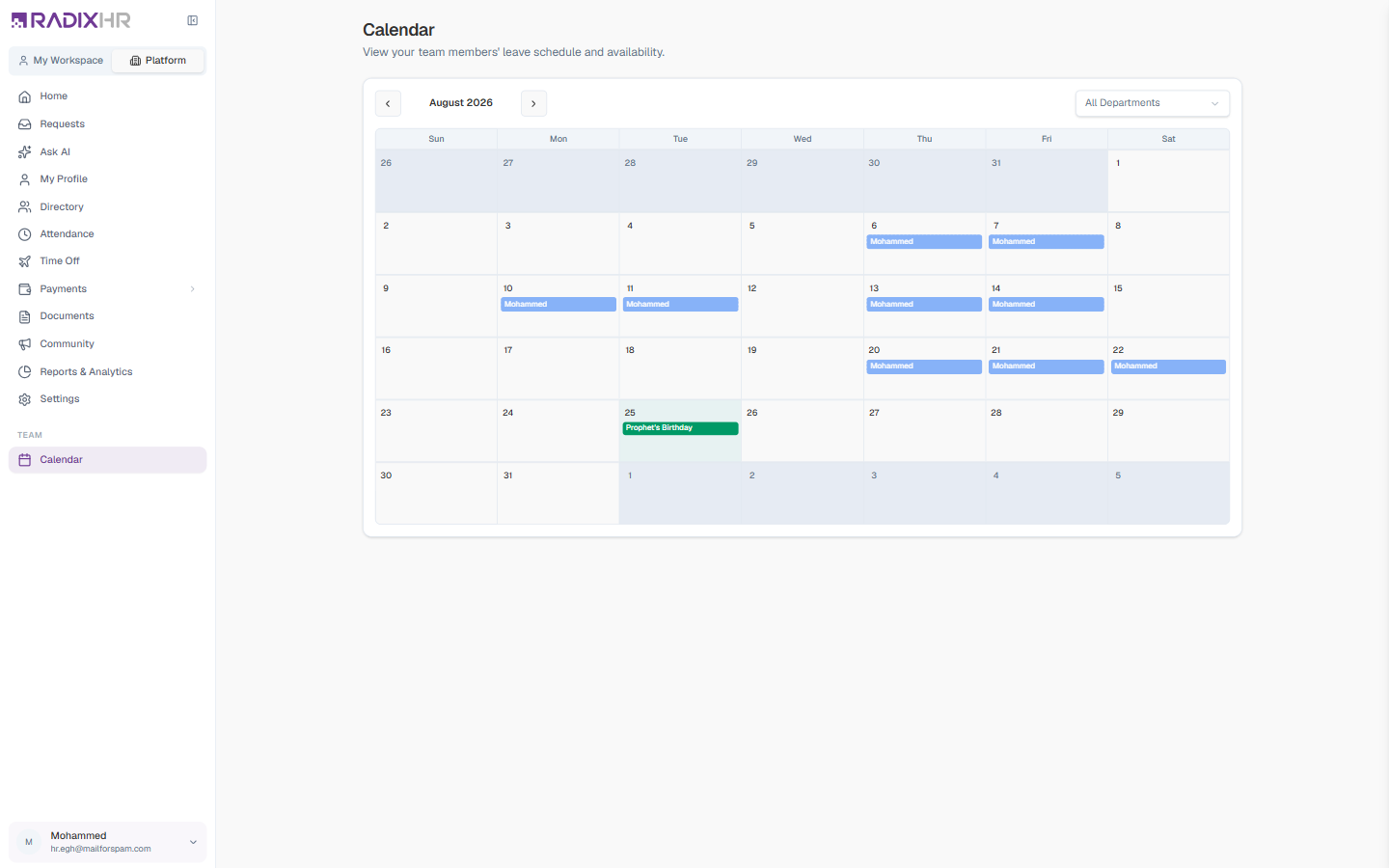
Where it is: in Platform mode the Calendar sits in its own Team group at the bottom of the sidebar. In My Workspace mode the same page appears as Team Calendar. Employees with self-service access only see their own leave there (the subtitle reads “View your own leave schedule and availability”); managers and HR see the same organisation-wide view as in Platform mode. The Calendar needs the Leave module; workspaces without it see a “Coming Soon” card instead.
Reading the Calendar
The grid is a standard Sunday-to-Saturday month. Days from the previous and next month are shaded, and today’s date is highlighted.
| Element | What it means |
|---|---|
| Coloured bar with a first name | An employee on leave that day. The bar takes the colour of the leave type (set under Leave Types), so Annual, Sick, and other leave are easy to tell apart. |
| Solid bar | An approved request |
| Faded bar with a dashed border | A pending request that hasn’t been approved yet — treat it as tentative |
| Green bar with a holiday name | A public holiday from your Holiday Calendar. Half-day holidays are marked as such. |
| +N more | Shown when a day has more entries than fit in the cell — click it to see the full list |
Hover over any bar for a tooltip with the employee’s full name, the leave type, and the request status. Rejected and cancelled requests are never shown.
Moving Between Months
Use the ‹ and › buttons either side of the month name to step backwards or forwards. The calendar loads leave and holidays for whichever month is visible.
Links from elsewhere in RadixHR (for example a leave alert on the Home page) can open the Calendar on a specific date — that day is outlined until you move to another month or click a different day.
Filtering by Department
In Platform mode an All Departments dropdown sits at the top-right of the calendar. Pick a department to show only that team’s leave — useful for a manager checking cover in one area. Choose All Departments again to go back to the whole organisation.
Seeing Everyone Off on a Day
When a day is too busy to show every bar, the cell ends with a +N more link. Click it to open a small popover listing that day’s entries — each holiday (marked Holiday or ½ day) and each employee with their leave-type code — so nothing is hidden.
Calendar vs. Time Off
This page is for looking, not approving. To act on a request, use the Requests page’s Approvals view, or open the request from Time Off. Time Off’s own Calendar View tab shows the same month grid inside the Time Off page.