Holiday Calendar
Holiday calendars define the official public holidays and weekly off days for your organisation. Each calendar holds its own list of holidays plus a set of weekly off days, so you can support employees in different regions or with different work schedules.
What you can do here:
- Create multiple holiday calendars (one per country, region, or work pattern)
- Add public holidays and company-wide days off for a specific year
- Configure which days of the week count as weekly off days
- Mark a calendar as the default for new employees
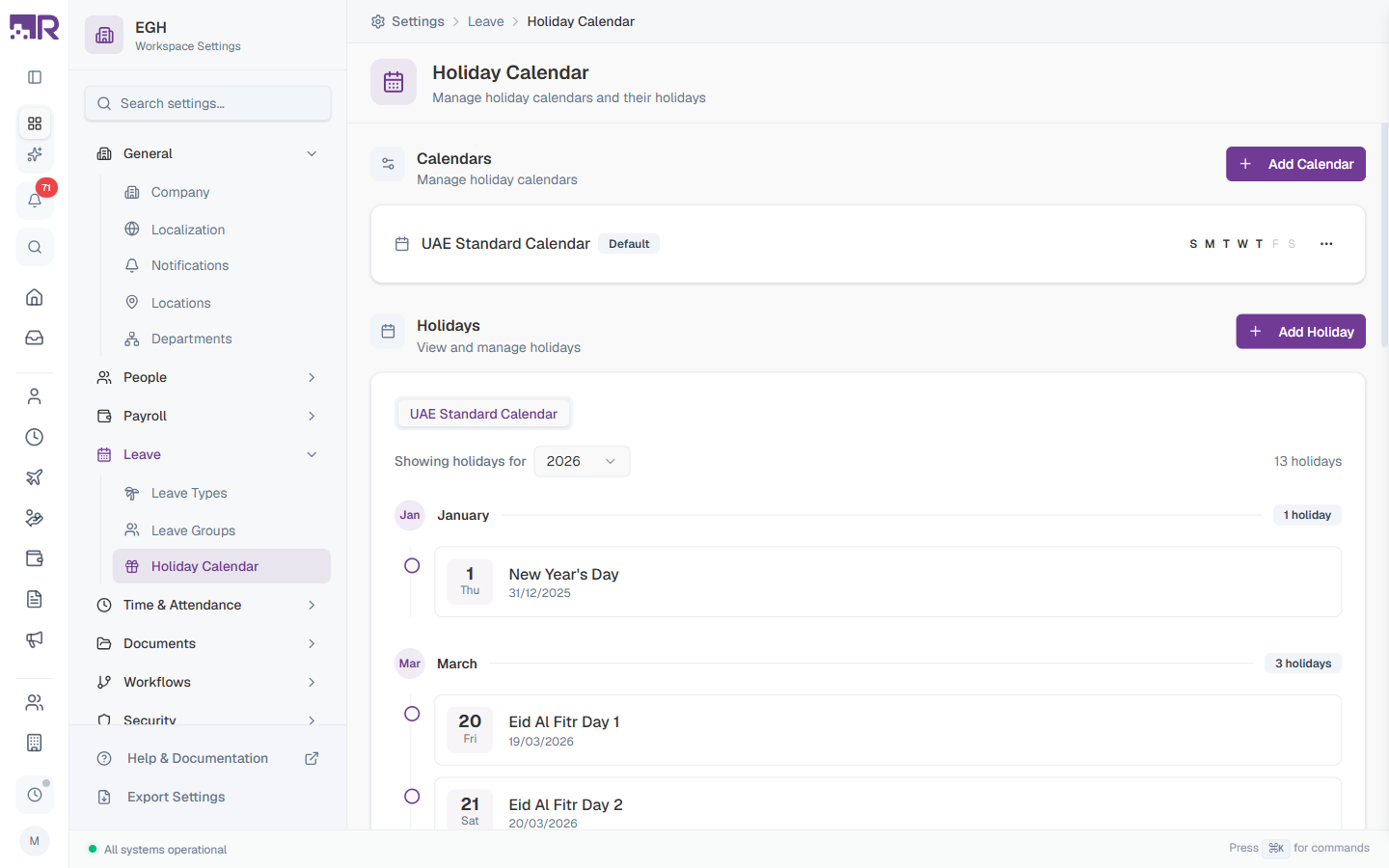
Page Layout
The page has two side-by-side sections:
| Section | Description |
|---|---|
| Calendars | Lists every holiday calendar in your workspace. Each row shows the calendar name, a Default badge if applicable, and a row of S M T W T F S letters where the highlighted letters indicate the weekly off days. The Add Calendar button is in the top-right of this section. |
| Holidays | Shows holidays for the selected calendar grouped by month. Use the year dropdown to switch years and the Add Holiday button to add a new entry. |
The week indicator (S M T W T F S) on each calendar row makes it easy to spot calendars with non-standard weekends — for example, a UAE calendar with Friday/Saturday off shows different highlighted letters than one with Saturday/Sunday off.
How to Create a Holiday Calendar
- Go to Settings > Leave > Holiday Calendar
- Click Add Calendar in the top-right of the Calendars section
- Fill in the calendar details
- Pick the weekly off days
- Click Create Calendar
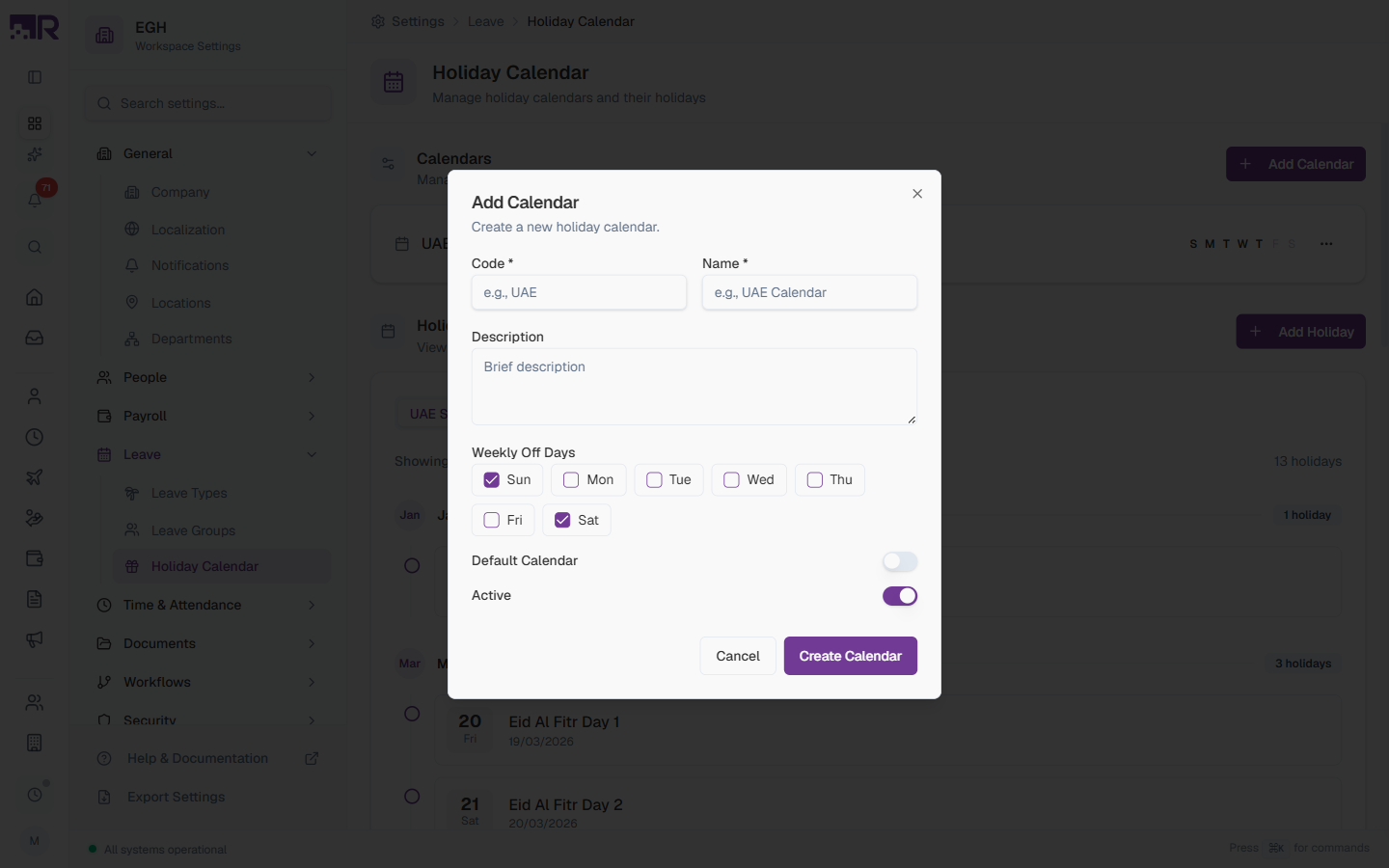
Calendar Form Fields
| Field | Description | Required |
|---|---|---|
| Code | A short unique identifier used in reports and integrations. Examples: UAE, IND, UK. | Yes |
| Name | The display name shown in the calendar list and on employee profiles. Examples: “UAE Standard Calendar”, “India Calendar”. | Yes |
| Description | A brief explanation of who this calendar applies to. | No |
| Weekly Off Days | Tick the days of the week that count as regular days off for employees on this calendar. Sun and Sat are checked by default. | Yes |
| Default Calendar | ON: New employees are auto-assigned to this calendar. Only one calendar can be the default at a time. OFF: Manual assignment required. Default: OFF. | No |
| Active | ON: Calendar is available for assignment. OFF: Calendar is hidden but existing assignments remain. Default: ON. | No |
Weekly Off Days
The weekly off days drive several behaviours across the system:
- They are excluded from leave calculations by default — requesting leave that spans a weekly off day doesn’t deduct balance for that day (unless the leave type has Include Weekends Between turned ON)
- They show as off days in attendance tracking
- They are visually highlighted in scheduling views
For regions where the weekend is Friday–Saturday (UAE, Saudi Arabia, etc.), uncheck Sun and check Fri instead of leaving the default Sun/Sat selection.
How to Add a Holiday
- In the Calendars list, click the calendar you want to add a holiday to (or use the calendar tab in the Holidays panel)
- Click Add Holiday in the top-right of the Holidays section
- Fill in the holiday details
- Click Add Holiday
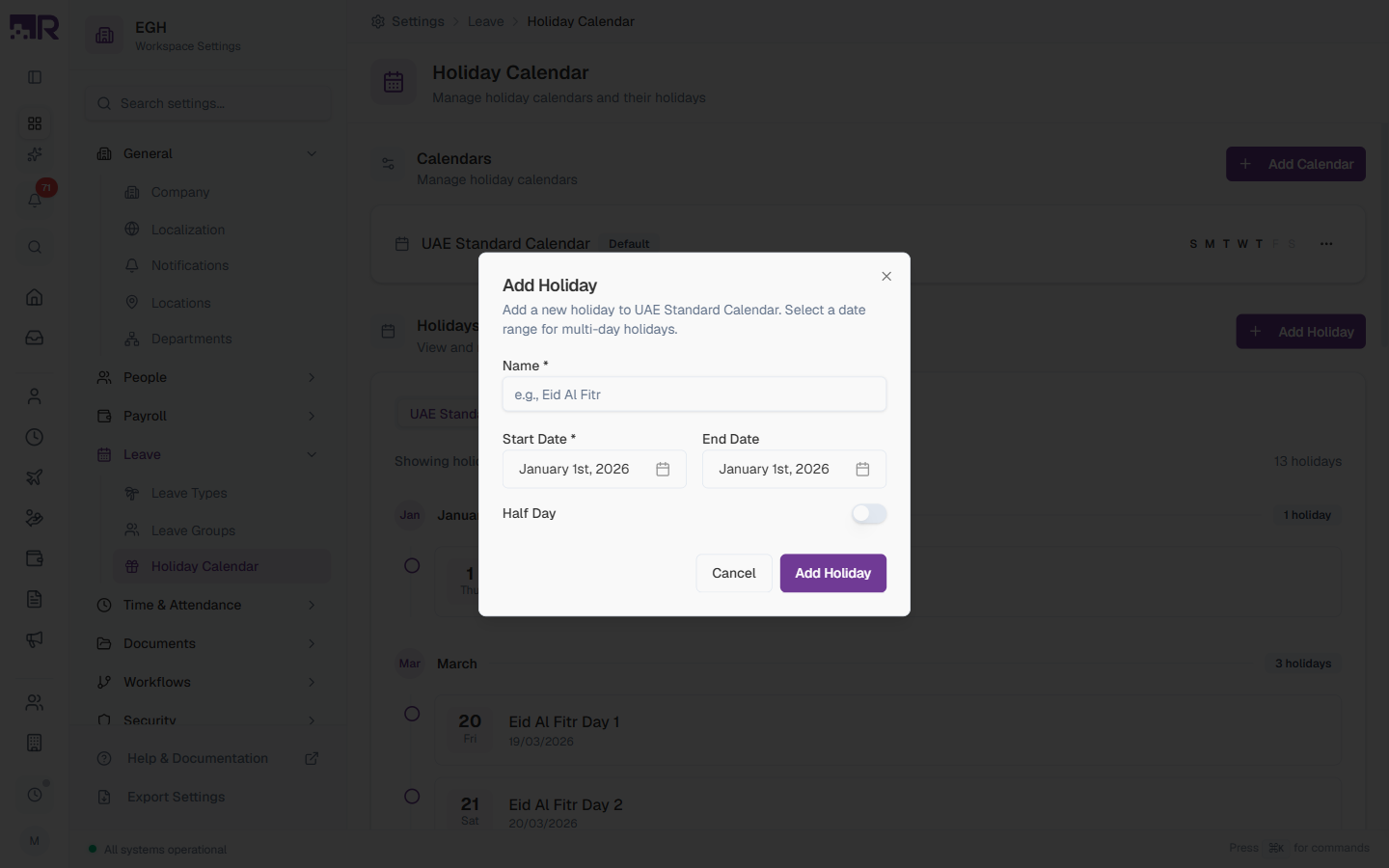
Holiday Form Fields
| Field | Description | Required |
|---|---|---|
| Name | The name of the holiday. Examples: “Eid Al Fitr”, “New Year’s Day”, “UAE National Day”. | Yes |
| Start Date | The date the holiday begins. Defaults to today. | Yes |
| End Date | The date the holiday ends. For single-day holidays, leave it equal to Start Date. For multi-day holidays (e.g., Eid Al Fitr Day 1–3), set it to the last day of the holiday — every day in the range is marked as a holiday. | No |
| Half Day | ON: The day counts as half a day off. Employees get credited for half a working day. OFF: The day is a full day off. Default: OFF. | No |
For multi-day holidays you can either create a single entry spanning the full range (e.g., Start Date Mar 20, End Date Mar 22) or three separate entries (Day 1, Day 2, Day 3) — both work, and the second is what the default UAE calendar uses.
Viewing Holidays
The Holidays panel shows all holidays for the currently selected calendar.
| Element | Description |
|---|---|
| Calendar tabs | Each calendar appears as a tab at the top of the panel. Click to switch which calendar’s holidays are shown. |
| Year dropdown | Pick the year you want to view (e.g., 2026). Holidays are stored per year. |
| Total count | The “X holidays” label at the top-right tells you how many holidays the calendar has for the selected year. |
| Month grouping | Holidays are grouped by month with a header showing the month name and the holiday count for that month. |
| Holiday card | Each holiday displays the day number, day-of-week abbreviation, the holiday name, and the calendar date. |
Example month: March showing 3 holidays — Eid Al Fitr Day 1 (20 Fri), Day 2 (21 Sat), Day 3 (22 Sun).
How to Edit or Delete
Edit a Calendar
Click on the calendar’s row in the Calendars list, or click the ⋯ menu next to it and choose Edit. Update name, description, weekly off days, or status, then save.
Delete a Calendar
Click the ⋯ menu next to a calendar and select Delete.
You cannot delete a calendar that’s assigned to employees. First reassign those employees to a different calendar, then delete.
Edit or Delete a Holiday
Click the ⋯ menu next to a holiday entry to Edit the name, dates, or half-day setting, or Delete it from the calendar.
Best Practices
-
Plan ahead — add holidays for the whole year at the start of each year so leave calculations are accurate from January.
-
Verify lunar-calendar holidays each year — Eid, Ramadan, Islamic New Year, and Prophet’s Birthday shift dates each year. Update them once the official calendar is published.
-
Use clear names — “New Year’s Day” reads better than “Jan 1” in reports and on employee dashboards.
-
Match weekly off days to the work week — if your team works Sunday–Thursday (Gulf workweek), set Friday and Saturday as the weekly off days, not Saturday and Sunday.
-
Create one calendar per region — separate calendars for UAE, India, UK, etc., are easier to maintain than one giant calendar with overlapping rules.
-
Always set a default — without one, new employees won’t have any holiday calendar attached and their leave/attendance calculations won’t account for public holidays.
When a public holiday falls on a weekly off day, check local labour law — some jurisdictions require a substitute day off in lieu. Add the substitute day as a separate holiday entry.
Common Scenarios
“We have offices in two different countries with different public holidays — can they each have their own calendar?” Yes — create a separate calendar per country/region (e.g. “UAE Standard Calendar,” “India Calendar”), each with its own holiday list and its own weekly off days. Only one calendar can be Default (for new employees generally), but you can manually assign the right calendar to each employee individually — that’s why the calendar name shows on employee profiles.
“Our weekend is Friday-Saturday, not Saturday-Sunday — how do I set that?” On that calendar’s Weekly Off Days, uncheck Sun and check Fri, leaving Sat checked — don’t leave the default Sun/Sat selection for a Gulf-region calendar.
“I forgot to add a public holiday and now it’s affecting attendance/leave calculations for that day — how do I fix this?” Add the holiday to the calendar now — see the Attendance page for how to fix already-processed attendance records after adding a late holiday; there’s no single bulk fix, it’s done per employee.