Permission Definitions
As of September 2026, this is a deep-reference page, not a page you’ll find in the app’s sidebar. The permission catalogue described below now lives inside Roles & Permissions, under its Permission Catalog tab, rather than as its own Settings → Security nav item. Everything below still describes that catalogue accurately — use this page for the full field-by-field reference, and Roles & Permissions for the day-to-day view.
Permissions are the smallest unit of access control in RadixHR. Each one represents a single capability — for example, “view team leave” or “approve all payroll” — and they’re combined into Roles, which are then assigned to employees.
This page lists every permission that exists in your workspace, lets you filter by module, and lets you create or edit custom permissions when the built-in ones don’t cover a specific need.
What you can do here:
- Browse the full catalogue of permissions, with the count of roles using each one
- Filter by module (Employees, Leave, Attendance, Payroll, etc.)
- Search by name, code, description, module, or action
- Create custom permissions for specialised access needs
- Edit a permission’s display name, description, and category
- Delete a custom permission (only when no roles use it)
Understanding the Permission Code
Every permission has a machine-readable code that follows a strict three-part pattern:
module:action:scopeFor example, leave:approve:team reads as “approve leave requests for team members”. This pattern lets you predict what a permission does just from its code, and it makes audit logs and API responses self-explanatory.
| Component | What it specifies | Examples |
|---|---|---|
| Module | The feature area or data type the permission belongs to | employees, leave, payroll, ats |
| Action | What kind of operation is allowed | view, create, update, delete, approve, manage |
| Scope | Which records the action applies to | own, subordinates, team, department, all |
Permissions in RadixHR are additive — there is no “deny” flag. A user gets the union of permissions across every role assigned to them. If any of their roles grants a permission, they have it.
Actions — what each one means
Actions describe the kind of operation the permission allows. RadixHR uses a consistent set of actions across modules:
| Action | What it allows |
|---|---|
| view | Read or see the data without making changes |
| create | Add new records |
| update | Modify existing records |
| delete | Remove records |
| approve | Approve pending requests (leave, expenses, etc.) |
| reject | Reject or deny pending requests |
| export | Download data to external formats (CSV, PDF, etc.) |
| import | Upload data from external sources |
| manage | Full administrative control — typically implies view + create + update + delete + configuration of that area |
The manage action is shorthand for “everything in this module”. If a role has payroll:manage:all, you typically don’t need to add the individual view, create, update, delete, and approve payroll permissions to it.
Scopes — who the permission applies to
Scopes determine which records a user can act on. The same action can exist with different scopes (e.g., leave:view:team vs. leave:view:all), letting you grant the same capability at different levels of reach.
| Scope | Applies to | Typical user |
|---|---|---|
| own | Only the user’s own records | Self-service for every employee |
| subordinates | The user’s direct reports | Line managers |
| team | All members of the user’s team | Team leads, supervisors |
| department | All members of the user’s department | Department heads |
| all | Every record in the workspace | HR admins, executives |
Scope hierarchy
Scopes broaden in this order — each one typically includes the narrower scopes that came before:
own → subordinates → team → department → allSo a user with employees:view:department can also see their team members and their own profile (because both are subsets of “department”). This is why you usually only need to grant the widest scope a user requires, not every narrower scope below it.
Follow the principle of least privilege — give the narrowest scope that allows the user to do their job. A team lead probably needs :team, not :all.
The Permissions List
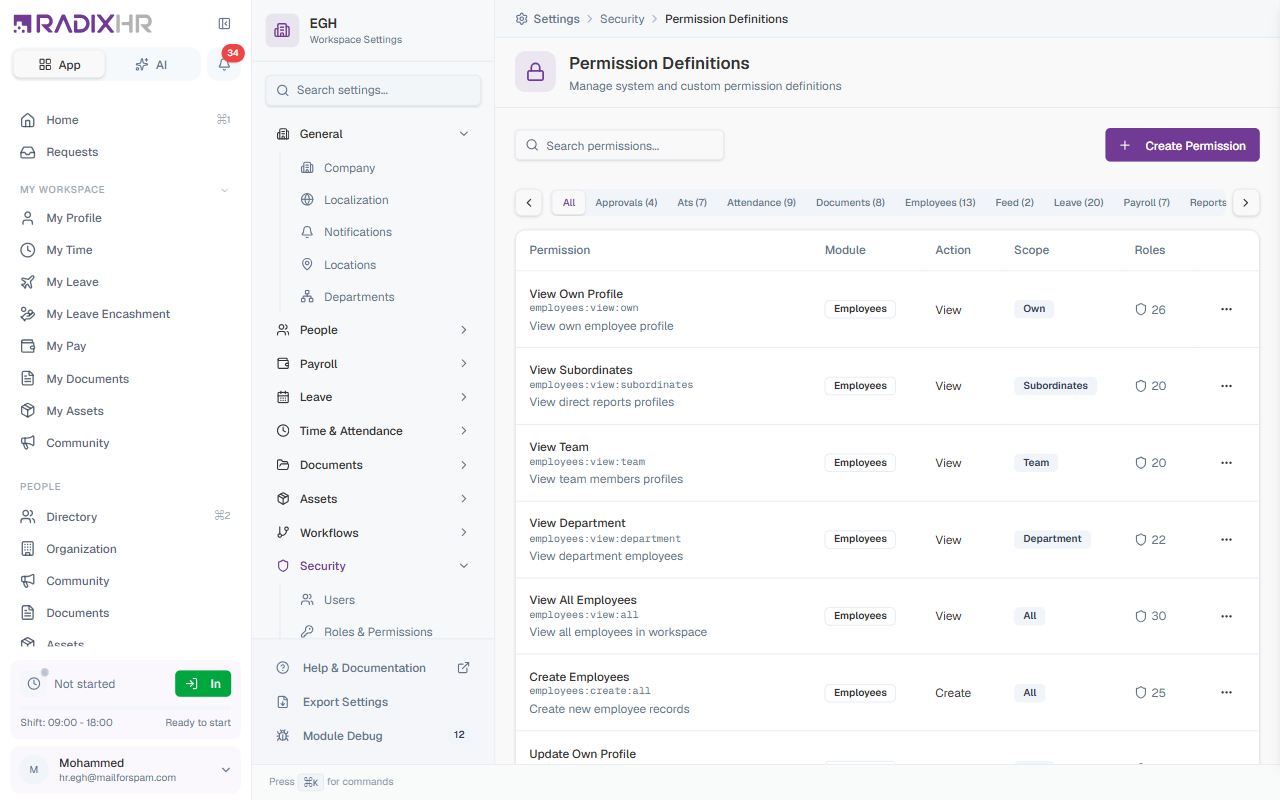
Open Settings > Security > Roles & Permissions and click the Permission Catalog tab. Every permission in your workspace is listed as a row:
| Element | Description |
|---|---|
| Name + badges | Display name, followed by a module badge (Employees, Leave, …) and a scope badge (Own, Team, Department, All, …) |
| Code · description | The permission’s code in monospace (e.g., employees:view:own), then its description |
| Roles count | Shield icon + the number of roles that currently include this permission |
| ⋯ menu | Per-row actions: Edit Permission, Delete Permission |
The list is paginated 15 per page — the footer shows “Showing 1-15 of 84” with Previous / Next buttons and a Page N of M indicator.
Filtering by Module
Above the table is a horizontal row of module tabs. Each tab shows the module name and the count of permissions in that module. Click a tab to filter the table to just that module’s permissions; click All to see everything. Use the ‹ › arrows on either side of the tab strip to scroll if your workspace has many modules.
The search box (top-left) lets you free-text search across name, code, description, module, and action — combine it with a module filter for fast lookups (e.g., select Leave, then type “approve” to see only the four “Approve … Leave” permissions).
The 11 modules
| Module | What it covers |
|---|---|
| Employees | Viewing and managing employee profiles, org data, imports/exports |
| Leave | Leave requests, balances, approvals, and policy management |
| Attendance | Time tracking, clock-in/out, attendance corrections and approvals |
| Payroll | Salary, payslips, payroll runs, processing and approvals |
| Documents | Uploading, viewing, deleting, and managing documents |
| Reports | Viewing and exporting reports |
| Settings | System-wide configuration |
| Feed | Company feed posts and announcements |
| Approvals | Visibility into pending approvals across modules |
| Workspace | Workspace-level administration including billing |
| ATS | Applicant Tracking System — jobs, candidates, interviews |
Default Permission Catalogue
These are the permissions that ship with every RadixHR workspace. Counts on the right show how many you’ll see on each module tab.
Employees (13)
| Code | Description |
|---|---|
employees:view:own | View own employee profile |
employees:view:subordinates | View direct reports’ profiles |
employees:view:team | View team members’ profiles |
employees:view:department | View department employees |
employees:view:all | View all employees in the workspace |
employees:create:all | Create new employee records |
employees:update:own | Update own profile information |
employees:update:subordinates | Update direct reports’ profiles |
employees:update:department | Update department employees |
employees:update:all | Update any employee record |
employees:delete:all | Delete employee records |
employees:import:all | Import employee data from external files |
employees:manage:all | Full employee management access |
Leave (20)
| Code | Description |
|---|---|
leave:view:own | View own leave requests and balances |
leave:view:subordinates | View direct reports’ leave |
leave:view:team | View team leave requests |
leave:view:department | View department leave requests |
leave:view:all | View all leave requests |
leave:create:own | Submit own leave requests |
leave:create:subordinates | Create leave for direct reports |
leave:create:all | Create leave for any employee |
leave:update:own | Update own pending requests |
leave:approve:subordinates | Approve direct reports’ leave |
leave:approve:team | Approve team leave requests |
leave:approve:department | Approve department leave |
leave:approve:all | Approve any leave request |
leave:reject:subordinates | Reject direct reports’ leave |
leave:reject:team | Reject team leave requests |
leave:reject:department | Reject department leave |
leave:reject:all | Reject any leave request |
leave:manage:all | Full leave management including configuration |
leave:balance:all | Add, deduct, and adjust employee leave balances |
Attendance (9)
| Code | Description |
|---|---|
attendance:view:own | View own attendance records |
attendance:view:subordinates | View direct reports’ attendance |
attendance:view:team | View team attendance |
attendance:view:department | View department attendance |
attendance:view:all | View all attendance records |
attendance:create:own | Record own attendance (clock in/out) |
attendance:manage:subordinates | Manage direct reports’ attendance |
attendance:manage:department | Manage department attendance |
attendance:manage:all | Full attendance management |
Payroll (7)
| Code | Description |
|---|---|
payroll:view:own | View own salary and payslips |
payroll:view:department | View department payroll data |
payroll:view:all | View all payroll data |
payroll:create:all | Create and process payroll runs |
payroll:update:all | Update payroll data |
payroll:approve:all | Approve payroll runs |
payroll:manage:all | Full payroll management |
Payroll permissions are highly sensitive — restrict them to a small group of authorised finance/HR staff. Even payroll:view:all exposes everyone’s salary.
Documents (8)
| Code | Description |
|---|---|
documents:view:own | View own documents |
documents:view:department | View department documents |
documents:view:all | View all employee documents |
documents:create:own | Upload own documents |
documents:create:all | Upload documents for any employee |
documents:delete:own | Delete own documents |
documents:delete:all | Delete any documents |
documents:manage:all | Full document management |
Reports (5)
| Code | Description |
|---|---|
reports:view:own | View own reports |
reports:view:department | View department reports |
reports:view:all | View all reports |
reports:export:department | Export department reports |
reports:export:all | Export any reports |
Approvals (4)
Visibility into the global approvals queue, scoped by who the requester is.
| Code | Description |
|---|---|
approvals:view:subordinates | View pending approvals for direct reports |
approvals:view:team | View pending team approvals |
approvals:view:department | View pending department approvals |
approvals:view:all | View all pending approvals |
ATS — Hiring (7)
Applicant Tracking System: jobs, candidates, interviews.
| Code | Description |
|---|---|
ats:view:own | View own job applications and referrals |
ats:view:team | View ATS data for team members |
ats:view:department | View ATS data for department |
ats:view:all | View all ATS data (jobs, candidates, interviews) |
ats:create:all | Create job postings, candidates, and interviews |
ats:delete:all | Delete job postings, candidates, and interviews |
ats:manage:all | Full ATS management |
Settings (4)
| Code | Description |
|---|---|
settings:view:all | View workspace settings |
settings:update:all | Update workspace settings |
settings:manage:all | Full settings management |
Feed (2)
| Code | Description |
|---|---|
feed:view:all | View company feed |
feed:create:all | Create feed posts |
Workspace (3)
| Code | Description |
|---|---|
workspace:view:all | View workspace information |
workspace:update:all | Update workspace settings |
workspace:manage:all | Full workspace management including billing |
Your workspace may show additional custom permissions that someone created for special access needs — these will appear alongside the defaults in the same module tabs.
How to Create a Custom Permission
Most workspaces don’t need custom permissions — the default catalogue covers nearly every typical access pattern. Create a custom permission only when none of the existing ones fit a real, recurring need.
- Go to Settings > Security > Roles & Permissions and open the Permission Catalog tab
- Click + Create Permission (top-right)
- Fill in the form
- Click Create Permission
The new permission appears in the list immediately and can then be added to any custom role by opening the role from the Roles tab and using Add Permission on the role detail page.
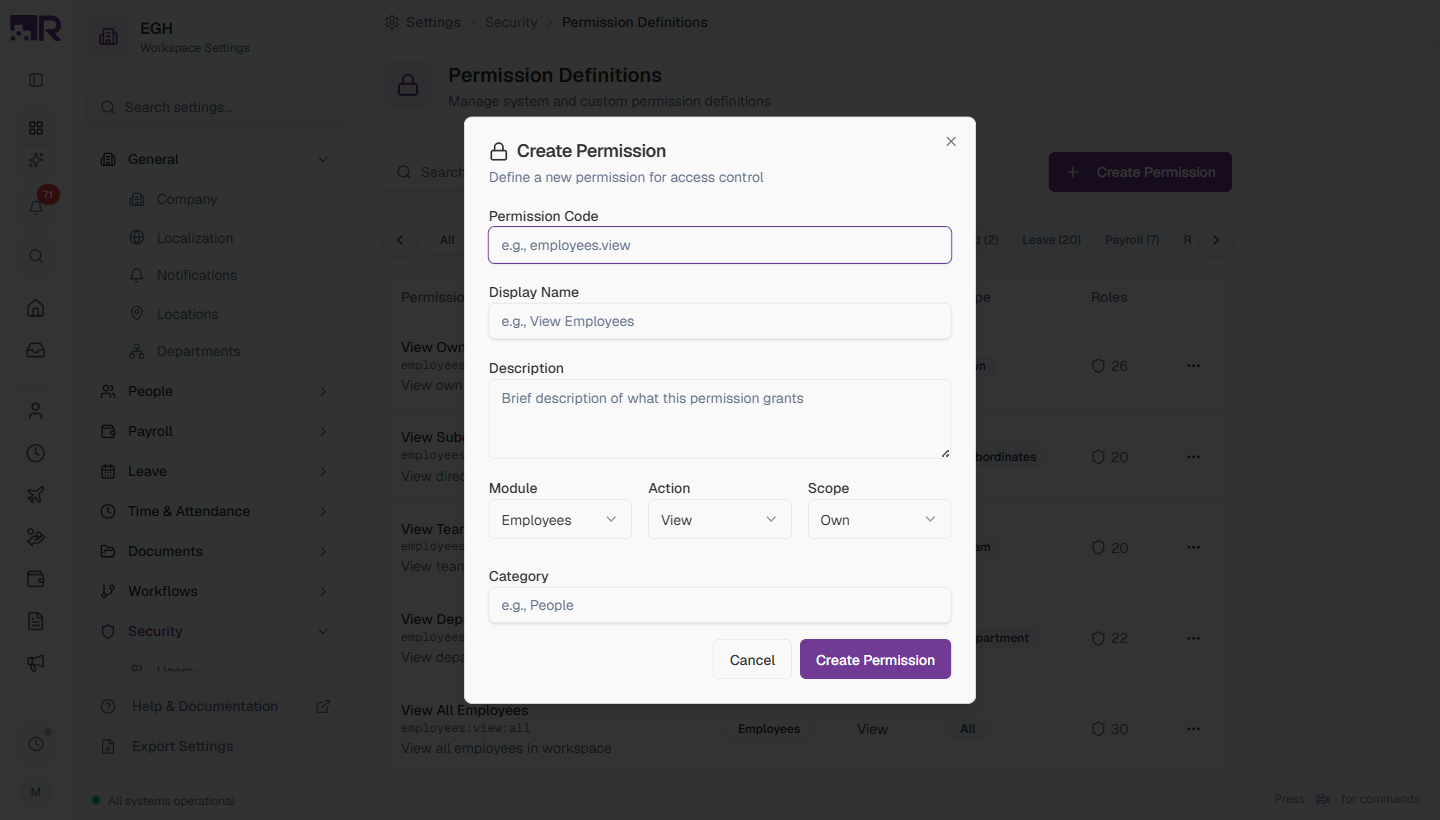
Create Permission Fields
| Field | Description | Required |
|---|---|---|
| Permission Code | The unique machine identifier. Must start with a lowercase letter and contain only lowercase letters, digits, and underscores (max 100 chars). Convention is module:action:scope (e.g., recruiter:interview:team), but the code is just a string — use the convention so admins can read it. Cannot be changed after creation. | Yes |
| Display Name | The human-readable name shown in lists and the role permissions dialog (max 200 chars). Example: “Interview Candidates”. | Yes |
| Description | A short explanation of what this permission grants and when to use it (max 500 chars). Highly recommended — appears in tooltips and helps future admins. | No |
| Module | The module this permission belongs to. Pick from: Employees, Leave, Attendance, Payroll, Documents, Reports, Settings, Feed, Approvals, Workspace. Cannot be changed after creation. | Yes |
| Action | The verb: View, Create, Update, Delete, Approve, Reject, Export, Import, or Manage. Cannot be changed after creation. | Yes |
| Scope | Own, Subordinates, Team, Department, or All. Cannot be changed after creation. | Yes |
| Category | An optional sub-grouping label (e.g., “People”, “Compliance”). Useful for organising large catalogues. | No |
Code, Module, Action, and Scope are locked once you save. Pick them carefully — to change any of them you’d need to delete the permission and create a new one (and any role currently using it must be updated to point to the new one).
Before creating a custom permission, double-check whether an existing one already does what you need. Custom permissions add complexity and need to be remembered when training new admins. The default catalogue is more comprehensive than it first appears — use the search box to look across name, code, and description.
How to Edit a Permission
You can update a permission’s display name, description, and category at any time. The Code, Module, Action, and Scope are read-only after creation because they form the permission’s identity in role assignments.
- Find the permission in the list (use the search box or module tabs)
- Click the ⋯ menu at the right of the row
- Select Edit Permission
- Update the editable fields
- Click Save
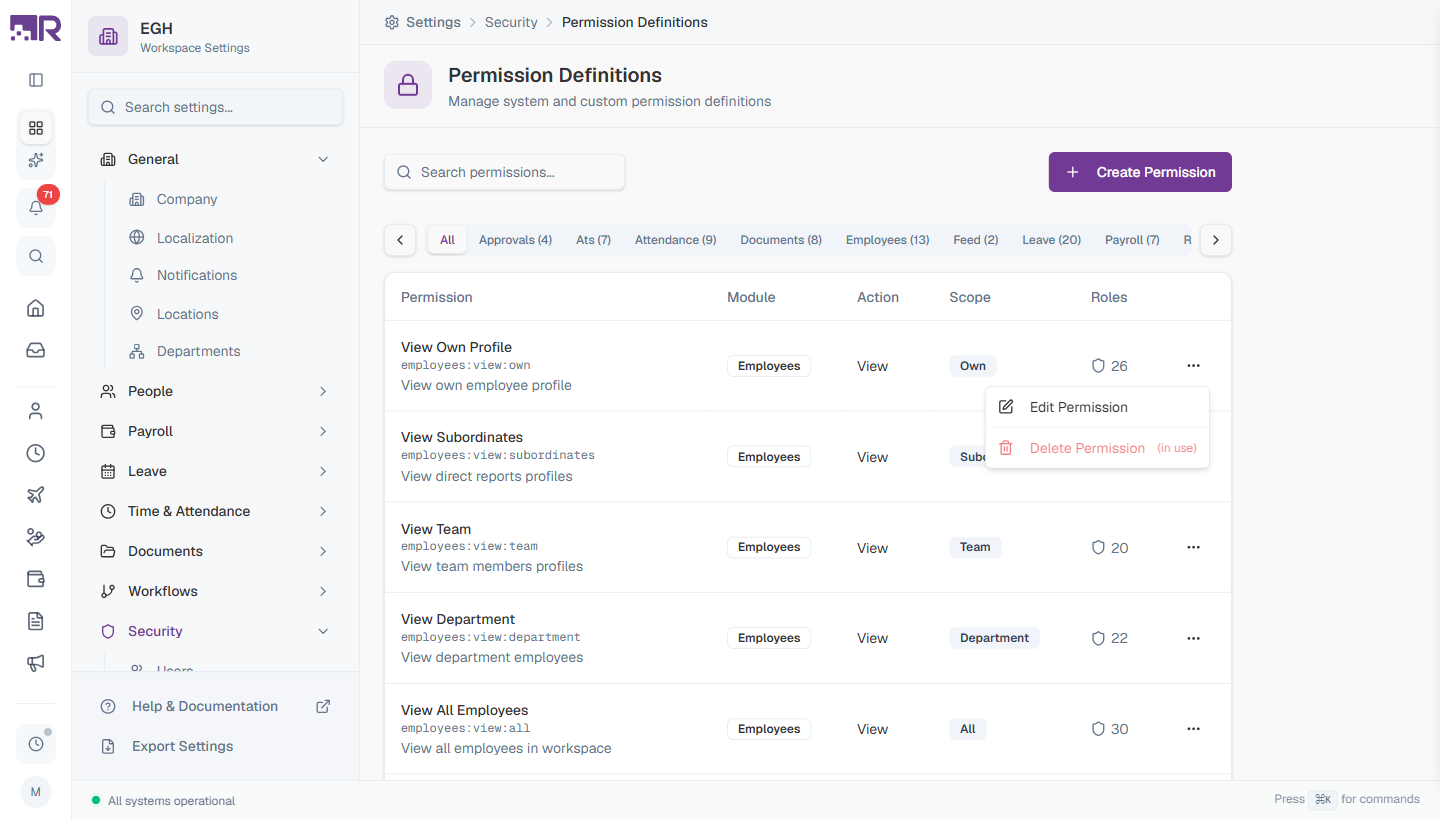
The row’s ⋯ menu offers:
| Action | What it does | When it’s disabled |
|---|---|---|
| Edit Permission | Opens the form with name/description/category editable | Never |
| Delete Permission | Permanently removes the permission | When the permission is in use by any role — the menu shows “(in use)” next to the action |
How to Delete a Custom Permission
To delete a permission, no role may currently include it. If any role does, the Delete Permission option is disabled and shows (in use).
- First remove the permission from every role that uses it: on the Roles tab, open each role’s detail page and click the × next to the permission in its Permissions list. Use the roles count on the permission row to see exactly how many roles you need to update.
- Once the count drops to 0, return to the Permission Catalog tab.
- Click ⋯ > Delete Permission and confirm.
Deletion is permanent and cannot be undone. If you might want the permission again later, consider editing its description to flag it as deprecated and simply removing it from all roles instead of deleting.
How Permissions Combine into Roles
This page is just the catalogue. To grant access, you assign permissions to roles, then assign roles to employees:
- Pick or create a role on the Roles tab of Roles & Permissions
- Click the role to open its detail page
- Use Add Permission to search for and add each permission the role should have (changes save immediately)
- In the Users section of the same page, click Add Employees to assign the role
A typical mapping:
| Role | Key permissions |
|---|---|
| Employee | employees:view:own, leave:view:own, leave:create:own, attendance:view:own, attendance:create:own, documents:view:own |
| Team Lead | All Employee permissions + employees:view:team, leave:view:team, leave:approve:subordinates, attendance:view:team |
| HR Manager | employees:manage:all, leave:manage:all, attendance:manage:all, documents:manage:all, reports:view:all |
| Finance | payroll:manage:all, payroll:view:all, reports:view:all, reports:export:all |
| Recruiter | ats:manage:all, ats:view:all, employees:view:all |
Best Practices
-
Default first. RadixHR ships with ~80 well-designed permissions covering the typical needs. Browse them before creating custom ones.
-
Use the search box. With dozens of permissions per workspace, scrolling is slow — type a few characters of the action or module to jump straight to the one you want.
-
Mind the scopes. Granting
:allis rarely correct. If a manager only needs visibility over their team, give them:teamand let them grow into wider scopes if their role expands. -
Audit the Roles count. Permissions used by many roles are critical — be especially cautious editing or deactivating them, since changes ripple to every role that includes them.
-
Keep custom permissions documented. Always fill in Description and Category for custom permissions. Future admins (and future-you) will thank you.
-
Use
manageactions sparingly. They’re powerful but coarse —:manage:alltypically grants every CRUD operation in a module. Prefer narrower verb+scope combinations when you can.
Common Scenarios
“We created a custom permission with the wrong scope — can we just edit it to fix that?” No — Code, Module, Action, and Scope are locked once saved; only Display Name, Description, and Category stay editable afterward. To fix a wrong scope, create a new permission with the correct scope, add it to whichever roles need it, remove the old one from those roles, then delete the old one (only possible once its Roles count is 0).
“We want to delete a custom permission we created for a pilot last year, but Delete is greyed out — why?” It’s still in use — at least one role currently includes it, and the menu shows “(in use)” instead of letting you delete. Check the permission row’s Roles count to see how many roles reference it, open each of those roles and remove the permission from its list, then come back once the count reads 0 and Delete becomes available.
Troubleshooting Access Issues
If a user is missing access they expect:
- Open Users (Settings > Security > Users), find the user, and list their roles.
- For each of those roles, open Edit/View Permissions and confirm the relevant permission is ticked at a wide enough scope.
- Permissions are additive — the user only lacks a permission if none of their roles grants it.
- If the permission exists in a role but the user still can’t perform the action, check whether a delegation rule is rerouting their requests to a different approver.