Hiring Requests
Request and track approvals for new positions in your organization. Before a job can be posted and candidates sourced, a hiring request captures the business need for the role and routes it for approval — so headcount and budget are signed off before recruitment begins.
What you can do here:
- Submit new hiring requests for open positions
- Track the approval status of each request
- Switch between your own requests, your team’s, and all employees’
- Filter requests by status (Draft, Pending, Approved, Rejected, Cancelled)
- Open a request to see its full details and approval timeline
- Approve or reject requests assigned to you, and create a job from an approved one
- Cancel a request you no longer need
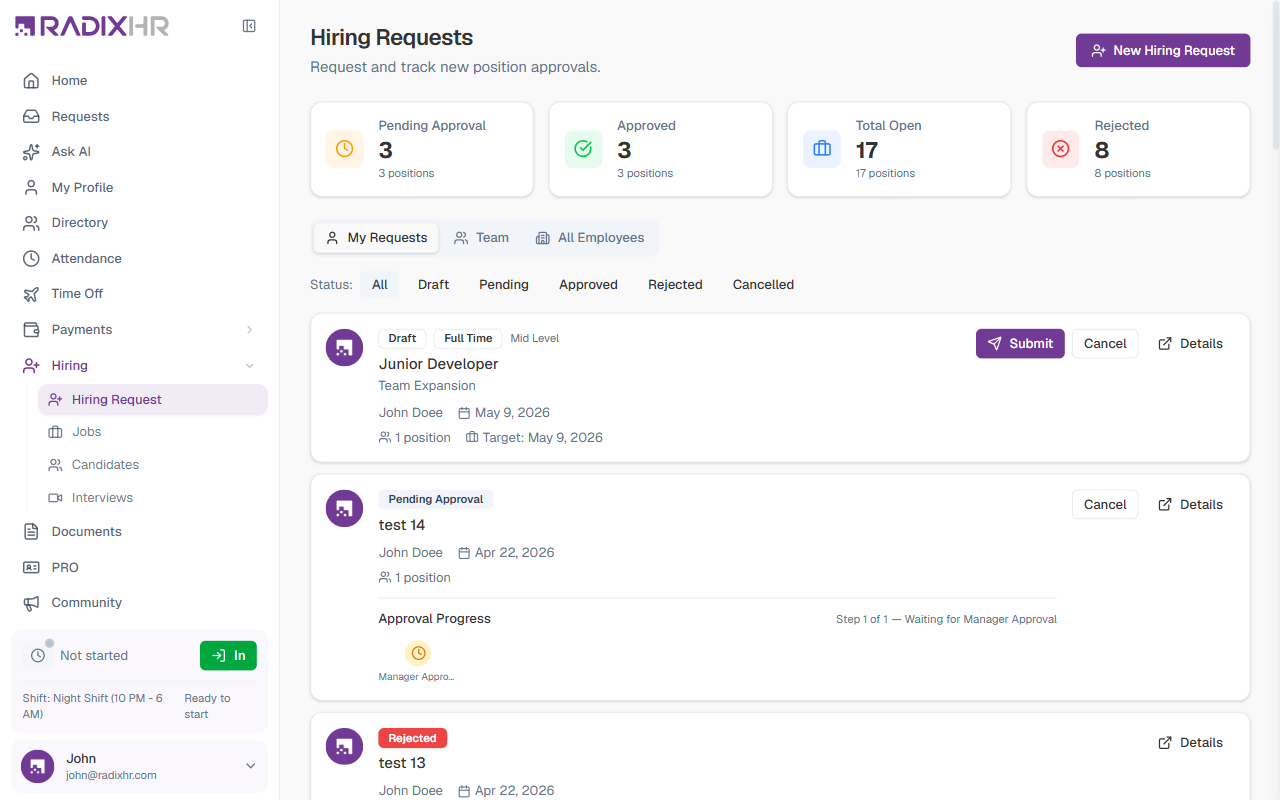
Summary Cards
Four cards at the top of the page give you an at-a-glance summary. Each card shows a count of requests and the total number of positions those requests cover (a single request can ask for more than one position).
| Card | Description |
|---|---|
| Pending Approval | Requests submitted and waiting for an approver to act on them |
| Approved | Requests that have been approved and can move into recruitment |
| Total Open | The total number of hiring requests, counting every status (draft, pending, approved, rejected, and cancelled) |
| Rejected | Requests an approver has declined |
Viewing Hiring Requests
Scope Tabs
The tabs above the list control whose requests you see:
- My Requests — Only the requests you submitted yourself
- Team — Requests submitted by your direct reports
- All Employees — Every request across the organization (HR/admin view)
Filtering by Status
Use the Status filter buttons to narrow the list:
| Status | Meaning |
|---|---|
| All | Shows every request, regardless of status |
| Draft | Request created but not yet submitted for approval |
| Pending | Submitted and awaiting approval |
| Approved | Approved and ready for recruitment |
| Rejected | Declined by an approver |
| Cancelled | Withdrawn by the requester |
Request Cards
Each request appears as a card showing the requester’s initials; the status, employment type, and experience level as badges; the position title; the justification; who requested it; the date it was created; the number of positions; and the target start date. If a salary range is set, it appears on the right. Once a request is in (or past) approval, an inline Approval Progress bar shows which step it’s on and who it’s waiting for.
The actions on the right of each card depend on its status:
- Submit — Sends a draft request for approval (shown on drafts only)
- Cancel — Withdraws the request (available while it’s a draft or still pending)
- Details — Opens the request’s full details (see Viewing Request Details below)
How to Create a Hiring Request
Submit a new request when you need to hire for an open role.
- Click New Hiring Request in the top right
- Fill in the position details
- Click Create Request
The request is saved as a draft until you submit it for approval.
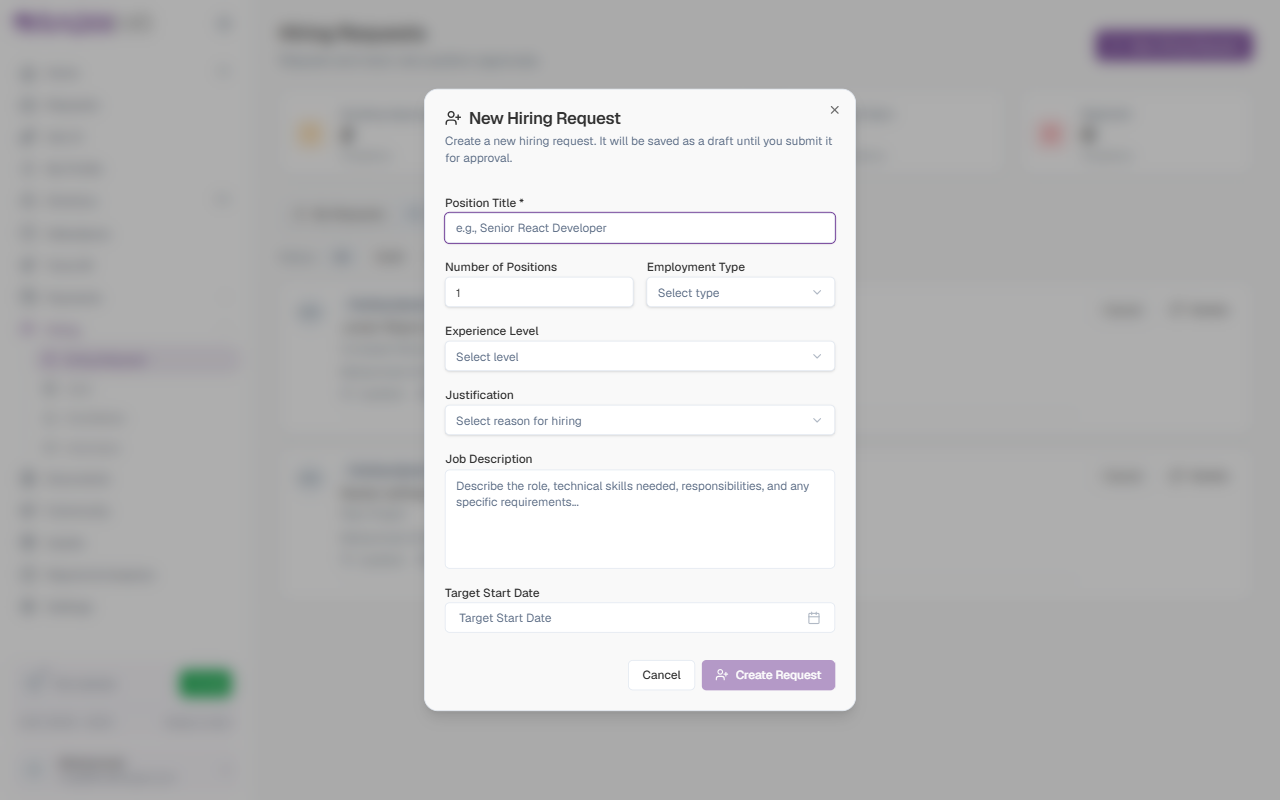
Field Descriptions
| Field | Description | Required |
|---|---|---|
| Position Title | The job title for the role you’re requesting (e.g., “Senior React Developer”). | Yes |
| Number of Positions | How many people you need to hire for this role. Defaults to 1. | Yes |
| Employment Type | The type of employment for the role. Options: Full Time, Part Time, Contract, Internship. | No |
| Experience Level | The seniority expected for the role. Options: Entry Level, Mid Level, Senior, Lead, Executive. | No |
| Justification | The business reason for hiring. Options: Team Expansion, Replacement, New Project, Skill Gap, Increased Workload, Succession Planning, Other. | No |
| Job Description | A description of the role — responsibilities, technical skills needed, and any specific requirements. | No |
| Target Start Date | The date by which you need the new hire to start. | No |
Add a clear justification and a detailed job description before submitting. This helps approvers understand the business need and speeds up their decision.
Viewing Request Details
Click Details on any request card to open the request in a dialog that gathers everything in one place — so you can review (and approve) a request without leaving the list.
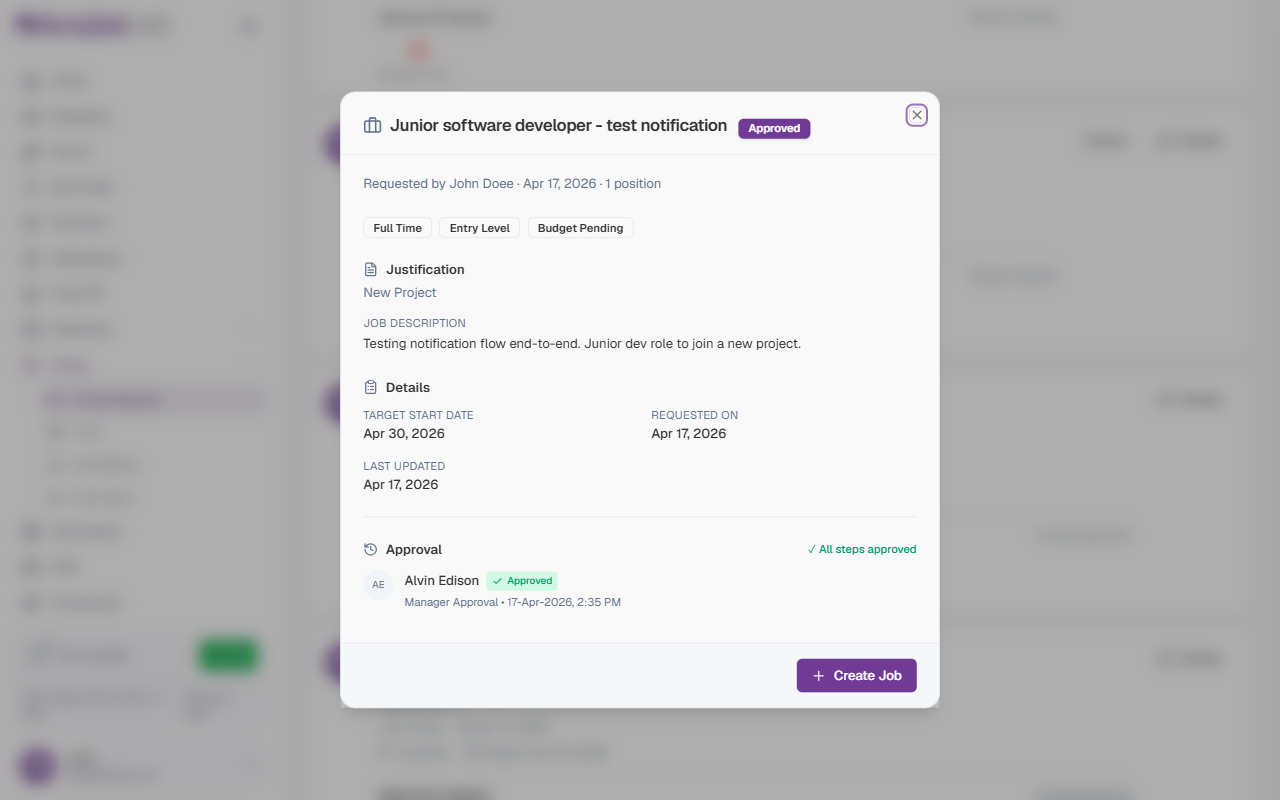
| Section | What it shows |
|---|---|
| Header | The position title with its status badge |
| Summary line | Who requested it, the date, the number of positions, and the department/location |
| Badges | Employment type, experience level, and a budget status — Budget Approved or Budget Pending |
| Justification | The business reason chosen for the request |
| Job Description | The full description entered when the request was created |
| Details | Department, location, target start date, when it was requested, and when it was last updated |
| Approval | The approval progress and a step-by-step timeline showing each approver, their decision, and when they acted |
| Salary Range | The budgeted salary range, shown as a chip when one is set |
The action at the bottom of the dialog depends on the request and your role:
- If you’re the assigned approver, you’ll see a comment box with Approve and Reject buttons (rejecting asks you for a reason).
- If the request is approved, you’ll see Create Job to turn it straight into a job posting — or View Job Posting if a job has already been created from it.
Hiring Request Workflow
A request moves through these stages:
- Draft — Created but not yet submitted
- Pending Approval — Submitted and waiting for an approver to act
- Approved — Approved; the role can now move into recruitment
- Rejected — Declined by an approver
- Cancelled — Withdrawn by the requester
Once a request is approved, open it and click Create Job to turn it straight into a job posting. (The Jobs / Candidates / Interviews module is currently marked Coming Soon in the app — see Jobs — so this button leads to a placeholder until the module is switched back on.)
Common Scenarios
“We need to hire 5 identical warehouse workers — do I need to submit 5 separate hiring requests?” No — set Number of Positions to 5 on a single request. The summary cards and approval flow already work in terms of “requests” vs. “positions” separately (e.g. Total Open counts requests, but each request can cover more than one position), so one approved request with 5 positions covers the whole hire.
“Our hiring request was approved, but I don’t see it turn into an actual job posting — what’s wrong?” Nothing’s broken on this page. Clicking Create Job on an approved request is meant to turn it straight into a job posting, but the Jobs / Candidates / Interviews module is currently marked Coming Soon in the app, so that button leads to a placeholder until that module is switched back on. Hiring Requests itself (this page) is fully live — it’s specifically the next step, posting the job, that isn’t available yet.
Related Pages
This page (Hiring Requests) is fully live. The three pages below are part of the hiring/ATS module, which is Coming Soon and switched off on the current build — see the callout under Hiring Request Workflow above for what that means in practice.