My Documents
My Documents is your personal file store in RadixHR. Keep copies of your passport, ID, and certificates where HR can find them, see the documents HR has shared with you, and ask for official letters — a salary certificate for a bank, say — without sending an email.
What you can do here:
- View, preview, and download your documents
- Upload the documents your company requires (Passport, Emirates ID, and so on) and keep them current
- See which required documents are still missing, and which are about to expire
- Request an official document such as a salary certificate, and track it until it’s ready
- Organise files into folders, share one with a colleague, or archive old ones
Finding Your Way Around
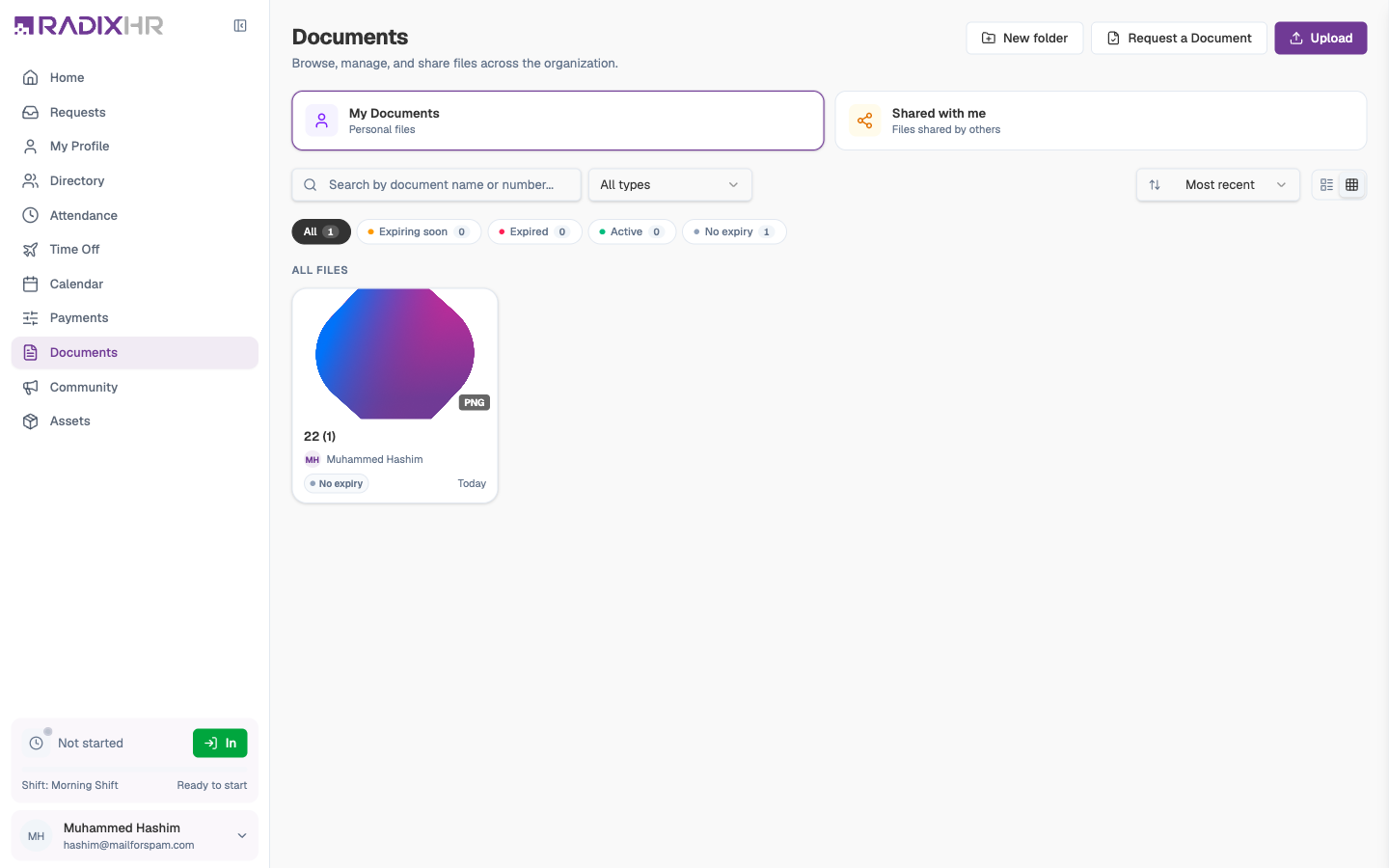
The left panel has three views and a type list:
| Item | What it’s for |
|---|---|
| My Documents | Files you own, with a count |
| Shared with me | Files a colleague or HR has shared with you |
| Archived | Files you’ve archived — hidden from the main list but not deleted |
| Document Types | One entry per type your company uses (Passport, Emirates ID, Health Insurance Card, …). Click one to show only those files. Types marked Required are ones every employee must have on file — a missing one is flagged on your Home page. |
Above the file list you’ll find a search box, an expiry-status filter (All), a sort order (Most recent), and a list / grid view toggle. Select lets you tick several files and act on them together.
Each file card shows the format (PDF, PNG, …), a thumbnail, the name, the owner, and its expiry state:
| Badge | Meaning |
|---|---|
| Active | In date, with the number of days until expiry |
| No expiry | The document type doesn’t expire (for example a degree certificate) |
| 14d left (amber) | Expiring soon — upload the renewed copy |
| Expired (red) | Past its expiry date |
Click a card to open it in the Details panel on the right.
Uploading a Document
If your Home page flags a missing document, click View Documents to jump straight here.
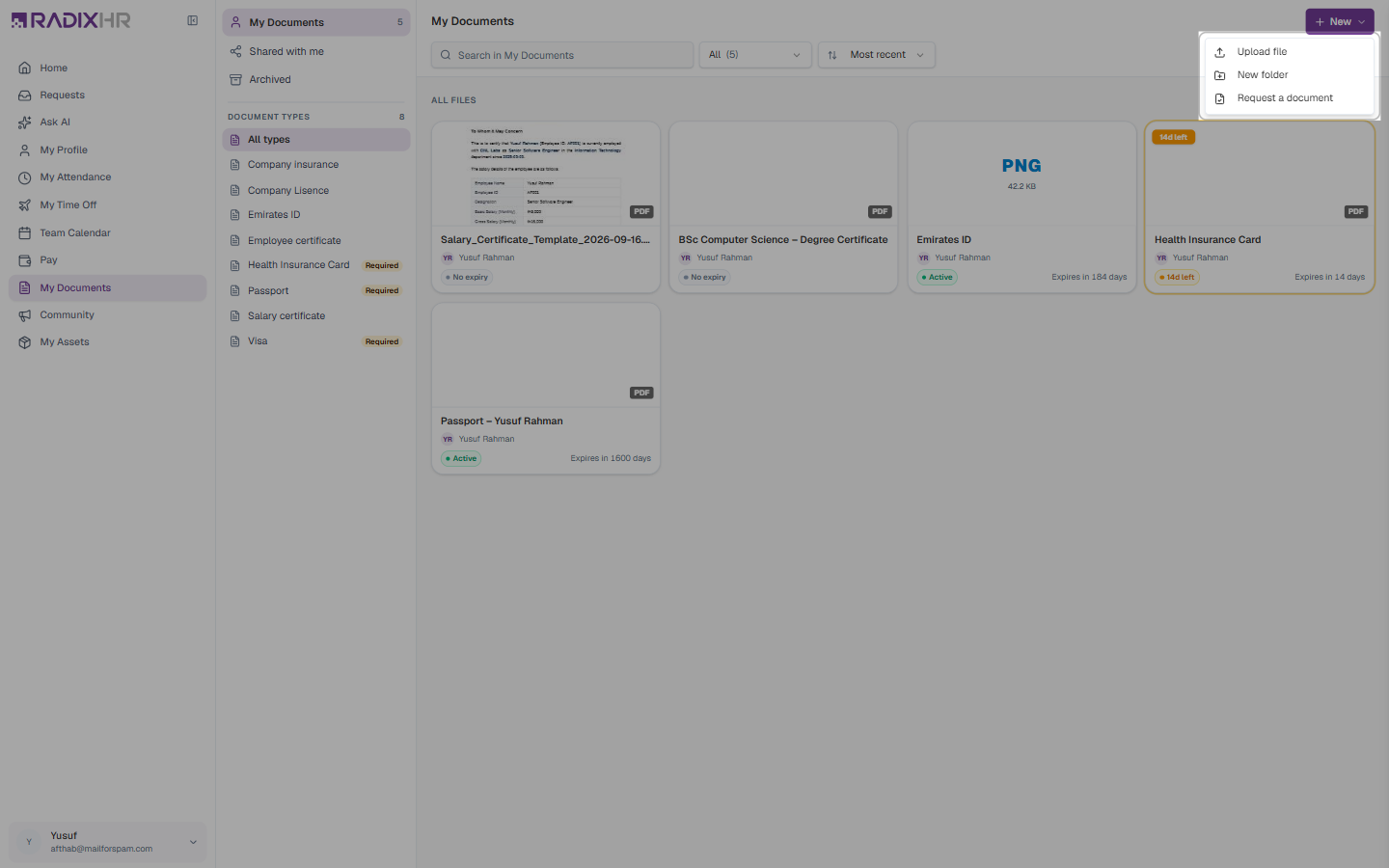
- Click + New at the top-right and choose Upload file.
- Choose a Document Type. The list is set up by HR — some types (for example a residence visa) may be upload-by-HR only and won’t appear.
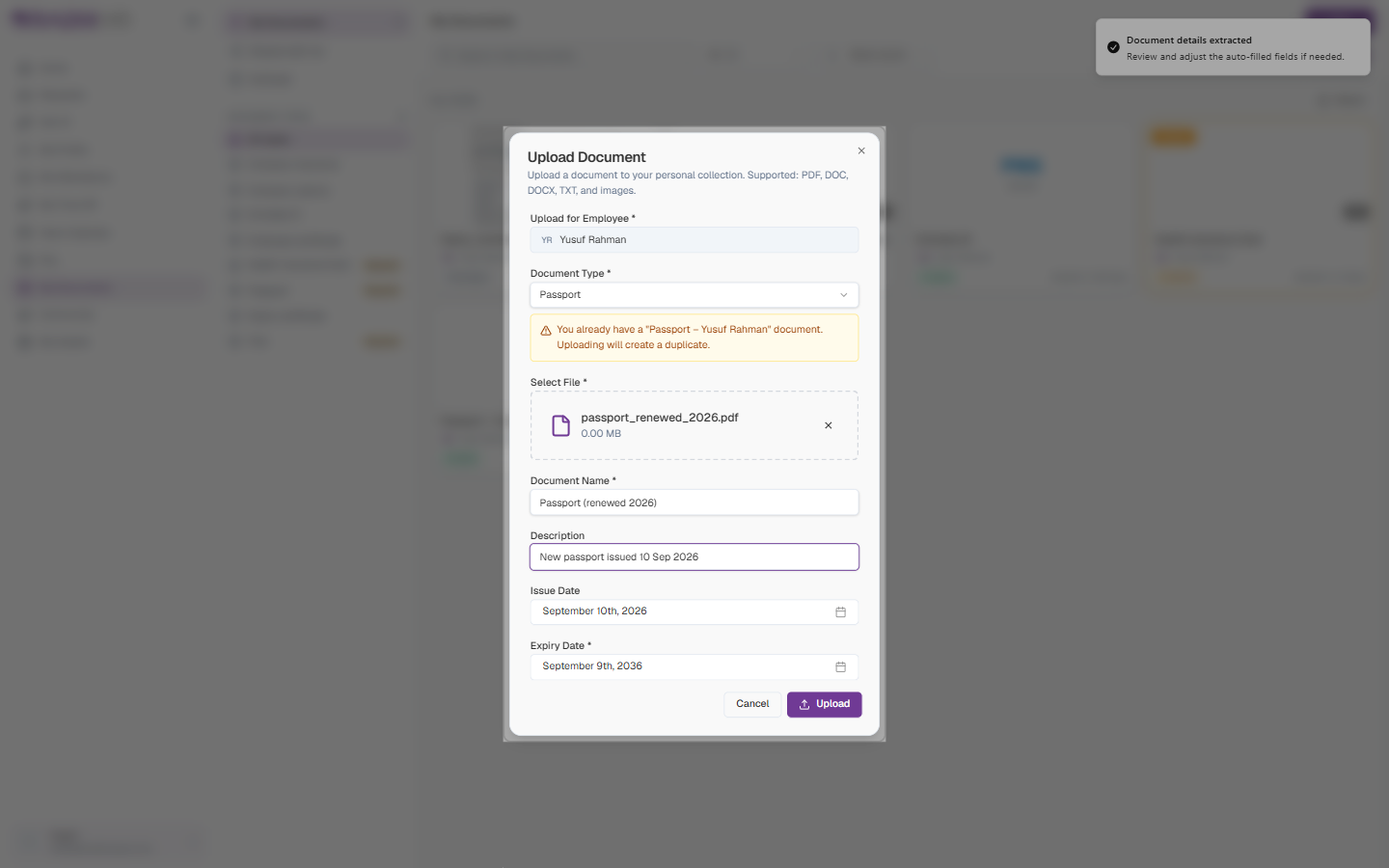
- Click Select File and pick your file. RadixHR reads it and, where it can, fills in the dates and document number for you — a “Document details extracted” message confirms this.
- Give it a Document Name (the file name is suggested), and a Description if you like.
- Check any extra fields the type asks for — Issue Date, Expiry Date, or Document Number.
- Click Upload.
Field Descriptions
| Field | Description | Required |
|---|---|---|
| Upload for Employee | You — filled in and locked | — |
| Document Type | Which kind of document this is. Determines which extra fields appear. | Yes |
| Select File | PDF, DOC, DOCX, TXT, or an image (JPG, PNG, WebP), up to 10 MB | Yes |
| Document Name | How the file is listed — for example “Passport – Yusuf Rahman” | Yes |
| Description | Any note, for example “Renewed passport” | No |
| Document Number | The number printed on the document, for types that have one (for example a health card) | Depends on type |
| Issue Date | When the document was issued | Depends on type |
| Expiry Date | When it expires. Drives the expiry badges and reminders. | Depends on type |
Upload clear, complete copies — HR may need to verify a document before it counts. If you already have a document of that type, or the same file already exists, the form warns you that uploading will create a duplicate. That’s fine for a renewed passport; otherwise use Replace or Edit Details on the existing file instead.
Documents with an expiry date trigger reminders as the date approaches, so keeping them current avoids chasers from HR. The + New menu also has New folder to keep your files organised.
Working With Your Documents
Hover over any document you own to reveal its actions, or open the ⋯ menu on the card:
| Action | What it does |
|---|---|
| Preview | Opens the file without downloading it |
| Download | Saves a copy to your computer |
| Share | Shares it with a colleague — you choose whether they can download it |
| Edit Details | Changes the name, number, or dates |
| Archive | Hides it without deleting — find it again under Archived |
| Delete | Removes it permanently, after a confirmation |
Documents shared with you may be view-only. If the person who shared it didn’t grant download permission, the download button won’t appear.
Requesting an Official Document
Need a salary certificate for a bank, or a No Objection Certificate for a visa? Ask for it here rather than emailing HR.
- Click + New and choose Request a document.
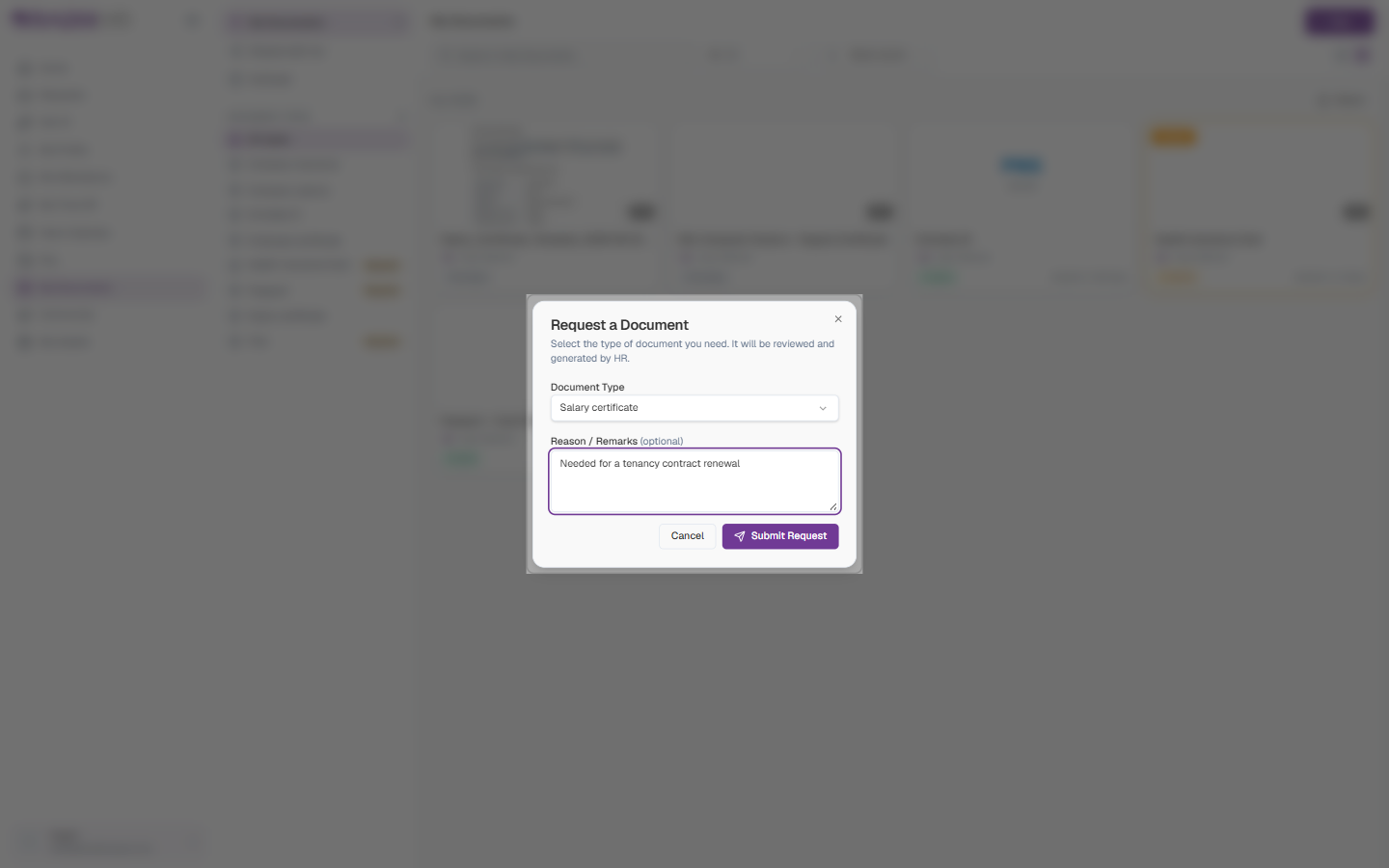
- Choose a Document Type. The list depends on what your company has set up — commonly a salary certificate, an employment or experience letter, or an NOC.
- Add a Reason / Remarks if it helps HR — for example “Needed for a car loan application”. This is optional.
- Click Submit Request. You’ll see “Your request has been submitted and is pending approval.”
| Field | Description | Required |
|---|---|---|
| Document Type | The letter or certificate you need | Yes |
| Reason / Remarks | Why you need it, so HR can word it correctly | No |
HR reviews the request and the document is generated for you from a template. Some types are approved automatically.
Tracking Your Request
Your request appears on the Requests page as a Document Request with its reference number (for example DOC-2026-0013), your remarks, and a status badge. Once HR approves it, the generated file — for example Salary_Certificate_….pdf — lands in My Documents, ready to preview or download.
| Status | What it means | What you can do |
|---|---|---|
| Pending | Waiting on HR | Cancel the request from its detail panel |
| Approved | Your document has been generated | Open it from My Documents |
| Rejected | HR declined — a reason is shown | Submit a new request |
You can only cancel a request while it’s still Pending. Cancelling can’t be undone.