Attendance Policies
An attendance policy is a set of rules that determines how employee working hours are calculated, whether overtime is tracked, and what deductions apply for late arrivals or early departures. You can create multiple policies for different employee groups - for example, a lenient policy for office staff and a stricter policy for production floor workers.
What you can do here:
- Create and manage attendance policies
- Configure time calculation rules and grace periods
- Set up overtime tracking and limits
- Define deduction rules for late arrivals and early departures
- Enable progressive (escalating) deductions for repeat offenders
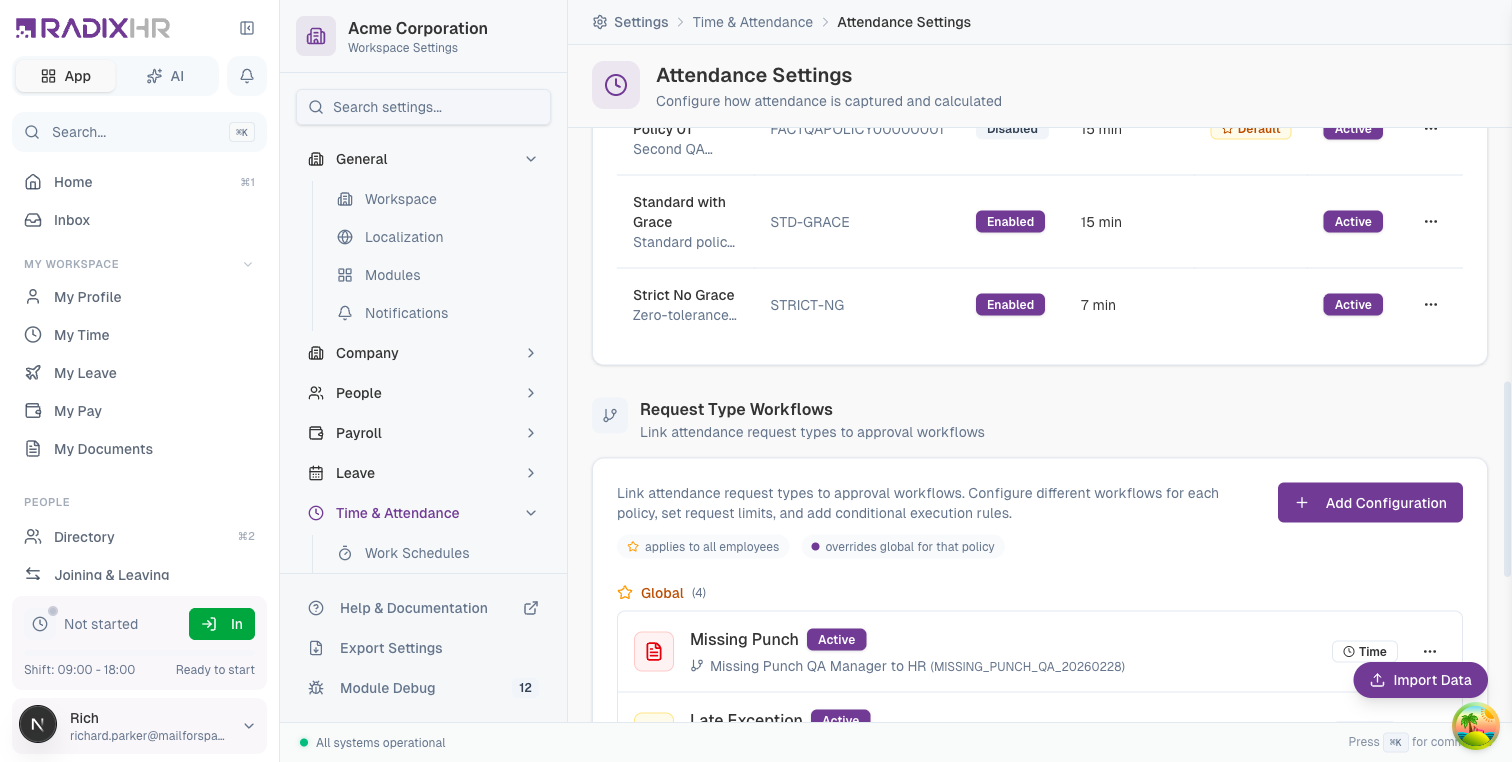
Where to find this (September 2026). Attendance policies don’t have their own page any more — /settings/time/attendance-policies shows a “Soon” placeholder. Policies are managed from the Policies card on Settings → Time & Attendance → Attendance Settings. This page is the field-by-field reference for the Create / Edit Attendance Policy dialog you open from there.
Understanding the Policies Table
The policies table shows all attendance policies in your organization:
| Column | Description |
|---|---|
| Name | The policy name and description |
| Code | Short unique identifier used in reports and integrations |
| Overtime | Shows “Enabled” or “Disabled” based on overtime settings |
| Late Tolerance | Grace period (in minutes) before marking as late |
| Default | Shows a star icon if this is the default policy for new employees |
| Status | ”Active” policies can be assigned; “Inactive” cannot |
Only one policy can be marked as Default at a time. When you set a new policy as default, the previous default policy loses its default status automatically.
How to Create an Attendance Policy
- Go to Settings > Time & Attendance > Attendance Settings
- Scroll to the Policies section
- Click Add Policy
- Configure the policy across the five tabs down the left side of the dialog: General, Time Rules, Overtime, Deductions, and Alerts
- Click Create Policy
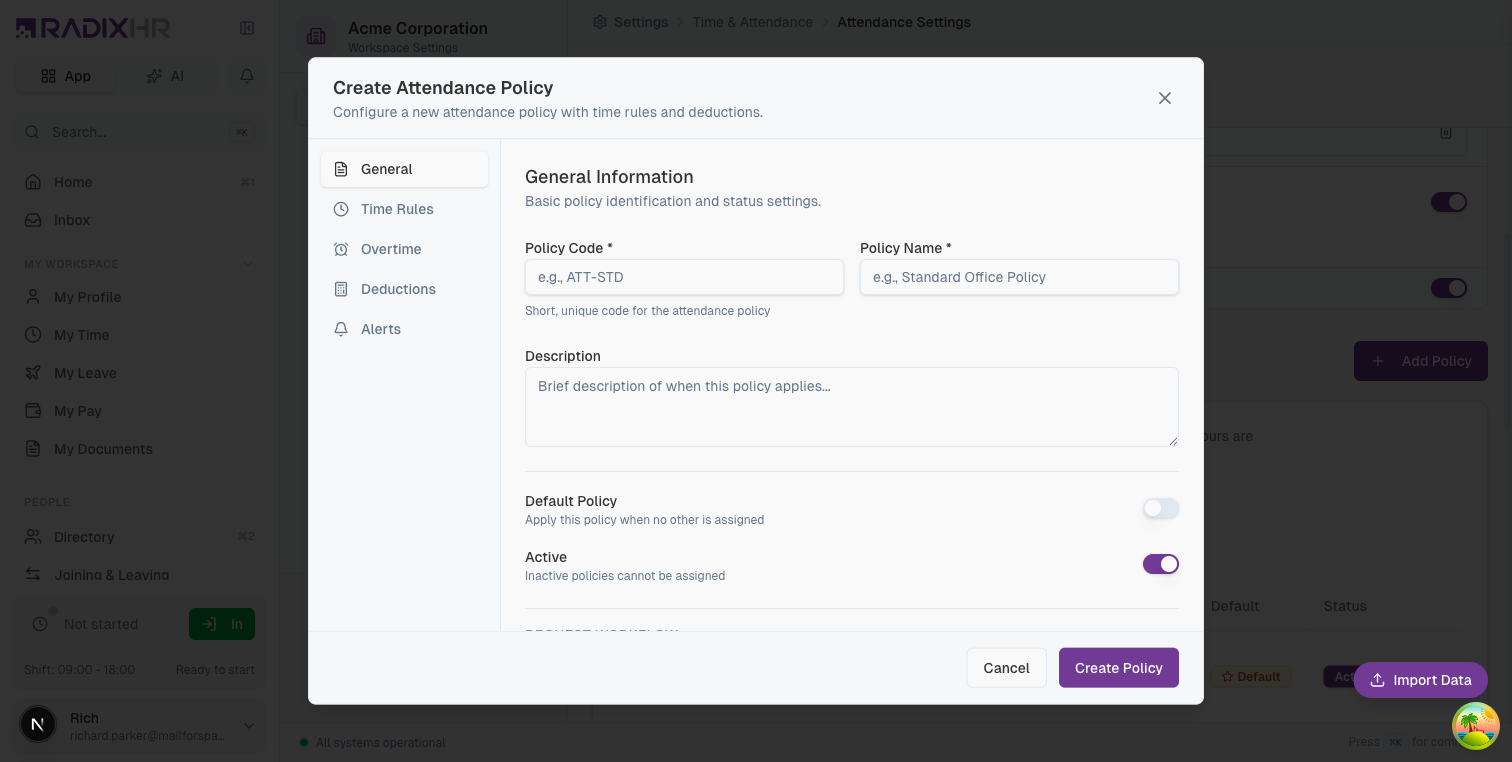
General Information
Basic policy identification and status settings.
| Field | Description | Required | Default |
|---|---|---|---|
| Policy Code | A short, unique identifier for the policy. Use letters, numbers, and hyphens only. Examples: ATT-STD, STRICT-NG, FLEX-WFH. Maximum 20 characters. This code appears in reports, exports, and API integrations. | Yes | - |
| Policy Name | A descriptive name that clearly identifies the policy’s purpose. Examples: “Standard Office Policy”, “Factory Floor - Strict”, “Remote Workers - Flexible”. Maximum 100 characters. | Yes | - |
| Description | A detailed explanation of when this policy should be applied and which employee groups it’s designed for. Helps other administrators understand the policy’s intent. | No | - |
| Default Policy | ON: This policy is automatically assigned to new employees when they’re added to the system. OFF: The policy must be manually assigned to employees. Only one policy can be default at a time. | No | OFF |
| Active | ON: The policy can be assigned to employees and is fully functional. OFF: The policy cannot be assigned to employees but existing assignments remain (useful for phasing out old policies). | No | ON |
Fallback Workflow
| Field | Description | Required |
|---|---|---|
| Fallback Workflow | The default approval workflow used for attendance requests (like missing punch corrections) when no specific workflow is configured for that request type. Select “No workflow (auto-approve)” to automatically approve requests without review. | No |
Use clear, consistent naming conventions for policy codes. For example: DEPT-TYPE like SALES-STD, ENG-FLEX, PROD-STRICT.
Time Rules
Configure how working hours are calculated and define tolerance windows for arrivals and departures.
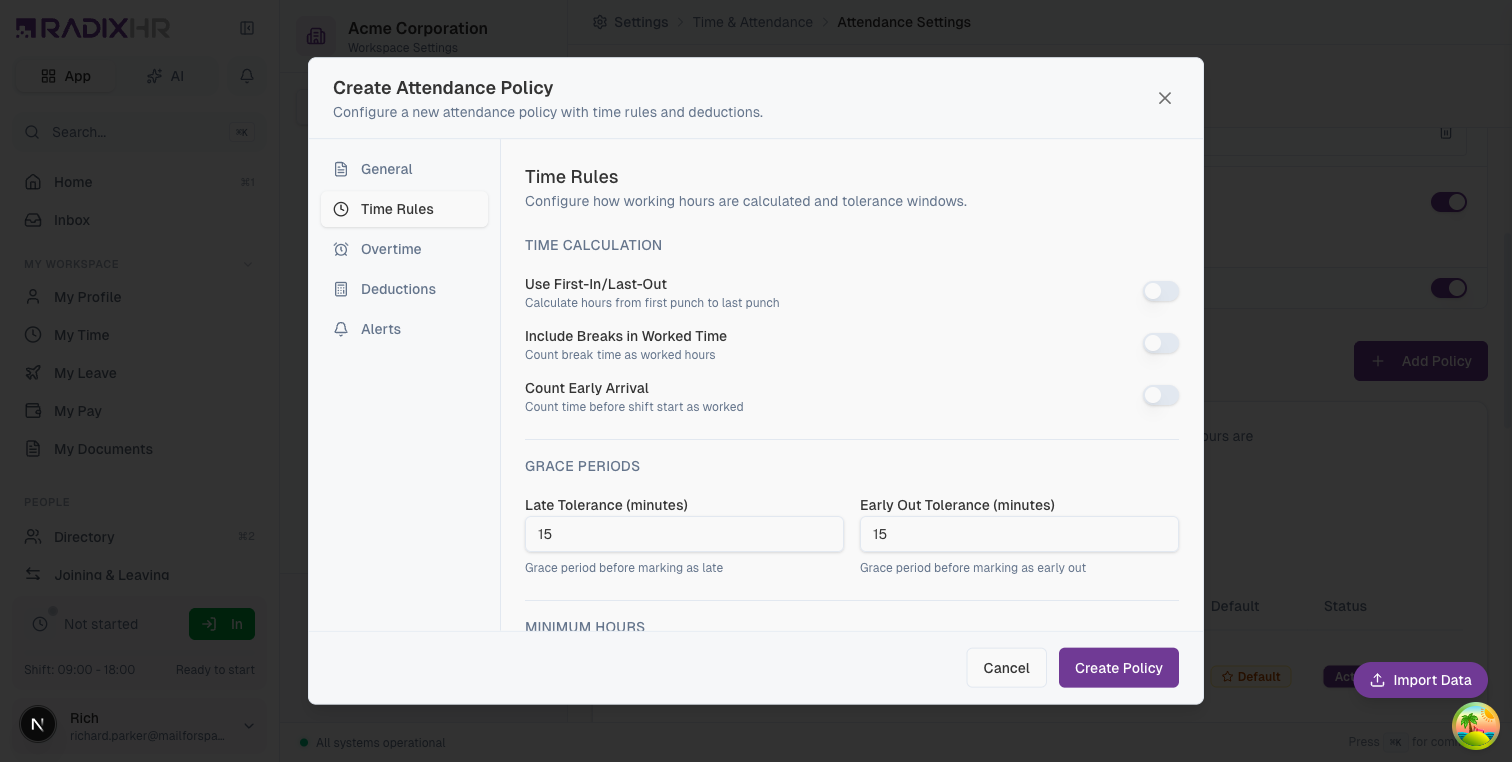
Time Calculation
These settings determine how the system calculates total working hours from clock-in/out punches.
| Setting | Description | Default |
|---|---|---|
| Include Breaks in Worked Time | ON: Break periods are counted as worked hours. Use this for paid breaks. OFF: Break time is subtracted from total working hours. Use this for unpaid breaks. | OFF |
| Count Early Arrival | ON: Time worked before the scheduled shift start is counted as worked time. For example, if the shift starts at 9:00 AM but the employee arrives at 8:45 AM, those 15 minutes count. OFF: Only time from shift start is counted. | OFF |
| Biometric Punch Mode | How punches from biometric devices are processed. Alternate IN/OUT: every punch flips between clock-in and clock-out (in, out, in, out…). First Punch Only: only the first punch of the day counts as the clock-in, and the clock-out is generated automatically at the shift’s end time — useful for devices where staff punch many times a day. | Alternate IN/OUT |
Example: Shift is 9:00 AM – 6:00 PM with a 1-hour unpaid lunch. With Include Breaks in Worked Time = OFF, an employee who clocks in at 9:00 and out at 6:00 is credited 8 hours, not 9.
Grace Periods
Grace periods provide employees a buffer before being marked as late or leaving early. This accounts for minor delays like traffic or elevator wait times.
| Setting | Description | Default |
|---|---|---|
| Late Tolerance (minutes) | The number of minutes after the scheduled shift start before an employee is marked as “Late”. For example, if set to 15 and shift starts at 9:00 AM, employees arriving by 9:15 AM are not flagged as late. Set to 0 for no tolerance. | 15 |
| Early Out Tolerance (minutes) | The number of minutes before the scheduled shift end that an employee can leave without being marked as “Early Out”. For example, if set to 10 and shift ends at 6:00 PM, leaving at 5:50 PM or later is acceptable. Set to 0 for no tolerance. | 15 |
A 10-15 minute grace period is common for office environments. For roles requiring punctuality (like customer service shifts), use a lower tolerance or zero.
Minimum Hours
These settings determine how a day is classified when an employee works less than a full shift.
| Setting | Description | Default |
|---|---|---|
| Full Day Minimum (minutes) | Worked minutes required to be marked as a full present day. Leave empty to use the shift’s own scheduled minutes. | 480 |
| Half Day Minimum (minutes) | Worked minutes required to be marked as a half day. Anything below this counts as short hours (or absent, if the toggle below is on). Leave empty to use 50% of the scheduled shift. | 240 |
| Mark as absent below half-day threshold | ON: Employees who work less than the half-day minimum are marked absent instead of short hours. OFF: They’re marked as short hours. | OFF |
| Mark as absent when a missing punch is not reported in time | ON: A day left with a missing punch becomes absent once the correction window closes without a request being raised. Applies from the day you turn this on. OFF: The day stays flagged as a missing punch. | OFF |
Example: Full Day = 480 min, Half Day = 240 min. An employee who works 7 hours (420 min) is a half day; one who works 3 hours (180 min) is short hours — or absent, if Mark as absent below half-day threshold is on.
Overtime Settings
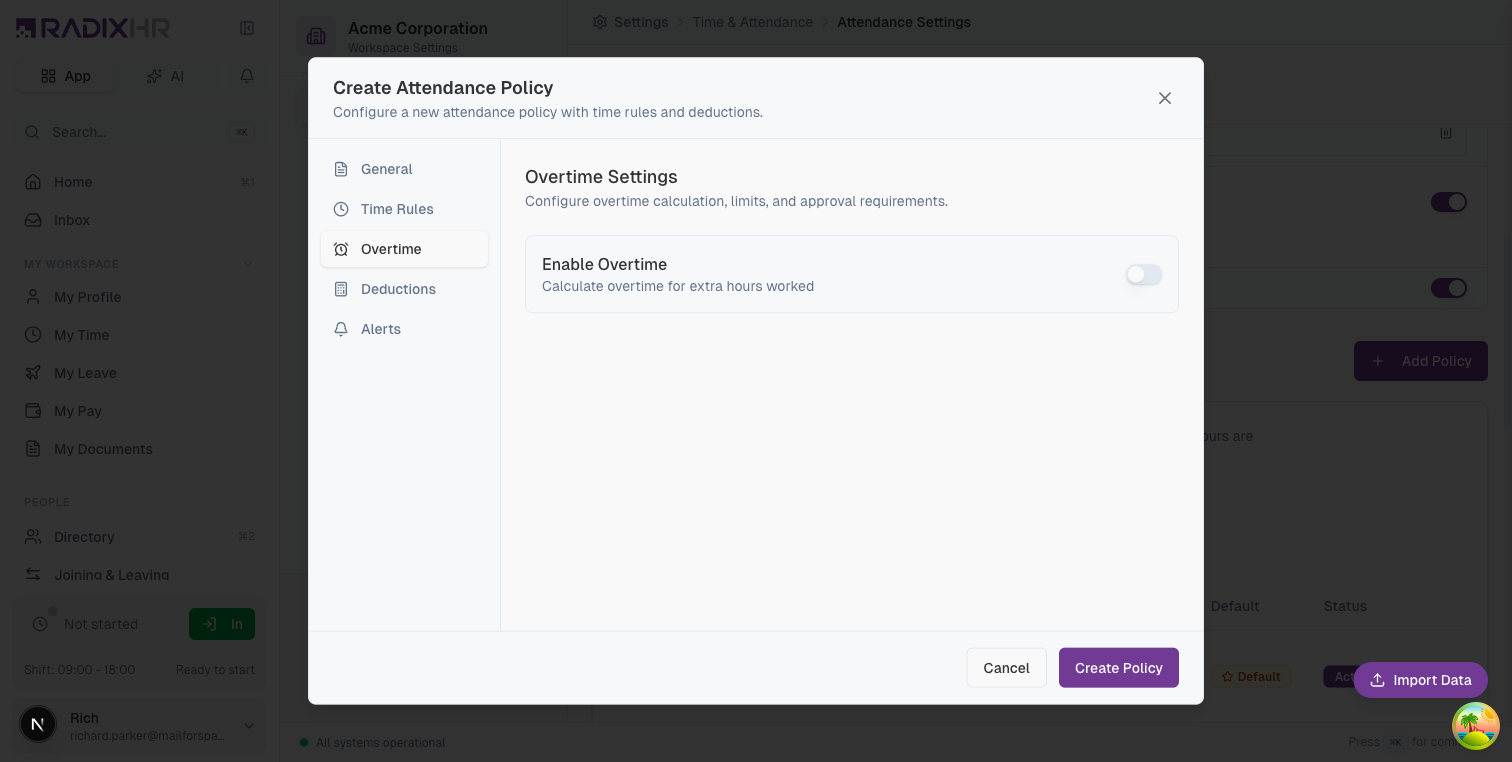
Configure how extra hours beyond the scheduled shift are tracked and managed.
| Setting | Description | Default |
|---|---|---|
| The tab shows only the Enable Overtime toggle until you switch it on; the fields below then appear. |
| Setting | Description | Default |
|---|---|---|
| Enable Overtime | ON: Track and calculate overtime hours for employees under this policy. Overtime data appears in reports and can be used for payroll calculations. OFF: No overtime tracking; extra hours are ignored. | OFF |
| Overtime Starts After (minutes) | Minutes after shift end before overtime begins counting. For example, set to 30 so overtime only starts 30 minutes past the scheduled end — this filters out trivial overtime from routine delays. | 0 |
| Max Daily Overtime (minutes) | The maximum overtime minutes allowed per day. Any overtime beyond this limit is not recorded. Leave empty for No limit. Useful for complying with labour laws that cap daily overtime. | Empty |
| Max Holiday Overtime (minutes) | Separate cap for overtime worked on holidays. Leave empty for No limit. | Empty |
| Round Overtime To (minutes) | Round recorded overtime to the nearest interval (e.g., 15). Simplifies payroll calculations. Leave empty for no rounding. | Empty |
| Count Early Arrival as Overtime | ON: Time worked before the scheduled shift start counts toward overtime (early arrival must also be counted under Time Rules). OFF: Early arrival is regular time, not overtime. | OFF |
| Require Overtime Approval | ON: A manager must approve overtime before it reaches payroll; unapproved overtime shows as pending. OFF: Overtime is credited automatically when recorded. | OFF |
| Auto-approve overtime between … and … minutes | A Min/Max range of overtime that is approved automatically even when approval is required — e.g., 0–30 to wave through small amounts. Leave both blank to send every overtime entry for approval. | Empty |
Many jurisdictions have legal limits on overtime hours. Ensure your Max Overtime settings comply with local labor laws.
Deductions
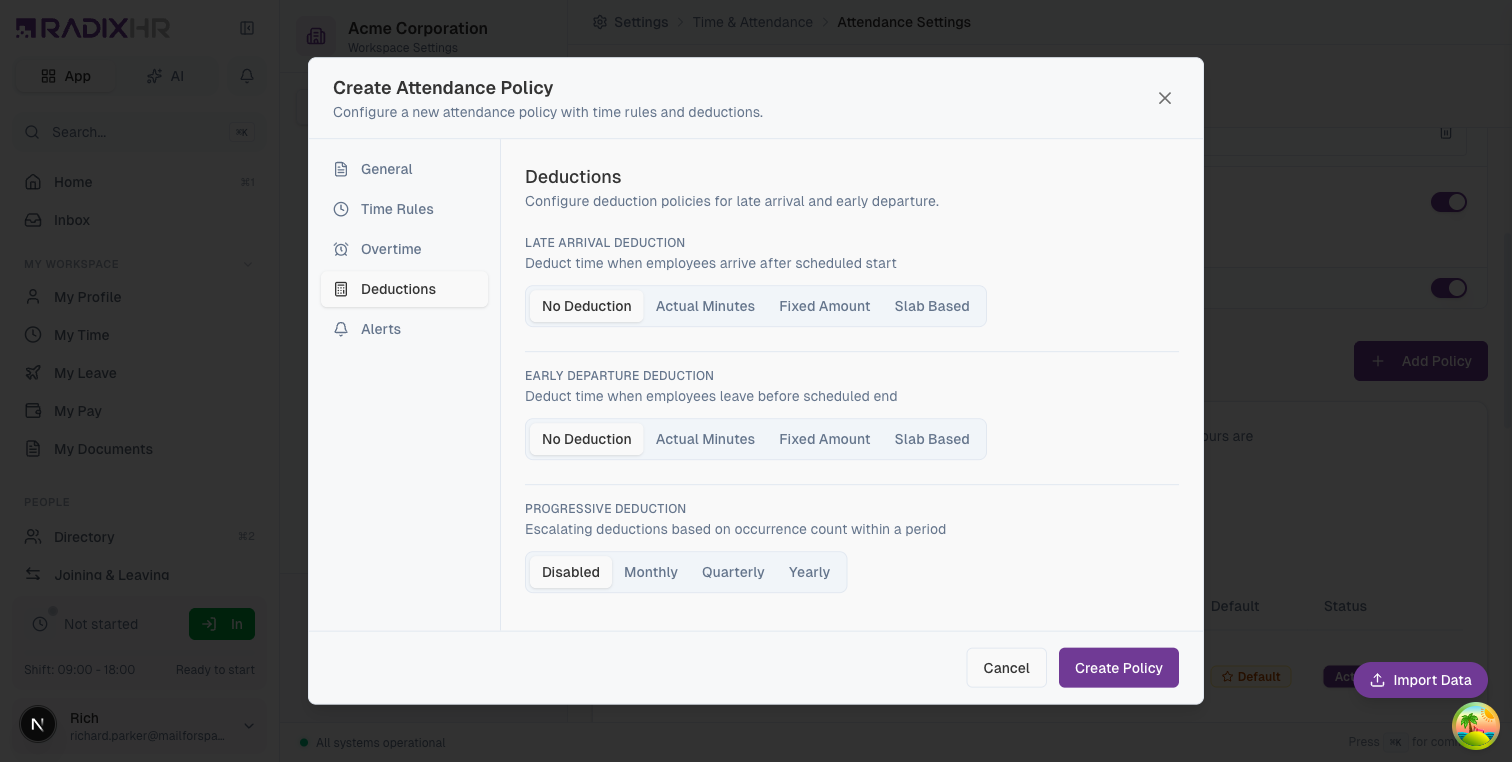
Configure penalties for employees who arrive late or leave early. Deductions reduce the employee’s credited working time.
Late Arrival Deduction
Choose how to handle deductions when employees arrive after their scheduled start time (beyond the grace period).
| Option | Description | Additional Settings |
|---|---|---|
| No Deduction | No penalty for late arrival. Late status is still recorded but no time is deducted. | None |
| Actual Minutes | Deduct the exact number of minutes the employee was late. If they arrive 12 minutes late, 12 minutes are deducted. | None |
| Fixed Amount | Deduct a fixed number of minutes regardless of how late. For example, always deduct 30 minutes whether they’re 5 minutes or 25 minutes late. | Fixed Deduction (minutes): The flat amount to deduct. |
| Slab Based | Deduct different amounts based on how late they were. Create tiered penalties that increase with lateness. | Deduction Slabs: Define ranges and corresponding deductions. |
Configuring Deduction Slabs
Slabs allow graduated penalties. Each slab defines:
| Field | Description |
|---|---|
| From (min) | The starting point of this tier (e.g., 1 minute late) |
| To (min) | The ending point of this tier (e.g., 15 minutes late) |
| Deduct (min) | Minutes to deduct for lateness in this range |
Click + Add Slab for each tier and the trash icon to remove one.
Example Slab Configuration:
| From | To | Deduct | Meaning |
|---|---|---|---|
| 1 | 15 | 15 | 1-15 minutes late → deduct 15 minutes |
| 16 | 30 | 30 | 16-30 minutes late → deduct 30 minutes |
| 31 | 60 | 60 | 31-60 minutes late → deduct 1 hour |
| 61 | - | 120 | Over 60 minutes late → deduct 2 hours |
Early Departure Deduction
Same options as late arrival deduction, applied when employees leave before their scheduled shift end time (beyond the grace period).
| Option | Description |
|---|---|
| No Deduction | No penalty for early departure |
| Actual Minutes | Deduct exact minutes left early |
| Fixed Amount | Deduct a fixed amount for any early departure |
| Slab Based | Graduated deductions based on how early they left |
Progressive Deduction
Escalating deductions based on how many times an employee is late or leaves early within a period. This penalizes repeat offenders more heavily.
| Option | Description |
|---|---|
| Disabled | No progressive penalties. Each occurrence is handled independently. |
| Monthly | Count occurrences within the calendar month. Resets at the start of each month. |
| Quarterly | Count occurrences within the calendar quarter. Resets every 3 months. |
| Yearly | Count occurrences within the calendar year. Resets January 1st. |
Configuring Progressive Tiers
When progressive deduction is enabled, define escalating penalties:
| Field | Description |
|---|---|
| From | Starting occurrence count (e.g., 3rd occurrence) |
| To | Ending occurrence count (e.g., 5th occurrence). Tick Unlimited (applies to all subsequent occurrences) for the last tier instead of typing a number. |
| Deduct (days) | Amount to deduct in days (decimals allowed, e.g., 0.5 for half a day) |
Click + Add Tier for each tier and the trash icon to remove one.
Example Progressive Configuration (Monthly):
| From | To | Deduct | Meaning |
|---|---|---|---|
| 1 | 2 | 0 | First 2 occurrences: warning only, no deduction |
| 3 | 4 | 0.25 | 3rd-4th occurrence: deduct quarter day |
| 5 | 6 | 0.5 | 5th-6th occurrence: deduct half day |
| 7 | - | 1 | 7th+ occurrence: deduct full day |
Progressive deductions can significantly impact employee compensation. Ensure your organization has clear policies communicated to employees before enabling this feature.
Alerts
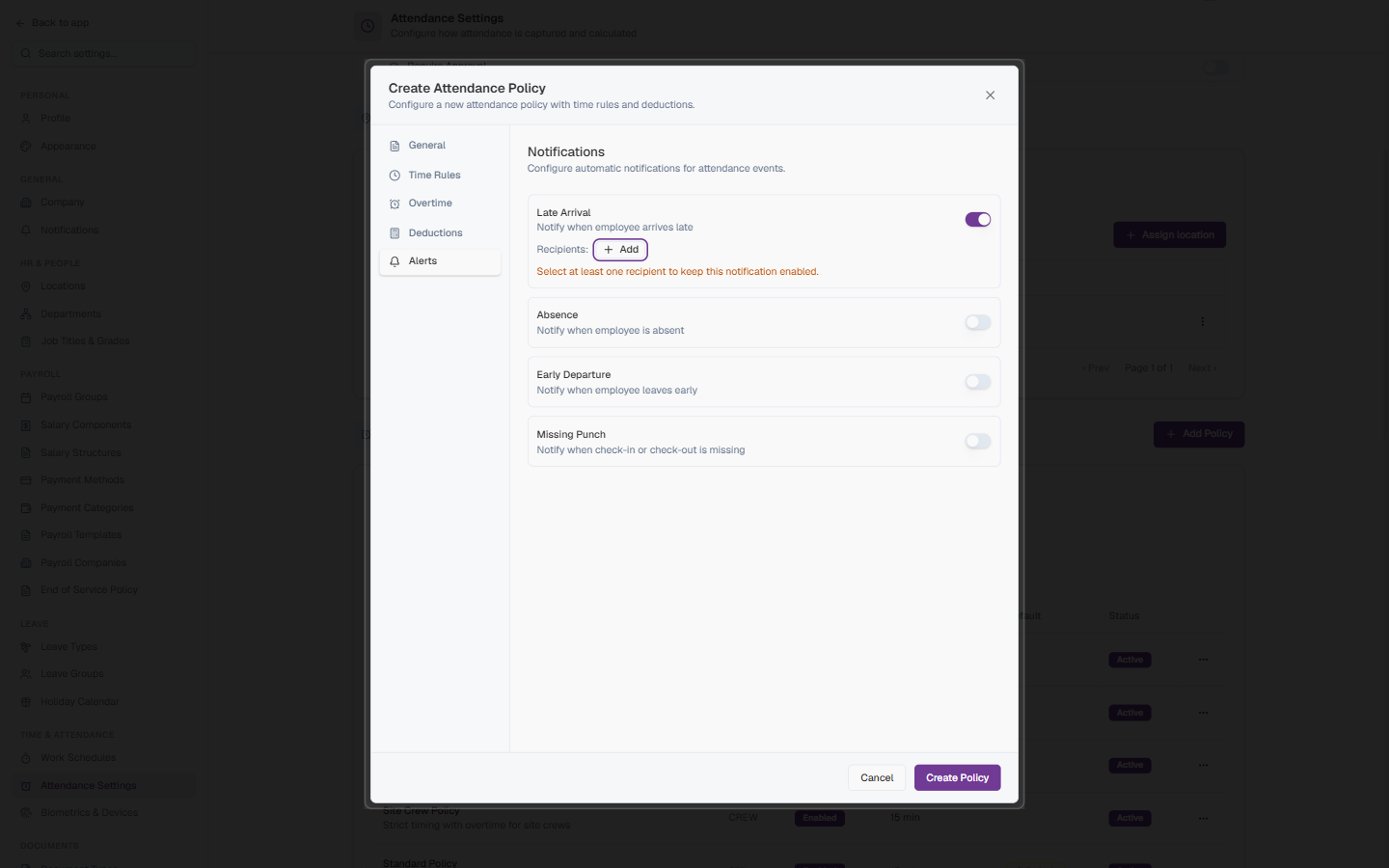
Configure notifications for attendance events so the right people are told when employees are late, absent, or have other attendance issues.
Available Alert Types
Each alert is a toggle. Switch one on and a Recipients: + Add control appears beneath it.
| Alert Type | Description |
|---|---|
| Late Arrival | Notify when an employee arrives after the grace period |
| Absence | Notify when an employee doesn’t clock in for their scheduled shift |
| Early Departure | Notify when an employee leaves before the grace period ends |
| Missing Punch | Notify when a check-in or check-out is missing |
Alert Recipients
Click + Add under an enabled alert and pick who receives it. You can add several recipients per alert.
| Recipient | Description |
|---|---|
| Employee | The employee themselves |
| Direct Manager | The employee’s reporting manager |
| Department Head | The head of the employee’s department |
| HR Administrators | Users with the HR Administrator role |
| Attendance Admins | Users with attendance management permissions |
| Specific Employees | Hand-pick individual people |
An enabled alert needs at least one recipient — the form shows “Select at least one recipient to keep this notification enabled” until you add one.
Start with minimal alerts (e.g., just HR Administrators for absences) and add more recipients as needed. Too many alerts cause notification fatigue.
How to Edit or Delete a Policy
- On Attendance Settings, find the policy in the Policies card
- Click the ⋯ menu at the end of the row
- Select Edit to open the same five-tab dialog, or Delete to remove the policy
You cannot delete a policy that is currently assigned to employees. First reassign those employees to a different policy, then delete.
Best Practices
-
Start simple: Begin with basic settings and add complexity (like progressive deductions) only if needed.
-
Name clearly: Use descriptive names that indicate who the policy is for (e.g., “Field Sales - Flexible” rather than “Policy 3”).
-
Document your intent: Use the Description field to explain why certain settings were chosen.
-
Test before deploying: Assign new policies to a small group first to verify the rules work as expected.
-
Review periodically: Audit your policies quarterly to ensure they still meet organizational needs.
-
Consider compliance: Ensure overtime limits and deduction rules comply with local labor laws.
Common Scenarios
“We want to give employees a 10-minute grace period before they’re marked late — where do I set that?” Edit the policy → Time Rules tab → Grace Periods → set Late Tolerance (minutes) to 10.
“Our field sales team shouldn’t get late deductions like office staff — how do I set that up?” Don’t change your existing (default) policy — that affects everyone using it. Create a second policy (e.g. named “Field Sales - Flexible,” not set as Default) with Late Arrival Deduction set to No Deduction, then manually assign it to the field sales employees. Your office staff stay on the default policy unaffected.
“We want a warning for the first two late arrivals each month, then start deducting after that — how do I set that up?” Deductions tab → Progressive Deduction → Monthly. Add a first tier From 1 To 2, Deduct 0 (warning only), then further tiers with increasing deductions for later occurrences.