Statutory Compliance
Statutory Compliance settings define the government-mandated deductions and contributions that must be applied to employee salaries. This includes provident fund (PF), employee state insurance (ESI), professional tax, and income tax calculations.
What you can do here:
- Configure statutory deduction and contribution rules
- Set up tax slabs for income tax calculations
- Define contribution rates for PF, ESI, and other statutory components
- Manage effective dates for rate changes
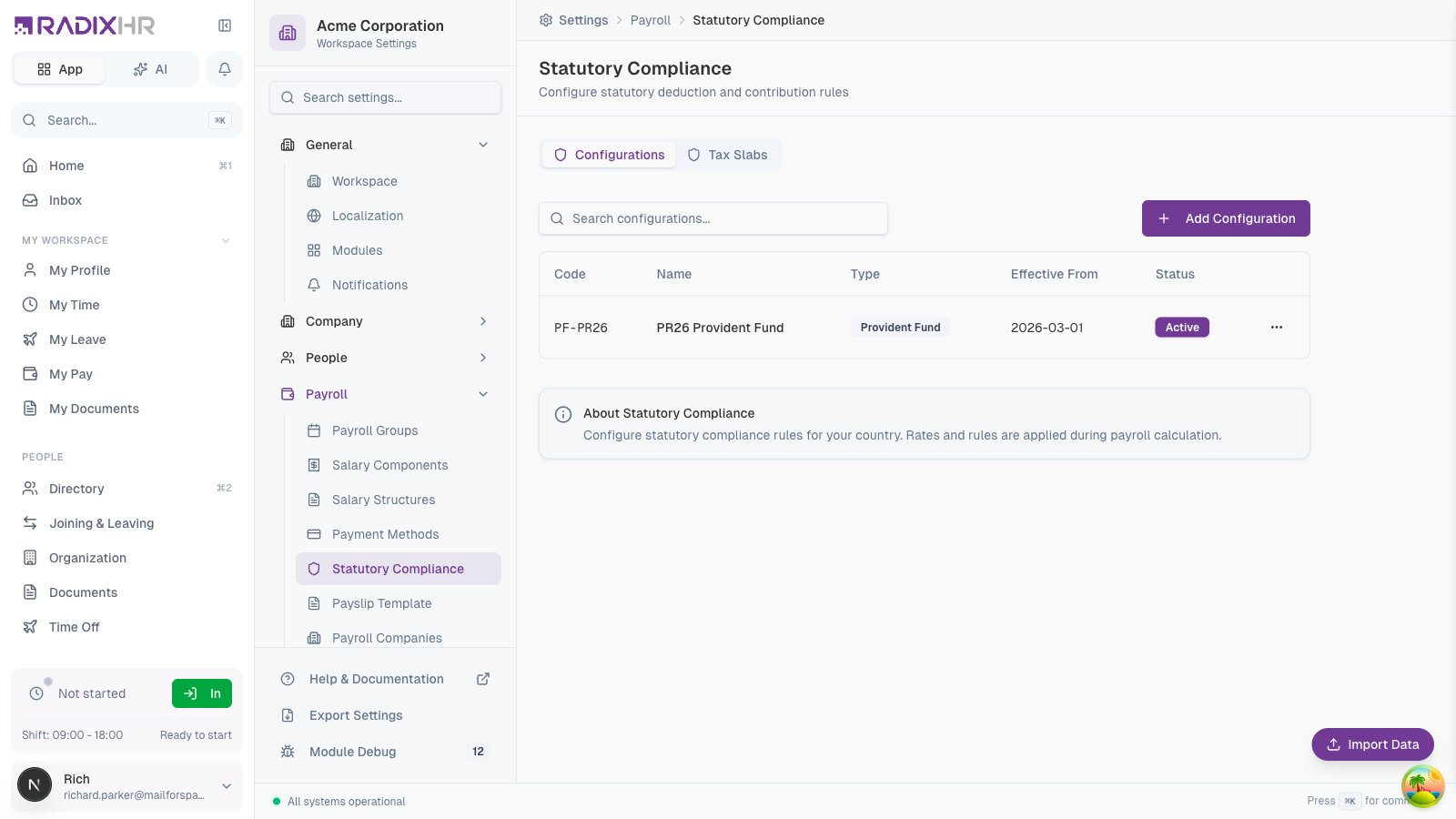
Not in the Settings sidebar (September 2026). Statutory Compliance was removed from the Payroll group during the settings reorganisation, but the page still works — open it directly at /settings/payroll/statutory-compliance. Everything below reflects that live page.
Why Use Statutory Compliance?
Statutory compliance settings are essential for:
- Legal Compliance: Ensure your payroll meets government regulations
- Accurate Deductions: Calculate correct amounts for PF, ESI, tax, and other statutory items
- Automatic Updates: Apply rate changes from specific effective dates
- Audit Readiness: Maintain proper records of statutory contributions
- Employee Trust: Show employees their deductions are calculated correctly
Statutory compliance requirements vary by country and region. Consult with your legal and finance teams to ensure configurations match current regulations.
Configurations Tab
The Configurations tab manages all statutory deduction and contribution rules.
Configuration Properties
| Column | Description |
|---|---|
| Code | Unique identifier for the configuration |
| Name | Descriptive name of the statutory component |
| Type | Category (Provident Fund, ESI, Professional Tax, etc.) |
| Effective From | Date when this configuration becomes active |
| Status | Active or Inactive |
Creating a Configuration
- Click Add Configuration
- Enter the code and name
- Select the configuration type
- Set applicable date range
- Enter contribution percentages
- Set wage limit if applicable
- Click Create
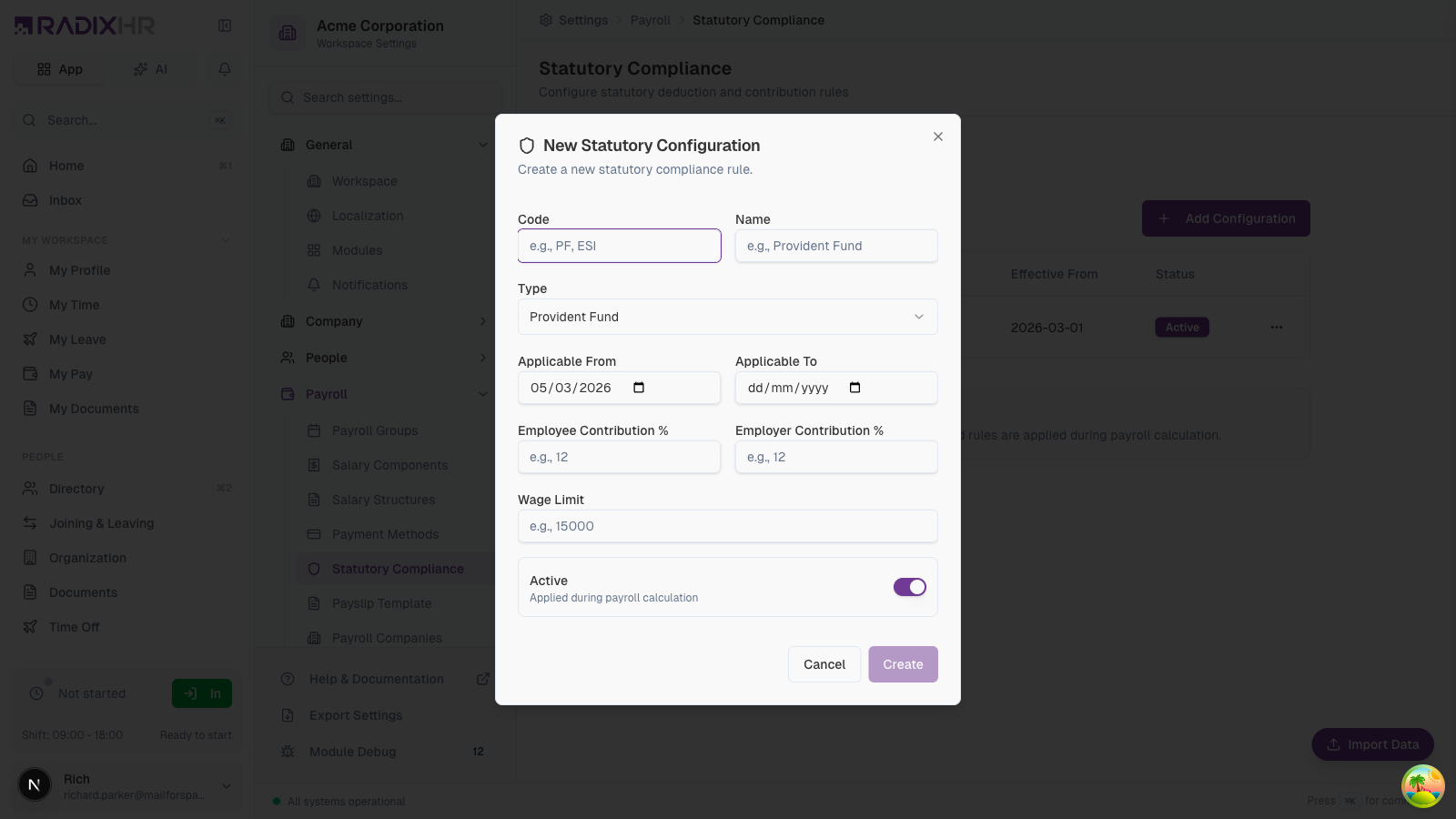
Configuration Fields
| Field | Description | Required |
|---|---|---|
| Code | Unique identifier (e.g., PF, ESI) | Yes |
| Name | Display name (e.g., Provident Fund) | Yes |
| Type | Category of statutory component | Yes |
| Applicable From | Start date for this configuration | Yes |
| Applicable To | End date (leave blank for ongoing) | No |
| Employee Contribution % | Percentage deducted from employee salary | Yes |
| Employer Contribution % | Percentage contributed by employer | Yes |
| Wage Limit | Maximum wage for calculating contributions | No |
| Active | Whether applied during payroll calculation | Yes |
Configuration Types
| Type | Description | Typical Rates |
|---|---|---|
| Provident Fund | Retirement savings scheme | 12% employee, 12% employer |
| ESI | Employee State Insurance for medical benefits | 0.75% employee, 3.25% employer |
| Professional Tax | State-level employment tax | Fixed or slab-based |
| Gratuity | Long-term service benefit | 4.81% employer |
| Labour Welfare Fund | State welfare contributions | Varies by state |
Wage limits cap the salary amount used for contribution calculations. For example, if PF has a wage limit of 15,000, contributions are calculated on 15,000 even if the employee earns more.
Tax Slabs Tab
The Tax Slabs tab manages income tax calculation brackets for different financial years and tax regimes. What you see here depends on your company’s country (set under Company):
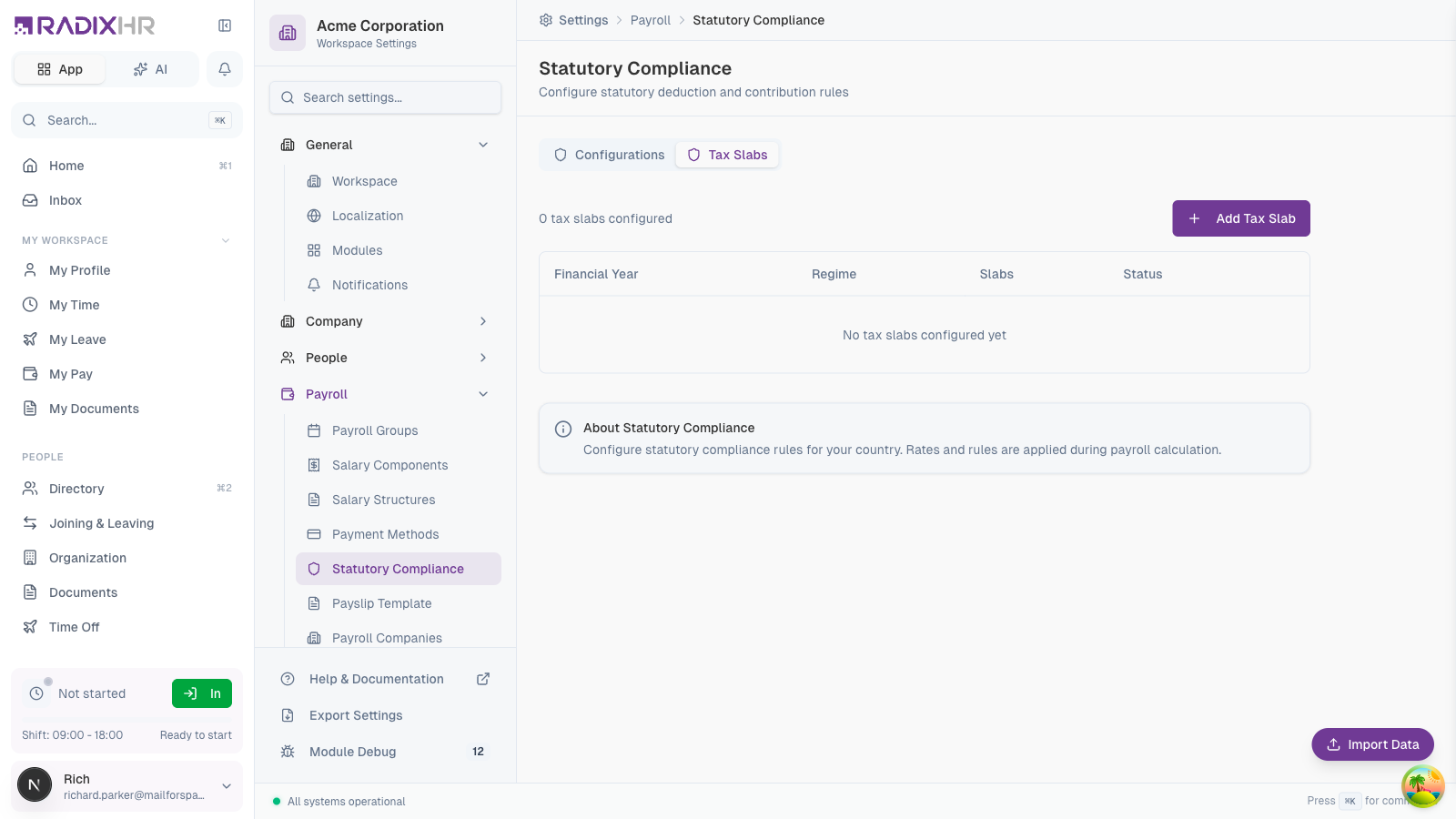
UAE workspaces see a “No Income Tax” card — the United Arab Emirates does not levy personal income tax, so there is nothing to configure and the slab table below does not appear. The slab configuration is only shown for countries with personal income tax (e.g., India).
Tax Slab Properties
| Column | Description |
|---|---|
| Financial Year | The tax year these slabs apply to |
| Regime | Tax regime (Old Regime, New Regime) |
| Slabs | Number of tax brackets configured |
| Status | Active or Inactive |
Creating Tax Slabs
- Click Add Tax Slab
- Select the financial year
- Choose the tax regime
- Define income brackets and tax rates
- Click Create
Understanding Tax Regimes
| Regime | Description | When to Use |
|---|---|---|
| Old Regime | Traditional tax structure with exemptions and deductions | Employees with significant deductions (HRA, 80C, etc.) |
| New Regime | Simplified structure with lower rates but fewer exemptions | Employees preferring straightforward calculations |
Many countries allow employees to choose their tax regime. Configure both regimes and let employees select their preference in their profile.
Common Statutory Configurations
India
| Component | Employee % | Employer % | Wage Limit |
|---|---|---|---|
| Provident Fund | 12% | 12% | ₹15,000 |
| ESI | 0.75% | 3.25% | ₹21,000 |
| Professional Tax | Varies | - | State-specific |
| Gratuity | - | 4.81% | - |
UAE
| Component | Employee % | Employer % | Notes |
|---|---|---|---|
| GPSSA | 5% | 12.5% | UAE nationals only |
| End of Service | - | Calculated | Per labour law |
Saudi Arabia
| Component | Employee % | Employer % | Notes |
|---|---|---|---|
| GOSI | 9.75% | 11.75% | Social insurance |
| Hazards | - | 2% | Occupational hazards |
Managing Rate Changes
When statutory rates change (typically at the start of a financial year):
- Create a new configuration with the new rates
- Set the Applicable From date to when the new rates take effect
- Optionally set Applicable To on the old configuration
- The system automatically uses the correct rates based on payroll date
Keep historical configurations for audit purposes. Instead of editing old configurations, create new ones with updated rates and appropriate effective dates.
Linking to Salary Components
Statutory configurations work together with salary components:
- Create the statutory configuration here (rates, limits)
- Create a corresponding salary component with the Statutory flag enabled
- Add the component to salary structures
- The payroll system applies the configured rates automatically
Best Practices
- Review annually: Check configurations at the start of each financial year for rate changes
- Keep records: Maintain historical configurations for compliance audits
- Test calculations: Run test payrolls to verify statutory calculations before going live
- Document changes: Add descriptions explaining when and why configurations were updated
- Separate by region: Create different configurations if you have employees in multiple jurisdictions
- Monitor updates: Subscribe to government notifications for regulatory changes
Incorrect statutory configurations can result in compliance penalties. Always verify rates with official government sources or your legal team.